


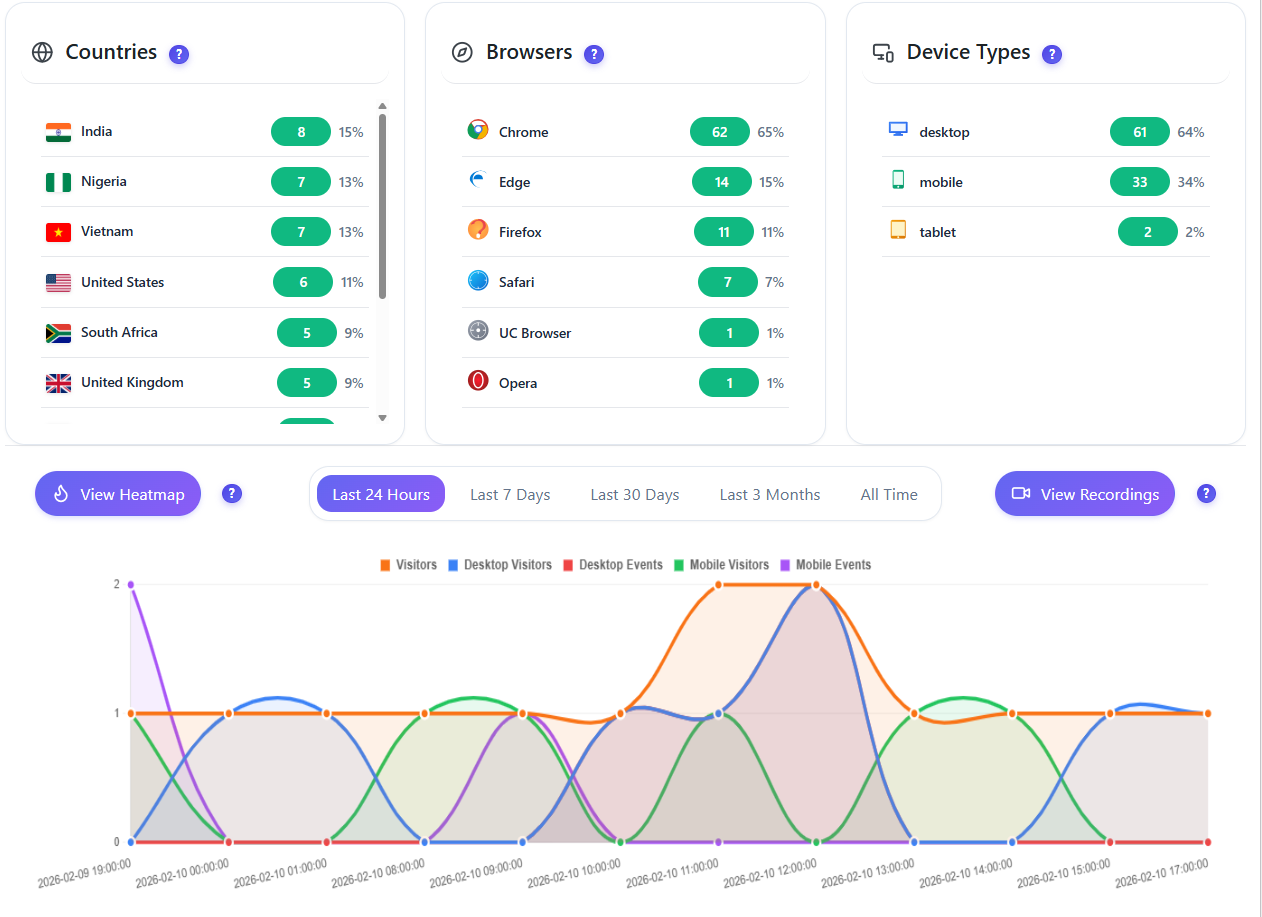
See exactly where users click, move their mouse, focus attention, and scroll. Separate desktop & mobile views with advanced filtering by country, browser, and date range.

Four heatmap types give you a complete picture of how visitors interact with every page. Click, move, attention and scroll data — all rendered as beautiful overlays on your actual pages.
See exactly where users click on every page. Identify which buttons, links and elements attract the most attention. Spot dead clicks on non-interactive elements and optimize your CTAs.
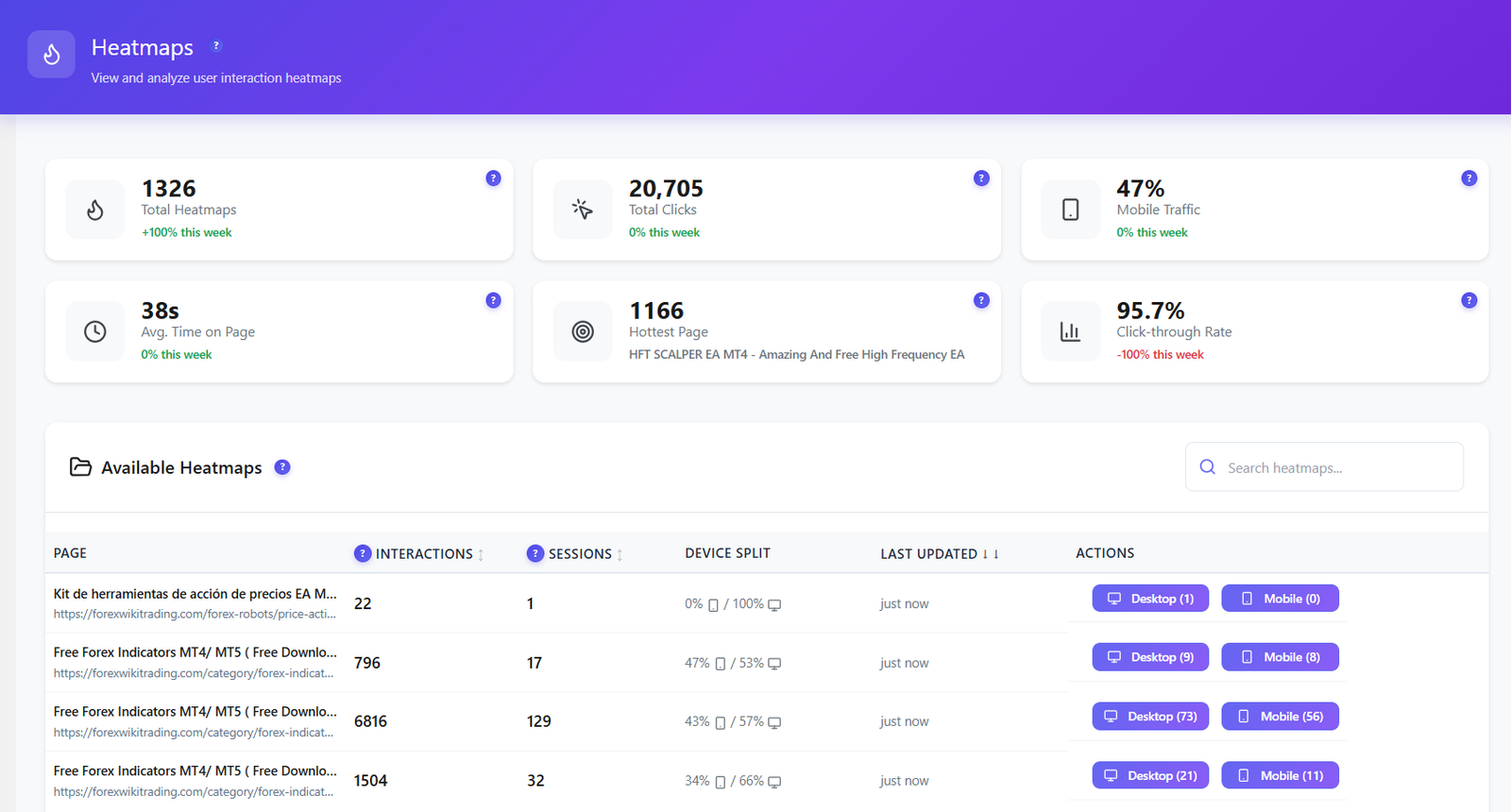
Browse and manage all your heatmaps from a central list. See session counts, filter by date range, country and browser. Switch between desktop and mobile views.
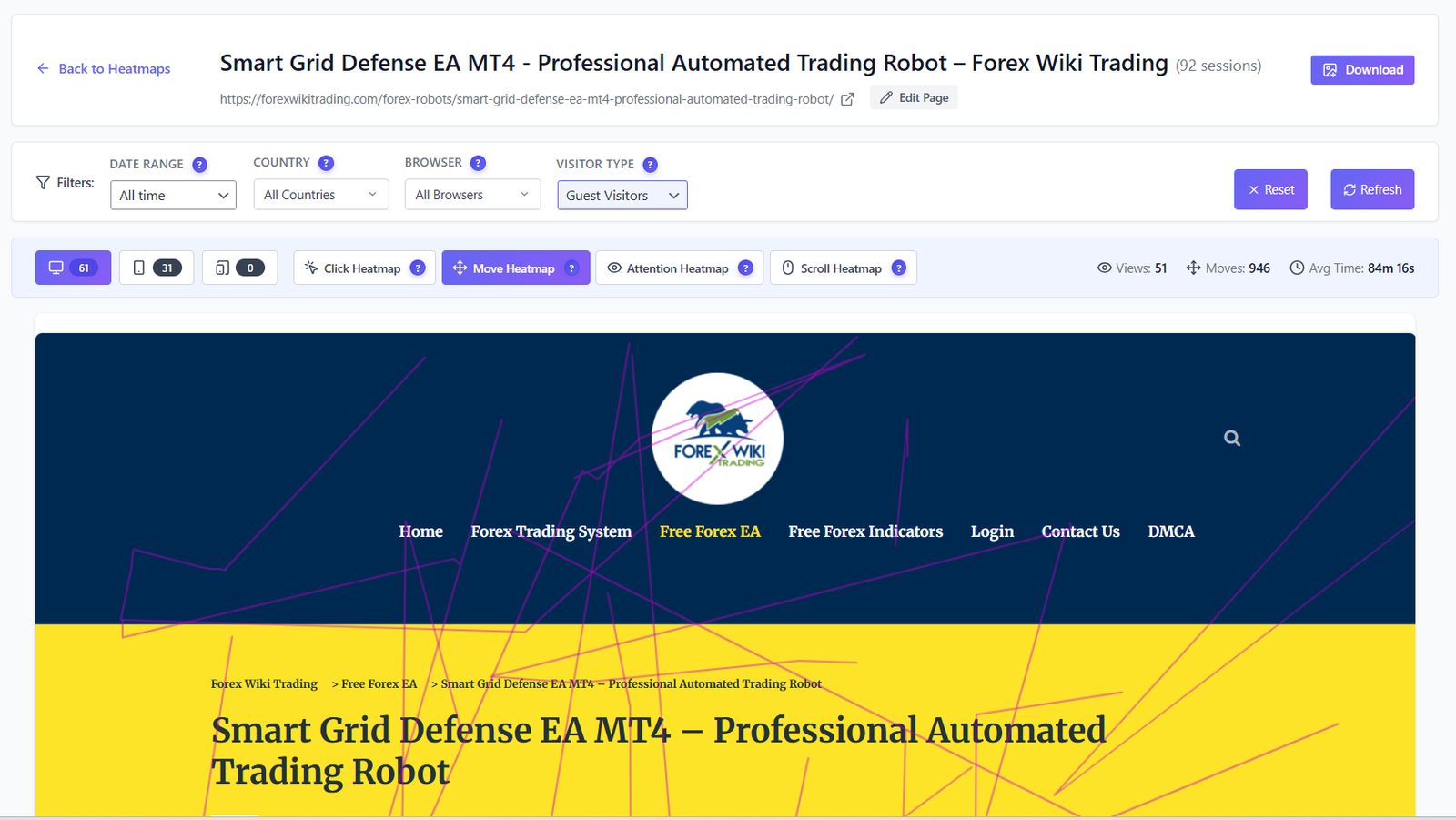
Track mouse movement patterns to understand where users hover and explore. Mouse movement correlates with eye tracking — revealing which content areas draw the most visual attention.
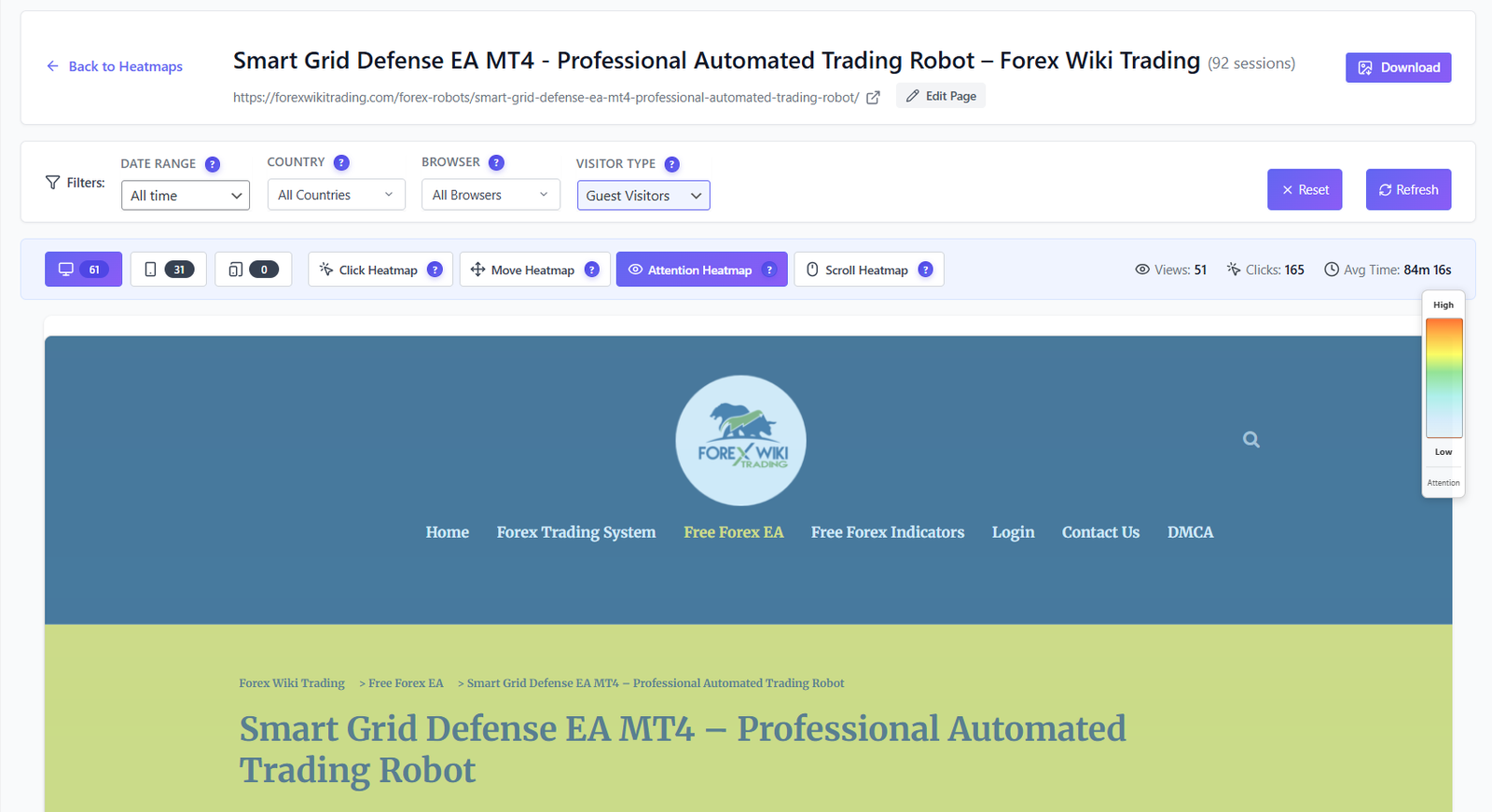
Discover which sections of your page hold user attention longest. Attention maps combine dwell time, mouse position and viewport visibility to show content effectiveness at a glance.
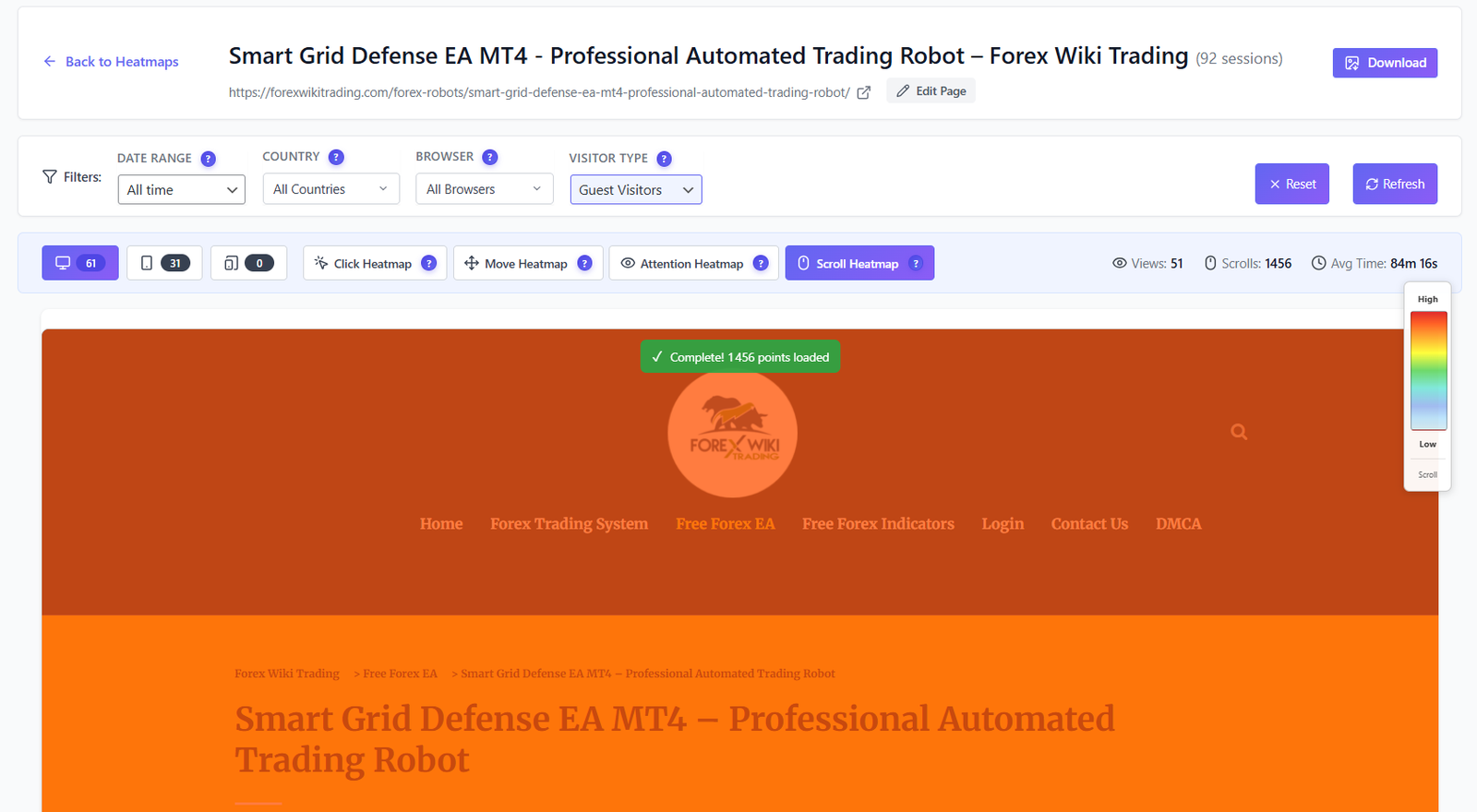
See exactly how far users scroll on every page. Identify the fold line where you lose visitors and optimize content placement. Color-coded bands show the percentage reaching each section.
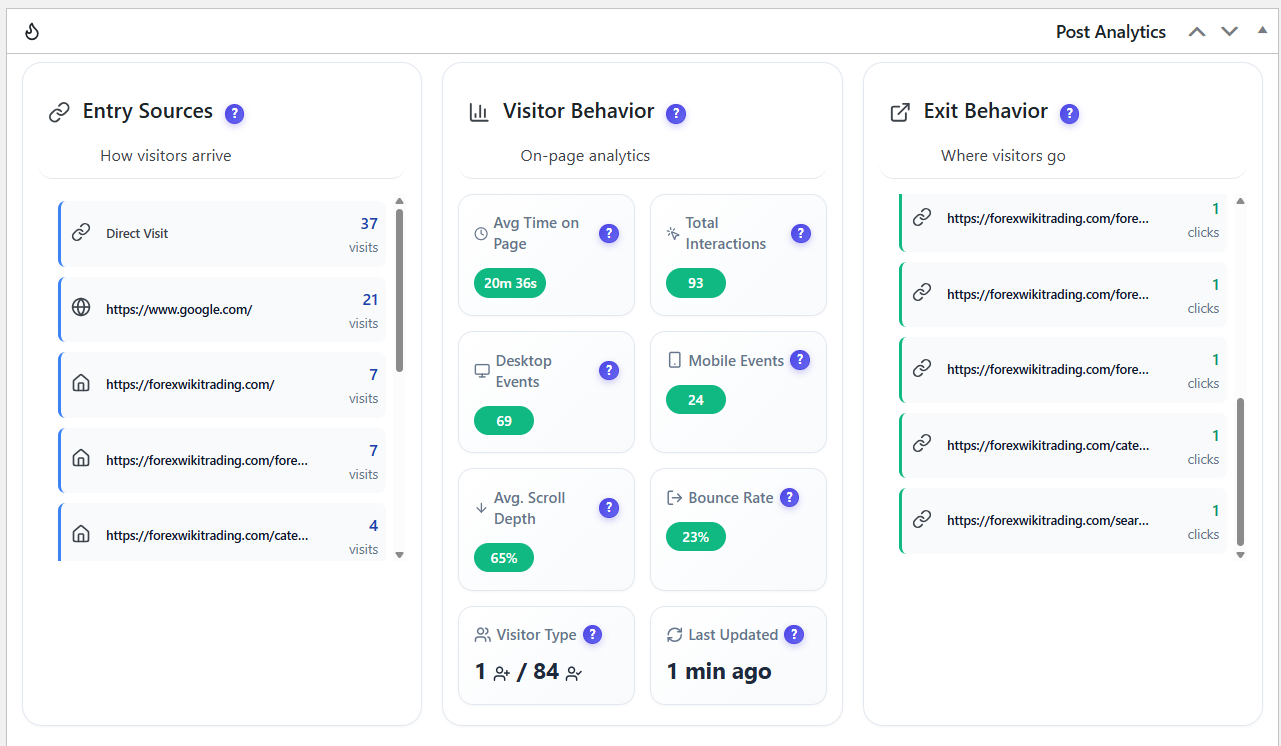
Access heatmap data directly from the WordPress editor. The built-in widget shows click counts, scroll depth and engagement metrics for each post or page.
Every post and page in WordPress gets its own analytics widget. See heatmap session counts, top clicked elements, scroll depth percentages and visitor engagement metrics — all without leaving the editor.
Install Opti-Behavior from WordPress.org. Activate it and heatmap tracking starts automatically — no configuration needed.
As visitors interact with your site, the lightweight script captures clicks, mouse movements, scroll depth and attention data on your own server.
Open any page heatmap to see a color-coded overlay rendered on your actual page. Switch between click, move, attention and scroll views with one click.
Use heatmap insights to reposition CTAs, remove distracting elements, shorten pages and improve conversion rates. Download heatmap images to share.
See which product images, descriptions and add-to-cart buttons get the most clicks. Identify if users are scrolling past key information and optimize layouts for higher conversions.
Discover if visitors click your primary CTA or get distracted by secondary elements. Use scroll heatmaps to find the optimal fold position and validate content hierarchy.
Test different page layouts and compare heatmap data to see which arrangement drives more engagement. Restructure content based on real user behavior data.
| Feature | Opti-Behavior | Hotjar | MS Clarity | Mouseflow |
|---|---|---|---|---|
| Click Heatmaps | ✓ Free | ✓ | ✓ | ✓ |
| Move Heatmaps | ✓ Pro | ✓ | ✗ | ✓ |
| Attention Heatmaps | ✓ Pro | ✗ | ✗ | ✓ |
| Scroll Heatmaps | ✓ Pro | ✓ | ✓ | ✓ |
| Desktop / Mobile Split | ✓ Free | ✓ | ✓ | ✓ |
| Country & Browser Filters | ✓ Free | ✓ Paid | ✗ | ✓ Paid |
| Heatmap Image Download | ✓ Free | ✓ | ✗ | ✓ |
| Self-Hosted Data | ✓ Free | ✗ | ✗ | ✗ |
| Session Limits | Unlimited | 35/day | Unlimited | 500/mo |
| Price | $0 – $46/yr | $213+/mo | $0* | $31+/mo |
* Microsoft Clarity is free but Microsoft uses your visitors’ data for advertising.
Install Opti-Behavior for free and start generating heatmaps within minutes. No signup, no API keys, no monthly fees.