Skip links
FREE PRO

4 Types of
Heatmaps

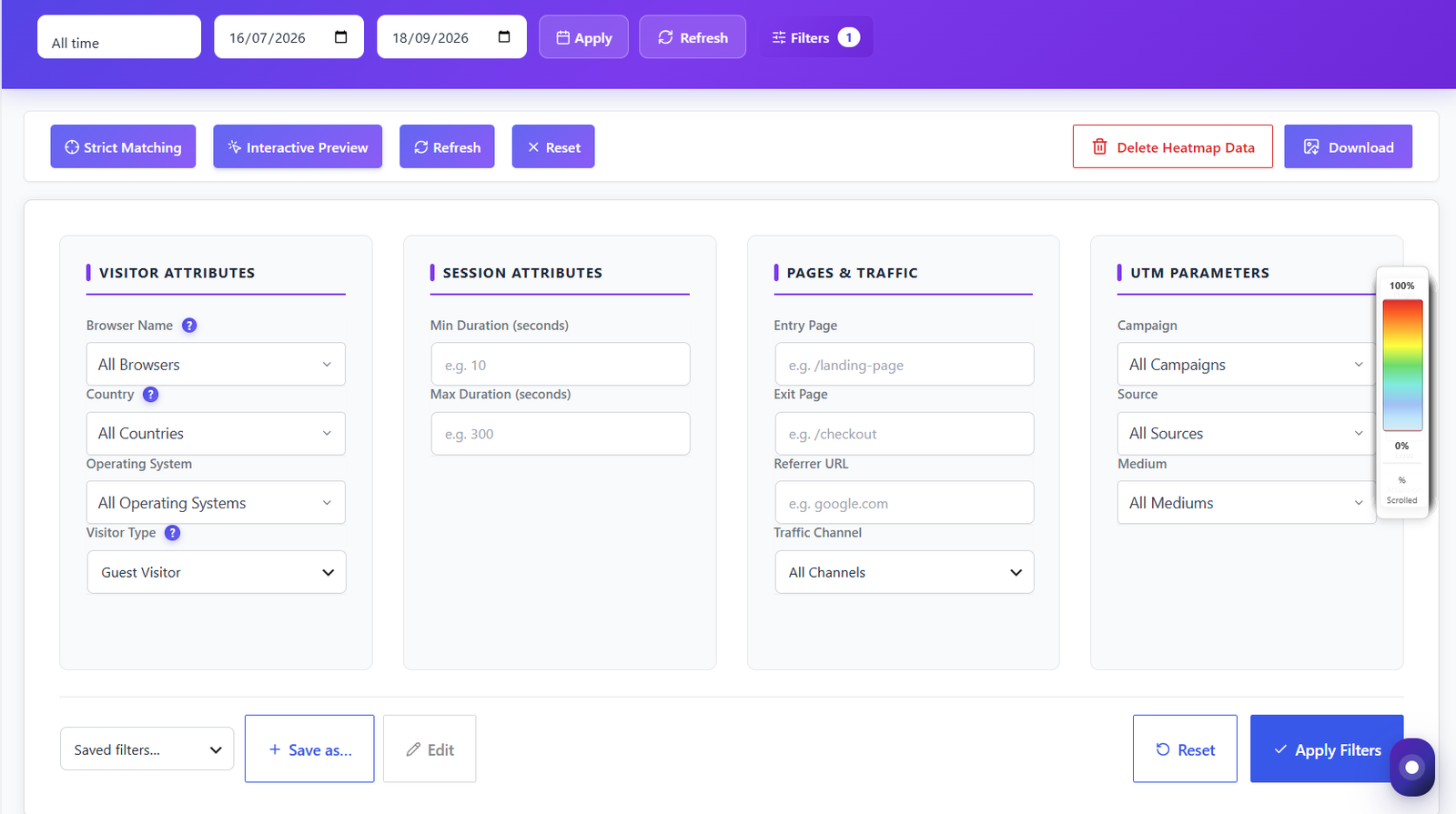
See exactly where users click, move their mouse, focus attention, and scroll. Separate desktop & mobile views with advanced filtering by country, browser, and date range. Plus a unique Per-Page Analytics metabox built right into the WordPress editor.

4
Heatmap Types
Click, move, scroll & attention overlays
2
Desktop + Mobile
Separate views for every device type
6+
Advanced Filters
Country, browser, date range, device & more
Per-Page Analytics
Built-in metabox in every post & page
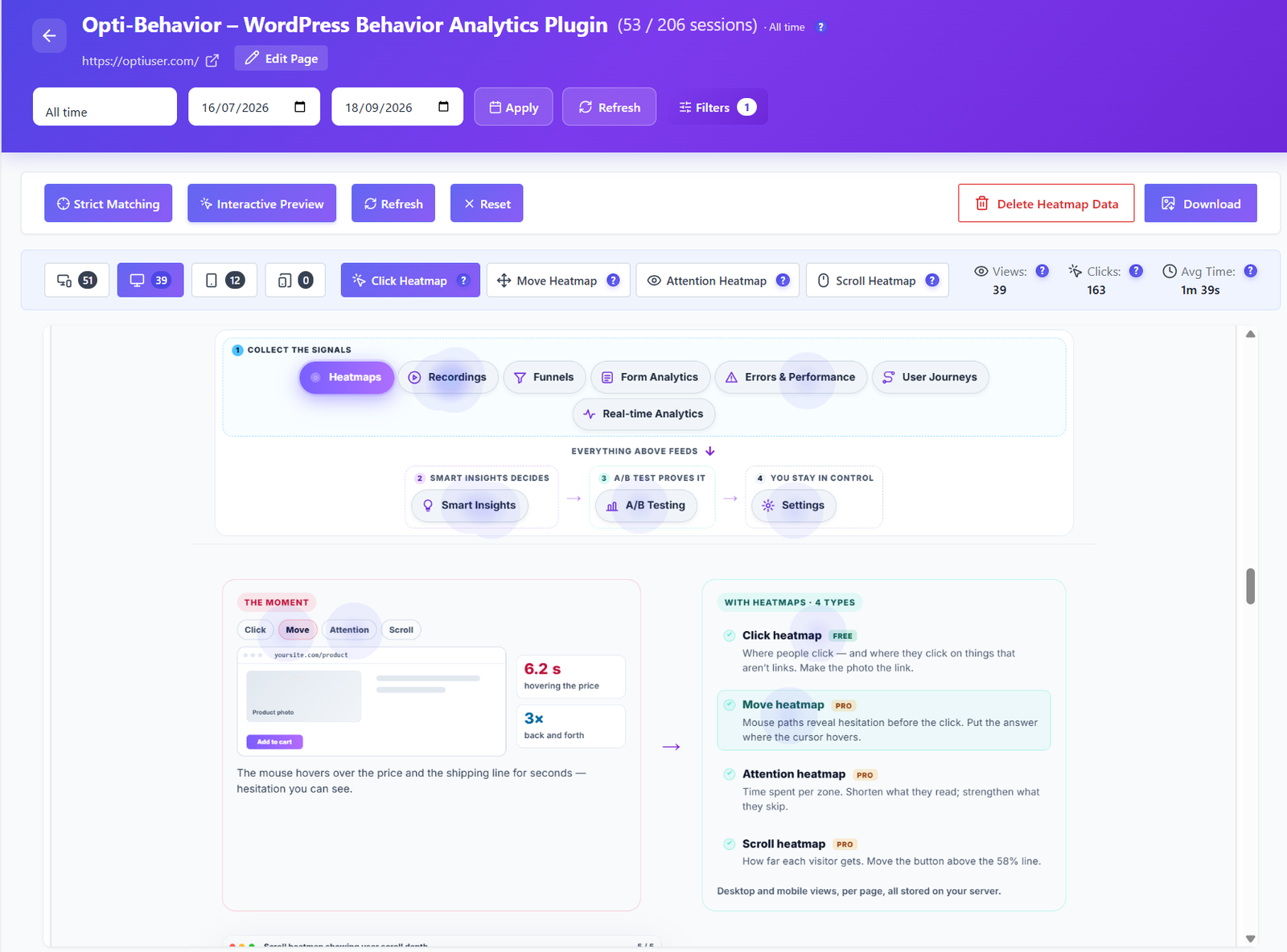
Opti-Behavior click heatmap overlay showing user click patterns
100% Self-Hosted
GDPR Compliant
Real-Time Updates
Unlimited Tracking

Visualize Every User Interaction

Four heatmap types give you a complete picture of how visitors interact with every page. Click, move, attention and scroll data — all rendered as beautiful overlays on your actual pages. What sets Opti-Behavior apart is the Per-Page Analytics Metabox — a unique widget built directly into the WordPress post and page editor that delivers entry sources, visitor behavior, exit paths, audience breakdown and a historical trend chart without ever leaving your admin.

Click heatmap overlay showing popular click areas

Click Heatmaps FREE

See exactly where users click on every page. Identify which buttons, links and elements attract the most attention. Spot dead clicks on non-interactive elements and optimize your CTAs.

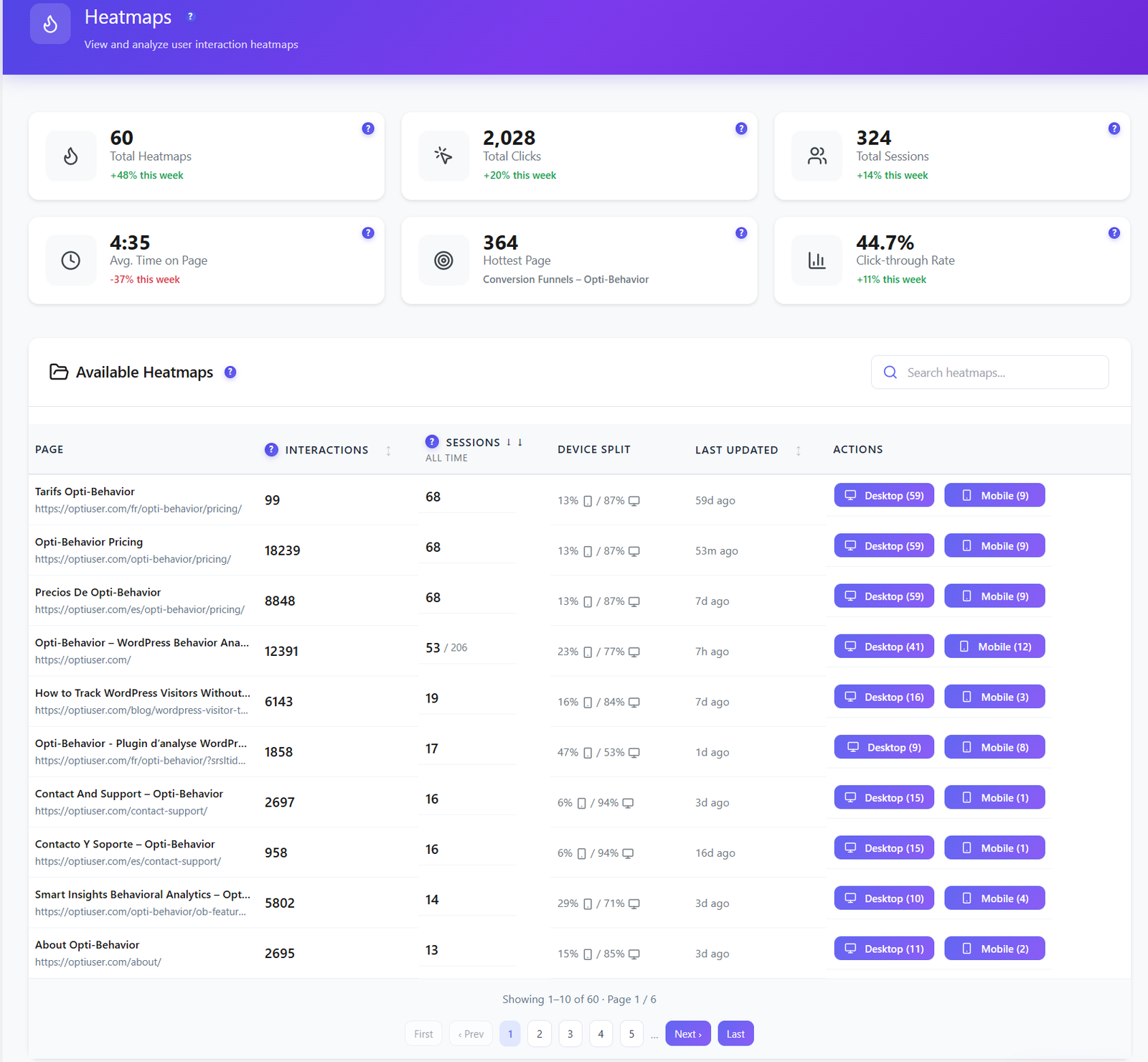
Heatmap management list with page URLs and sessions

Heatmap Management

A powerful central table lets you browse, filter and act on all your heatmaps at once. Filter by page URL, interactions count, session count, device type, last visit time, date range, country, browser and visitor type (new vs returning). Bulk-delete by page or date range, download any heatmap as a PNG image, and keep an eye out for AI Insights (coming soon) that will surface optimization recommendations automatically.

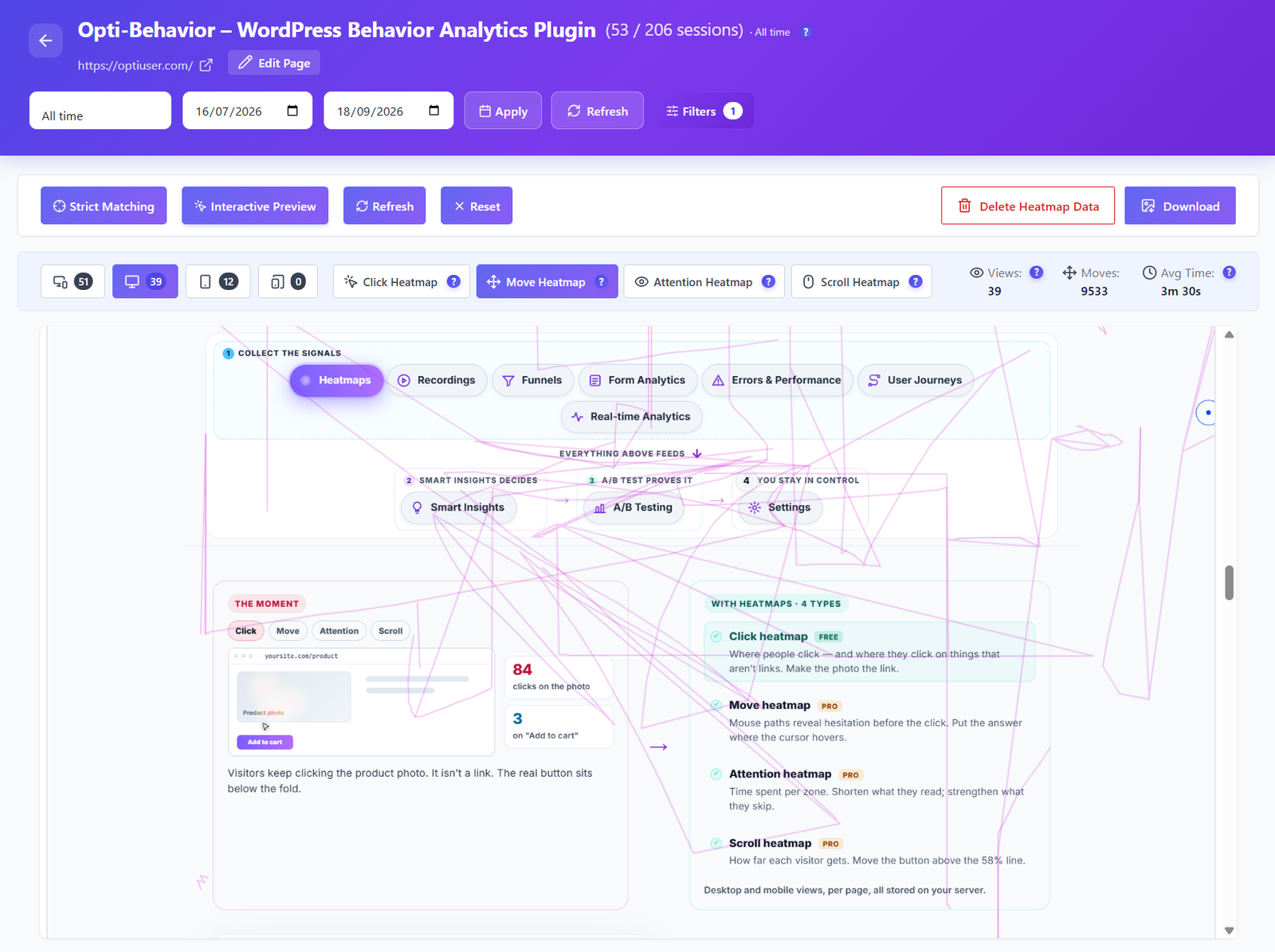
Move heatmap showing mouse movement patterns

Move Heatmaps PRO

Track mouse movement patterns to understand where users hover and explore. Mouse movement correlates with eye tracking — revealing which content areas draw the most visual attention.

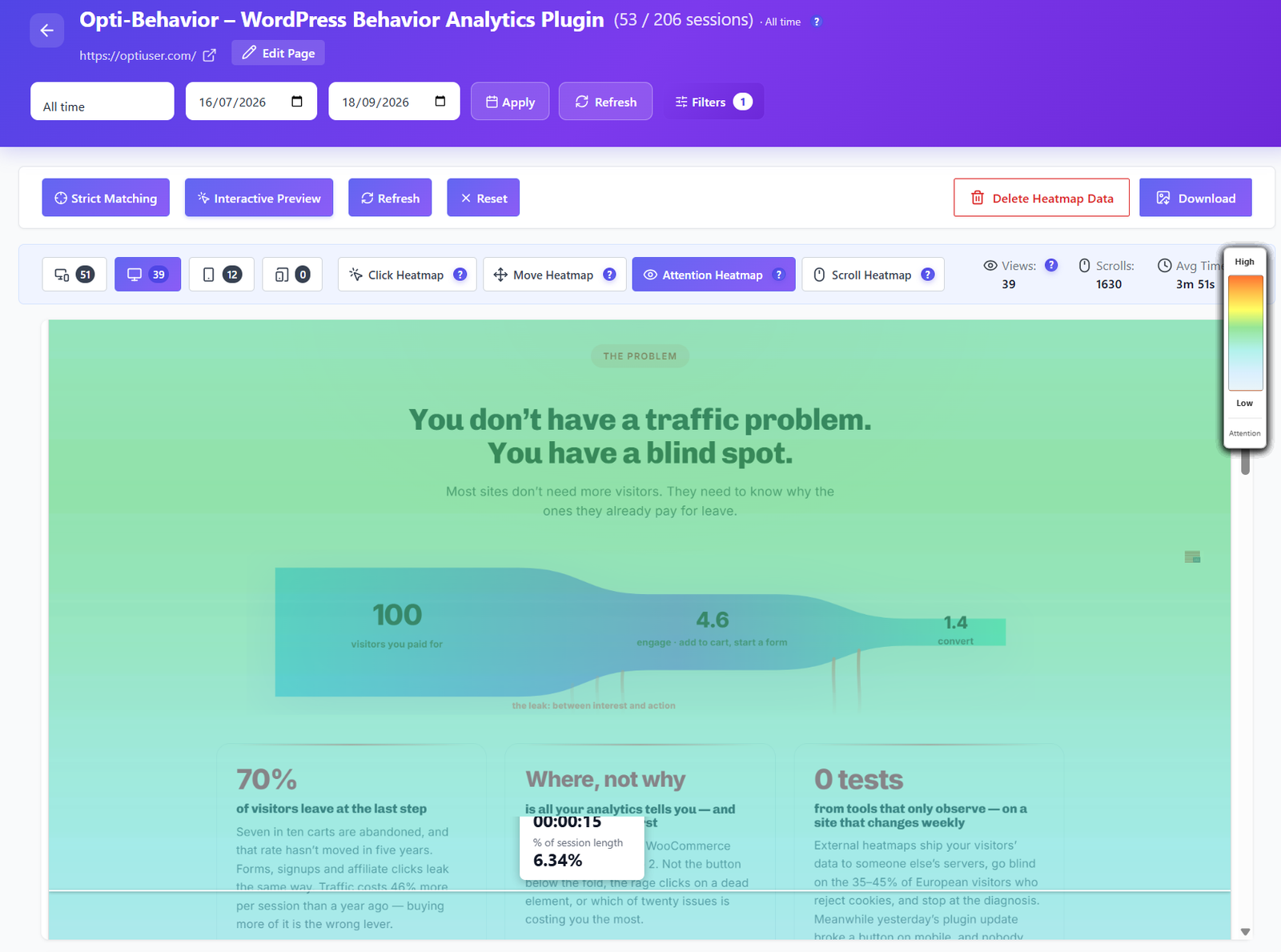
Attention heatmap highlighting focus areas

Attention Heatmaps PRO

Discover which sections of your page hold user attention longest. Attention maps combine dwell time, mouse position and viewport visibility to show content effectiveness at a glance.

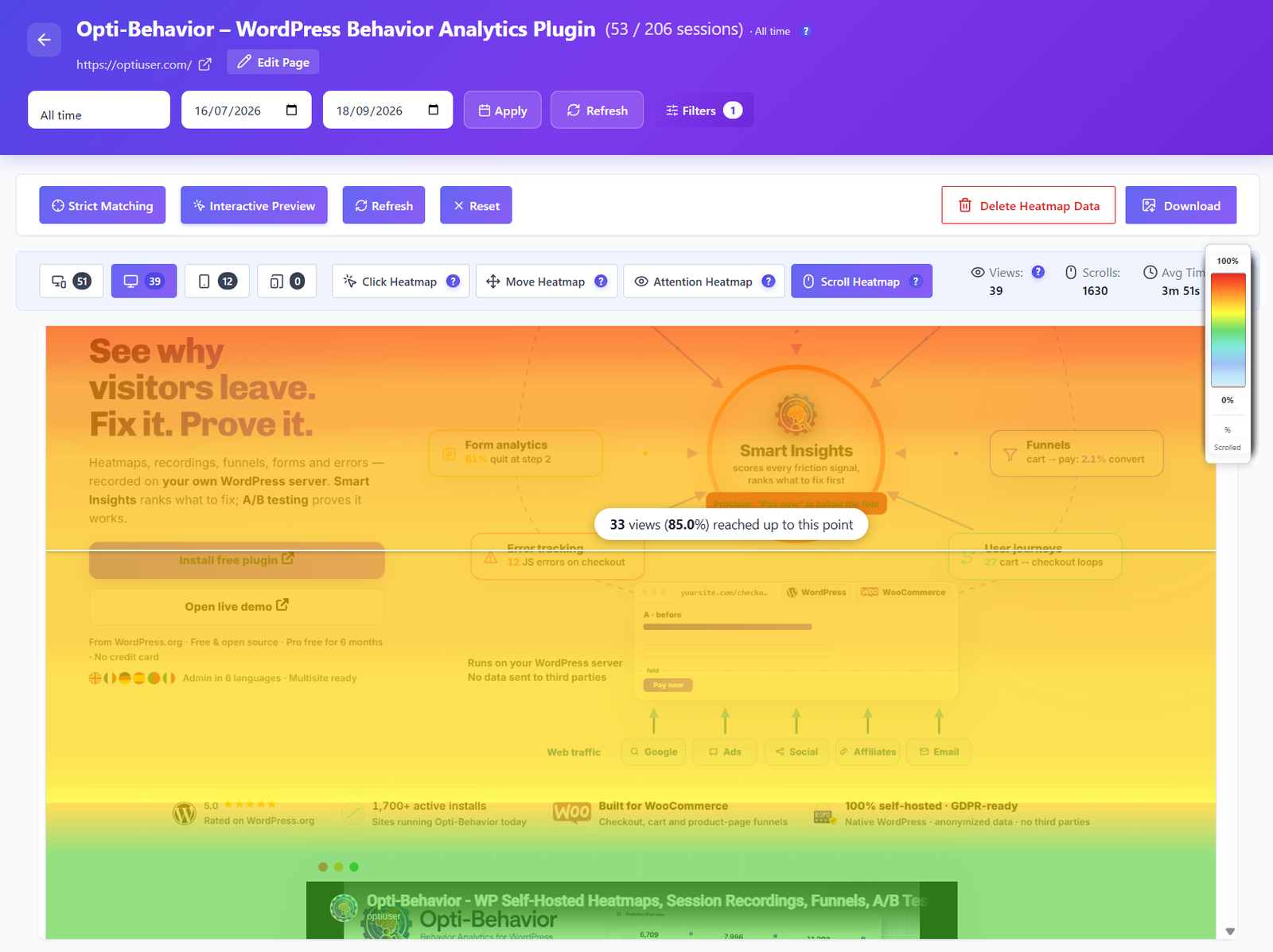
Scroll heatmap showing user scroll depth

Scroll Heatmaps PRO

See exactly how far users scroll on every page. Identify the fold line where you lose visitors and optimize content placement. Color-coded bands show the percentage reaching each section.

Post analytics metabox with full visitor behavior breakdown

Post & Page Analytics Metabox

A rich analytics panel embedded in every WordPress post and page editor. At a glance you see Entry Sources (Direct, Organic, Referral, Social), Visitor Behavior (avg time on page, total interactions, desktop/mobile event split, avg scroll depth, bounce rate, new vs returning, last visited), Exit Behavior (next URL visited, clicked outbound links), a full Audience Breakdown (top countries, browsers, device types) and a Historical Trend Chart showing engagement over time.

FREE

Per-Page Post Analytics Metabox

Every post and page in WordPress gets a full-featured analytics panel built right into the editor. No need to switch between screens — all the data you need to optimize that specific page is right there alongside your content.

  • Entry Sources: Direct, Organic, Referral & Social breakdown
  • Visitor Behavior: Avg time on page, total interactions, desktop vs mobile events, avg scroll depth, bounce rate, new vs returning visitors, last visited time
  • Exit Behavior: Next URL visited after leaving & clicked outbound links
  • Audience Breakdown: Top countries, browsers & device types
  • Historical Trend Chart: Engagement metrics over time for that page
  • Quick-launch heatmap overlay directly from the editor
  • Download heatmap as PNG image
Post analytics metabox in WordPress editor showing entry sources, visitor behavior and audience breakdown

How It Works

1

Install & Activate

Install Opti-Behavior from WordPress.org. Activate it and heatmap tracking starts automatically — no configuration needed.

2

Visitors Browse Your Pages

As visitors interact with your site, the lightweight script captures clicks, mouse movements, scroll depth and attention data on your own server.

3

View Heatmap Overlay

Open any page heatmap to see a color-coded overlay rendered on your actual page. Switch between click, move, attention and scroll views with one click.

4

Analyze & Optimize

Use heatmap insights to reposition CTAs, remove distracting elements, shorten pages and improve conversion rates. Check the Per-Page Analytics metabox in the editor for a complete per-page picture.

Who Uses Heatmaps?

E-Commerce Product Pages

See which product images, descriptions and add-to-cart buttons get the most clicks. Identify if users are scrolling past key information and optimize layouts for higher conversions.

Landing Page Optimization

Discover if visitors click your primary CTA or get distracted by secondary elements. Use scroll heatmaps to find the optimal fold position and validate content hierarchy.

Content Layout Testing

Test different page layouts and compare heatmap data to see which arrangement drives more engagement. Restructure content based on real user behavior data.

Heatmap Comparison

FeatureOpti-BehaviorHotjarMS ClarityMouseflow
Click Heatmaps✓ Free
Move Heatmaps✓ Pro
Attention Heatmaps✓ Pro
Scroll Heatmaps✓ Pro
Desktop / Mobile Split✓ Free
Country & Browser Filters✓ FreePaidPaid
Heatmap Image Download✓ Free
Per-Page Analytics Metabox✓ Free
Self-Hosted Data✓ Free
Session LimitsUnlimited35/dayUnlimited500/mo
Price$0 – $69/yr$213+/mo$0*$31+/mo

* Microsoft Clarity is free but Microsoft uses your visitors' data for advertising purposes.

Heatmaps FAQ

What types of heatmaps are available?
Opti-Behavior offers 4 types of heatmaps: Click Heatmaps (free) show where users click, Move Heatmaps (Pro) track mouse movement patterns, Attention Heatmaps (Pro) reveal where users focus their gaze, and Scroll Heatmaps (Pro) show how far users scroll on each page.
Do heatmaps work on mobile devices?
Yes. Heatmaps automatically separate desktop and mobile data, giving you distinct views for each device type. Mobile heatmaps capture taps and scrolls, while desktop heatmaps track clicks and mouse movements. You can toggle between views with one click.
How many pages can I track with heatmaps?
There is no limit. You can enable heatmap tracking on every page of your site. The free version includes click heatmaps for unlimited pages. Pro adds scroll, move, and attention heatmaps — also with no page limits.
Can I filter heatmap data by date, country, or browser?
Yes. The heatmap management table includes powerful filters: page URL, interactions count, session count, device type, last visit time, date range, visitor country, browser and visitor type (new vs returning). This lets you segment heatmap data by any audience dimension and compare behavior across different groups.
Can I download or share heatmap images?
Yes. You can download heatmap images as PNG files directly from the heatmap viewer. This makes it easy to include heatmap data in client reports, presentations, or team discussions without needing to share WordPress admin access.
What does the Per-Page Analytics Metabox show?
The Per-Page Analytics Metabox is a built-in panel that appears inside the WordPress post and page editor for every piece of content on your site. It shows: Entry Sources (Direct, Organic, Referral, Social), Visitor Behavior (average time on page, total interactions, desktop vs mobile events, average scroll depth, bounce rate, new vs returning visitors, last visited time), Exit Behavior (the next URL visited after leaving and any clicked outbound links), a full Audience Breakdown (top countries, browsers and device types), and a Historical Trend Chart showing engagement over time. All this data is specific to that one page — no need to switch to the main analytics dashboard.
Can I delete heatmap data from the management table?
Yes. The heatmap management table supports targeted deletion. You can delete all heatmap data for a specific page URL, or wipe heatmap data by date range across all pages. This lets you clear old or irrelevant data without affecting your recent recordings, giving you a clean baseline after a redesign or major content update.
What are AI Insights on the heatmap management page?
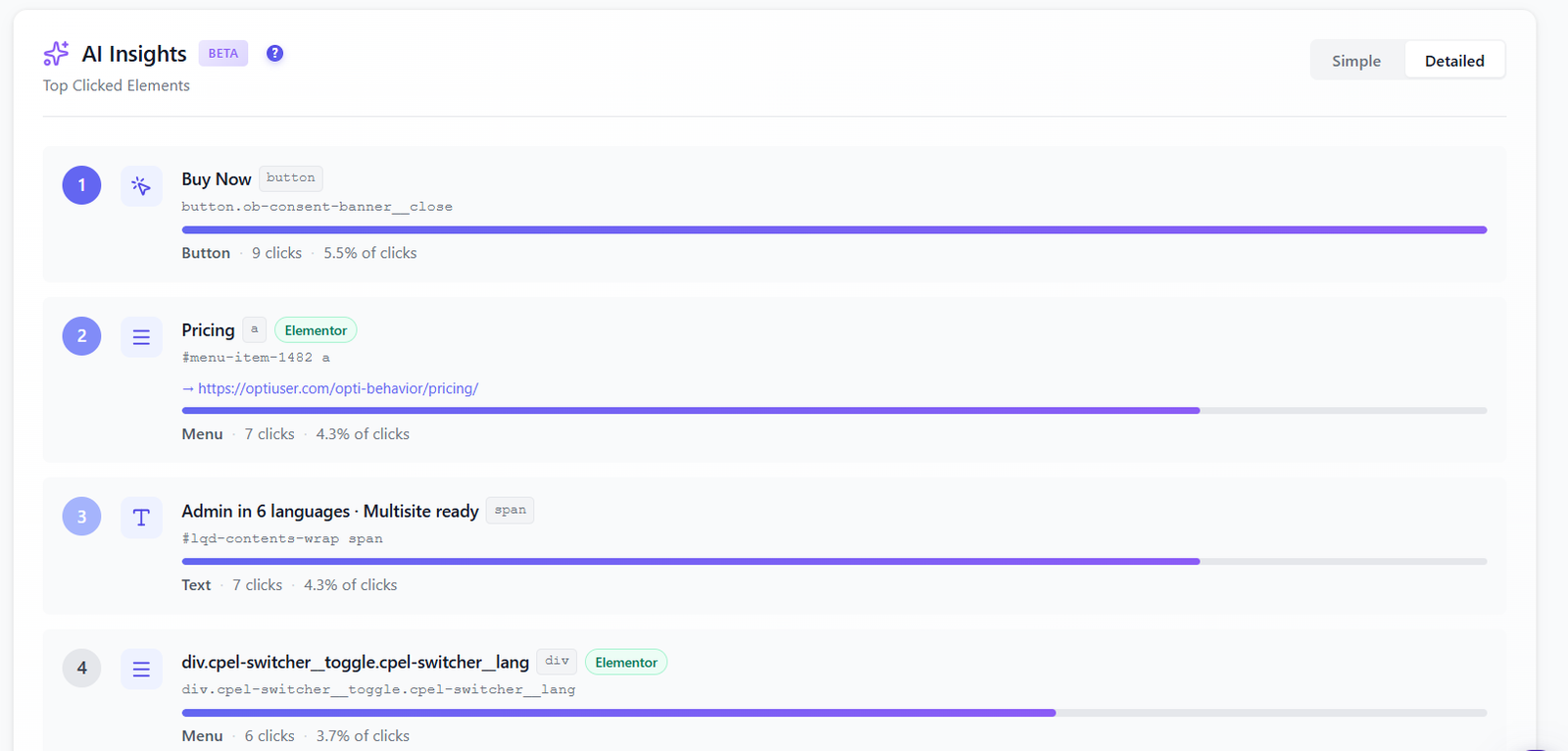
AI Insights is an upcoming feature (coming soon) that will analyze your heatmap data automatically and surface actionable optimization recommendations. Instead of manually interpreting click patterns and scroll depth, AI Insights will highlight pages with low engagement, identify elements receiving dead clicks, flag scroll cut-off points, and suggest specific improvements — all powered by your own on-site data with no third-party AI calls required.
How is heatmap data stored and is it GDPR compliant?
All heatmap data is stored entirely in your own WordPress database — no data ever leaves your server. Opti-Behavior records anonymized interaction coordinates (click positions, scroll percentages, mouse paths) linked to session identifiers rather than personally identifiable information. No IP addresses are stored in heatmap records and no external analytics services are involved, making it fully GDPR and CCPA compliant by design. You remain the sole data controller at all times.

See Where Your Users Click

Install Opti-Behavior for free and start generating heatmaps within minutes. No signup, no API keys, no monthly fees.

Explore
Drag