


5 monitoring tools in one dashboard: JavaScript Errors, Friction Events (rage clicks, dead clicks), Core Web Vitals, Performance Scoring, and Broken Link Detection. Know everything that goes wrong on your site.
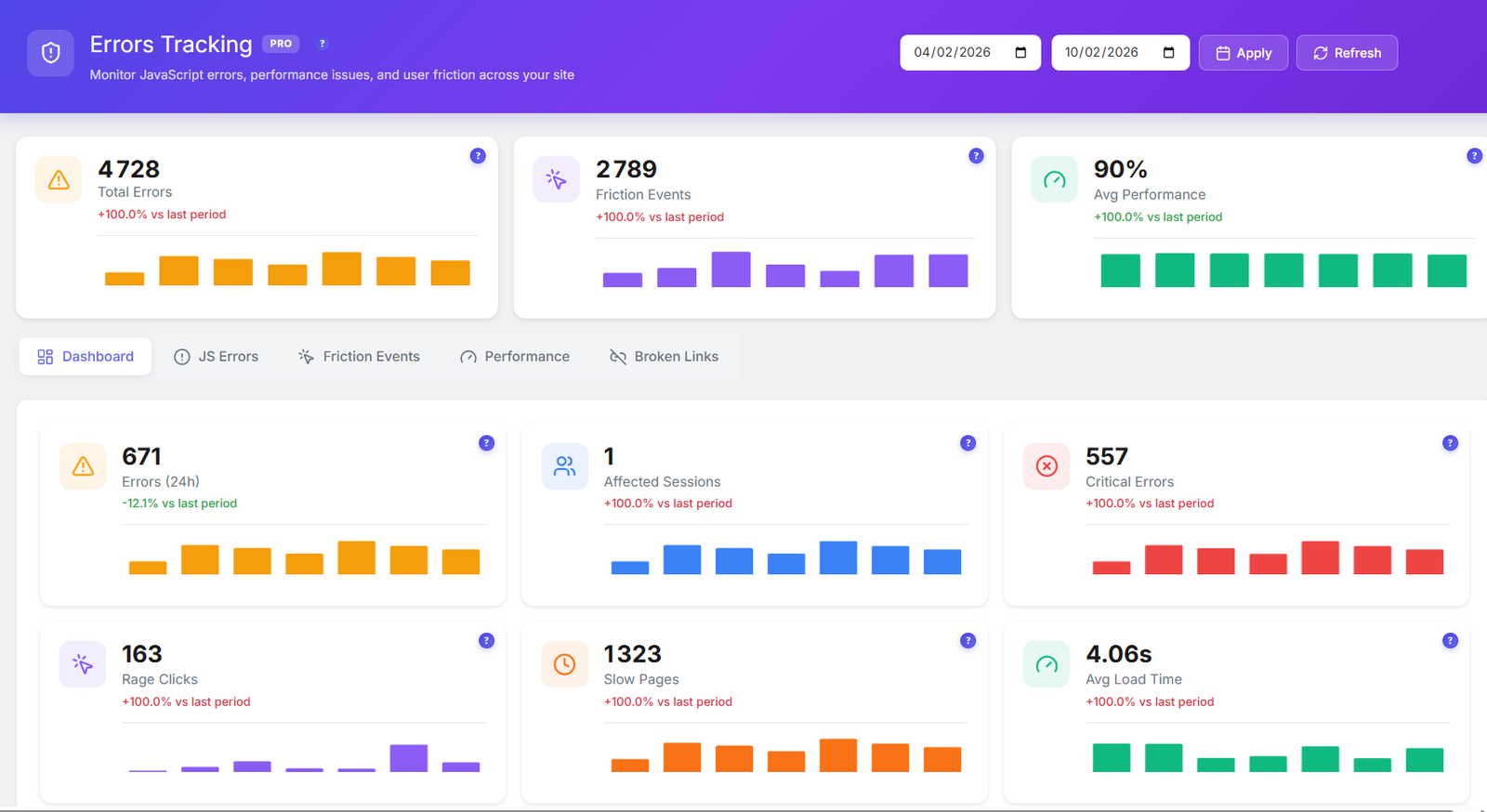
Every error, friction event, performance metric and broken link is captured automatically and organized for fast resolution.
Unified dashboard showing all 5 monitoring tools with error counts, severity levels, and quick navigation between JavaScript errors, friction events, performance, and broken links.
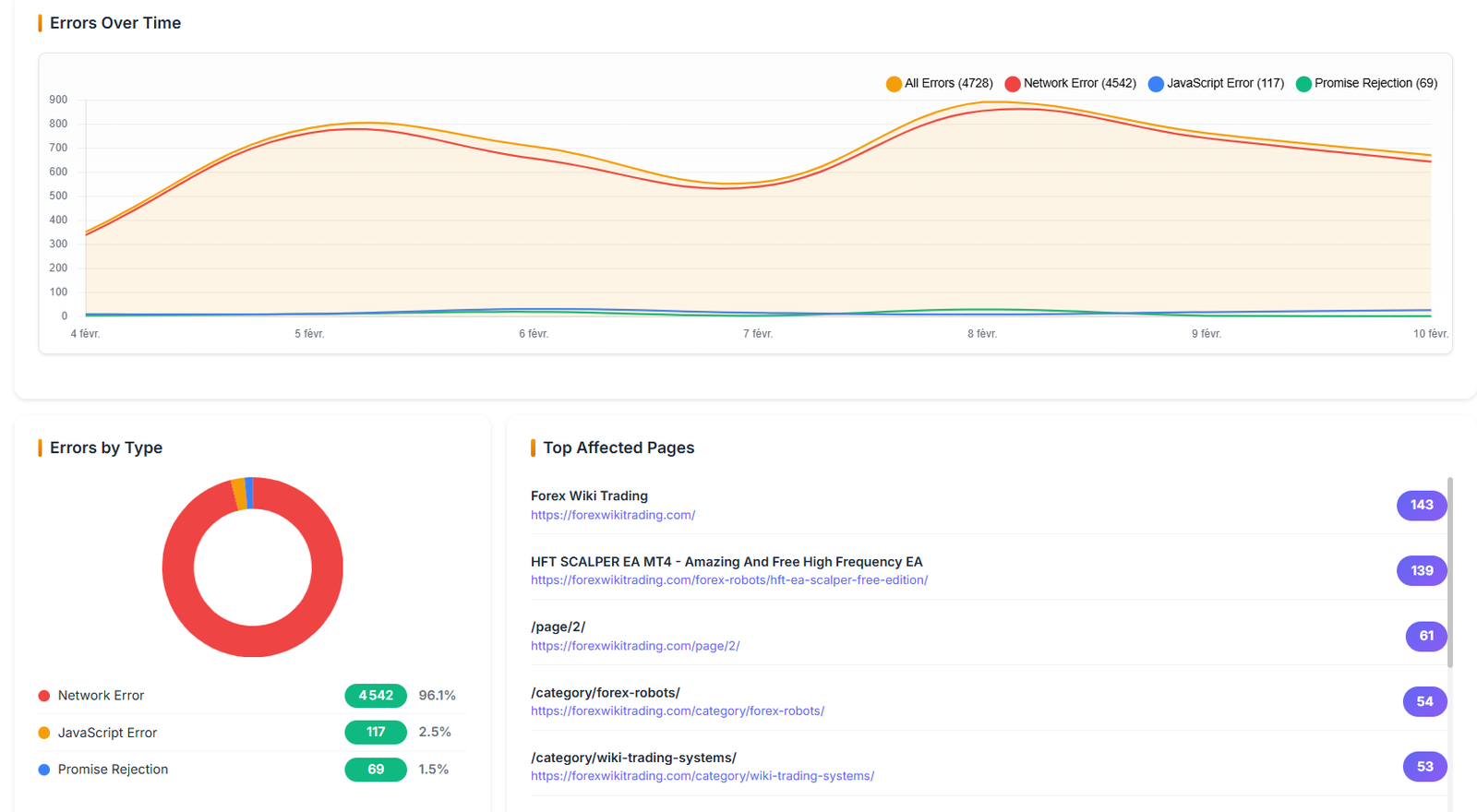
Track errors over time with trend charts. See error distribution by type, severity breakdown, and identify patterns that help prioritize fixes.
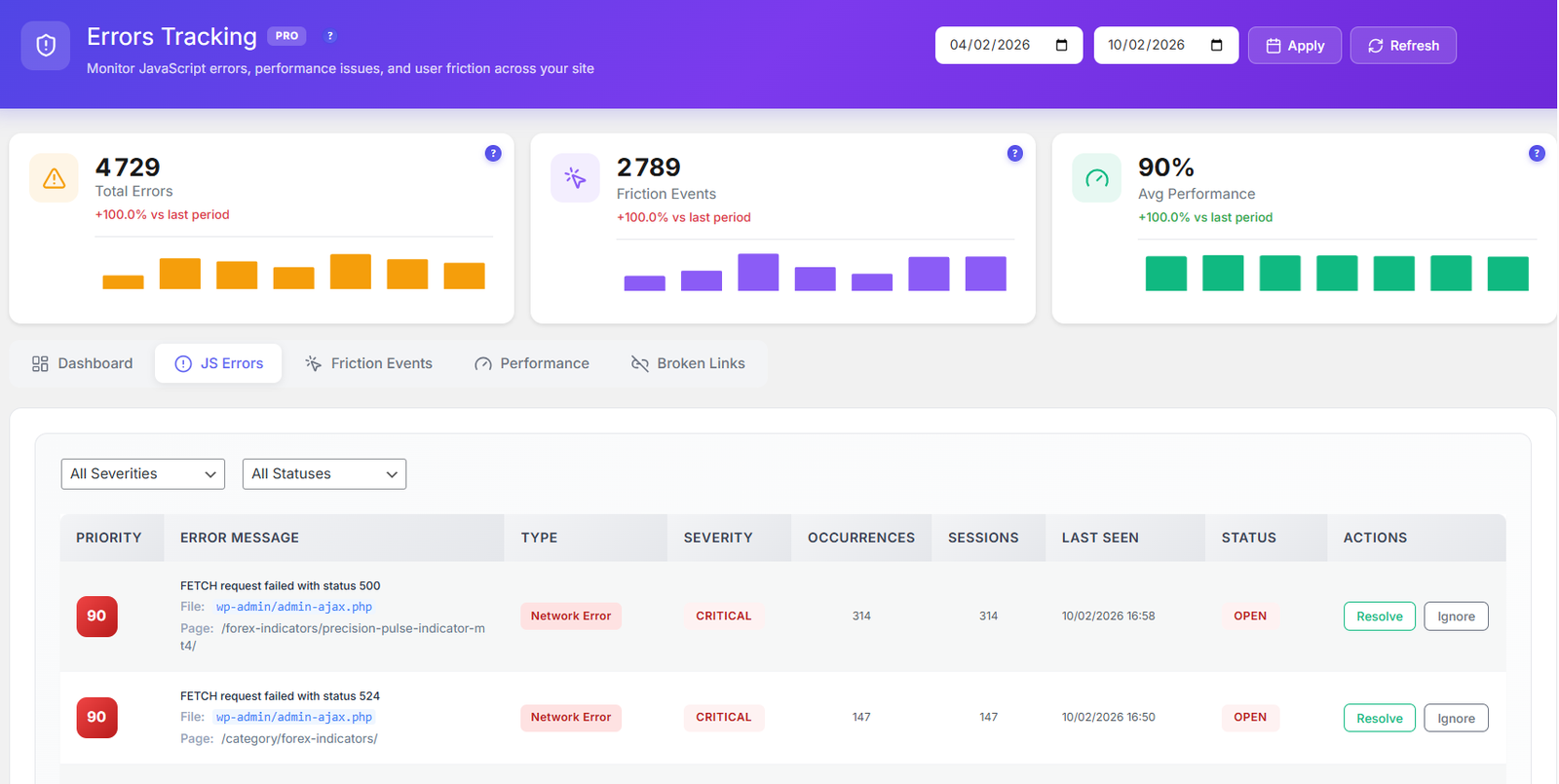
Capture JS errors with full stack traces, affected page URLs, browser info, and occurrence counts. Status workflow: Open → Investigating → Resolved.
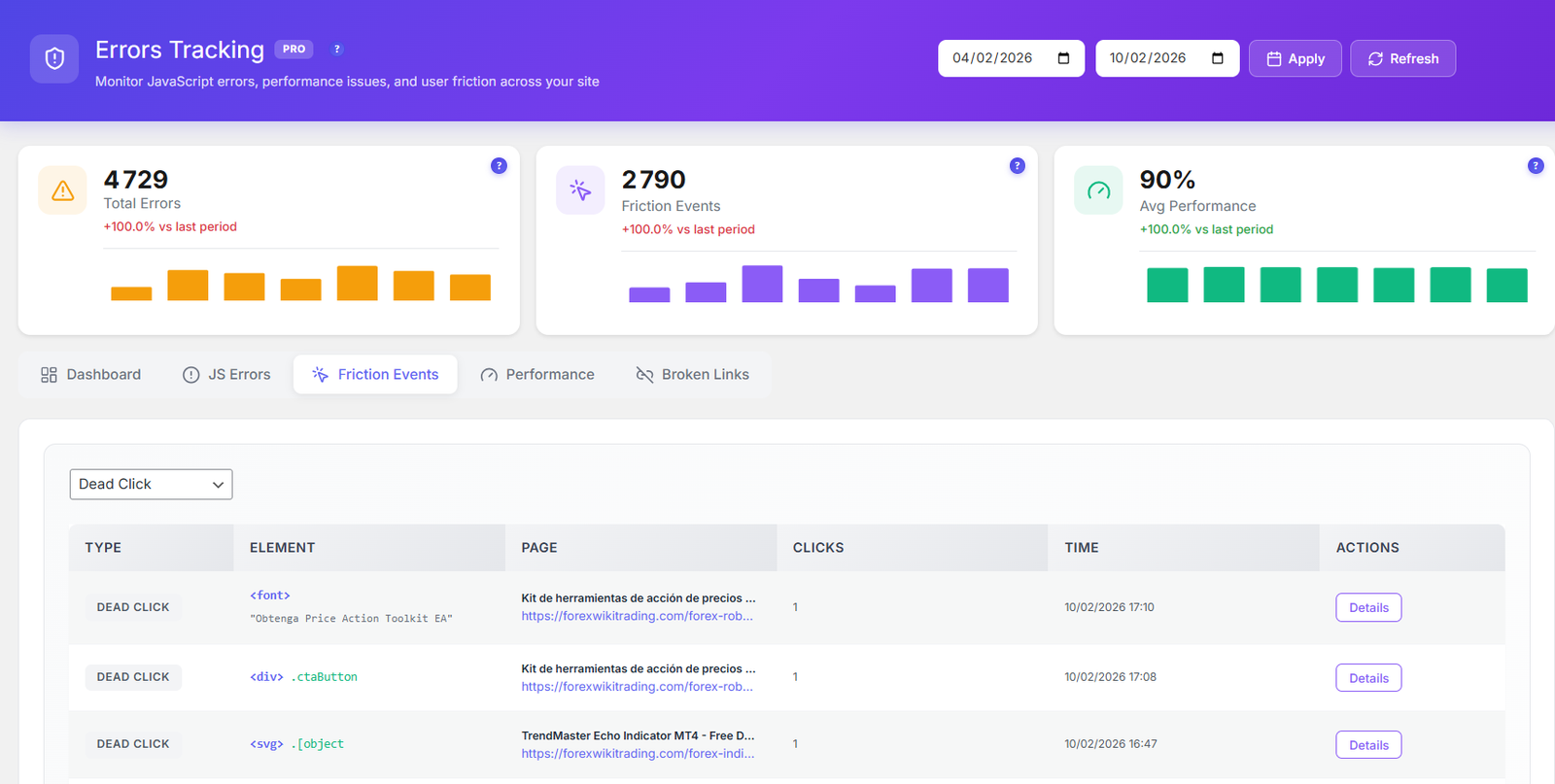
Detect rage clicks (rapid frustrated clicking) and dead clicks (clicking non-interactive elements). Identify UX issues causing user frustration before they leave.
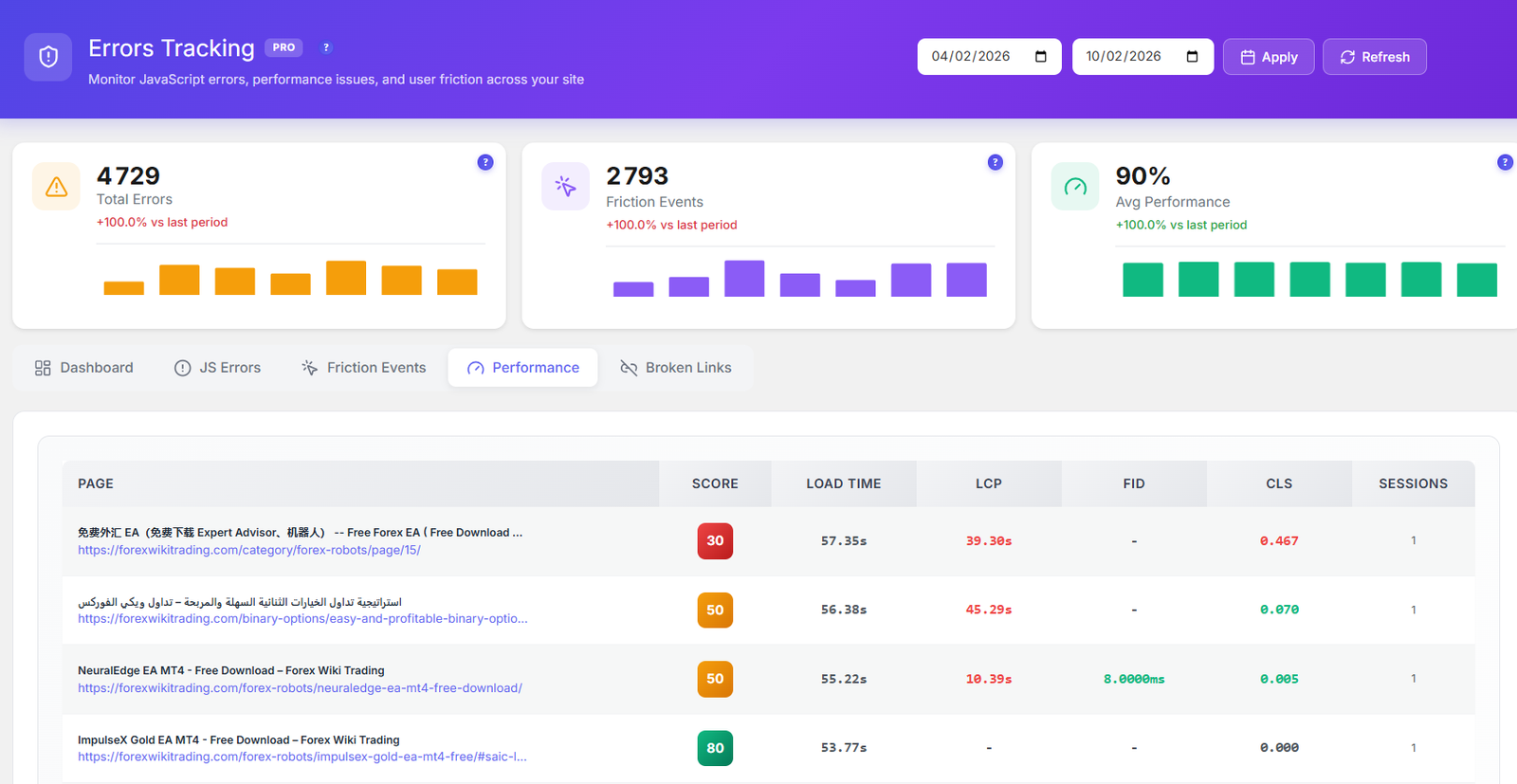
Track LCP, FID, CLS, INP, and TTFB scores. Performance scoring from 0-100 per page with Good/Needs Improvement/Poor ratings aligned with Google’s thresholds.
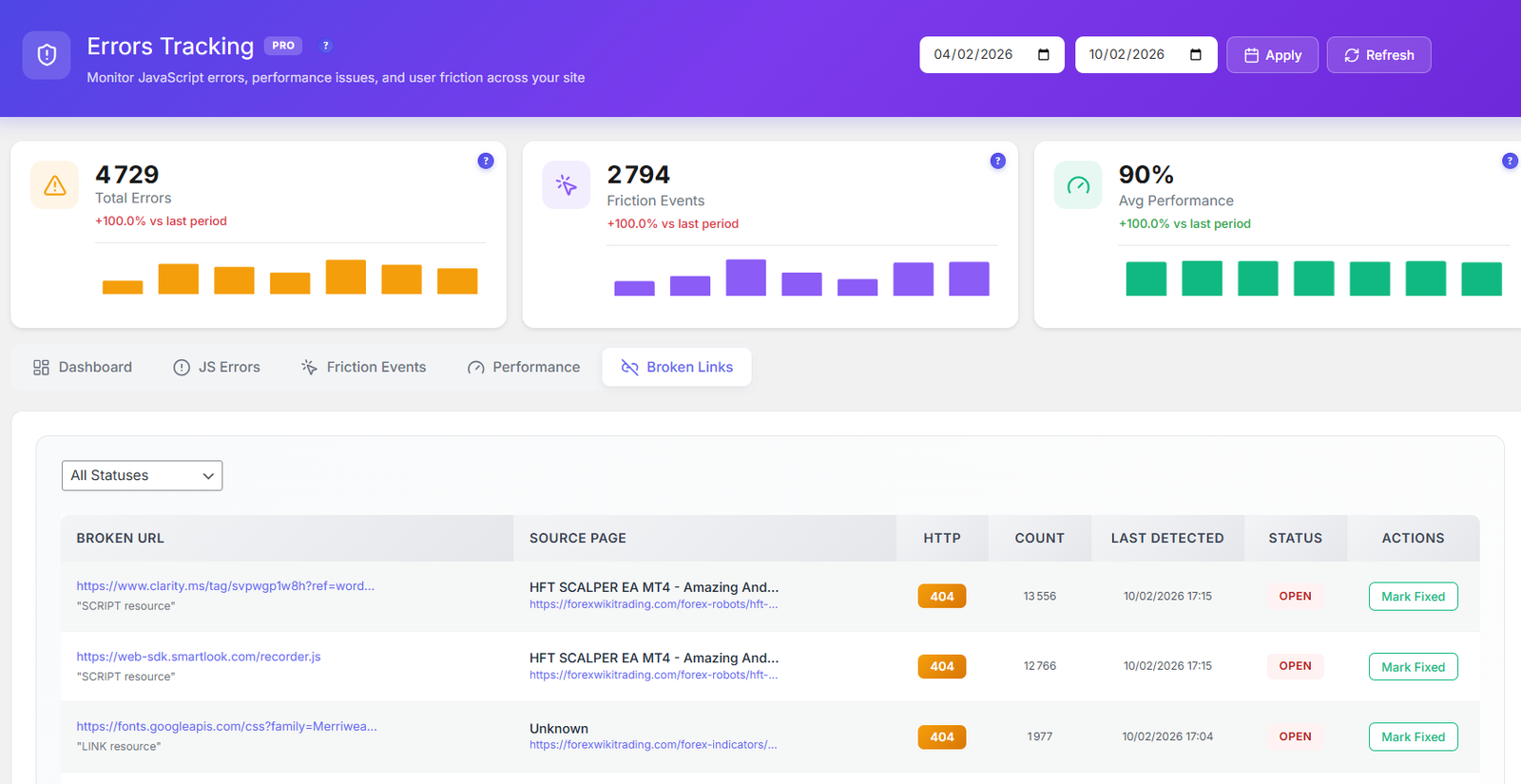
Automatically detect 404 and 500 errors on your site. Track broken links with source page, status code, and discovery date. Fix broken links before they hurt your SEO.
Activate error tracking in the Opti-Behavior Pro settings panel. Choose which monitoring tools to enable — JS errors, friction events, Core Web Vitals, performance scoring, or broken links.
The tracking script monitors errors, clicks, and performance metrics in real-time. All data is captured client-side and sent to your server — no third-party services involved.
Errors are automatically classified by severity and type. JavaScript errors get stack traces, friction events get element selectors, and performance issues get scored against Web Vitals thresholds.
Review, investigate, and resolve issues from the dashboard. Use the status workflow to track progress from Open through Investigating to Resolved.
Monitor JavaScript errors and broken links to catch issues before users complain. Priority scoring helps focus on high-impact problems first.
Detect rage clicks and dead clicks to find elements that confuse or frustrate users. Fix friction points to improve conversion rates.
Track Core Web Vitals scores per page. Identify slow pages, layout shifts, and interaction delays that hurt SEO and user experience.
| Feature | Opti-Behavior | Hotjar | MS Clarity | Sentry |
|---|---|---|---|---|
| JS Error Tracking | ✓ Pro | ✗ | ✗ | ✓ $29+/mo |
| Rage/Dead Clicks | ✓ Pro | ✗ | ✓ | ✗ |
| Core Web Vitals | ✓ Pro | ✗ | ✗ | ✗ |
| Broken Links | ✓ Pro | ✗ | ✗ | ✗ |
| Performance Score | ✓ Pro | ✗ | ✗ | ✓ |
| Status Workflow | ✓ Pro | ✗ | ✗ | ✓ |
| Self-Hosted | ✓ | ✗ | ✗ | ✗ |
| Price | $46/yr | $213+/mo | $0* | $29+/mo |
* Microsoft Clarity is free but Microsoft uses your visitors’ data for advertising.
Get Opti-Behavior Pro and start catching JavaScript errors, friction events, performance issues, and broken links — all from one self-hosted dashboard.