


Fine-tune every aspect of your analytics. 10 settings pages covering dashboard configuration, heatmap behavior, recording options, storage monitoring, scheduled reports, multi-language support, and data management tools.
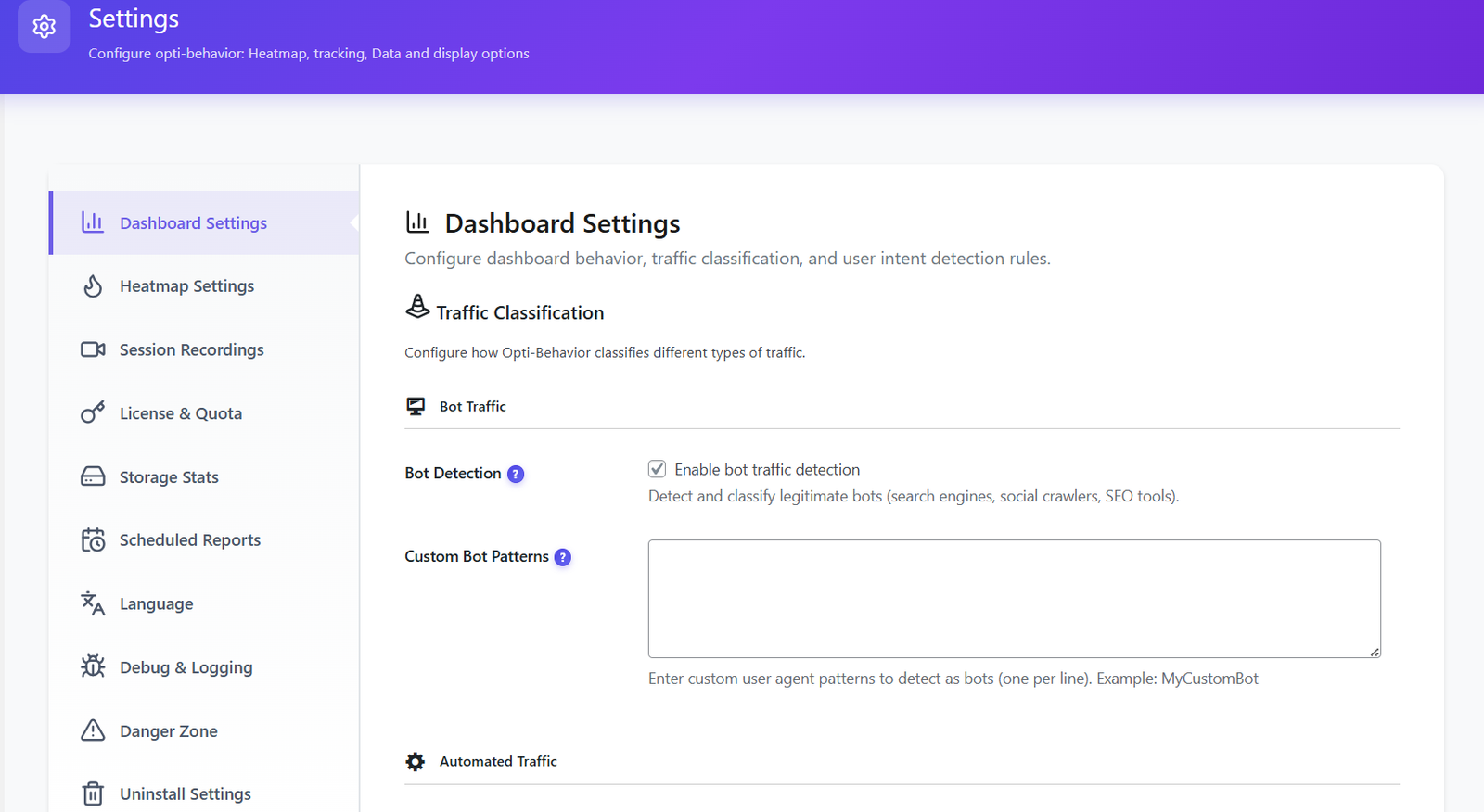
From tracking configuration to data exports, every setting is accessible from a clean, organized interface. No hidden options, no confusing menus.
Configure dashboard behavior, bot detection sensitivity, tracking options, and data collection preferences. Fine-tune exactly what gets tracked and how.
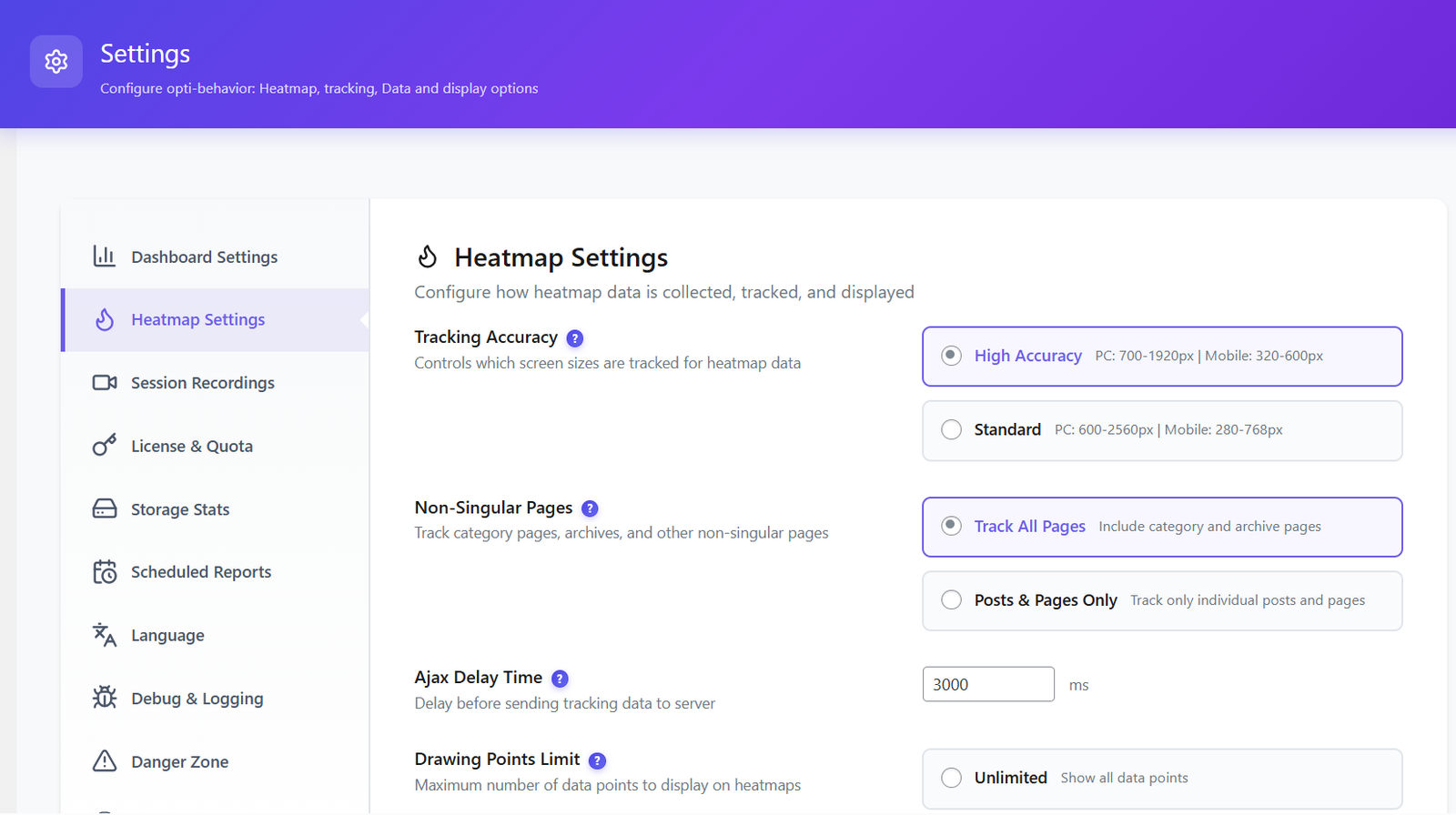
Control heatmap accuracy (High/Medium/Low), storage method (database or file), tracking scope, and data retention. Optimize for your server resources.
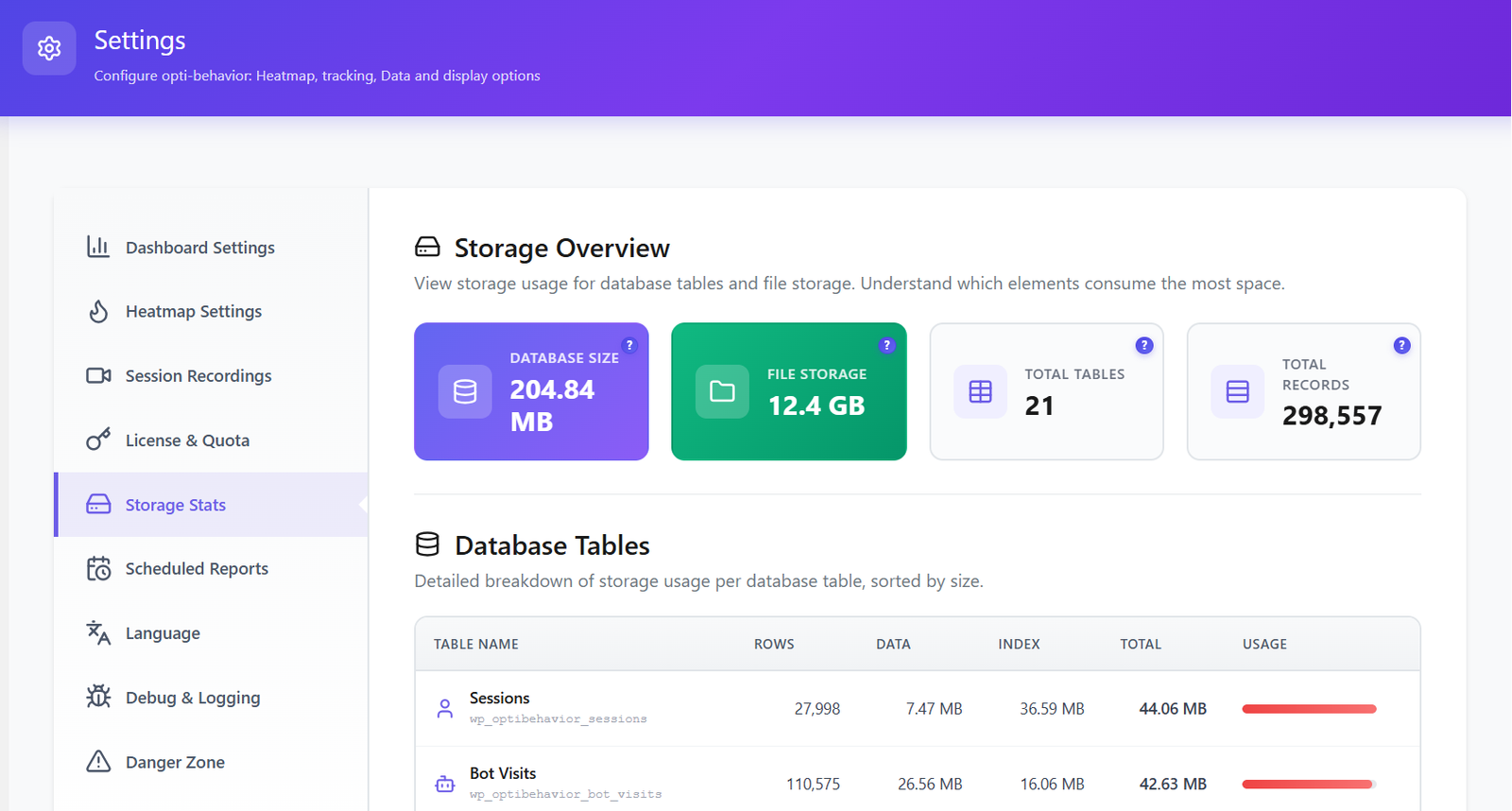
Monitor your analytics data storage in real-time. See database table sizes, total records, disk usage, and growth trends. Know exactly how much space your data uses.
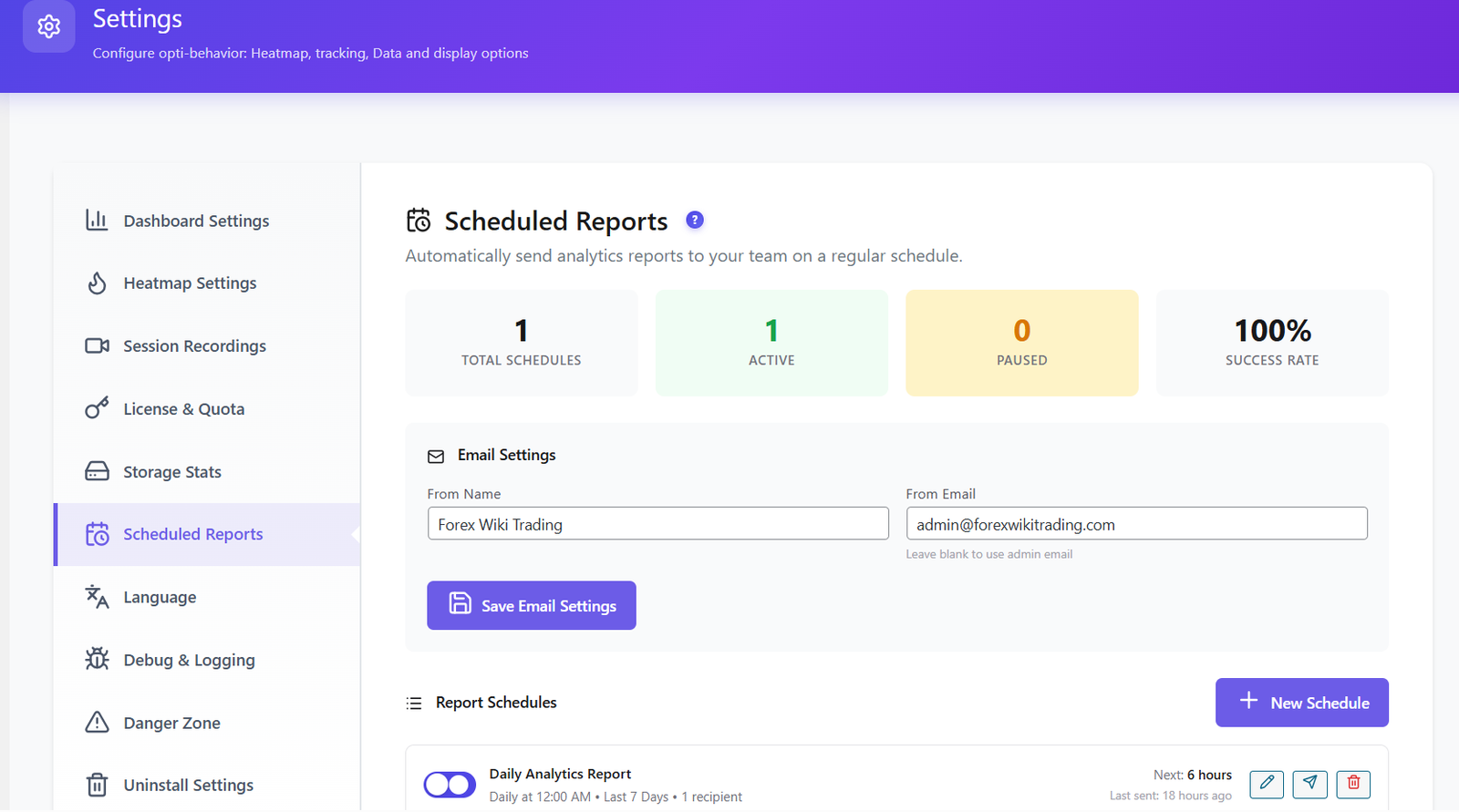
Set up automated email reports delivered daily, weekly, or monthly. Configure recipients, report content, and test delivery. Never miss important analytics insights.
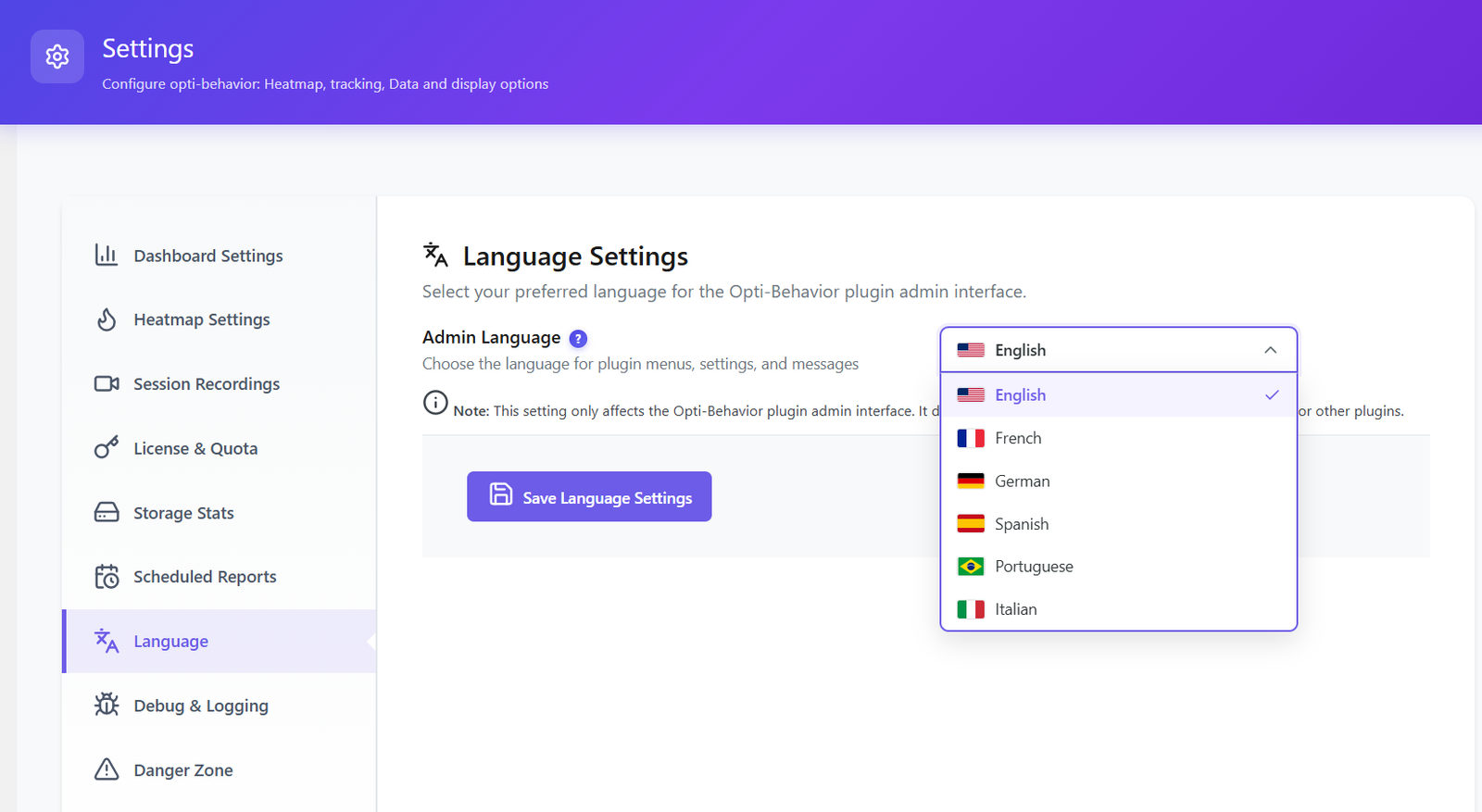
Full multi-language support with 6 languages: English, French, Spanish, German, Portuguese, and Italian. Switch the admin interface language with one click.
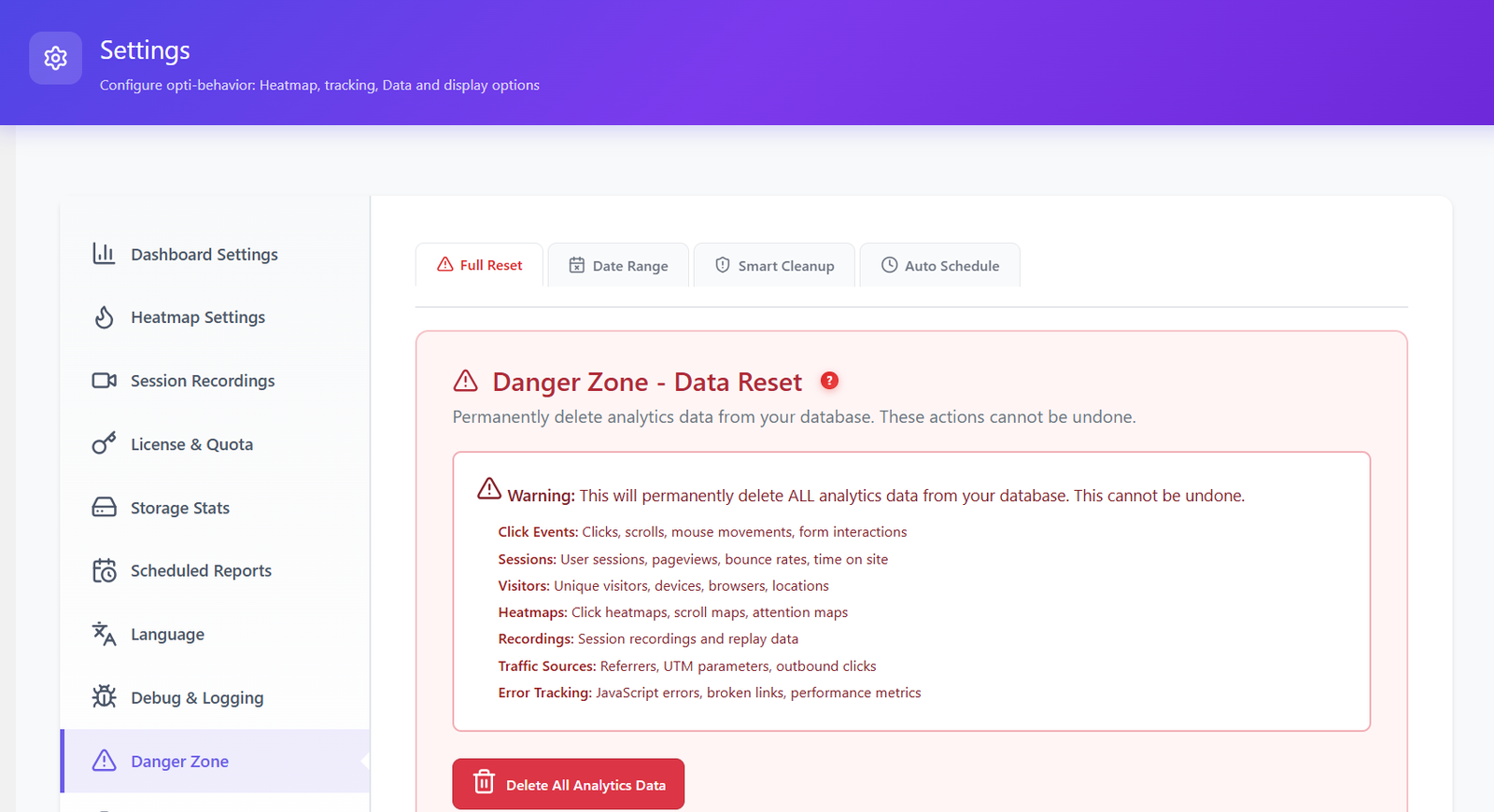
Complete data cleanup tools with selective reset options. Delete data by type, date range, or reset everything. Smart cleanup with preview before deletion.
Manage your Pro license, check for updates, and access premium support directly from the settings page.
Install Opti-Behavior from WordPress.org or upload the plugin. Activate it and default settings are applied automatically.
Navigate to Settings from the Opti-Behavior menu in your WordPress admin sidebar. All 10 settings pages are organized in clear tabs.
Configure tracking options, set up scheduled email reports, and choose your preferred admin language. Every setting is explained with inline help text.
Monitor storage usage, export data when needed, and use the cleanup tools to manage disk space. Set up auto-cleanup schedules to keep things tidy.
Fine-tune tracking accuracy and storage settings to minimize server impact. Choose file-based heatmap storage for high-traffic sites.
Switch the admin interface to French, Spanish, German, Portuguese, or Italian. Every team member sees analytics in their language.
Set up daily, weekly, or monthly email reports for stakeholders. Configure recipients and test delivery without waiting for the schedule.
| Feature | Opti-Behavior | Hotjar | MS Clarity | Matomo |
|---|---|---|---|---|
| Scheduled Email Reports | ✓ Free | ✓ | ✗ | ✓ |
| Multi-Language Admin | ✓ Free (6 langs) | ✗ | ✗ | ✓ |
| Storage Monitoring | ✓ Free | ✗ | ✗ | ✓ |
| Data Export (CSV/SQL) | ✓ Pro | ✓ | ✗ | ✓ |
| Auto-Cleanup Scheduling | ✓ Pro | ✗ | ✗ | ✓ |
| Self-Hosted Data | ✓ Free | ✗ | ✗ | ✓ |
| Price | $0 | $213+/mo | $0* | €26+/mo |
* Microsoft Clarity is free but Microsoft uses your visitors’ data for advertising.
Install Opti-Behavior for free and configure everything from a clean, organized settings interface. 10 settings pages, 6 languages, scheduled reports, and data management tools.