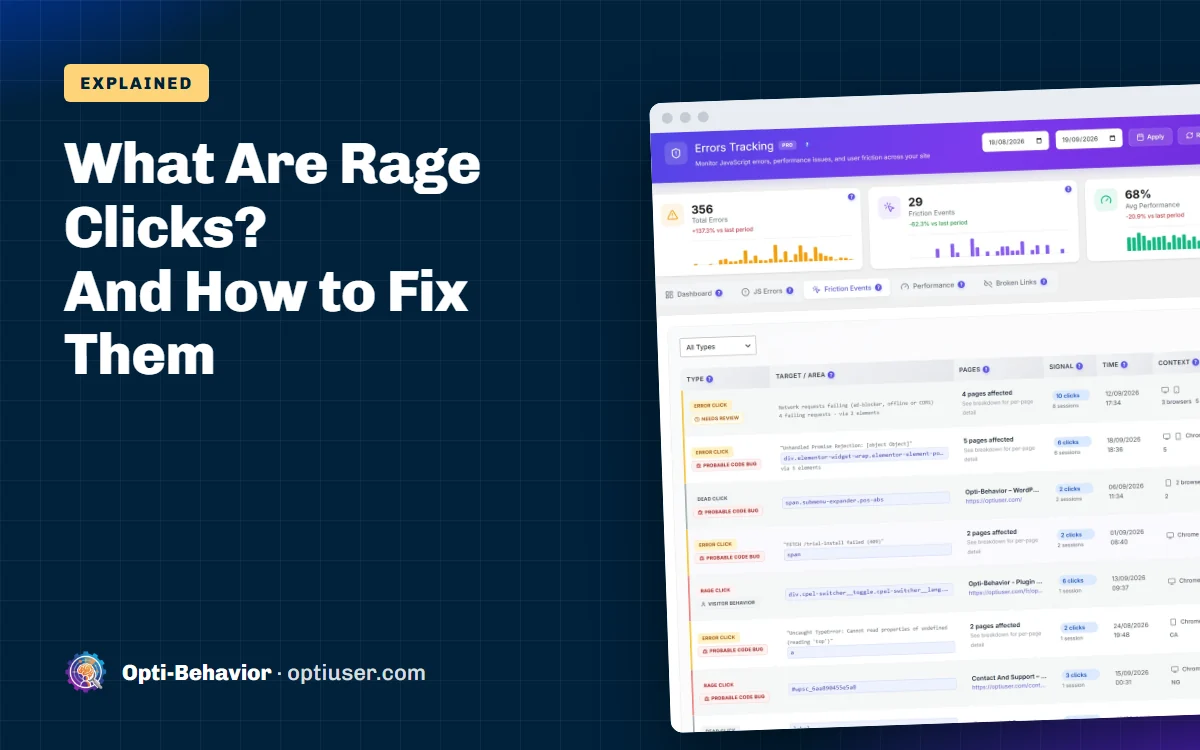

A rage click is when a visitor clicks the same spot several times in a very short time, usually 3 or more clicks within about one second. Rage clicking almost always means the visitor expected something to happen, and it did not. Think of an elevator button you press again and again: that is exactly what rage clicks are, but on a website.
A dead click is the quiet version: a single click on something that looks clickable and does nothing.
Rage clicks are one of the clearest signs of a frustrated visitor. And frustrated visitors do not buy, sign up or come back. The good news: rage clicks are easy to find and often easy to fix.
Simple definition: A rage click is 3 or more quick clicks on the same small area, usually within about one second. A dead click is a single click that does nothing at all. In Opti-Behavior, rage, dead and error click detection is a Pro feature; the free plugin gives you click heatmaps, where dead clicks show up as hot spots on things that are not links.
Contents
Rage clicks vs dead clicks vs error clicks
These three often come together. Here is the difference.
| Type | What happens | What the visitor feels |
|---|---|---|
| Rage click | Many fast clicks on the same spot | "Why is this not working?!" |
| Dead click | One click, nothing changes on the page | "Hmm, I thought that was a button." |
| Error click | A click that triggers a JavaScript error | Often nothing visible, the feature is broken |
A dead click can turn into a rage click. The visitor clicks once, nothing happens, so they click again, harder.
What causes rage clicks?
Here are the most common causes we see on WordPress sites.
- Things that look clickable but are not. A product image, an icon, bold blue text, a card. People expect a link.
- Slow buttons. The button works, but it takes two seconds to react. The visitor clicks again because they think it failed.
- Broken JavaScript. A plugin conflict or an error stops a menu, a slider or an "Add to cart" button from working.
- Tiny tap targets on mobile. The link is too small, so the finger misses it again and again.
- Form buttons that do not give feedback. The visitor presses "Send", nothing shows, so they press again.
- Pop-ups that will not close. The close button is too small or covered.
- Disabled buttons with no explanation. The button is grey because a field is missing, but nothing tells the visitor.
How to find rage clicks on your WordPress site
Option 1: Watch recordings (slow)
You can open session recordings one by one and look for fast clicks. It works, but it takes hours on a busy site.
Option 2: Let a tool flag them (fast)
Opti-Behavior Pro detects friction events on its own. It flags rage clicks, dead clicks and error clicks, groups them by page and element, and links each one to the recording where it happened.
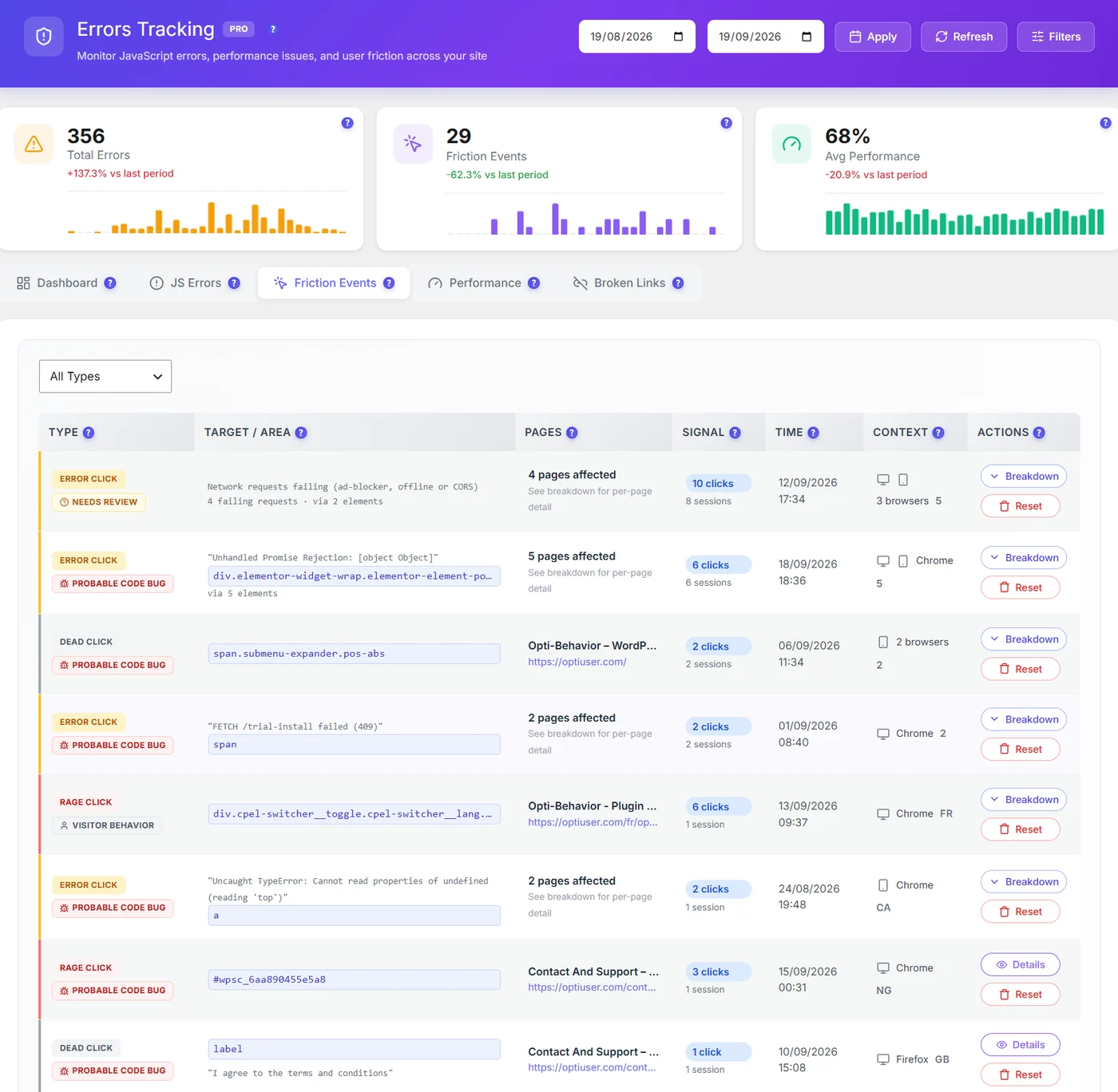
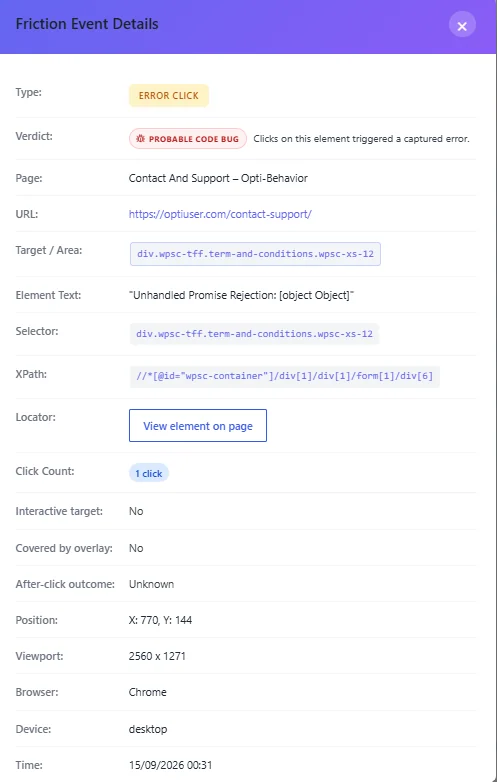
This turns hours of watching into a short to-do list, for example: "The ‘Size guide’ link on product pages gets the most rage clicks." Now you know exactly what to fix. See friction events in the docs.
Option 3: Check your click heatmap
A click heatmap shows hot spots on things that are not links. That is where dead clicks live. It is included in the free version of Opti-Behavior. Our guide on how to add a heatmap to WordPress shows the setup.
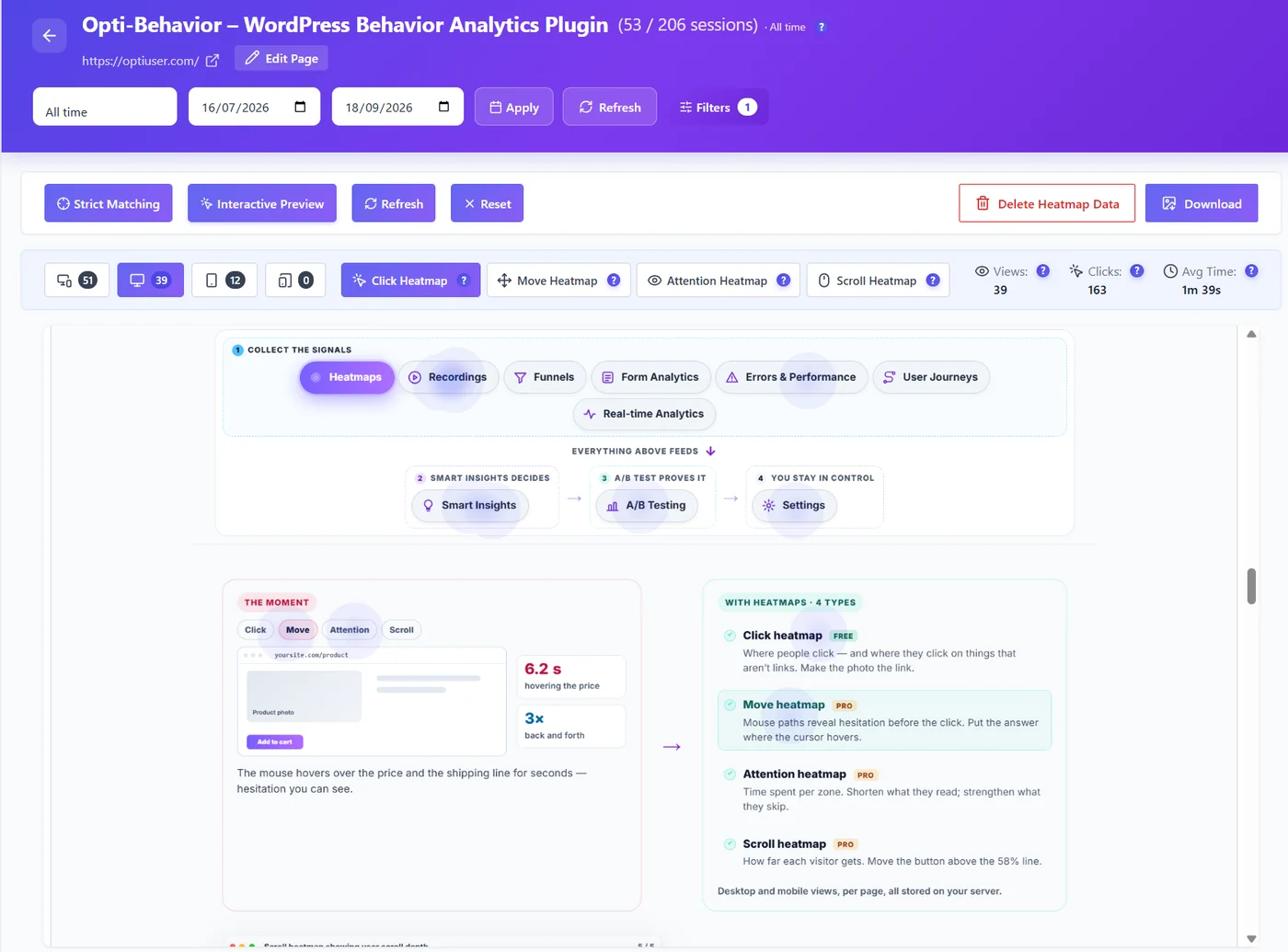
Dead clicks: the quiet cousin of rage clicks
A rage click is loud. Someone hits the same spot five times in a second. A dead click is quiet. Someone clicks once on something that looks clickable, nothing happens, and they just leave. No drama, no noise. That is why dead clicks are easy to miss, and why they often cost more.
Here is a typical example. Imagine a shop with a "Size guide" line under the price, in blue and underlined. It looks exactly like a link, but it is plain text. Visitors click it and nothing opens. Some of them never add to cart, because they are not sure which size to pick.
The three kinds of friction clicks
| Type | What happened |
|---|---|
| Rage click | Several fast clicks on the same spot |
| Dead click | A click on something that looks clickable and does nothing |
| Error click | A click followed by a JavaScript error |
Why a click can be "dead"
When Opti-Behavior Pro records a dead click, it also saves the details: the element that was clicked, whether it was really interactive, whether something was covering it, what happened after the click, and the screen size, browser and device. The button View element on page highlights the element on your live page, so you see exactly what visitors saw.
Most dead clicks come from one of these three causes:
- Covered by an overlay. A pop-up, a cookie banner or a sticky bar sits on top of the button. The visitor sees the button but clicks the invisible layer above it. This is very common on mobile.
- Not interactive. The element looks like a link or a button (blue, underlined, an arrow, a card with a shadow) but it is just text or an image.
- A script problem. The button should work, but its JavaScript failed to load or crashed.
The verdict tells you who should fix it
In Opti-Behavior Pro, each group of friction events gets a verdict, so you know if it is a design job or a developer job:
| Verdict | What it means | Who fixes it |
|---|---|---|
| Probable code bug | Clicks on this element triggered a captured error | Developer |
| Needs review | Could be a bug or the network (ad blockers, offline) | Check a few recordings first |
| Visitor behavior | Normal behavior, like impatient clicking | Usually nobody, or a small design tweak |
With Pro, Smart Insights measures rage clicks per 100 visits, so a busy page does not flood you with cards. You see the elements that frustrate a real share of visitors, not every single double-click.
How to fix dead clicks
- Covered by overlay: move or shrink the pop-up, cookie banner or sticky bar, or delay it until the visitor scrolls.
- Not interactive: make it a real link, or change its look so it does not pretend to be one. No blue underline on plain text.
- Probable code bug: open the linked JavaScript error and fix or replace the script that breaks.
After the fix, check the same element two weeks later. Dead clicks on it should drop close to zero.
How to fix rage clicks
Fix the cause, not the symptom. Here is a simple guide.
| Cause | Fix |
|---|---|
| Image or icon looks clickable | Make it a link, or change the style so it does not look clickable |
| Button is slow | Show a loading state right away ("Adding…") so people know it worked |
| JavaScript error | Check the error log, update or replace the plugin that breaks |
| Tiny mobile link | Make tap targets at least 44 by 44 pixels |
| Form button gives no feedback | Show a message or spinner right after the click |
| Pop-up close button hard to hit | Make it bigger and let people close it by tapping outside |
| Disabled button | Tell people what is missing, next to the button |
Measure before and after
Before you fix anything, look at the verdict. Opti-Behavior Pro tells you if the clicks look like a design problem (people click something that is not a button) or a code bug (the clicks trigger an error).
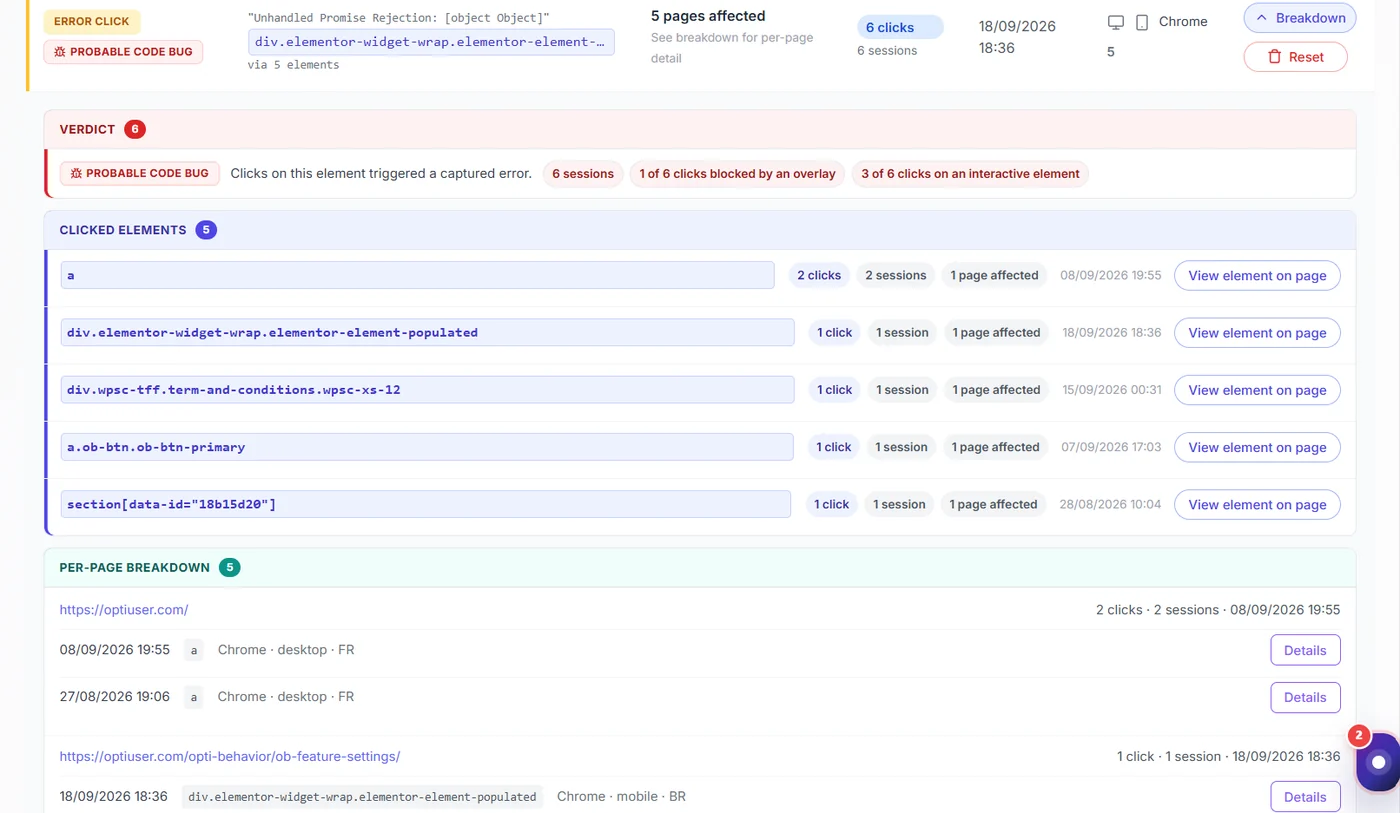
After a fix, compare the number of rage clicks on that element for the next two weeks. If it drops, you fixed it. If you want to be sure the change also helped sales or sign-ups, run an A/B test. Opti-Behavior’s A/B testing is free.
Are rage clicks always bad?
Almost always, but not every time. Some people double-click out of habit. A game or a quiz may need fast clicks. That is why good tools look for a pattern: many visitors, same element, again and again. One person with a fast finger is not a problem. Fifty people on the same button is.
Slow buttons and rage clicks often go together. If your page reacts slowly to taps, read our guide to Core Web Vitals on WordPress, especially the part about INP.
Find the rage clicks on your site
Start free with click heatmaps and funnels. Rage click and dead click detection with recordings is in Pro: see the pricing page for the free trial and plans.
Rage clicks FAQ
What are rage clicks?
Rage clicks are several fast clicks on the same spot, usually within about one second. They show that a visitor expected something to happen and it did not.
What is the difference between rage clicks and dead clicks?
A dead click is one click that does nothing. A rage click is many fast clicks in the same place. A dead click often becomes a rage click when the visitor tries again.
How do I track rage clicks in WordPress?
Use a behavior analytics plugin that detects friction events. Opti-Behavior Pro flags rage clicks, dead clicks and error clicks and links each one to a session recording.
Do rage clicks hurt conversions?
They can. A rage click means a visitor tried to do something and could not, so it often marks a step where people give up. Fix the elements with the most rage clicks first, then check the effect with an A/B test.