
Skip links
PRO 6-Month Free Trial

User Journey
Analytics

Visualize how visitors navigate your site with interactive Sankey flow diagrams. Discover top paths, analyze entry/exit pages, group URLs by pattern, and create funnels from discovered navigation flows.

3–7
Steps per Flow
Configurable step depth for Sankey diagram analysis
7
Filter Dimensions
Date, device, browser, OS, country, visitor type & referrer
One-Click Funnels
Convert any discovered path into a tracked conversion funnel
Auto-Detect Groups
Automatically detect URL patterns and create page groups
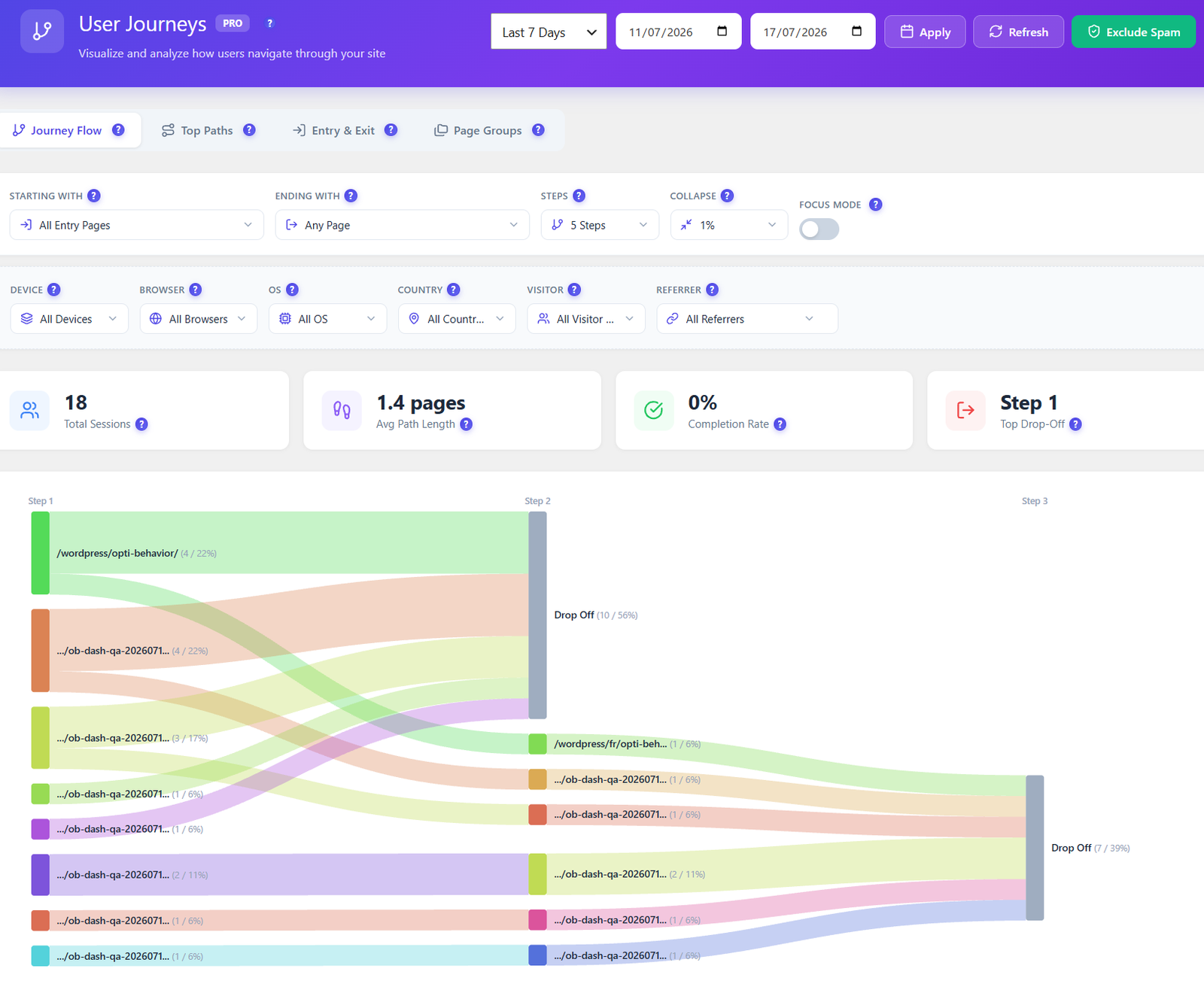
Opti-Behavior user journey Sankey diagram showing navigation flow
100% Self-Hosted
GDPR Compliant
Real-Time Updates
Unlimited Tracking

Understand How Users Navigate Your Site

Stop guessing which paths users take. See actual navigation flows visualized as interactive D3.js Sankey diagrams, discover top paths ranked by session frequency, analyze entry/exit behavior with bounce rates, and slice every view across 7 audience dimensions simultaneously — all stored on your own server, zero data sharing.

Interactive Sankey flow diagram

Sankey Flow Diagrams

Powered by D3.js + d3-sankey, interactive flow diagrams render every page-to-page transition as proportional links. Configure 3–7 steps per view, collapse low-traffic nodes into “Other” with a 1–10% threshold slider, or use Show All mode with paginated 50-nodes-per-step batches. Start and end page filters narrow the diagram to specific entry or goal pages. Drop-off nodes appear at each step in grey so abandonment patterns are immediately visible. Color-coded page groups turn long URLs into readable labels across the entire diagram.

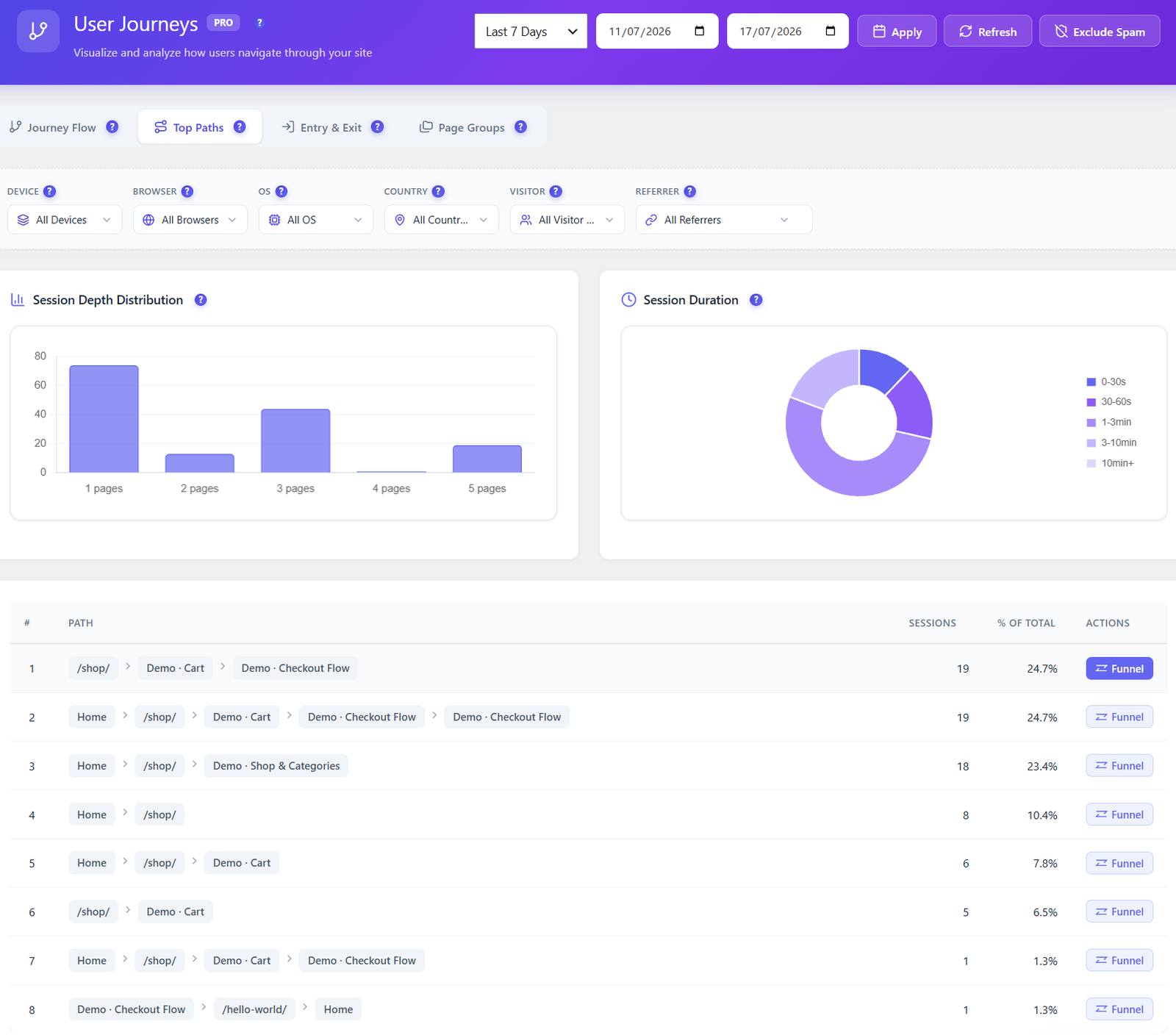
Top paths analysis with session counts

Top Paths Discovery

Session paths are aggregated and ranked by frequency. Use min/max length filters (2–10 pages) to focus on short bounce paths or long deep-dive sessions. Results are paginated at 25 paths per page with a “Load More” button for large datasets. Each path row shows session count + percentage of total sessions and a visual arrow sequence of page names. A Convert to Funnel button on every row creates a tracked conversion funnel from the discovered path with one click.

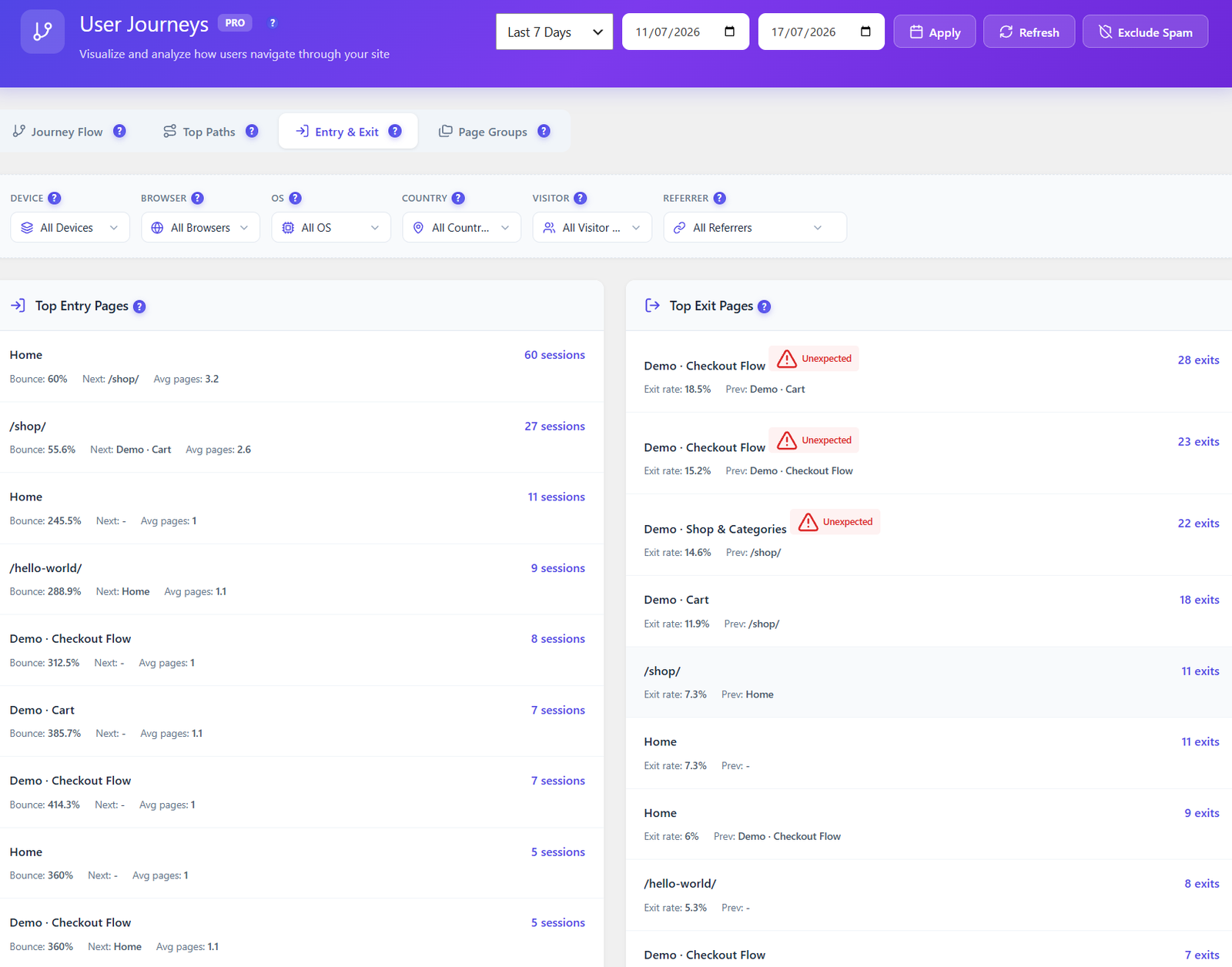
Entry and exit page analysis

Entry & Exit Page Analysis

Two-column layout shows your top 20 entry pages (where sessions begin) and top 20 exit pages (where sessions end). Each entry row displays bounce rate and the most common next page, plus average pages-per-session from that entry point. Each exit row shows exit rate and the most common previous page. Pages with an exit rate more than 2× the site average are automatically flagged as unexpected — immediately surfacing your highest-priority optimization targets.

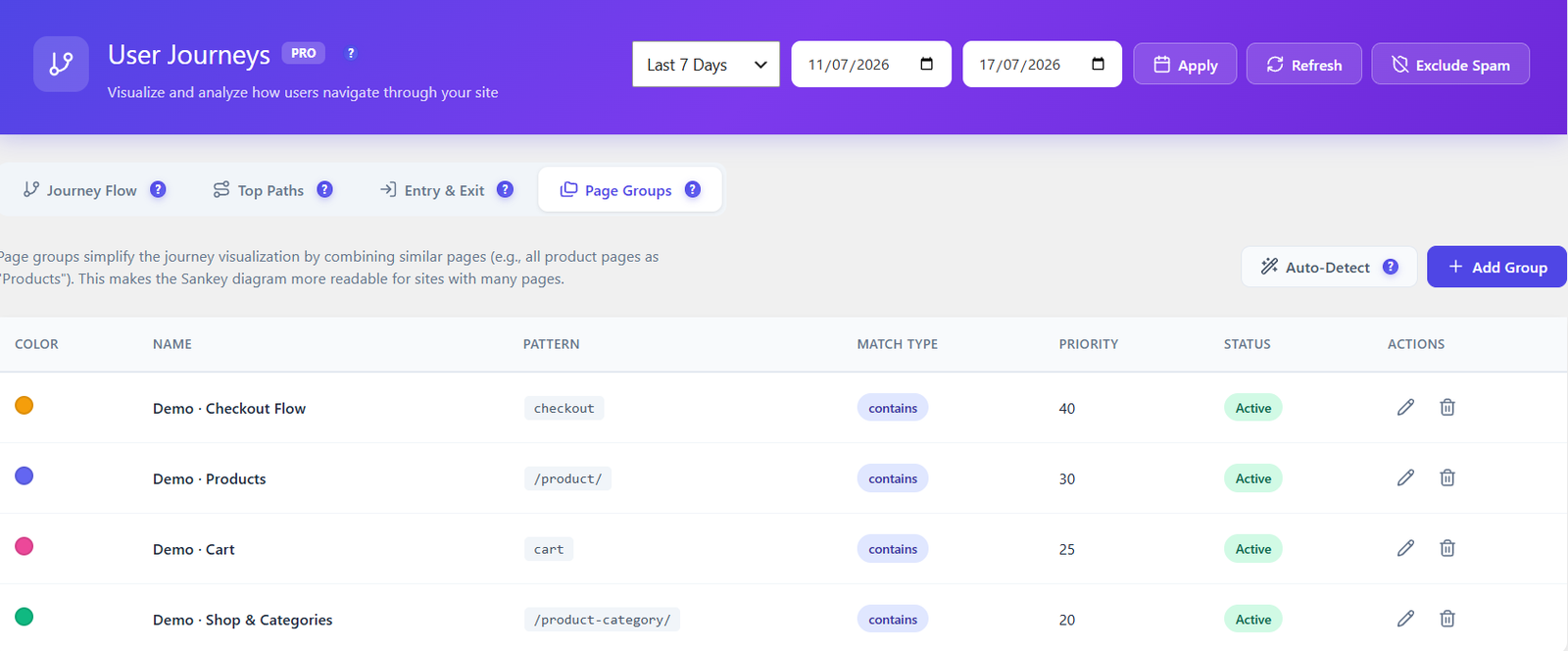
Page groups for URL pattern matching

Page Groups & URL Patterns

Group similar URLs into a single labelled node to reduce Sankey noise. Create groups manually or let Auto-Detect scan your tracked URLs and suggest patterns automatically. Each group supports 5 match types — Contains, Starts With, Ends With, Exact, or Regex — plus a custom color that propagates through the entire diagram. A priority number (0–100) resolves conflicts when a URL matches multiple groups (lowest number wins). Groups are saved via AJAX and apply immediately without a page reload.

Session depth and duration insights dashboard

Insights Dashboard

Four Chart.js-powered analytics panels in a dedicated tab: a Session Depth Distribution bar chart (1, 2, 3… pages per session), a Session Duration chart bucketed into 0–30s, 30–60s, 1–3 min, 3–10 min, and 10 min+, a Device Comparison chart showing average pages/session for Desktop vs Mobile vs Tablet, and a Most Visited Pages top-10 table. All four panels respond to the same date range and visitor-attribute filters as the rest of the page, giving a holistic view of engagement patterns across your entire site.

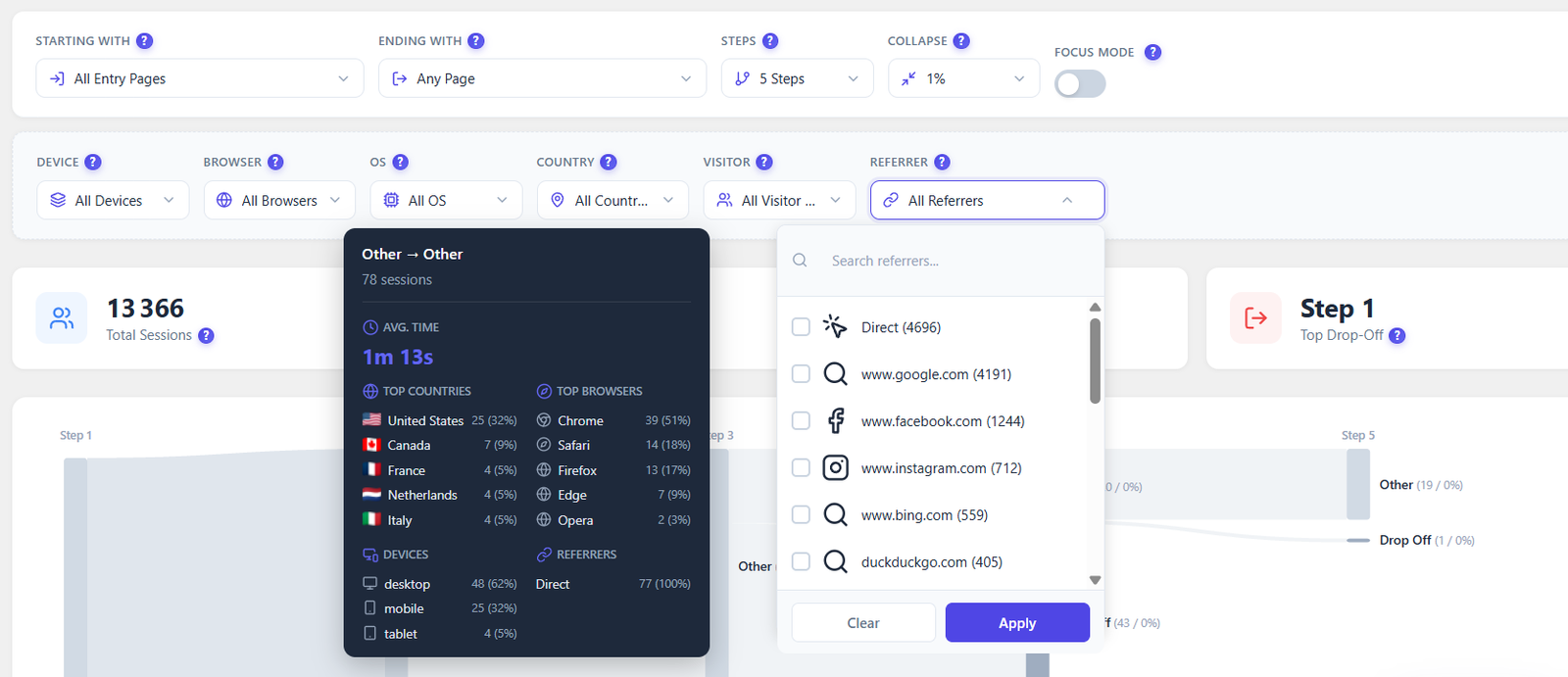
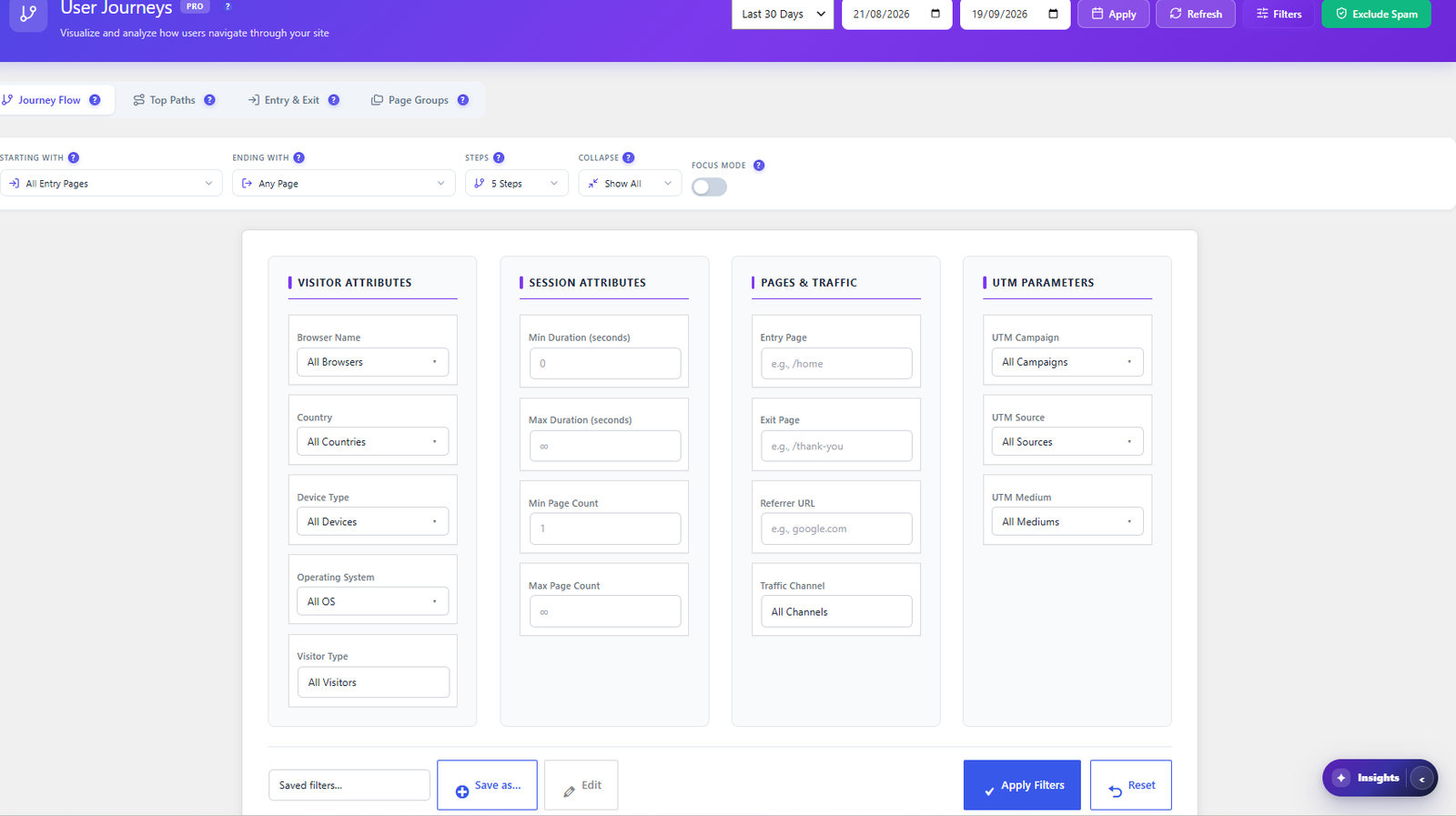
7-dimension filtering for journey analytics

7-Dimension Filtering

Every journey view supports simultaneous filtering across 7 dimensions: Date range (today, yesterday, 7 days, 30 days, this month, or fully custom), Device type (multi-select: Desktop, Mobile, Tablet), Browser (multi-select: Chrome, Firefox, Safari, Edge…), OS (multi-select: Windows, macOS, Android, iOS…), Country (multi-select with search), Visitor type (New / Returning), and Referrer source (Direct or specific domain). All filters apply across the Sankey diagram, Top Paths, Entry/Exit, and Insights tabs simultaneously — no separate filter sets per tab.

One-click funnel conversion from a discovered journey path

One-Click Funnel Conversion

Convert any discovered Top Path into a tracked conversion funnel with a single click from the Top Paths tab. A confirmation modal lets you name the funnel and optionally enable history backfill — which retroactively migrates existing sessions that match the path into the new funnel so you have instant historical data from day one. The backfill uses the ajax_backfill_funnel endpoint and reports exactly how many sessions were migrated. After creation, a direct link opens the Funnels page where you can view the visual dropout chart and track ongoing conversion rates. This bridges User Journey discovery with Funnel optimization in one seamless workflow.

How It Works

1

Enable Journey Tracking

Activate user journey tracking in Opti-Behavior Pro settings. The lightweight tracking script automatically captures page-to-page navigation sequences for every visitor session, storing each page visit in the optibehavior_session_pages table with page_order, URL, timestamp, and device metadata — zero external API calls, zero third-party data sharing.

2

Data Aggregates via SQL + Caching

As visitors browse, their full navigation paths are recorded. The analytics engine runs SQL aggregation queries on up to 10,000 sessions per request, building Sankey nodes and transition links entirely server-side. Results are stored in WordPress transients (60-second TTL) so the diagram and all tabs load near-instantly even on busy sites with thousands of daily sessions.

3

Explore Journey Flow & Insights

Open the User Journeys page to see the D3.js Sankey diagram render page transitions as proportional flows. Switch tabs to explore Top Paths ranked by session frequency, Entry & Exit analysis with bounce rates, and the Insights dashboard with Chart.js depth, duration, and device charts — all powered by the same 7-dimension filter row.

4

Convert Paths into Funnels

Found a high-traffic path? Click Convert to Funnel on any Top Path row. Optionally enable history backfill to retroactively migrate existing matching sessions into the new funnel for instant historical data. Then head to the Funnels page for visual step-by-step dropout analysis and ongoing conversion tracking.

Who Uses Journey Analytics?

Information Architecture

See how users actually navigate your site versus how you designed it. Discover if your menu structure and page hierarchy match real user behavior.

Revenue Optimization

Identify the most common paths to purchase. Understand which content pages lead to conversions and optimize internal linking to guide more users to revenue pages.

Content Strategy

Discover which blog posts lead to product pages, which landing pages drive the most engagement, and which content dead-ends cause visitors to leave.

Journey Analytics Comparison

Feature Opti-Behavior Hotjar MS Clarity Matomo
Sankey Flow Diagrams✓ Pro✓ Paid
Top Paths Discovery✓ Pro
Entry/Exit Analysis✓ Pro
URL Grouping✓ Pro
One-Click Funnel Creation✓ Pro
Focus Mode (Step-by-Step Exploration)✓ Pro
Insights / Depth & Duration Charts✓ ProPaid
Advanced 7-Dimension Filtering✓ Pro
History Backfill on Funnel Creation✓ Pro
Self-Hosted Data
Price$69/yrN/AN/A€26+/mo

User Journeys FAQ

What is a Sankey flow diagram?
A Sankey diagram is an interactive visualization that shows how visitors flow between pages on your site. The width of each flow represents the number of sessions taking that path, making it instantly clear which navigation routes are most popular and where users drop off.
How many steps can a journey path have?
You can analyze paths from 3 to 7 steps. This range covers most user flows while keeping the Sankey diagram readable. You can adjust the step count to zoom in on specific parts of the user journey.
What are Page Groups and how do they help?
Page Groups let you combine similar URLs into a single group using pattern matching. For example, you can group all blog posts (/blog/*) into one node called “Blog” instead of showing each individual post. This makes the Sankey diagram cleaner and more useful for sites with many pages.
Can I create a funnel from a discovered journey path?
Yes. When you discover a popular path in the Top Paths analysis, you can convert it into a Conversion Funnel with one click. This lets you track conversion rates and drop-off points for paths your visitors are already taking naturally.
Can I filter journeys by device, browser, or country?
Yes. User Journey Analytics includes filters for device type, browser, operating system, country, and referrer source. This helps you compare how different audience segments navigate your site and identify segment-specific optimization opportunities.
What is Focus Mode and how does it work?
Focus Mode is an interactive step-by-step exploration toggle in the Journey Flow tab. When enabled, only Step 1 entry pages are shown in the Sankey diagram. Click any page node to reveal where visitors went next — the diagram expands one step at a time. This is ideal for drilling into a specific page’s downstream traffic without the visual noise of a full multi-step diagram. A status banner at the top tells you which step you are currently viewing and prompts you to click a node to continue exploring.
What does the Insights dashboard show?
The Insights tab contains four analytics panels: a Session Depth Distribution bar chart showing how many sessions visited 1, 2, 3 or more pages; a Session Duration chart bucketed into 0–30s, 30–60s, 1–3 min, 3–10 min, and 10 min+; a Device Comparison chart comparing average pages-per-session across Desktop, Mobile, and Tablet; and a Most Visited Pages top-10 table. All four panels respond to the same date range and visitor-attribute filters as the rest of the page.
Which filter dimensions are available for journey analysis?
User Journey Analytics supports 7 filter dimensions applied simultaneously: Date range (presets or fully custom), Device type (multi-select), Browser (multi-select), Operating System (multi-select), Country (multi-select with search), Visitor type (New or Returning), and Referrer source (Direct or specific domain). These filters apply to all tabs — Sankey diagram, Top Paths, Entry/Exit analysis, and Insights charts — so every view always reflects the same audience segment you’re analyzing.
What is history backfill when converting a path to a funnel?
When you convert a discovered Top Path into a Conversion Funnel, you can optionally enable history backfill. This retroactively scans existing recorded sessions and migrates any that match the new funnel’s path into its tracking data — so your funnel immediately shows historical conversion rates rather than starting from zero. After migration completes, a confirmation message reports exactly how many sessions were backfilled. History backfill is optional: disable it if you want to track only sessions recorded after the funnel was created.

Map Your Users’ Journey Today

Get Opti-Behavior Pro and see exactly how visitors navigate your site. Interactive Sankey diagrams, top paths discovery, and one-click funnel creation — all self-hosted.

Explore
Drag