
A WooCommerce abandoned cart is a cart a shopper filled and never turned into an order. WooCommerce does not list these carts for you, so most store owners only notice the symptom: products added to the cart, few orders. The fix starts with one question: at which step do shoppers leave, and why? This guide gives the common reasons, the WooCommerce settings to check first, and a simple way to find your own leaking step with any analytics tool.
Short answer: WooCommerce only records carts that reached the Place order button (orders in Pending payment or Failed). To see the other abandoned carts, show costs early, allow guest checkout, test your payment step, then build a funnel Shop → Product → Cart → Checkout → Order received and fix the step with the biggest drop.
Contents
- What a WooCommerce abandoned cart really is
- Why shoppers abandon their cart: the 10 most common reasons
- WooCommerce settings to check first
- WooCommerce checkout not working? Check these 5 things
- Checkout optimization: 5 changes worth testing
- How to find the step where your carts are lost
- How Opti-Behavior shows where WooCommerce shoppers drop off
- WooCommerce abandoned cart FAQ
What a WooCommerce abandoned cart really is
A shopper can leave at three different moments, and each one has a different cause:
- On the cart page, before starting checkout: surprise costs, comparing prices, “I’ll buy later”.
- On the checkout page, while filling the form: too many fields, a forced account, a confusing error.
- At payment: a card declined, a missing payment method, a script that breaks the Place order button.
WooCommerce only records the last case. When a shopper clicks Place order but does not finish paying, the order appears in WooCommerce > Orders with the status Pending payment or Failed. Shoppers who left the cart or the checkout form before clicking do not appear anywhere. That is why “abandoned cart” numbers need a funnel, not only the order list.
If most of your losses happen inside the checkout form, read our guide to WooCommerce checkout abandonment. This article focuses on the cart and the step before it.
Why shoppers abandon their cart: the 10 most common reasons
Some abandonment is normal. In Baymard Institute’s survey of US online shoppers, 42% said they had abandoned a cart because they were “just browsing / not ready to buy”. Leaving those aside, here are the reasons shoppers gave (Baymard Institute, cart abandonment statistics, read on 17 October 2026):
| Reason shoppers gave | Shoppers | Where it shows |
|---|---|---|
| Extra costs too high (shipping, tax, fees) | 40% | Cart |
| Delivery was too slow | 20% | Cart |
| Did not trust the site with credit card details | 19% | Payment |
| The site wanted them to create an account | 18% | Checkout |
| Checkout too long or complicated | 17% | Checkout |
| The website had errors or crashed | 17% | Checkout / payment |
| Returns policy not satisfactory | 13% | Cart |
| Could not see or calculate the total order cost up front | 12% | Cart |
| The credit card was declined | 10% | Payment |
| Not enough payment methods | 9% | Payment |
The same page puts the average documented cart abandonment rate at 70.22%, calculated from 50 different studies. Use it as context, not as a target: the useful number is your own rate, measured the same way every month.
Notice how many of these reasons are visible on the cart page itself: the shipping cost, the delivery time, the total, the trust signals. That is where to look first.
WooCommerce settings to check first
Before installing anything, check these settings. Each one matches a reason from the list above.
1. Show shipping costs on the cart page
In WooCommerce > Settings > Shipping > Shipping options, turn on “Enable the shipping calculator on the cart page”. A shopper who can see the shipping cost before checkout is not surprised at the last step. If you offer free shipping above an amount, say it on the product page and in the cart.
2. Allow guest checkout
In WooCommerce > Settings > Accounts & Privacy, allow customers to place orders without an account. You can still offer to create an account after the order.
3. Test your payment step yourself
Place a real test order on desktop and on a phone, with each payment method you offer. Then open WooCommerce > Status > Logs and look at the logs of your payment gateway: declined cards and gateway errors often show up there before anyone complains.
4. Look at your Pending payment and Failed orders
Filter WooCommerce > Orders on Pending payment and Failed. A sudden rise after a plugin or theme update usually points to a technical problem, not to shoppers changing their mind.
5. Keep the cart and checkout pages light
Every script you add to these pages has a cost, including analytics. Test the cart and checkout pages in PageSpeed Insights after each new plugin. We published our own on/off test of our plugin on one test page: does an analytics plugin slow down WordPress?
WooCommerce checkout not working? Check these 5 things
Sometimes shoppers do not leave by choice: the checkout simply fails. The Place order button spins and nothing happens, an error appears after the click, or orders pile up in Pending payment. Check these points in this order:
- Exclude cart, checkout and my-account from the page cache. A cached checkout can serve an expired security token, and the order then fails. Most cache plugins exclude these pages by default; check again if you added a CDN or custom cache rules.
- Read the logs. In WooCommerce > Status > Logs, open the log of your payment gateway and the fatal-errors log for the day of the problem.
- Test for a plugin or theme conflict. On a staging copy, switch to the Storefront theme and turn off every plugin except WooCommerce and your payment gateway. If checkout works, turn the others back on one by one.
- Place a test order on a phone with each payment method you offer, not only on your desktop.
- Compare two counts in any analytics tool. Over the same days, compare visits to the checkout page with visits to the order-received page. If checkout visits stay normal and confirmations fall close to zero after an update, the checkout is broken, not your shoppers.
If the failure only hits some browsers or devices, a JavaScript error on the checkout page is a common cause. Opti-Behavior Pro logs JavaScript errors per page: see WordPress error tracking.
See the step where your shoppers leave
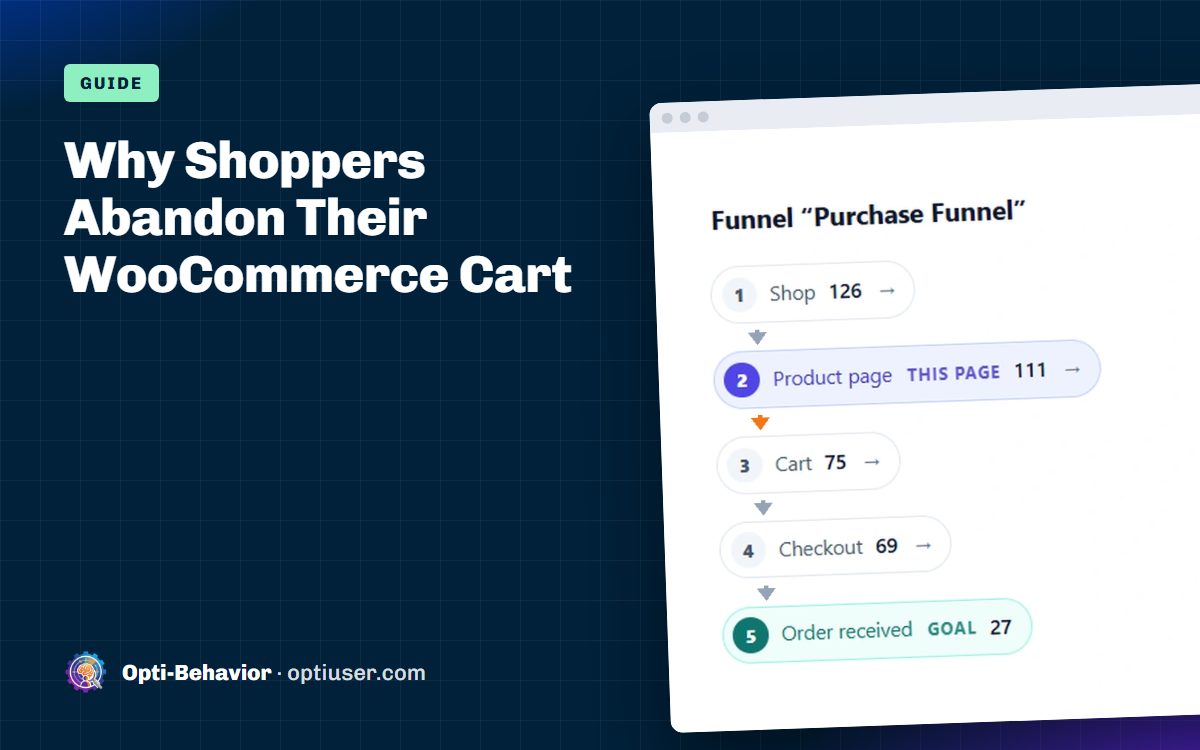
Opti-Behavior is free for WordPress. It suggests a WooCommerce purchase funnel (shop, product, cart, checkout, order received) and shows the click heatmap of your cart page, with the data on your own server.
Checkout optimization: 5 changes worth testing
Once the checkout works, small changes decide how many shoppers finish. Test one at a time and compare the same number of days before and after.
- Show the full total, with shipping and tax, before the checkout page.
- Remove the fields you do not need. In the WooCommerce Checkout block, the company, address line 2 and phone fields can be set to optional or hidden in the block settings.
- Offer the payment methods your buyers expect, including the wallets they use on phones.
- Put reassurance next to the Place order button: a link to your returns policy and a way to contact you.
- Check the page on a phone: one column, readable labels, a button that is easy to tap.
How to find the step where your carts are lost
Settings fix the known causes. To find your cause, you need to measure the journey step by step. Whatever the tool, the method is the same:
- Build a funnel with these steps: shop page, product page, cart, checkout, order received. For the last step, use a rule like “URL contains order-received”, because the real confirmation address contains the order number.
- Read the biggest drop. Product page to cart: work on the product page (price, photos, delivery date). Cart to checkout: work on costs and trust in the cart. Checkout to order received: work on the form and the payment step.
- Split by device. A drop that only happens on phones is often a layout or payment problem, not a price problem.
- Watch a few sessions of shoppers who left at that step, if your tool records sessions. Ten replays often show the same problem again and again.
- Change one thing, then compare the same number of days before and after.
With Google Analytics 4
GA4 can do this if your store sends the ecommerce events (add_to_cart, begin_checkout, purchase), for example with Google’s official WooCommerce integration. Then build a Funnel exploration in the Explore section with those events as steps. It works well, but it needs the event setup first.
With abandoned cart e-mail plugins
Plugins such as Cart Abandonment Recovery by CartFlows, Abandoned Cart Lite for WooCommerce, or the Abandoned Cart Pro extension on the WooCommerce marketplace do something different: they send reminder e-mails to shoppers who typed their e-mail address, and some list the abandoned carts in the admin. They can bring some shoppers back. They do not tell you why the others left, and they only reach people who gave an e-mail address. Check what personal data such a plugin stores and how it fits your consent setup before you turn it on.
The two approaches work well together: reminders for the shoppers who were interrupted, and a funnel to fix the reason for everyone else.
How Opti-Behavior shows where WooCommerce shoppers drop off
Opti-Behavior is our WordPress plugin, so we are not neutral here. It does not send e-mails to shoppers. What it does is show where shoppers drop off between the cart, the checkout and the order received page, inside your WordPress admin.
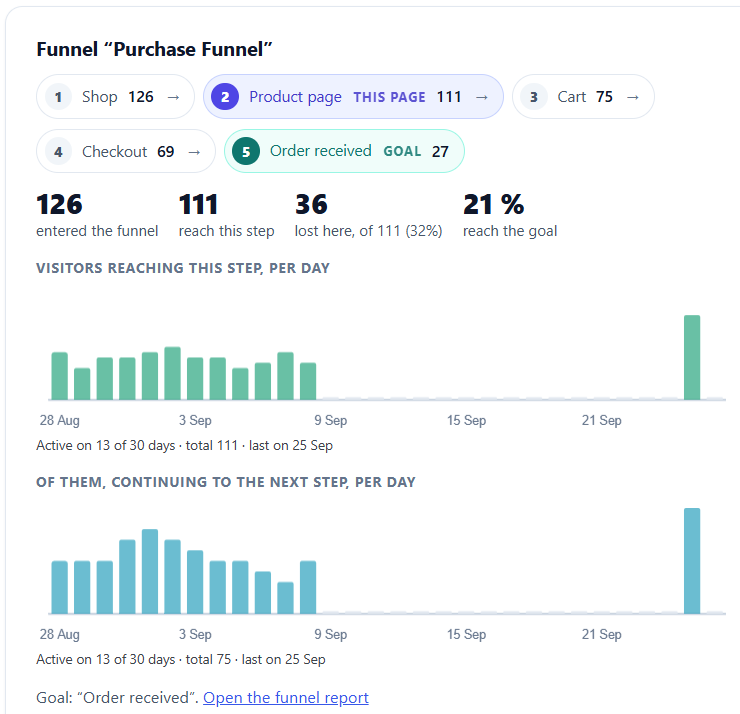
- Suggested WooCommerce funnels (Free). On the Funnels page, Opti-Behavior detects WooCommerce and suggests a Purchase Funnel (Shop, Product page, Cart, Checkout, Order received) and an Express Checkout Funnel (Product page, Cart, Checkout, Order received), with your real cart and checkout addresses filled in, even on a translated shop.
- Click heatmaps (Free). Open the click heatmap of your cart page to see what shoppers click instead of “Proceed to checkout”: the coupon field, the shipping calculator, a product link back to the shop.
- Session recordings (Pro). Watch replays of visits to your cart and checkout pages to see what shoppers do just before they leave.
- Checkout form analytics (Pro). See the checkout field where shoppers stop.
- Smart Insights cards (Pro). The “Cart to checkout drop-off” and “Checkout to purchase drop-off” cards flag a low step rate on your shop funnel and link to the related reports.
See what is in each version on the pricing page, and how funnels work in our guide to the WordPress conversion funnel plugin.
Find your leaking checkout step today
Install the free plugin, open Funnels, confirm the suggested WooCommerce funnel and read it after a few days of visits.
WooCommerce abandoned cart FAQ
Does WooCommerce track abandoned carts?
Not as a list. WooCommerce shows orders that were placed but not paid (Pending payment, Failed). Carts left before the Place order button are not recorded, so you need a funnel or a dedicated plugin to see them.
What is a normal cart abandonment rate?
Baymard Institute puts the average documented rate at 70.22%, from 50 studies (read on 17 October 2026). Rates vary a lot by shop, price and traffic, so compare your store with itself over time.
Can I reduce cart abandonment without a plugin?
Yes, partly. Show shipping costs in the cart, allow guest checkout, test your payment methods on a phone, and check your Pending payment and Failed orders after each update. To find the exact step where shoppers leave, you need some form of funnel.
Does Opti-Behavior send abandoned cart e-mails?
No. Opti-Behavior shows where and how shoppers drop off. If you want reminder e-mails, use an abandoned cart e-mail plugin next to it.
Is the WooCommerce funnel free in Opti-Behavior?
Yes. The suggested WooCommerce funnels and click heatmaps are in the free plugin. Session recordings, form analytics and the Smart Insights drop-off cards are Pro.
The Opti-Behavior Team