
Overview
The Heatmaps page in Opti-Behavior provides a visual representation of how visitors interact with your website pages through click tracking. Heatmaps show you exactly where users click, helping you understand what grabs their attention, what they ignore, and how to optimize your page layouts for better engagement and conversions.
Preset Filters
At the top-right of the heatmaps page, a dropdown lets you quickly filter your heatmap data using four built-in presets:
- Popular – Shows pages sorted by the highest number of total clicks. This is the default view, helping you focus on your most-interacted pages.
- Recent – Displays pages sorted by the most recent activity, so you can see which pages are currently attracting clicks.
- Top Bounce – Shows pages with the highest bounce rates. Use this to identify pages where visitors leave without further interaction, indicating potential UX issues.
- Top Engagement – Highlights pages with the highest engagement levels, revealing your best-performing content.
A Refresh button next to the preset dropdown lets you reload all heatmap data without changing the selected filter.
Statistics Cards
Two key performance indicator cards are displayed prominently below the header:
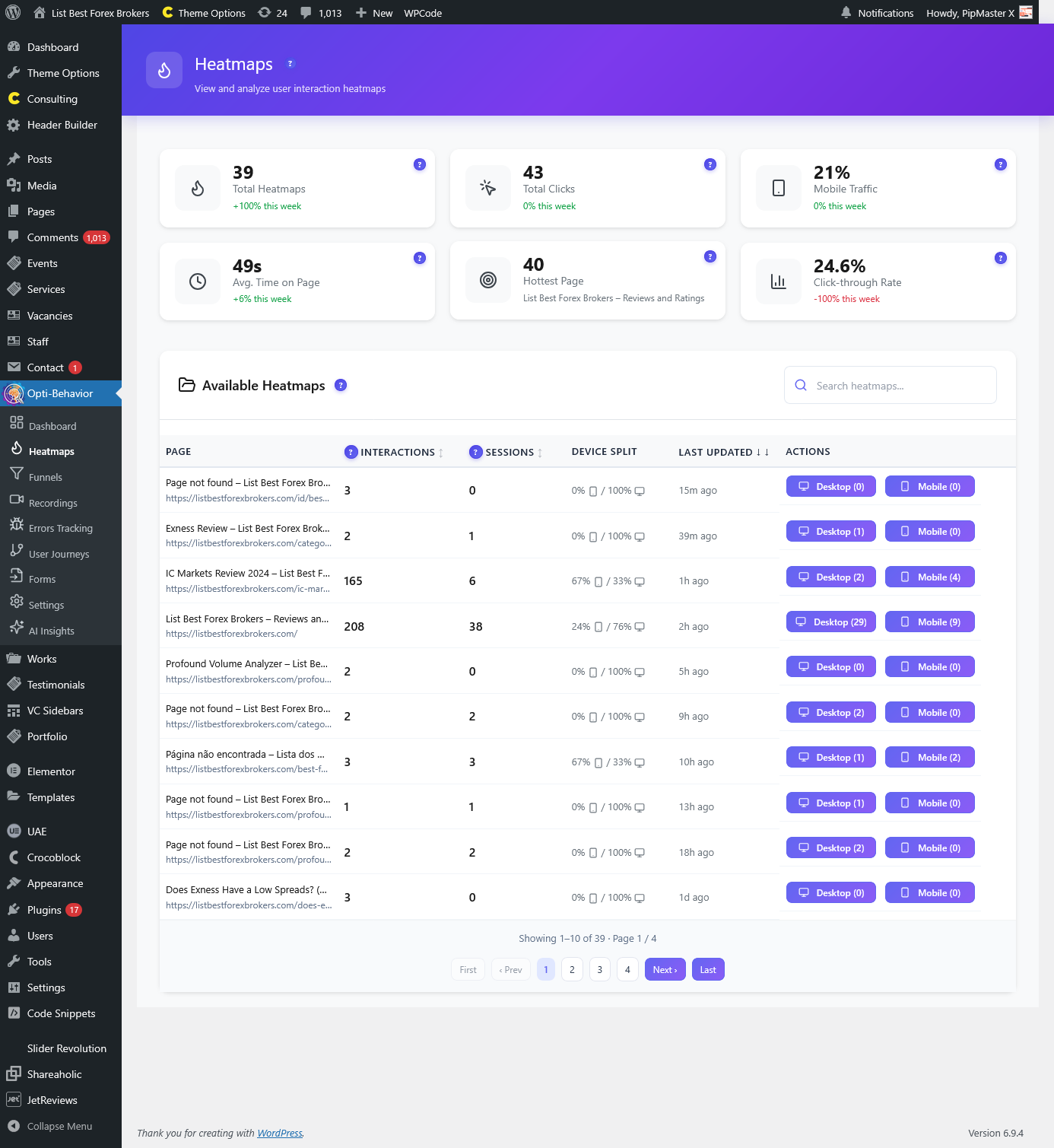
- Total Heatmaps – The total number of pages being tracked with heatmap data. Includes a weekly growth percentage indicator showing how many new tracked pages were added this week.
- Total Clicks – The cumulative number of clicks recorded across all tracked pages. Also includes a weekly growth percentage to show click trends over time.
Both cards feature color-coded growth indicators: green for positive growth and red for declines.
Heatmaps Table
The main content area displays a detailed table of all pages with heatmap tracking data. The table includes the following columns:
- Page – The page title as set in WordPress. This helps you quickly identify which page each row represents.
- URL – The page URL, displayed as a clickable link that opens in a new tab. Long URLs are automatically truncated at 60 characters with an ellipsis for readability, while the full URL is shown on hover.
- Clicks – The total number of clicks recorded on this page. Higher numbers indicate more interactive pages.
- Views – The total number of page views recorded. Compare this with clicks to understand click-through behavior.
- Actions – Two quick-action buttons for each page:
- PC – Opens the desktop heatmap visualization for the page in a new tab, showing click patterns from desktop visitors.
- Mobile – Opens the mobile heatmap visualization in a new tab, showing click patterns from mobile visitors.
Heatmap Visualization
When you click on a PC or Mobile heatmap action button, you are taken to a detailed heatmap visualization page that overlays click data directly on top of your actual page. Key features of the heatmap view include:
- Click Density Overlay – A color-coded heat overlay that shows where clicks are concentrated. Red/hot areas indicate heavy clicking, while blue/cool areas indicate less interaction.
- Drawing Points – Individual click points can be displayed on the page, showing exact click locations.
- Count Bar – A count bar can be enabled to show numerical click counts for specific elements.
- Desktop vs. Mobile – Separate heatmap views for desktop and mobile ensure you can analyze click behavior for each device type independently.
Empty State
If no heatmap data has been collected yet, the table displays a friendly empty state message: “No heatmap data yet – As visitors interact, this table will populate.” This is normal for new installations and the data will begin appearing as visitors interact with your site.
How to Access
Navigate to Opti-Behavior → Heatmaps in your WordPress admin sidebar. The page loads with the “Popular” preset selected by default.
Frequently Asked Questions
How does Opti-Behavior track clicks for heatmaps?
Opti-Behavior uses a lightweight JavaScript tracker that records click coordinates, viewport dimensions, and element information for every visitor interaction. The data is sent asynchronously to avoid impacting page performance.
What is the difference between the PC and Mobile heatmap views?
PC heatmaps show click data from desktop visitors (typically wider screens), while Mobile heatmaps show data from mobile visitors (narrower screens). Since page layouts often differ between devices, separating the data gives you accurate insights for each experience.
Why does my heatmap table show no data?
Heatmap data requires visitors to interact with your pages. If the table is empty, either your site hasn’t received visitors since installing the plugin, or the tracking script hasn’t been loaded. Check your Settings page to ensure tracking is enabled.
What do the growth percentage indicators mean?
The growth percentages on the statistics cards compare this week’s data to the previous week. A +15% on Total Clicks means you received 15% more clicks this week compared to last week.
Can I view heatmaps for specific pages?
Yes. Use the table’s Action buttons (PC or Mobile) next to any page to view its specific heatmap. You can also access heatmaps directly from the Dashboard’s Top Pages widget.
How are long URLs displayed in the table?
URLs longer than 60 characters are automatically truncated with an ellipsis (…) for table readability. Hover over the URL to see the full path, or click on it to open the page in a new tab.
What preset filter should I use?
Use Popular to focus on your most-clicked pages (good for general optimization). Use Top Bounce to find problem pages where visitors leave quickly. Use Top Engagement to study what works well. Use Recent to check newly published content.
Does heatmap tracking affect my website’s performance?
No. The heatmap tracking script is lightweight and loads asynchronously, meaning it doesn’t block page rendering. Click data is sent in the background without affecting user experience.
Can I configure heatmap tracking settings?
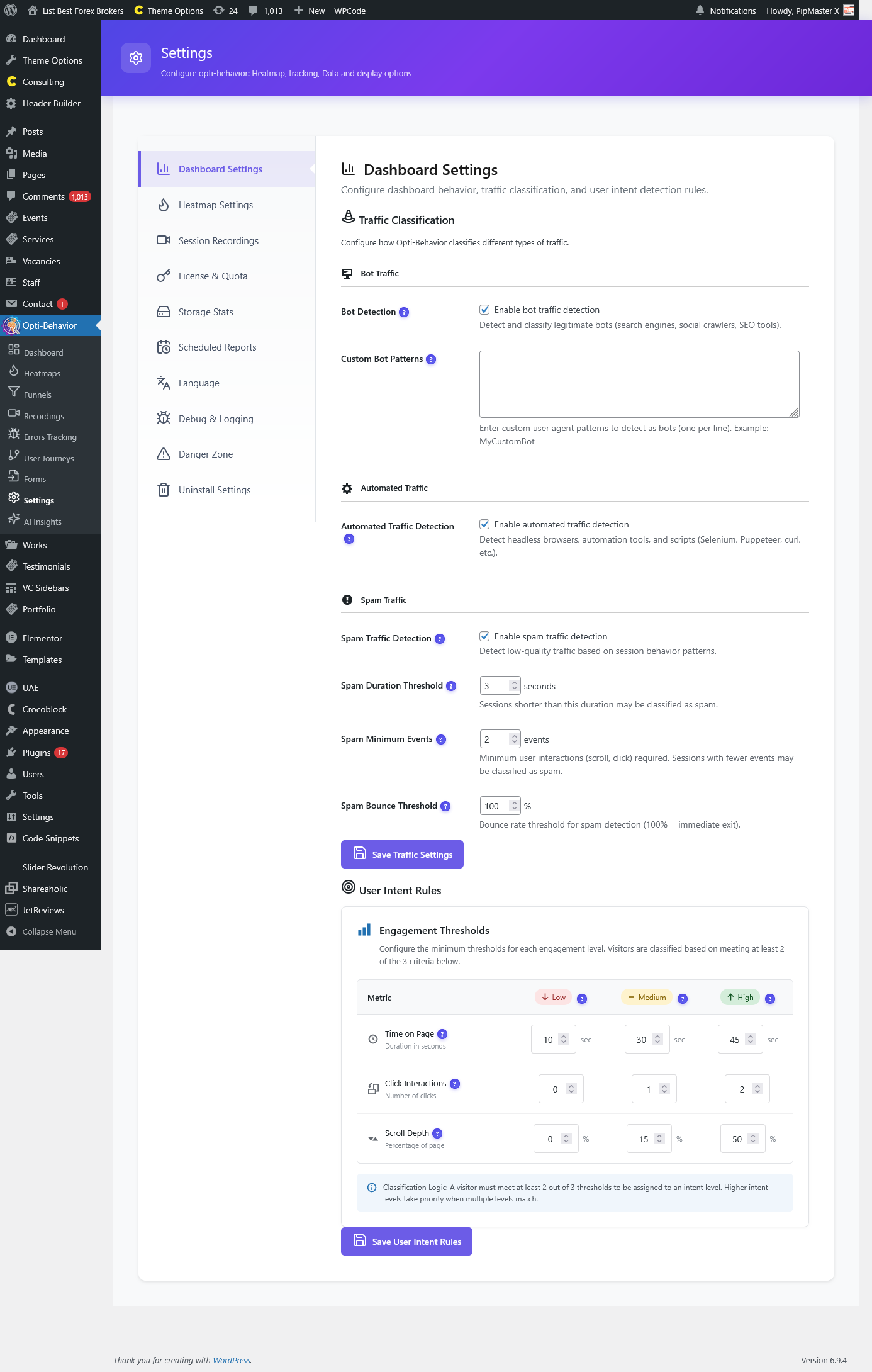
Yes. Go to Opti-Behavior → Settings → Heatmap Settings to configure accuracy levels (High/Standard), AJAX delay time, drawing point visibility, count bar display, and URL handling options.
Are non-singular pages tracked?
By default, heatmaps track singular pages (posts, pages). You can enable tracking for non-singular pages (archives, categories) in the Heatmap Settings.