
Overview
The Form Analytics page is an Opti-Behavior Pro feature that provides deep insights into how visitors interact with forms on your website. Track form views, submissions, abandonments, conversion rates, and individual field-level interactions to optimize your forms for maximum conversions.
Date Range & Filters
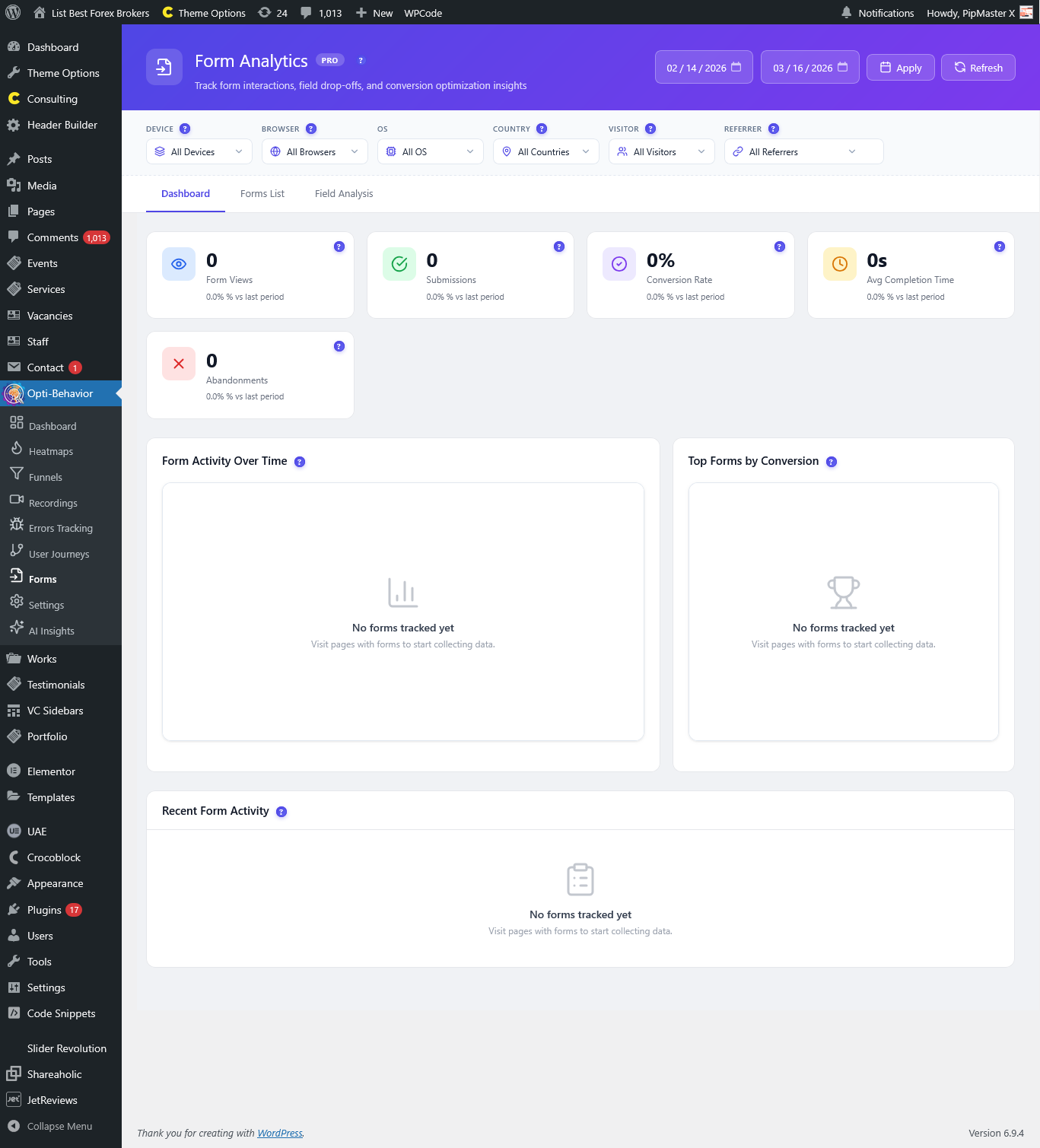
The header provides date range controls and a comprehensive filter bar:
- Date From / Date To – Select a custom date range. Uses a smart default that auto-detects earliest available data.
- Apply / Refresh – Apply the date filter or refresh all data.
Visitor Attribute Filters
A powerful filter bar with multi-select dropdowns lets you segment form data by:
- Device – Filter by Desktop, Mobile, Tablet (multi-select with search).
- Browser – Filter by specific browsers (multi-select with search).
- OS – Filter by operating system (multi-select with search).
- Country – Filter by visitor country (multi-select with search).
- Visitor – Filter by new or returning visitors.
- Referrer – Filter by traffic source (multi-select with search).
Each dropdown supports searching, clearing, and applying multiple selections simultaneously.
Tab Navigation
Form Analytics is organized into three tabs:
1. Dashboard Tab
The overview dashboard displays key form metrics with KPI cards:
- Form Views – Total number of times forms were viewed by visitors.
- Submissions – Total successful form submissions.
- Abandonments – Number of visitors who started but did not complete a form.
- Conversion Rate – Percentage of form views that resulted in submissions.
- Avg Completion Time – Average time visitors take to complete a form.
Each KPI includes a percentage change vs. the previous period. The dashboard also features:
- Form Activity Over Time – A chart showing submission and abandonment trends.
- Top Forms by Conversion Rate – A ranked chart of your best-converting forms.
2. Forms List Tab
A detailed table of all tracked forms with columns for:
- Form – The form name/identifier.
- Plugin – The WordPress form plugin that created the form (e.g., WPForms, Contact Form 7, Gravity Forms).
- Page – The page where the form is located.
- Views – Number of times the form was viewed.
- Submissions – Number of successful submissions.
- Conversion – Conversion rate for this specific form.
- Avg Time – Average completion time.
- Sessions – Number of unique sessions that interacted with this form.
- Fields – Number of fields in the form.
The table supports pagination with configurable items per page and a “View sessions” action for each form.
3. Field Analysis Tab
Deep-dive into individual form field performance. Select a specific form to see field-level metrics:
- Field Name – The field label/name.
- Type – Input type (text, email, select, textarea, etc.).
- Interactions – Total number of times visitors interacted with this field.
- Refills – Number of times visitors re-entered data in this field (indicates confusion).
- Errors – Number of validation errors triggered on this field.
- Left Blank – Number of submissions where this field was left empty.
The Field Analysis also includes a Field Drop-off Funnel visualization showing at which field visitors abandon the form, helping you identify problematic fields.
Individual Submission Details
For each form, you can view individual submission records showing:
- Date – When the submission occurred.
- Status – Submitted, Abandoned, or In Progress.
- Device – The device type used.
- Country – Visitor country.
- Time – How long the visitor spent on the form.
- Recording – Link to watch the session recording (if available).
Session Recording Integration
Form Analytics integrates directly with Session Recordings. For each form submission or abandonment, you can:
- Watch – Open the session recording to see exactly how the visitor interacted with the form.
- Find – Locate the recording for a specific session.
How to Access
Navigate to Opti-Behavior → Forms in your WordPress admin sidebar. This feature requires Opti-Behavior Pro.
Frequently Asked Questions
Which form plugins does Opti-Behavior support?
Opti-Behavior Pro automatically detects and tracks forms from popular WordPress form plugins including WPForms, Contact Form 7, Gravity Forms, Formidable Forms, Ninja Forms, and standard HTML forms.
How is form abandonment tracked?
Abandonment is detected when a visitor interacts with a form (focuses on at least one field) but leaves the page without submitting. The plugin tracks field interactions to determine the exact point of abandonment.
What does the Field Drop-off Funnel show?
The Field Drop-off Funnel visualizes at which field visitors stop filling out the form. Fields with high drop-off rates may be confusing, require too much information, or have usability issues.
What does “Refills” mean in Field Analysis?
Refills track how many times visitors clear and re-enter data in a specific field. High refill counts often indicate that the field label is confusing, the expected format is unclear, or validation is too strict.
Can I see which field caused form abandonment?
Yes. The Field Analysis tab shows which fields have the highest interaction-to-blank ratios, and the Drop-off Funnel visualizes exactly where visitors stop. Combined with session recordings, you can see the exact moment of abandonment.
How does the conversion rate calculation work?
Conversion Rate = (Number of Submissions / Number of Form Views) × 100. A form view is counted when the form enters the visitor’s viewport.
Can I filter form data by traffic source?
Yes. Use the Referrer multi-select filter to see form performance for visitors from specific traffic sources. This helps you understand which traffic channels produce the most form conversions.
What is “Avg Completion Time”?
This metric measures the average time from when a visitor first interacts with a form field to when they submit the form. Longer times may indicate form complexity or confusion.
How do I improve a form with high abandonment?
Check the Field Analysis tab to identify problematic fields. Look for fields with high refills, errors, or drop-off rates. Watch session recordings of abandonment events. Consider simplifying the form, reducing the number of fields, improving labels, or breaking the form into multiple steps.