
Overview
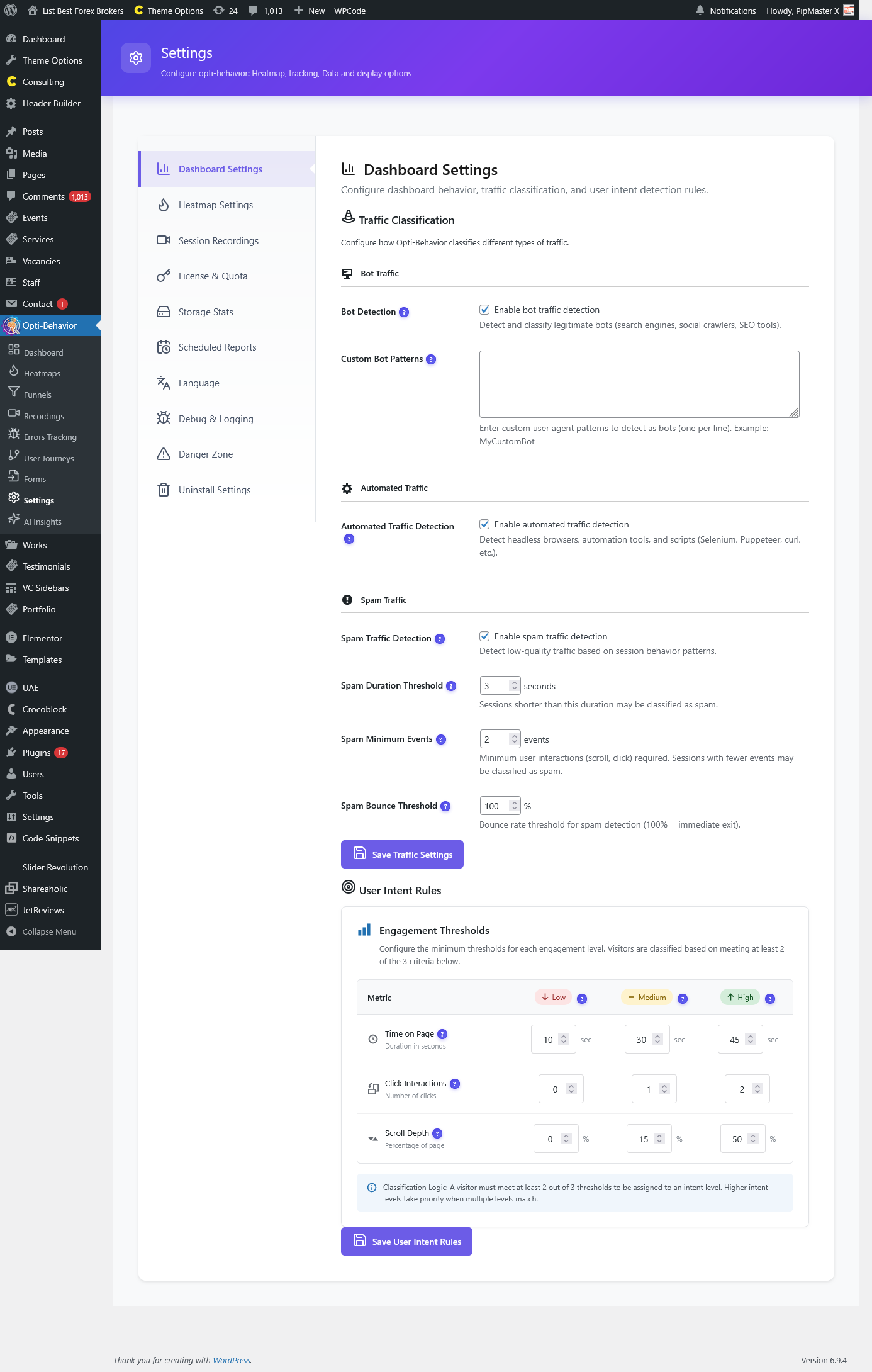
The Settings page is the configuration hub of Opti-Behavior, where you can customize every aspect of the plugin’s behavior, tracking, data management, and advanced features. The Settings page is organized into 10 tabs, each dedicated to a specific area of configuration.
Settings Tabs
1. Dashboard Settings
Configure how the main analytics dashboard displays data:
- Default Date Range – Set the default time period when the dashboard loads.
- Widget Visibility – Choose which dashboard widgets to show or hide.
- Traffic Classification – Configure how traffic sources are categorized (organic, paid, social, email, referral, direct).
- User Intent Rules – Customize the behavioral thresholds used to classify visitor intent (browsing, researching, comparing, ready to act).
2. Heatmap Settings
Configure heatmap tracking behavior:
- Accuracy Level – Choose between High (more precise click tracking) and Standard (better performance).
- Non-singular Pages – Enable heatmap tracking on archive, category, and other non-singular pages.
- AJAX Delay Time – Set the delay before sending heatmap data (helps batch requests for better performance).
- Drawing Points – Control the display of individual click points on heatmap visualizations.
- Count Bar – Toggle the click count bar display on heatmap visualizations.
- URL Hash/Query Handling – Configure how URL hashes and query parameters are handled for heatmap grouping.
3. Session Recordings (Pro)
Configure session recording behavior (requires Opti-Behavior Pro):
- Recording Sampling Rate – Set the percentage of sessions to record.
- Maximum Recording Duration – Set limits on individual recording length.
- Privacy Settings – Configure which elements to mask in recordings.
- Storage Preferences – Choose storage options for recording data.
4. License & Quota (Pro)
Manage your Opti-Behavior Pro license and usage quotas:
- License Key – Enter and validate your Pro license key.
- License Status – View current license status (active, expired, etc.).
- Usage Quotas – Monitor your usage against plan limits.
5. Storage Stats
Monitor database and file storage usage:
- Database Tables – View the size and row count of each analytics database table.
- File Storage – View disk space used by session recordings and heatmap cache files.
- Data Retention – Configure automatic data cleanup policies.
6. Scheduled Reports
Configure automatic email reports:
- Report Frequency – Choose daily, weekly, or monthly report delivery.
- Report Content – Select which metrics and widgets to include in reports.
- Recipients – Set email addresses for report delivery.
7. Language
Configure the plugin’s admin interface language:
- Language Selection – Choose from available translations for the admin interface.
- The language setting is stored in the
opti_behavior_admin_languageWordPress option and applies only to the plugin’s admin pages.
8. Debug & Logging
Advanced debugging tools for troubleshooting:
- Debug Mode – Enable detailed logging for plugin operations.
- Debug Log Viewer – View and search through debug log entries.
- Clear Debug Log – Purge all debug log entries.
- Manual Data Recovery – Trigger a manual data recovery process if data inconsistencies are detected.
9. Danger Zone
Powerful data management actions that require careful consideration:
- Delete All Analytics Data – Permanently delete ALL analytics data from the database. This action cannot be undone.
- Delete Date Range – Delete analytics data within a specific date range using start and end date pickers. Useful for removing test data or cleaning specific periods.
Warning: Both actions are irreversible. Always export or backup your data before using these features.
10. Uninstall Settings
Configure what happens when the plugin is uninstalled:
- Delete on Uninstall – When enabled, all plugin data (database tables, options, files) will be permanently deleted when the plugin is uninstalled. When disabled, data is preserved for potential reinstallation.
How to Access
Navigate to Opti-Behavior → Settings in your WordPress admin sidebar.
Frequently Asked Questions
How do I change the default dashboard date range?
Go to Settings → Dashboard Settings and select your preferred default date range. The dashboard will load with this range each time you visit.
What is the difference between High and Standard heatmap accuracy?
High accuracy records exact pixel coordinates for every click, providing the most precise heatmap visualizations. Standard accuracy uses element-based tracking which is lighter on performance but slightly less precise for click positioning.
How do Traffic Classification rules work?
Traffic Classification rules define how incoming traffic is categorized. You can customize patterns for organic search (e.g., google.com, bing.com), social media (facebook.com, twitter.com), email (utm_medium=email), and paid traffic (utm_medium=cpc). Traffic that doesn’t match any rule is classified as “direct”.
What are User Intent Rules?
User Intent Rules configure the behavioral thresholds used to classify visitor intent. For example: visitors who view 1 page for less than 30 seconds might be classified as “browsing”, while visitors who view 5+ pages and spend 3+ minutes might be classified as “ready to act”.
How do I manage database storage?
Go to Settings → Storage Stats to see detailed database usage. If storage is growing too large, use the Danger Zone tab to delete old data by date range, or configure data retention policies in Storage Stats.
Can I schedule automatic email reports?
Yes. Go to Settings → Scheduled Reports to configure automated analytics reports. Choose the frequency (daily, weekly, monthly), select which metrics to include, and set recipient email addresses.
How do I change the plugin language?
Go to Settings → Language and select from available translations. The language change applies to the plugin’s admin interface only and does not affect your WordPress site language.
What happens if I enable “Delete on Uninstall”?
When enabled, uninstalling the Opti-Behavior plugin from the WordPress Plugins page will permanently delete all database tables, WordPress options, cached files, and session recordings. This is irreversible. Only enable this if you are sure you want a complete removal.
How do I troubleshoot tracking issues?
Enable Debug Mode in Settings → Debug & Logging. This will log detailed information about tracking operations, AJAX requests, and data processing. Review the Debug Log Viewer for error messages or unexpected behavior.
Can I delete data for a specific time period only?
Yes. In the Danger Zone tab, use the “Delete Date Range” feature. Select a start and end date, and only data within that range will be removed. This is useful for removing test data without affecting production analytics.