WordPress Heatmap Plugin: The Complete Guide to Understanding User Behavior
If you run a WordPress website and want to truly understand how visitors interact with your pages, a WordPress heatmap plugin is one of the most powerful tools in your optimization arsenal. Unlike raw visitor counts or bounce rates, heatmaps reveal the story behind the numbers — where users click, how far they scroll, which elements attract attention, and which ones are completely ignored.
This complete guide covers everything you need to know about heatmap analytics for WordPress: what heatmaps are, the different types, why traditional tools fall short, and how Opti-Behavior delivers the best free heatmap WordPress experience available today.
What Is a Heatmap? (And Why Your WordPress Site Needs One)
A heatmap is a data visualization technique that uses color gradients — typically from cool blue to hot red — to represent the intensity of user activity on a page. Areas with lots of interaction appear “hot” (red/orange), while ignored areas appear “cold” (blue/green).
For WordPress site owners, heatmaps answer questions that Google Analytics simply cannot:
- Are visitors clicking your CTA button, or ignoring it completely?
- How far down the page do readers actually scroll before leaving?
- Are users clicking on elements that are not actually links?
- Is your navigation menu being used the way you expected?
- Which images or sections attract the most visual attention?
The answers to these questions directly translate into higher conversion rates, better UX design decisions, and more revenue — without guessing.
The 4 Types of Heatmaps You Should Know
Not all heatmaps are the same. A good click heatmap WordPress plugin should offer multiple visualization types, because each reveals a different layer of user behavior.
1. Click Heatmaps
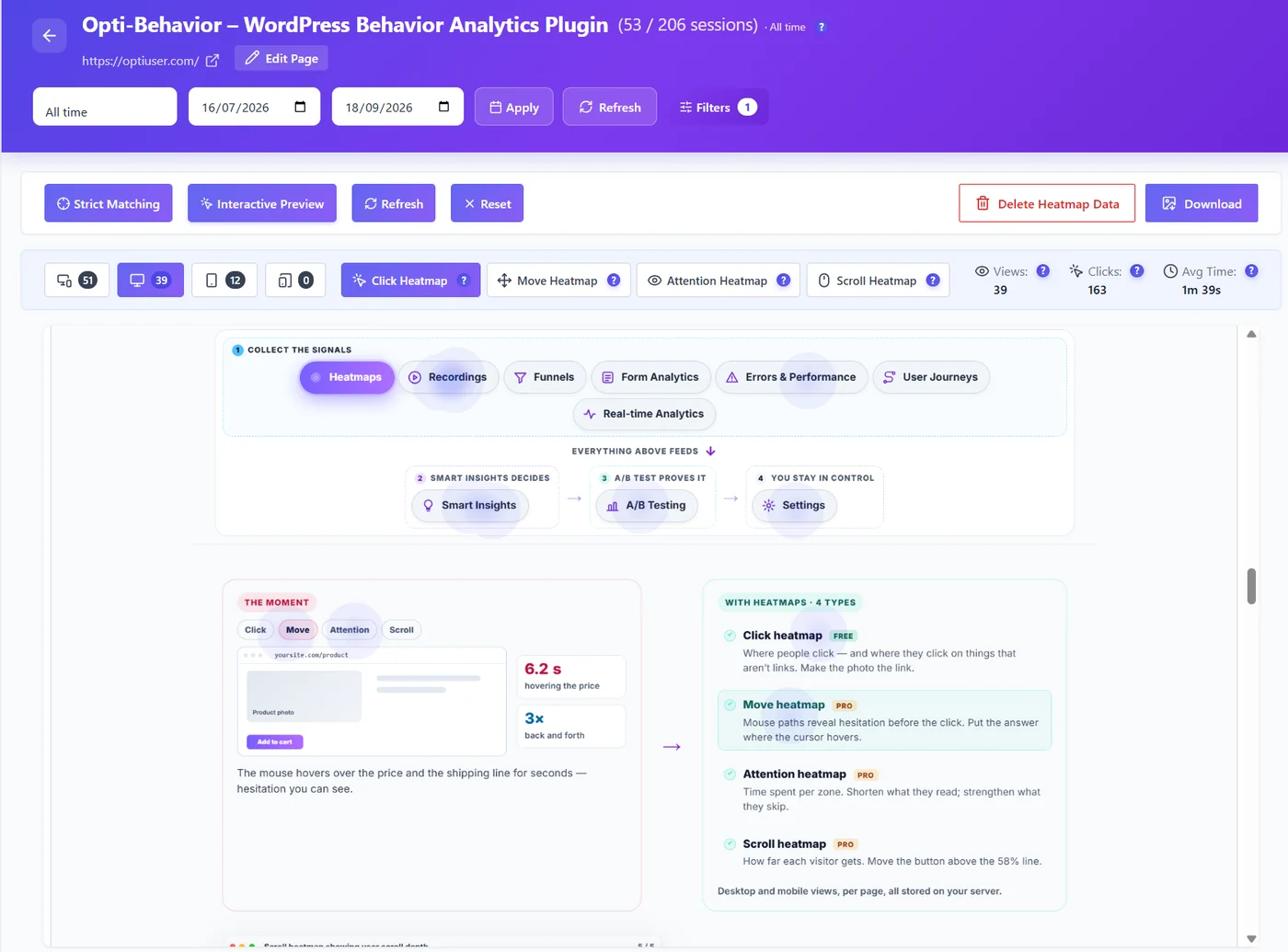
Click heatmaps record every place a user taps or clicks on your page. They are the most widely used heatmap type because they directly reveal which elements users engage with. A bright red cluster on a product image tells you users expect it to be clickable — even if it is not. A button that stays cold despite being positioned prominently signals something is wrong with the copy or placement.
2. Scroll Heatmaps
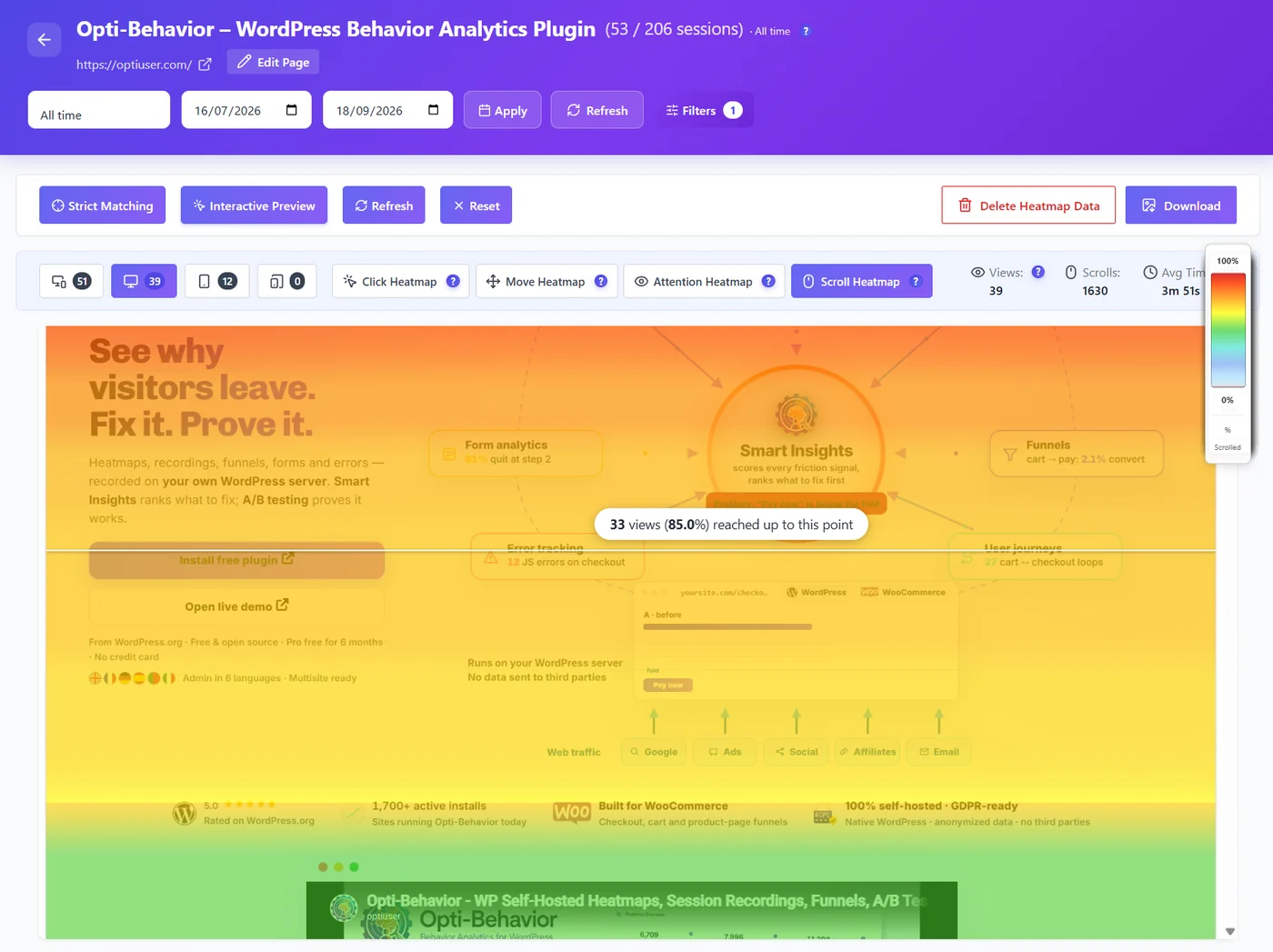
A scroll tracking plugin measures how far down a page visitors scroll before abandoning it. Scroll heatmaps are invaluable for long-form content, sales pages, and landing pages. If 80% of users never scroll past your second section, all the carefully crafted content below is essentially invisible. Knowing this lets you move your most important content — pricing, testimonials, CTAs — above the fold.
3. Move Heatmaps
Move heatmaps (also called hover heatmaps) track mouse cursor movement across the screen. Research suggests that mouse movement correlates strongly with eye movement on desktop, making move heatmaps a proxy for where users are actually looking. This is especially useful for testing above-the-fold layouts and page headers.
4. Attention Heatmaps
Attention heatmaps combine scroll depth and time-on-section data to estimate which parts of a page receive the most focused reading time. Unlike a simple scroll map, attention heatmaps account for users who scroll quickly past a section without truly reading it, giving you a more accurate picture of content engagement.
Why Most Heatmap Tools Fall Short for WordPress Sites
Before choosing a WordPress heatmap plugin, it is worth understanding why so many popular tools create more problems than they solve.
Hotjar: Powerful but Prohibitively Expensive
Hotjar is the market leader in heatmap software, but its pricing is designed for large enterprises. The free tier is severely limited in sessions and data retention. Once you need advanced features — unlimited heatmaps, longer recording storage, funnel analysis — pricing jumps to $213/month or more. For a small business, agency, or independent blogger, that is simply not viable.
Microsoft Clarity: Free but Privacy-Invasive
Microsoft Clarity offers a free heatmap and session recording tool, but it comes with a significant catch: your visitors’ behavioral data is shared with Microsoft for their own advertising and AI training purposes. For any site handling European users, this creates serious GDPR compliance concerns. Under GDPR, transferring user data to a third party — even “anonymized” behavioral data — requires explicit consent and legal basis.
Other Cloud-Based Tools: Slow, Expensive, and Third-Party
Most heatmap solutions are external SaaS products that inject a third-party tracking script onto your site. This introduces page speed penalties, creates a dependency on an external service, and means your users’ data lives on someone else’s servers — outside your control.
Introducing Opti-Behavior: The Best Free Heatmap WordPress Plugin
Opti-Behavior is a self-hosted WordPress analytics plugin built specifically for site owners who want enterprise-grade behavioral analytics without the enterprise price tag — and without surrendering user data to third parties.
You can download Opti-Behavior free from the WordPress.org plugin directory and get started in minutes.
Visual Click Heatmaps — Free and Unlimited
Opti-Behavior’s click heatmap feature is included in the free version and imposes no session limits. Every click and tap on your site is recorded and visualized directly within your WordPress admin. You can toggle between desktop and mobile views, adjust the heatmap accuracy, and overlay the heatmap on any URL — no external dashboard to log into, no data leaving your server.
Scroll Depth Tracking
The built-in scroll tracking plugin functionality shows exactly how far visitors scroll on every page. The scroll heatmap is color-coded: the top of the page appears hot (most visitors reach it), and colors transition to blue as you move lower on the page (fewer visitors reach those sections). Configure tracking intervals in the settings to get granular or broad-brush data depending on your needs.
Real-Time Analytics Dashboard
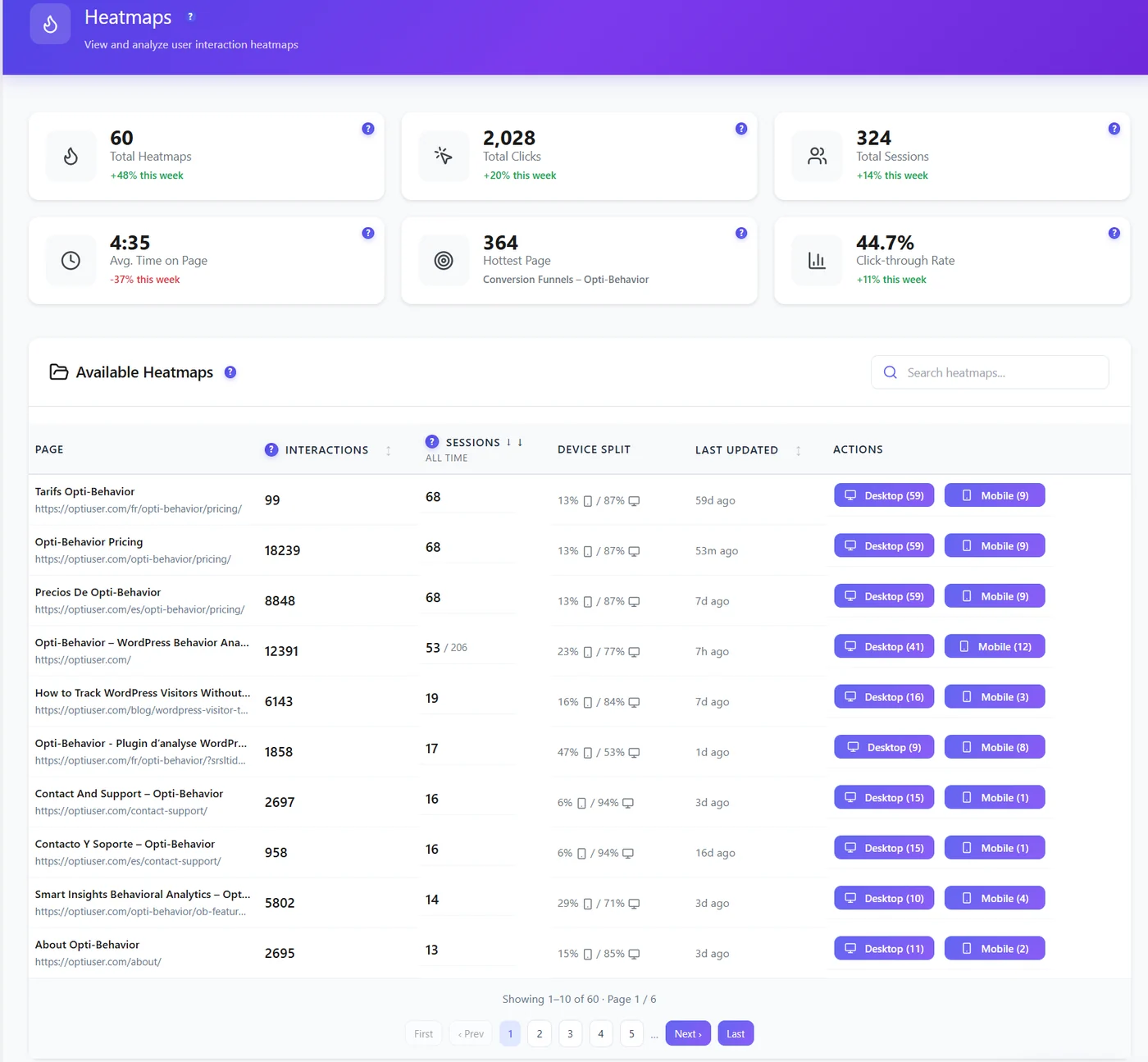
Beyond heatmaps, Opti-Behavior includes a full heatmap analytics suite covering sessions, page views, average session duration, scroll depth averages, bounce rate, top pages, referral sources, and device breakdowns — all updated in real time. This is the kind of dashboard you would normally pay $99–$200/month for with other tools.
Conversion Funnels
The free plan also includes multi-step conversion funnel tracking with device and country filtering, and dropout visualization. You can map out any conversion path — from homepage to checkout — and see exactly where visitors abandon the process. Competing tools charge $213+/month for this feature alone.
Bot Detection and Filtering
Opti-Behavior automatically detects and filters out search engine bots and crawlers from your analytics data, so your heatmaps and metrics reflect real human behavior — not inflated bot traffic that skews your numbers.
Scheduled Email Reports
Stay informed without logging into WordPress every day. Configure daily, weekly, or monthly email reports with your key metrics sent directly to your inbox — a feature typically locked behind paid tiers on competing platforms.
Privacy and GDPR: Why Self-Hosted Heatmaps Win
One of Opti-Behavior’s biggest advantages over every cloud-based competitor is its privacy-first architecture:
- No cookies used — Opti-Behavior’s tracking engine operates without setting cookies on visitor browsers
- IP anonymization — IP addresses are anonymized before storage, complying with GDPR’s data minimization principle
- No third-party data sharing — all behavioral data stays in your own WordPress database, on your own server
- No external scripts — the tracking script is served from your domain, not a CDN owned by Microsoft or Hotjar
For European site owners subject to GDPR, or US businesses subject to CCPA/CPRA, these properties dramatically simplify compliance. You do not need to add Hotjar or Clarity to your cookie consent banner, because Opti-Behavior does not require consent banners at all for its base tracking functionality.
Performance: A ~15KB Tracking Script That Will Not Slow You Down
Page speed is an SEO ranking factor and a direct conversion driver. Every third-party script you add to your site adds latency. Hotjar’s tracking script, for example, adds 70–150ms of render-blocking time and several hundred kilobytes of JavaScript payload.
Opti-Behavior’s tracking script weighs approximately 15KB and loads asynchronously — meaning it never blocks page rendering. Your visitors get a fast experience; you get comprehensive behavioral data. The plugin’s Hybrid Storage engine is optimized for WordPress’s MySQL infrastructure, ensuring analytics queries stay fast even with hundreds of thousands of tracked sessions.
Opti-Behavior Pro: Unlock Advanced Heatmap Features
The free version of Opti-Behavior is already more capable than most paid heatmap tools. But for teams who need deeper behavioral insight, Opti-Behavior Pro unlocks a powerful suite of advanced features — with a 6-month free trial and no credit card required.
- Advanced heatmap filtering — filter click and scroll heatmaps by country, browser, device type, and custom date ranges
- Friction detection overlay — automatically highlights rage click zones and dead click areas directly on the heatmap
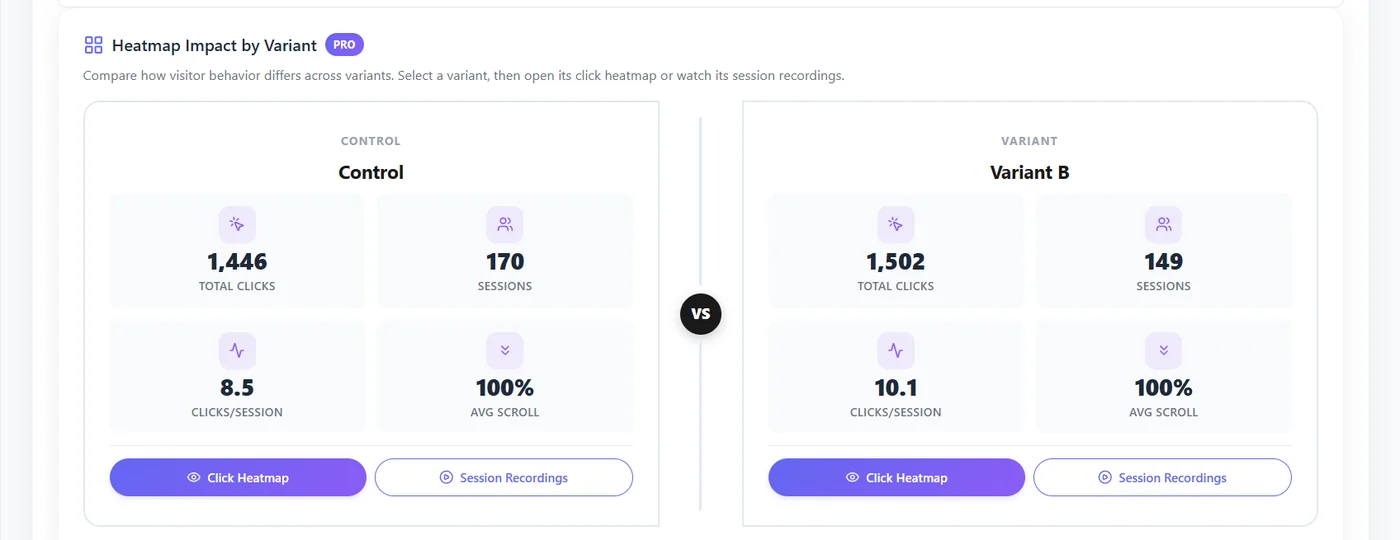
- Session recordings — watch full, encrypted session replays with rage click and dead click markers, skip-idle functionality
- Error tracking — monitor JavaScript errors, network failures, and all five Core Web Vitals (LCP, FID, CLS, INP, FCP)
- User journey analytics — Sankey diagram showing how visitors flow through your site from entry to exit
- Form analytics — field-level tracking showing time-on-field, error rates, refill counts, and abandonment points
- Broken link detection — automatically surface 404 errors affecting user experience and SEO
How to Install Opti-Behavior and Set Up Your First Heatmap
Getting started with Opti-Behavior takes less than five minutes:
- Install the plugin — Go to WordPress Admin → Plugins → Add New, search for “Opti-Behavior”, and click Install. Or download it directly from WordPress.org.
- Activate the plugin — Click Activate. The plugin creates its database tables and begins tracking immediately.
- Navigate to the Heatmaps page — In the WordPress admin sidebar, find Opti-Behavior → Heatmaps.
- Select a URL to analyze — Choose any page on your site from the dropdown. The heatmap will render live data on a preview of that page.
- Toggle between Click and Scroll views — Use the controls to switch visualization types and device views (desktop/mobile).
- Configure accuracy and date range — Adjust the heatmap’s color sensitivity and filter data to a specific time period.
Within days of installation, you will begin seeing patterns in how visitors interact with your content — and have actionable data to make improvements.
Real-World Use Cases: What Heatmaps Reveal
Here are common insights WordPress site owners discover when they install a click heatmap WordPress tool for the first time:
- Non-clickable images getting rage clicks — Users repeatedly click on product images expecting a zoom or link, but nothing happens. Fix: make the image clickable or link it to the product page.
- 50% of users never reaching the CTA — The scroll heatmap shows most visitors leave before getting to the call-to-action button. Fix: move the primary CTA above the fold.
- Navigation links nobody uses — The click map reveals that certain menu items receive near-zero clicks despite prime positioning. Fix: replace them with higher-value links or simplify the menu.
- Footer engagement surprises — Scroll heatmaps sometimes show a significant portion of engaged users reach the footer, signaling they are looking for information not prominently displayed higher on the page.
- Mobile vs desktop divergence — Mobile users often interact very differently from desktop users. A heatmap plugin that separates device data (as Opti-Behavior does) lets you optimize independently for each.
Comparing Free WordPress Heatmap Plugins
When evaluating a free heatmap WordPress solution, the criteria that matter most are: data privacy, session limits, feature depth, and page speed impact.
| Feature | Opti-Behavior (Free) | Hotjar (Free) | Microsoft Clarity |
|---|---|---|---|
| Click heatmaps | Unlimited | Limited sessions | Unlimited |
| Scroll heatmaps | Yes | Limited | Yes |
| Session recordings | Pro only | 35/month | Unlimited |
| Conversion funnels | Free | Paid only | No |
| Data privacy | Self-hosted, no sharing | Cloud, GDPR requires consent | Shared with Microsoft |
| Cookie-free | Yes | No (uses cookies) | Partially |
| Script size | ~15KB async | ~150KB+ | ~80KB |
| WordPress native | Fully integrated | External SaaS | External SaaS |
The verdict is clear: for WordPress site owners who care about privacy, performance, and long-term cost, Opti-Behavior is the superior choice in every meaningful category.
Multilingual Admin and Global Teams
Opti-Behavior’s admin interface is fully translated into six languages: English, French, German, Spanish, Portuguese, and Italian. This makes it an ideal choice for international teams and agencies managing WordPress sites across multiple markets.
Conclusion: Stop Guessing, Start Seeing
A WordPress heatmap plugin is not a luxury — it is a necessity for any site owner serious about understanding and improving user experience. Heatmap analytics transform abstract visitor data into visual, actionable insight: you can literally see where users click, how far they scroll, and which parts of your pages are working.
With Opti-Behavior, you get all of that — plus full analytics, conversion funnels, bot filtering, and AI-powered insights — entirely free, self-hosted, and privacy-compliant. No subscriptions, no data sharing, no performance overhead.