
Overview
The User Journeys page is an Opti-Behavior Pro feature that visualizes how visitors navigate through your website using interactive Sankey flow diagrams. Powered by D3.js, this page reveals the actual paths users take, helping you understand navigation patterns, identify drop-off points, and optimize your site structure for better engagement and conversions.
Date Range & Filters
The header includes comprehensive filtering options:
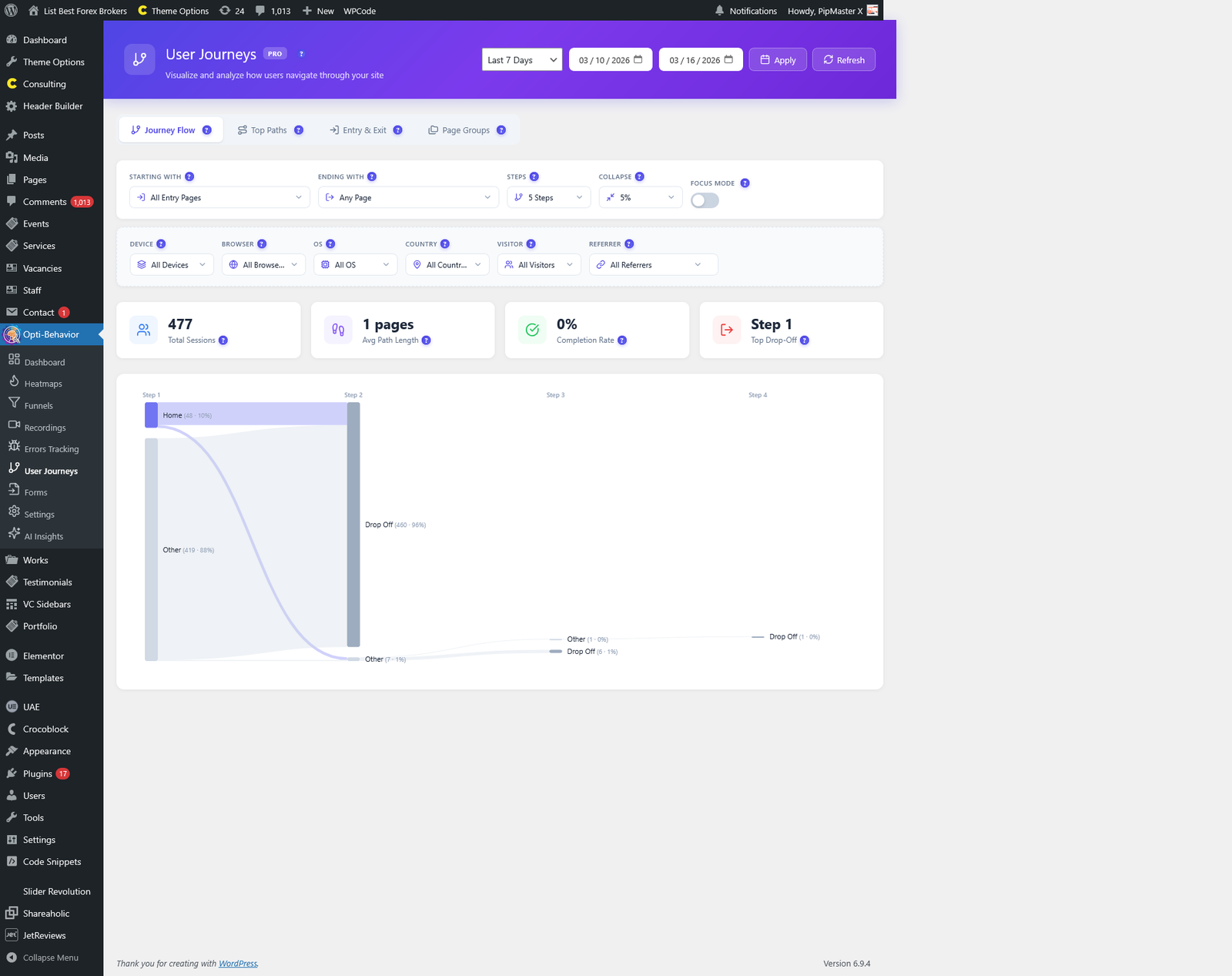
- Date Range – Select a date range to analyze. The system auto-detects the earliest available data and uses a smart 7-day default.
- Device – Multi-select filter for Desktop, Mobile, and Tablet.
- Browser – Multi-select filter for all detected browsers.
- Operating System – Multi-select filter for all detected OS.
- Country – Multi-select filter with search for visitor countries.
- Visitor Type – Filter by New or Returning visitors.
- Referrer – Multi-select filter for traffic sources (direct, search engines, social, etc.).
Tab Navigation
The User Journeys page is organized into five specialized tabs:
1. Journey Flow Tab (Sankey Diagram)
The centerpiece of User Journeys – an interactive Sankey flow diagram that shows step-by-step user navigation paths. Features include:
- Visual Flow – Nodes represent pages, and links between nodes represent visitor flow. Wider links indicate more traffic.
- Step-by-Step Display – The diagram shows progression from Step 1 (entry) through subsequent steps up to the configured maximum.
- Drop-Off Visualization – At each step, a “Drop Off” node shows how many users left the site.
- Interactive Tooltips – Hover over any node to see detailed stats: session count, average time on page, top countries, top browsers, devices, and referrers.
- Focus Mode – Enable to explore step-by-step interactively. Only Step 1 shows initially; click a page to reveal where visitors go next.
- Configurable Steps – Set the maximum number of navigation steps to display (1-10).
- Collapse Threshold – Pages with traffic below a set percentage are grouped into an “Other” category to reduce clutter.
- Starting/Ending With – Filter to show only paths that begin or end with specific page keywords.
- See More – Load additional pages per step (in batches of 50) when many pages exist.
Journey Flow Statistics
Four KPI cards are displayed alongside the Sankey diagram:
- Total Sessions – The number of sessions matching the current filters.
- Avg Path Length – Average number of pages visited per session.
- Completion Rate – Percentage of sessions that reached all displayed steps.
- Top Drop-Off – The page where the highest percentage of users leave.
2. Top Paths Tab
Displays the most common complete navigation paths users take on your site, ranked by frequency. Filtering options:
- Min Path Length – Only show paths with at least this many pages.
- Max Path Length – Only show paths with at most this many pages.
3. Entry & Exit Tab
Identifies where users begin and end their sessions:
- Top Entry Pages – Pages where users most frequently start their session (landing pages). Shows bounce rate and next pages visited.
- Top Exit Pages – Pages where users most frequently end their session. Shows exit rate and previous pages visited.
4. Insights Tab
A high-level behavioral analytics overview with charts:
- Avg Session Depth – Average number of unique pages per session.
- Total Sessions – Total recorded sessions in the date range.
- Session Depth Distribution – Bar chart showing how many sessions had 1, 2, 3, etc. pages.
- Session Duration Distribution – Chart showing time bucket distribution of sessions.
- Device Comparison – Pie chart of Desktop vs. Mobile vs. Tablet sessions.
- Sessions Over Time – Trend chart with sessions count and avg pages per session.
5. Page Groups Tab
Group similar pages together using URL patterns to simplify journey analysis:
- Manual Groups – Create custom page groups by defining URL patterns (e.g., group all /product/* pages as “Products”).
- Auto-Detect – Automatically detect URL patterns from your data and suggest page groups.
- Manage Groups – Save, edit, or delete page groups to customize how journeys are displayed.
Convert to Funnel
A unique feature that lets you convert a discovered user path directly into a Funnel for ongoing conversion tracking. When you find an interesting navigation pattern in the flow diagram, you can:
- Click “Convert to Funnel” to create a new funnel with the selected path steps.
- Optionally include historical session data in the new funnel.
- The funnel is created in the Funnels page and begins tracking immediately.
How to Access
Navigate to Opti-Behavior → User Journeys in your WordPress admin sidebar. This feature requires Opti-Behavior Pro.
Frequently Asked Questions
What is a Sankey diagram?
A Sankey diagram is a flow visualization where the width of links between nodes is proportional to the quantity of flow. In User Journeys, nodes are pages and link widths represent the number of visitors who navigated between those pages.
How many steps can I display in the flow?
You can configure the maximum number of steps from 1 to 10 using the Steps slider in the Journey Flow tab. More steps show longer navigation paths but may be more complex to read.
What is Focus Mode?
Focus Mode is an interactive exploration feature. When enabled, only Step 1 (entry pages) is shown initially. Click on any page to reveal Step 2 – where those visitors went next. Continue clicking to explore deeper into the journey step by step.
What does the “Collapse Under” threshold do?
Pages with traffic below this percentage are grouped into an “Other” category. This reduces visual clutter when you have many low-traffic pages, making the main flow paths more visible.
What are Page Groups used for?
Page Groups let you combine similar pages (e.g., all product pages, all blog posts) into single nodes in the Sankey diagram. This simplifies the visualization and reveals higher-level navigation patterns instead of showing every individual URL.
How does auto-detect work for Page Groups?
The auto-detect feature analyzes your URL patterns and suggests logical groupings based on common URL structures (e.g., /category/*, /product/*, /blog/*). You can review and add suggested groups with one click.
Can I convert a journey path to a funnel?
Yes. When you discover an interesting navigation pattern, click “Convert to Funnel” to create a new funnel from the path. You can optionally migrate historical data to the new funnel.
What does “Drop Off” mean in the Sankey diagram?
Drop Off represents visitors who left the site at that step. The width of the Drop Off link shows the proportion of traffic that exited versus continued to the next step.
How are entry and exit pages determined?
Entry pages are the first page a visitor views in their session. Exit pages are the last page viewed before the session ends (typically after 30 minutes of inactivity).
What is the minimum data needed for User Journeys?
Sessions need to have at least 2 page views to generate journey flows. Single-page sessions (bounces) are not included in the Sankey diagram.