
Overview
The Errors Tracking page is an Opti-Behavior Pro feature that monitors JavaScript errors, user friction events, performance issues, and broken links across your website. It provides a comprehensive error monitoring dashboard that helps you identify and fix problems before they impact your users and conversions.
Summary Statistics
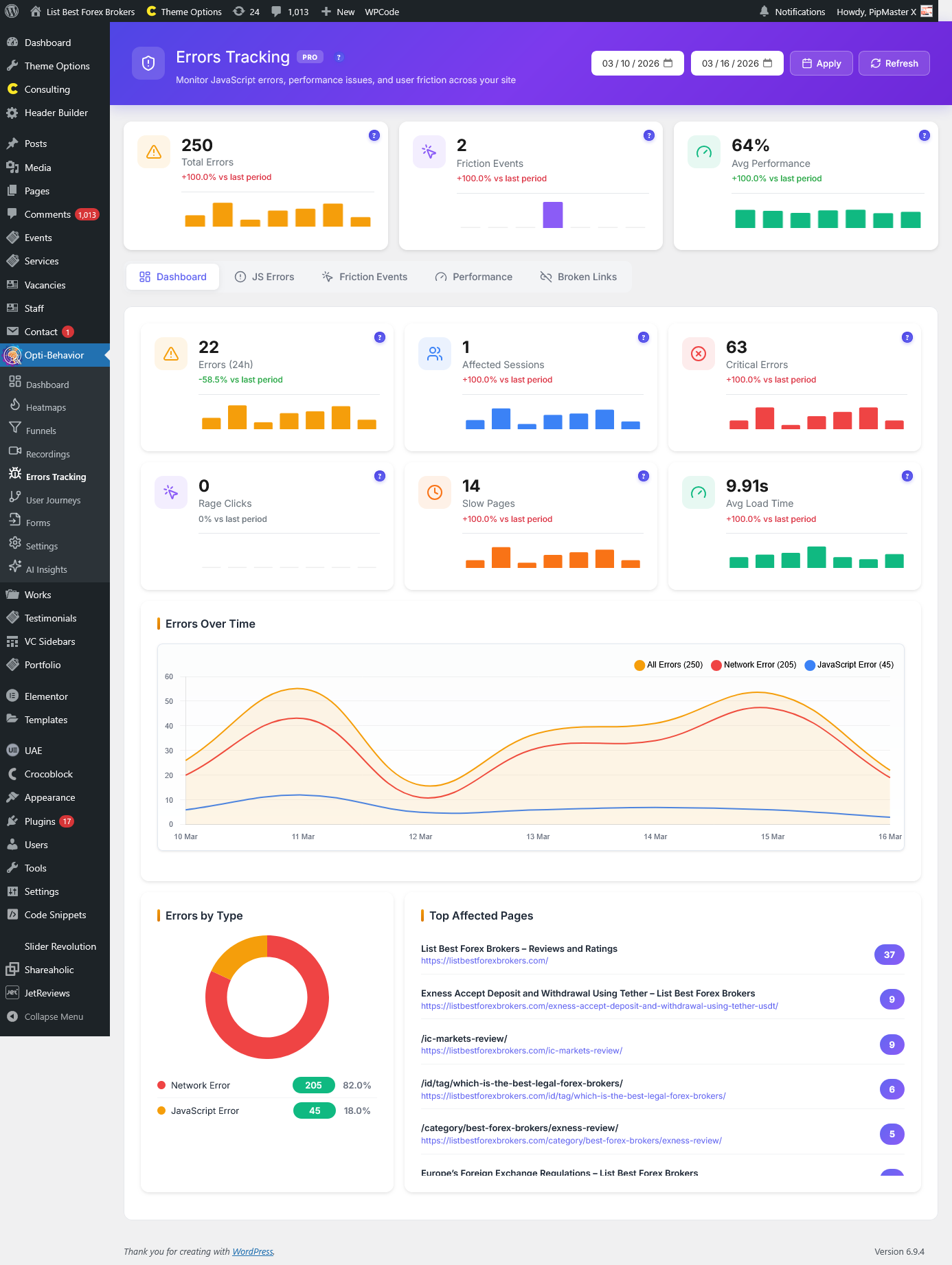
Three key performance indicator cards are displayed at the top of the page, providing a high-level overview:
- Total Errors – The total number of JavaScript errors recorded in the selected date range, with a percentage change vs. the previous period and a mini sparkline chart.
- Friction Events – The total number of user friction events detected (rage clicks, dead clicks, etc.), with trend comparison.
- Avg Performance – The average performance score across all tracked pages, with trend comparison.
Date Range Controls
The header includes date range pickers and controls:
- Date From / Date To – Select a custom date range using the date pickers.
- Apply – Apply the selected date range filter.
- Refresh – Reload all data without changing filters.
The system uses a smart date range that automatically detects when your earliest data was collected. If data exists for 30+ days, it defaults to the last 30 days. If less data exists, it shows from the earliest available date.
Tab Navigation
The Errors Tracking page is organized into five specialized tabs:
1. Dashboard Tab
The Dashboard tab provides an overview of all error-related metrics with six detailed KPI cards:
- Errors (24h) – Total errors in the last 24 hours with historical sparkline.
- Affected Sessions – Number of user sessions that encountered at least one error.
- Critical Errors – Count of high-severity errors that likely break functionality.
- Rage Clicks – Number of rage click events detected (rapid repeated clicking indicating frustration).
- Slow Pages – Pages with load times exceeding acceptable thresholds.
- Avg Load Time – Average page load time across all tracked pages.
The dashboard also includes:
- Errors Over Time – A line chart showing error trends over the selected date range.
- Errors by Type – A doughnut chart breaking down errors by category.
- Top Affected Pages – A ranked list of pages with the most errors.
2. JS Errors Tab
A detailed view of all JavaScript errors captured on your site. The plugin tracks 16+ error types:
- TypeError – Accessing properties of null/undefined values.
- ReferenceError – Using variables that haven’t been declared.
- SyntaxError – Invalid JavaScript syntax.
- RangeError – Values outside acceptable ranges.
- URIError – Invalid URI handling.
- EvalError – Issues with eval() function usage.
- NetworkError – Failed network requests.
- ResourceError – Failed resource loading (images, scripts, stylesheets).
- Promise Rejection / Unhandled Rejection – Unhandled Promise errors.
- Console Error – Errors logged to the browser console.
- API Error – Failed API calls.
- Timeout Error – Operations that exceeded time limits.
- CORS Error – Cross-origin resource sharing violations.
- Chunk Load Error – Failed dynamic module loading.
Each error entry shows the error message, source file location (file, line, column), affected page, severity level, and status. Errors can be managed with status actions:
- Resolve – Mark the error as resolved after fixing it.
- Ignore – Dismiss non-critical errors you choose not to fix.
- Mark Fixed – Confirm a fix has been deployed.
- Details – View the full error details including stack trace.
- View Recording – Jump to the session recording where this error occurred (if available).
3. Friction Events Tab
Friction events indicate user frustration and UX problems. Four types of friction are tracked:
- Rage Click – When a user rapidly clicks the same element multiple times, indicating frustration (e.g., a button that doesn’t respond).
- Dead Click – Clicks on non-interactive elements that users expect to be clickable but aren’t.
- Error Click – Clicks that trigger JavaScript errors, indicating broken interactive elements.
- Thrashed Cursor – Rapid, erratic mouse movements suggesting confusion or frustration.
Each friction event includes detailed information: the event type, affected page and URL, the specific HTML element and its selector, click count, cursor position, viewport dimensions, browser, device, and timestamp. A modal shows the full friction event details.
4. Performance Tab
Monitors Core Web Vitals and page performance metrics:
- LCP (Largest Contentful Paint) – Measures loading performance. Good: < 2.5s, Needs Improvement: 2.5-4s, Poor: > 4s.
- FID (First Input Delay) – Measures interactivity. Good: < 100ms, Needs Improvement: 100-300ms, Poor: > 300ms.
- CLS (Cumulative Layout Shift) – Measures visual stability. Good: < 0.1, Needs Improvement: 0.1-0.25, Poor: > 0.25.
Performance data is color-coded: green for good, yellow for needs improvement, and red for poor.
5. Broken Links Tab
Tracks 404 errors and broken links across your site. Each entry shows:
- URL – The broken link URL that returned an error.
- Source Page – The page where the broken link was found.
- HTTP Status – The error status code (404, 500, etc.).
- Count – How many times the broken link was encountered.
- Status Management – Mark links as resolved, ignored, or fixed.
How to Access
Navigate to Opti-Behavior → Errors Tracking in your WordPress admin sidebar. This feature requires Opti-Behavior Pro.
Frequently Asked Questions
What types of errors does Opti-Behavior track?
Opti-Behavior Pro tracks JavaScript errors (16+ types including TypeError, ReferenceError, NetworkError, CORS errors, etc.), user friction events (rage clicks, dead clicks, error clicks, thrashed cursor), Core Web Vitals performance metrics, and broken links/404 errors.
How are errors detected?
The plugin installs a lightweight error listener on your site that captures window.onerror events, unhandled promise rejections, console errors, and resource loading failures. All data is sent asynchronously to avoid impacting user experience.
What is a rage click?
A rage click occurs when a user rapidly clicks the same element multiple times in quick succession. This usually indicates frustration – the user expects something to happen but it doesn’t respond. Common causes include unresponsive buttons, slow-loading elements, or non-clickable items that look interactive.
What is a dead click?
A dead click is a click on an element that has no interactive behavior. Users click expecting something to happen (navigation, opening a modal, etc.) but nothing occurs. This often indicates misleading visual design.
How is the smart date range determined?
The system checks the earliest date across error, friction, and performance data tables. If data exists for 30+ days, it defaults to the last 30 days. If data exists for less than 30 days, it shows from the earliest available date to today.
Can I link errors to specific session recordings?
Yes. When an error occurs during a recorded session, a “View Recording” button appears next to the error entry, allowing you to jump directly to the session recording and see exactly what the user was doing when the error occurred.
What are Core Web Vitals?
Core Web Vitals are Google’s key metrics for measuring user experience: LCP (loading speed), FID (interactivity), and CLS (visual stability). They directly impact SEO rankings and user satisfaction.
How do I fix a broken link?
Once you identify a broken link in the Broken Links tab, you can either update the link on the source page, create a redirect to the correct URL, or mark the link as “Ignored” if it’s no longer relevant.
What do the error severity levels mean?
Critical errors break core functionality and need immediate attention. Warning errors may cause minor issues but don’t prevent core function. Info errors are logged for awareness but typically don’t affect users.
Can I resolve or ignore errors?
Yes. Each error has action buttons to mark it as Resolved (after fixing), Ignored (if not relevant), or Mark Fixed (to confirm a deployed fix). This helps you track error remediation progress.