
Overview
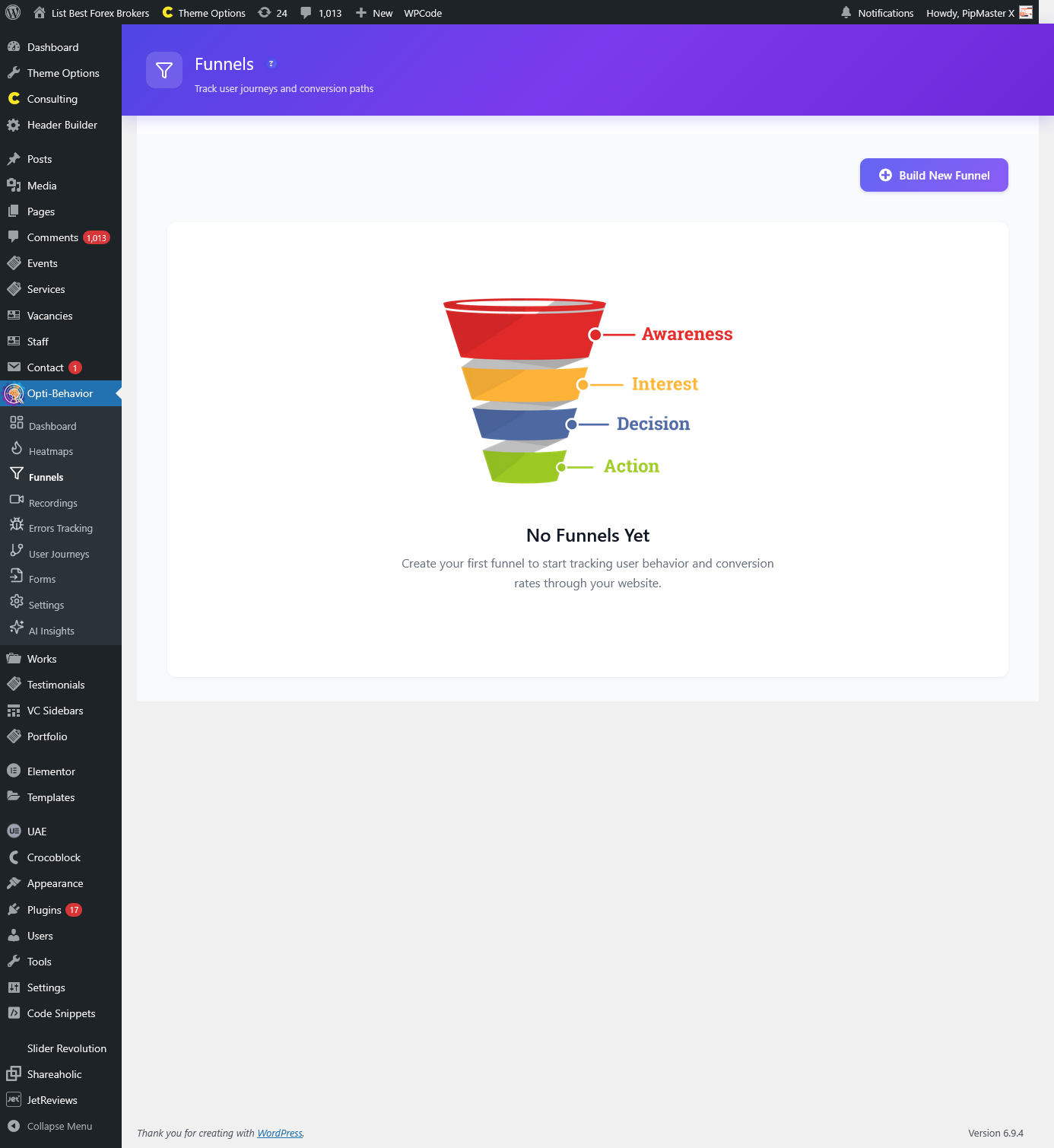
The Funnels page in Opti-Behavior allows you to create, manage, and analyze conversion funnels that track how visitors move through multi-step processes on your website. Whether it’s a checkout flow, signup process, or any custom user journey, funnels help you identify where visitors drop off and optimize for better conversion rates.
Funnel Builder
The Funnel Builder is a powerful, intuitive interface that lets you create custom conversion funnels step by step:
- Funnel Name – Give your funnel a descriptive name (e.g., “Checkout Flow”, “Newsletter Signup”).
- Description – Add an optional description to help you and your team understand the funnel’s purpose.
- Steps – Define each step in your funnel by specifying:
- Step Name – A human-readable label (e.g., “Landing Page”, “Add to Cart”, “Checkout”, “Thank You”).
- URL Pattern – The URL pattern that identifies the page for this step.
- Match Type – Choose how the URL should be matched:
- Any Page – Matches any page view.
- Exact URL – Must match the URL exactly.
- URL Contains – The URL must contain the specified text.
- URL Starts With – The URL must begin with the specified text.
- URL Ends With – The URL must end with the specified text.
- Regex – Use a regular expression for advanced matching.
You can add as many steps as needed and drag to reorder them. Click Save Funnel to create or Update Funnel to modify an existing funnel.
Funnel Analytics Dashboard
Once a funnel is created and has collected data, the analytics dashboard shows a detailed breakdown of performance:
Funnel Visualization Chart
A step-by-step visual bar chart powered by Chart.js displays the flow through your funnel. Each step shows:
- The number of users/views that reached that step.
- The conversion rate – The percentage of visitors who progressed from one step to the next.
- The drop-off rate – The percentage of visitors who left the funnel at each step.
- Color-coded bars that progressively narrow to visually represent the funnel shape.
Date Range & Filters
Fine-tune your funnel data with powerful filtering options:
- Time Period – Choose from 7 Days, 30 Days, 90 Days, or a Custom Range with specific start and end dates.
- Device Filter – Filter by All Devices, Desktop, Mobile, or Tablet to see how device type affects conversion.
- Country Filter – Filter by specific countries with a searchable country dropdown. Useful for understanding geographic conversion patterns.
Funnel Management
Each funnel supports the following actions:
- Edit Funnel – Modify the funnel name, description, or steps.
- Duplicate – Create a copy of an existing funnel for A/B testing or variations.
- Reset Data – Clear all collected data for the funnel while keeping the funnel configuration.
- Delete – Permanently remove the funnel and all its associated data.
Universal URL Tracking
Opti-Behavior uses universal URL tracking to monitor every WordPress page request automatically. When a visitor views a page that matches a funnel step, the visit is recorded and associated with that funnel. This means you don’t need to add any special code to your pages – funnels work automatically once created.
Frontend Tracking
A lightweight frontend tracking script is automatically loaded for active funnels. It monitors page navigation in real-time and sends funnel step completions via AJAX. This ensures accurate tracking even for single-page applications or AJAX-driven navigation.
How to Access
Navigate to Opti-Behavior → Funnels in your WordPress admin sidebar.
Frequently Asked Questions
How do I create my first funnel?
Click the “Create Funnel” button, give your funnel a name, and add steps by specifying the step name and URL pattern for each page in your conversion flow. Click “Save Funnel” when done.
What URL match types should I use?
Use Exact URL for specific pages (e.g., /checkout). Use URL Contains for pages with dynamic parameters (e.g., “product” to match /product/shoe-1 and /product/shoe-2). Use Regex for complex patterns.
How is the conversion rate calculated?
Conversion rate is calculated as (users who completed the step / users who reached the previous step) × 100. For step 1, it’s based on total funnel entries.
What is the drop-off rate?
The drop-off rate is the percentage of users who reached a step but did not proceed to the next step. Drop-off rate = 100% – conversion rate for that step transition.
Can I have multiple funnels active at the same time?
Yes. You can create and run as many funnels simultaneously as you need. Each funnel tracks independently, and the frontend script monitors all active funnels at once.
How does the country filter work?
The country filter uses IP-based geolocation to determine each visitor’s country. You can filter funnel data to see conversion rates for specific countries, which is valuable for geo-targeted campaigns.
Can I change funnel steps after creation?
Yes. Click “Edit Funnel” to modify the steps, URL patterns, or funnel name. Note that changing steps may affect the consistency of historical data.
How quickly does funnel data appear?
Funnel data appears in real-time as visitors navigate through your funnel steps. The tracking script sends data via AJAX immediately when a step is completed.
What happens if I reset funnel data?
Resetting clears all collected analytics data for that funnel (visitor counts, conversion rates, etc.) but preserves the funnel configuration and steps. New data will begin collecting immediately.
Can I track non-page events in funnels?
Currently, funnels are URL-based and track page views. For event-based tracking, consider using the Session Recordings feature (Pro) to observe user interactions in detail.
What is the “Any Page View” match type?
The “Any Page View” match type matches any page the visitor views. This is useful as a first step to capture all visitors entering the funnel, regardless of which page they land on.