
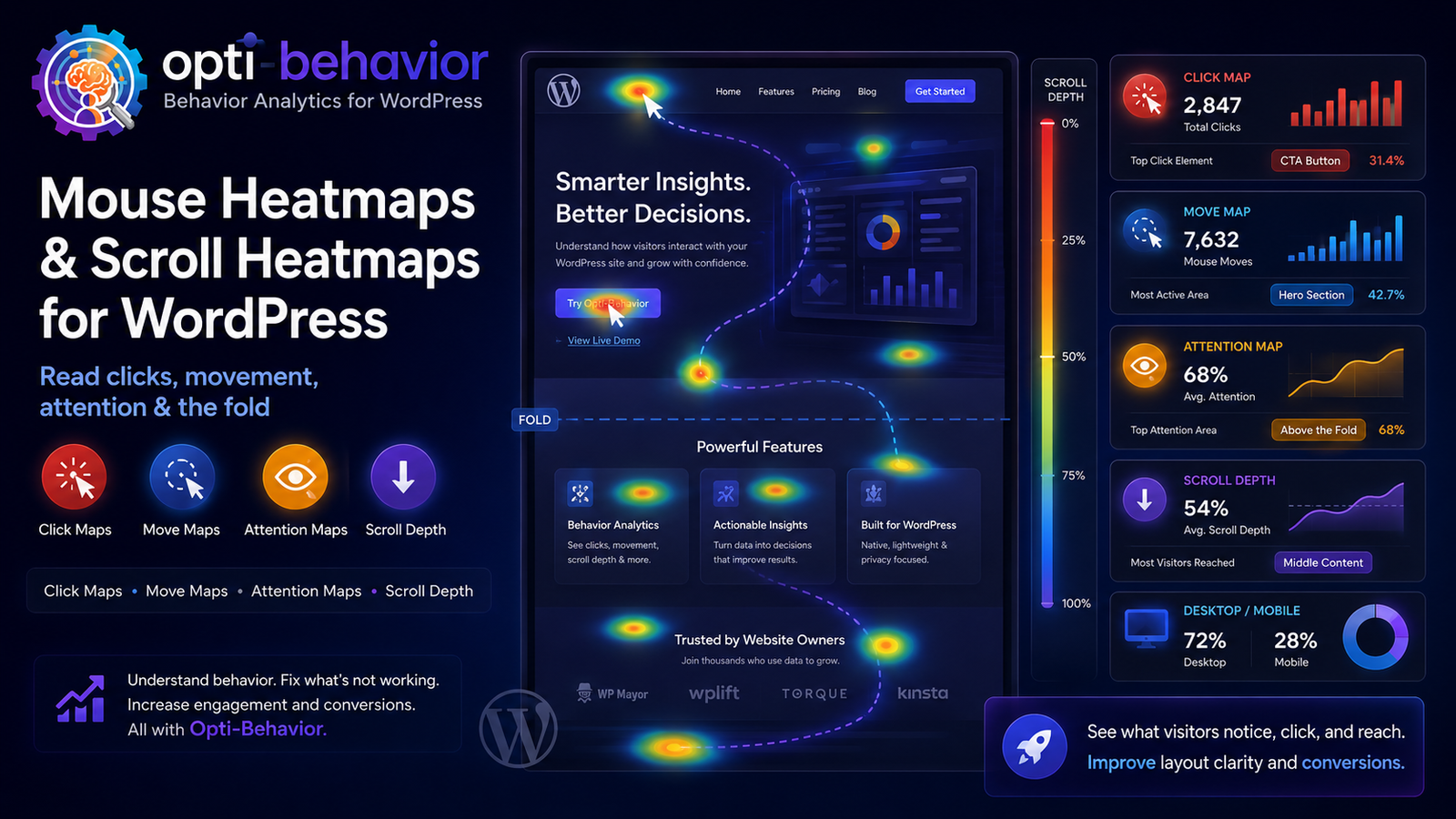
Mouse Heatmaps and Scroll Heatmaps for WordPress: How to Read Clicks, Movement, Attention, and the Fold

A heatmap is not decoration. It is a visual audit of how visitors interact with a page. Mouse heatmaps show exploration and attention patterns. Click heatmaps show what earns action. Scroll heatmaps reveal whether users reach the sections that carry your offer. Opti-Behavior brings these views into a self-hosted WordPress workflow so you can analyze clicks, movement, attention, and scroll depth without sending every interaction to an external behavior cloud.
The issue: page layouts are often optimized by opinion
Most WordPress pages are designed through a mix of brand preference, theme constraints, copywriting instinct, and stakeholder opinion. Someone wants the hero bigger. Someone wants the form higher. Someone wants the trust badges above the pricing table. Someone else wants a long educational page because it helps SEO. These choices may be reasonable, but they are still guesses until you observe how real visitors interact with the page.
That is where heatmaps matter. Microsoft Clarity’s heatmaps documentation defines a heatmap as a visualization tool that helps analyze aggregated information about how users interact with a website. It says Clarity tracks visitor clicks and scrolls on mobile, desktop, and tablet and can generate heat maps for single pages or groups of pages. The important word is aggregated. You are not judging one visitor. You are looking for repeated patterns that reveal what the layout encourages or hides.
For WordPress teams, heatmap research is especially important because pages are rarely built from one codebase. A landing page may combine a page builder, a theme header, a form plugin, a pricing block, a sticky banner, a cookie banner, a popup, and custom CSS. Each element can change what visitors see, where they click, and how far they scroll. A page can be technically correct and visually attractive but still direct attention away from the conversion goal.
Why heatmap problems happen
Heatmap problems appear when the visual design and visitor intent do not match. A visitor arrives with a question, but the page leads with a decorative banner. A call to action is present, but it sits below the average fold. A product image looks clickable, but the element is not a link. A comparison table carries the buying argument, but mobile users stop scrolling before reaching it. The page may look good in a design review and still fail in real use.
Responsive design adds complexity. A desktop layout can show the headline, proof, and button together. On mobile, those same elements may be separated by several screen lengths. Scroll maps are useful because they show how far users travel. Clarity’s documentation explains that scroll maps show the percentages of users who scroll to particular sections and includes an average fold indicator representing the average location visible before users begin scrolling. That is essential when important content is placed too low.
Another common cause is template reuse. A WordPress site may use one hero pattern across blog posts, service pages, product categories, and landing pages. The pattern may work for one intent and fail for another. Heatmaps reveal whether the template supports the task on each page type. On an article, deep scroll may be healthy. On a lead page, deep scroll without CTA interaction may mean the offer is not clear early enough.
Consequences of ignoring mouse and scroll behavior
The first consequence is wasted traffic. SEO, ads, email, and social campaigns may bring visitors to a page, but layout friction prevents action. If users never reach the pricing proof, the issue is not traffic quality. If users click images that do nothing, the issue is affordance. If users scroll past the primary offer and click a secondary link, the issue may be hierarchy. Heatmaps let you see these problems before you rewrite the entire page.
The second consequence is false confidence. A page can have a decent average time on page while still failing its conversion goal. Visitors may spend time because they are confused, not because they are engaged. A mouse heatmap can reveal exploration without commitment. A click heatmap can show attention scattered across low-value elements. A scroll heatmap can show that only a small share of visitors reaches the final proof section. Each signal changes the optimization plan.
The third consequence is poor mobile decisions. Many WordPress owners test pages on a desktop monitor because it is convenient. Real visitors may arrive from phones, tablets, and varied viewport sizes. Clarity’s heatmaps documentation specifically refers to mobile, desktop, and tablet tracking. Opti-Behavior’s heatmap feature page also highlights separate desktop and mobile views with filters by country, browser, date range, device, and more. Device segmentation is not a luxury; it is how you avoid optimizing one audience while damaging another.
The fourth consequence is expensive redesign churn. Without behavior evidence, teams often redesign entire pages when a smaller change would work. A scroll heatmap might show that moving one comparison table higher is enough. A click map might show that a fake button style should become an actual link. A mouse heatmap might show that a confusing tooltip needs plain text. Better evidence produces smaller, safer changes.
Old and common solutions
The oldest solution is visual inspection: open the page, scroll it, and decide whether it feels right. This is useful but biased. The second common solution is A/B testing without diagnostics. Teams test a new layout against an old one, but if the new one wins or loses, they do not always know why. The third solution is a cloud heatmap tool. It may work well, but it also introduces another script, another dashboard, and another data destination.
Some teams attempt to infer heatmap behavior from aggregate analytics. They look at bounce rate, page duration, conversion rate, and exit rate. These metrics are valuable, but they do not tell you which element received dead clicks, whether the CTA was below the fold, or whether users hovered around a confusing table. You need visual interaction evidence to answer those questions.
Limitations of the old approach
| Old solution | Limitation |
|---|---|
| Designer or stakeholder review | Shows expert opinion, not real visitor behavior. |
| Standard analytics only | Shows outcomes but not where attention and confusion happened. |
| A/B tests without heatmaps | Can declare a winner without explaining the interaction pattern behind the result. |
| Cloud heatmap software | Can provide visuals but may move behavior data to a third-party platform. |
Understanding click, mouse, attention, and scroll heatmaps
A click heatmap shows where visitors click. It is the fastest way to find whether your primary CTA attracts action, whether users click non-interactive elements, and whether secondary links distract from the conversion path. Clarity’s heatmap documentation describes click maps and notes categories such as all clicks, dead clicks, rage clicks, error clicks, first clicks, and last clicks. These categories matter because not all clicks mean success. A dead click can mean the interface promised an action but delivered nothing.
A mouse heatmap or move heatmap shows where cursors move and hover. It is not a perfect eye-tracking substitute, and marketers should avoid overclaiming precision, but it is useful for identifying exploration. If users repeatedly hover around a pricing detail, a product image, or a comparison table, that area may be important or confusing. Opti-Behavior describes move heatmaps as a Pro feature for tracking mouse movement patterns and understanding where users hover and explore.
An attention heatmap looks at where visitors spend meaningful time. This can reveal content that holds interest even if it does not receive many clicks. Opti-Behavior’s heatmap page describes attention maps as combining dwell time, mouse position, and viewport visibility to show content effectiveness. A scroll heatmap shows how far people go down the page and where they stop. Together, these views answer a full funnel of layout questions: did visitors see the content, did they pay attention, did they click, and did that click move them closer to conversion?
Opti-Behavior as a WordPress-native heatmap solution
Opti-Behavior is designed for WordPress owners who want heatmap evidence inside the same ecosystem where pages are edited. Its product page positions the tool as self-hosted, privacy-first, ultra-fast, open source, and built so visitor behavior data stays on your WordPress server. The heatmap page highlights four heatmap types: click, move, attention, and scroll. It also highlights a per-page analytics metabox in the WordPress editor with entry sources, visitor behavior, exit behavior, audience breakdown, and a historical trend chart.
That editor connection is important. A marketer can open a page, review the heatmap, compare desktop and mobile behavior, and adjust the content hierarchy. A store owner can see whether product images, descriptions, and add-to-cart buttons attract attention. A content team can check whether readers reach the embedded form or related offer. Instead of treating heatmaps as a separate research project, Opti-Behavior makes them part of the page optimization workflow.
Self-hosting also changes the privacy and data-ownership story. Microsoft Clarity’s FAQ says Clarity data is stored in Microsoft Azure cloud service and that Microsoft/Clarity has access to the data. That may be appropriate for many websites, but WordPress owners who prefer local control can choose a tool where behavior data stays on their server. Heatmap data can still be sensitive because it reflects user behavior, so keeping it local and configuring retention thoughtfully is a real operational advantage.
How to use heatmaps without misleading yourself
First, do not overreact to tiny samples. Clarity’s documentation says there is no minimum traffic limitation to generate a heat map, which is useful for speed, but practical interpretation still benefits from enough visits to reveal repeated behavior. Second, segment by device. A desktop heatmap can hide mobile friction. Third, compare pages by intent. A blog post, landing page, product page, and checkout page should not be judged by the same click pattern. Fourth, pair heatmaps with session recordings and funnels when possible. A heatmap shows the pattern; a recording can show the sequence behind it. No visits on the page yet? Our free website heatmap generator gives a simulated preview of any page, built from its layout, not from real visitors.
For SEO pages, connect heatmap findings to canonical content strategy. Google’s canonical documentation says canonicalization can simplify tracking metrics for a piece of content and consolidate signals for similar or duplicate pages. If your WordPress site has many URL variants, query parameters, or archive duplicates, make sure you analyze the page version that represents the content you actually want to improve.
Practical checklist
- Choose one page with a clear goal: click, signup, checkout, download, or scroll to a section.
- Review desktop and mobile heatmaps separately.
- Check the click heatmap for CTA visibility, dead clicks, and distracting secondary elements.
- Use the scroll heatmap to find whether key proof, pricing, and forms are above the practical attention line.
- Use the mouse or attention heatmap to identify confusing areas that attract exploration without action.
- Pair heatmaps with recordings when the pattern is unclear.
- Change one major layout variable at a time, then compare behavior after enough traffic.
- Document what changed and why, so future redesigns do not repeat the same mistake.
Choosing a tool? See our WordPress heatmap plugin comparison of 8 options.
FAQ
Is a mouse heatmap the same as eye tracking?
No. A mouse heatmap is not a laboratory eye-tracking study. It is a useful behavioral signal that can show exploration and hover patterns, especially when combined with click, scroll, and attention data.
What is the most important heatmap for conversion pages?
Start with click and scroll heatmaps. Clicks show whether the intended action attracts users. Scroll depth shows whether they reach the content that should persuade them to act.
Can heatmaps help SEO?
Indirectly, yes. Heatmaps do not replace indexing or ranking analysis, but they help improve pages that already receive organic traffic. Google’s Page indexing documentation reminds site owners to focus on important canonical pages; heatmaps help make those pages more useful once visitors arrive.
Why use Opti-Behavior instead of a cloud heatmap?
Use Opti-Behavior when you want WordPress-native heatmaps, per-page editor context, and self-hosted behavior data that remains on your server.