A Production Workflow for Rage Clicks, Dead Clicks, and Error Clicks on WordPress

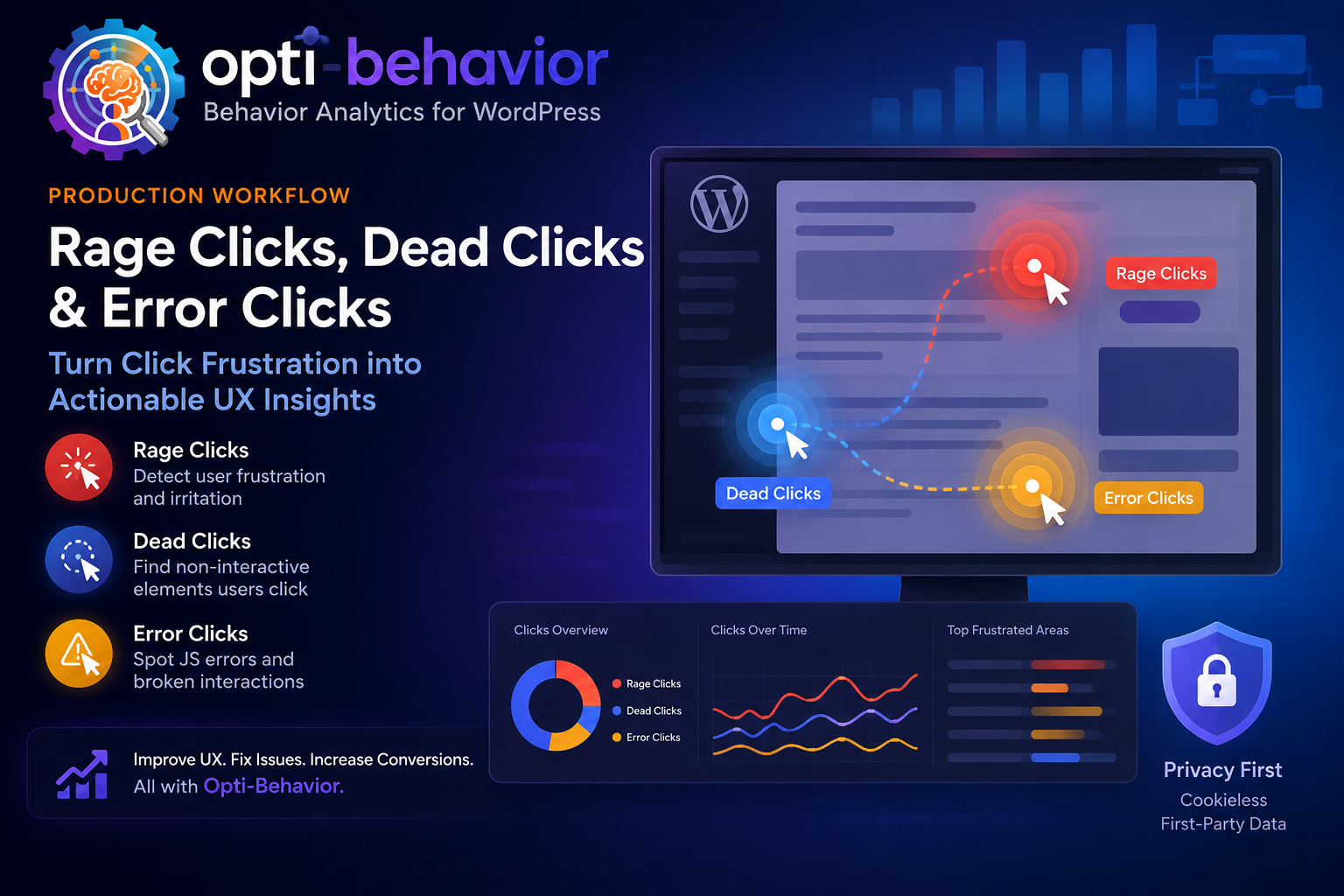
Rage clicks, dead clicks, and error clicks are not just UX curiosities. They are production signals. A repeated click on a broken element can indicate a failed CTA, a JavaScript bug, a confusing design pattern, or a performance problem. The right workflow is to detect friction, rank it by impact, replay the affected sessions, connect it to errors and pages, fix the root cause, and monitor whether the event disappears. Opti-Behavior is built for this workflow inside WordPress with friction events, session recordings, JavaScript error tracking, Core Web Vitals, broken links, and status management in one self-hosted dashboard.
The issue: frustrated clicks are often invisible until revenue drops
Many WordPress problems do not create a clean support ticket. A visitor clicks a button that looks active but is not linked. A modal covers the checkout button on mobile. A JavaScript error blocks a menu. A form validation message appears too late. A product image looks like a gallery but cannot be opened. The visitor does not explain the problem. They click repeatedly, give up, and leave.
Behavior tools classify some of these patterns. Microsoft Clarity’s heatmaps documentation lists click map categories including dead clicks, rage clicks, error clicks, first clicks, and last clicks. Its recordings documentation explains that session recordings are visual reconstructions of user sessions based on captured HTML and user actions such as clicks, scrolls, taps, and page visits. Those capabilities are valuable because they turn frustration into evidence.
Without that evidence, teams usually discover friction through symptoms. Leads fall. Cart abandonment rises. Support tickets mention vague issues. A developer cannot reproduce the problem. A marketer suspects the copy. A designer suspects the layout. A hosting provider points to performance. The truth may be a specific click target on a specific viewport after a specific script loads. Friction analytics turns that unknown into a queue of observable events.
Why rage clicks, dead clicks, and error clicks happen
A rage click usually means a visitor repeats a click because the interface did not respond as expected. The cause may be a slow action, broken JavaScript, an overlay, a disabled button, a network delay, or an unclear visual state. A dead click means the visitor clicked something that did not produce a meaningful action. It may be a non-clickable heading styled like a link, an image that looks interactive, or a card component where only the small text link is clickable. An error click can indicate a click that leads to a script error, failed request, or broken UI state.
These events happen more often on WordPress than teams expect because WordPress pages are assembled from themes, plugins, shortcodes, builders, forms, caching layers, and third-party scripts. A small update can change markup. A performance plugin can defer a script. A form plugin can alter validation behavior. A theme can change z-index on mobile. The page still loads, but the interaction breaks.
Friction can also be caused by expectation mismatch rather than code failure. If a hero card looks like a button, users click it. If a disabled checkout button has no explanation, users click it again. If an accordion looks closed but contains no action, users click repeatedly. A production workflow should treat these as real issues because they waste visitor intent even when no exception appears in the console.
Consequences of not having a production workflow
The first consequence is lost conversions. A broken CTA on a high-intent page can silently reduce leads or sales. The second consequence is wasted support time. Users report vague symptoms such as the page does not work or I cannot submit the form, but without session context, the team cannot reproduce the issue. The third consequence is repeated regressions. If friction events are not tracked over time, a fixed issue can return after a plugin update or redesign.
The fourth consequence is poor prioritization. Not every rage click is urgent. Some are harmless curiosity. Some happen on low-traffic pages. Others occur on checkout, pricing, login, or lead forms. A production workflow helps teams rank friction by affected sessions, page value, device type, browser, and connection to JavaScript errors. Without ranking, teams either ignore everything or chase anecdotes.
The fifth consequence is design debt. Repeated dead clicks often reveal misleading interface patterns. If a card design causes dead clicks on ten pages, fixing one link is not enough. The reusable component should change. If a button repeatedly causes rage clicks after submit, the site may need clearer loading states. Analytics should not only fix bugs; it should teach the team which design patterns create confusion.
Old and common solutions
The common solution is support-driven debugging. A visitor complains, a support person asks for screenshots, a developer tries to reproduce the issue, and the team guesses based on browser, device, or user role. Another common solution is QA before release. This is important, but QA cannot cover every combination of WordPress plugins, browser extensions, viewport sizes, and real visitor behavior. A third solution is standard error monitoring. Error monitoring helps, but it may not reveal whether a user clicked the same element five times before the error occurred.
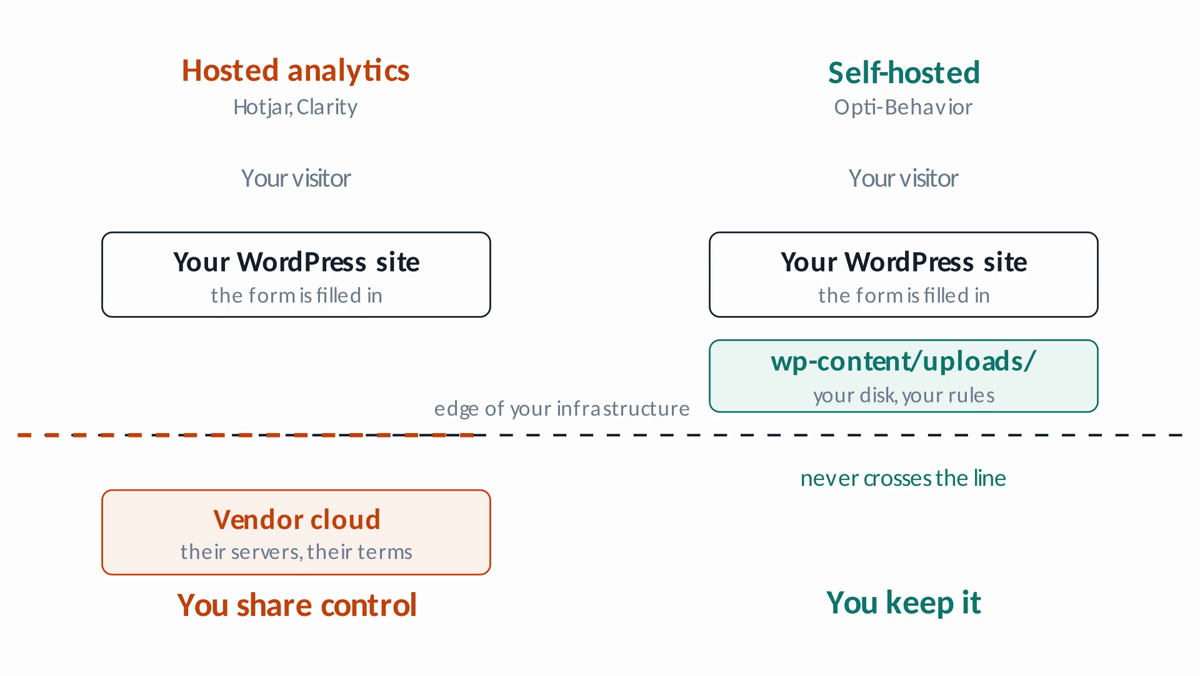
Some teams use cloud session replay tools to find friction. That can work, but the workflow may remain separate from WordPress administration, page editing, and server-owned data. Microsoft Clarity’s FAQ says Clarity data is stored in Microsoft Azure cloud service and that Microsoft/Clarity has access to the data. That may be acceptable for some teams, but privacy-sensitive WordPress owners may prefer a self-hosted approach.
Limitations of old solutions
| Old workflow | What is missing |
|---|---|
| Support tickets | Real interaction sequence, affected element, and reproduction steps. |
| Manual QA | Coverage of real devices, real sessions, and post-release regressions. |
| Error monitoring alone | Click intent, dead clicks, visual confusion, and funnel context. |
| Cloud replay alone | Local data ownership and tight WordPress-native issue workflow. |
A practical production workflow
1. Detect friction automatically
Do not wait for complaints. Track rage clicks, dead clicks, and error clicks continuously. Opti-Behavior’s errors and performance feature page describes friction detection for rage clicks and dead clicks, plus configurable thresholds. It also records element selectors, page URLs, and timestamps. This turns subjective frustration into searchable data.
2. Rank by business impact
Sort friction by affected sessions, page type, funnel stage, and device. A dead click on a blog sidebar is not the same as a rage click on the checkout payment button. WordPress teams should tag critical pages: home, pricing, lead form, cart, checkout, account, and top organic landing pages. High-value pages should receive faster investigation.
3. Replay the affected session
A metric tells you where to look; a recording tells you what happened. Clarity’s recordings documentation says recordings help answer questions such as what visitors are trying to do, what bugs exist, and where pain points appear. Opti-Behavior’s recordings page describes a multi-page session timeline with clicks, form interactions, scroll behavior, and page navigations. The goal is to reconstruct the visitor’s intent, not merely count clicks.
4. Connect friction to errors and performance
A rage click may be caused by a slow response rather than broken UI. A dead click may be caused by an overlay. An error click may connect to a JavaScript stack trace. Opti-Behavior’s errors page describes JavaScript error tracking with stack traces, affected page URLs, browser and OS information, Core Web Vitals, performance scoring, and broken link detection. Combining these signals helps developers fix root causes rather than symptoms.
5. Move the issue through a status workflow
Production friction needs ownership. Use statuses such as Open, Investigating, and Resolved. Opti-Behavior describes this workflow for errors and broken links. This prevents the dashboard from becoming a graveyard of interesting but unassigned problems. Each high-impact friction issue should have a hypothesis, owner, fix, and verification date.
6. Verify after release
After a fix, continue watching the affected element and page. Did the rage clicks disappear? Did conversions recover? Did a new dead click appear because the design changed? Production analytics is a loop: detect, investigate, fix, verify, and learn.
Why self-hosted matters for friction workflows
Friction data can be sensitive because it reveals user paths, page content, form interaction metadata, and technical failures. Microsoft Clarity’s consent documentation says that in Consent Mode, the default state is denied until updated, and that in some regions Clarity does not place cookies unless valid consent is received. It also notes that when consent is not provided, features depending on cookies such as recordings and funnels might be limited. This does not mean cloud tools are bad. It means production workflows should account for consent, retention, and data access.
Opti-Behavior’s value is that the workflow runs on the site owner’s WordPress server. The product page positions it as self-hosted, privacy-first, WordPress-native, and no-cookies-needed, with data staying on your server. The recordings feature page describes privacy masking, custom selector masking, encrypted file-based storage, and no third-party access. The errors page adds friction events, Core Web Vitals, broken links, and status management. Together, these features support a production loop without forcing behavior data into a remote behavior cloud.
Practical checklist
- Define friction events: rage clicks, dead clicks, error clicks, repeated form errors, and broken navigation.
- Identify high-value WordPress pages and funnels where friction matters most.
- Enable friction tracking and session recording with appropriate privacy settings.
- Review the top friction events weekly by affected sessions and conversion impact.
- Replay representative sessions before assigning engineering work.
- Check related JavaScript errors, broken links, and performance metrics.
- Assign each serious issue an owner and status.
- Verify after deployment that the same friction pattern decreased.
- Document recurring design causes, such as non-clickable cards, unclear buttons, hidden validation, or mobile overlays.
FAQ
Is every rage click a bug?
No. A rage click is a signal, not a verdict. It may indicate impatience, a slow request, unclear visual feedback, or an actual bug. Review recordings and errors before deciding.
What is a dead click?
A dead click is a click on an element that does not produce the expected interaction. It often happens when visual design suggests an element is clickable but the page does nothing.
Why connect friction events to session recordings?
Because the same event can have different causes. A session replay shows the sequence before and after the click, including scrolling, form focus, navigation, and hesitation.
Can Opti-Behavior replace a dedicated error monitoring tool?
For many WordPress conversion workflows, Opti-Behavior can centralize JavaScript errors, friction events, performance signals, broken links, and recordings. Highly specialized application teams may still use dedicated engineering observability platforms for backend tracing.