
Overview
The Analytics Dashboard is the central command center of Opti-Behavior. It delivers a comprehensive, real-time overview of your website’s performance and visitor behavior through an intuitive, widget-based interface. The dashboard loads asynchronously via AJAX for optimal performance, even with large datasets.
Date Range Selector
Located at the top-right of the dashboard, the date range selector gives you full control over the time period being analyzed:
- Today – View today’s data in real time.
- Yesterday – Review yesterday’s complete data.
- Last 7 Days – The default view, showing the past week’s metrics.
- Last 30 Days – A broader monthly overview.
- This Month – Data from the start of the current calendar month.
- Custom Range – Select any start and end date using the date pickers, then click Apply.
A Refresh button is also available to reload all dashboard data without changing the selected period.
Summary Statistics Cards (6 KPIs)
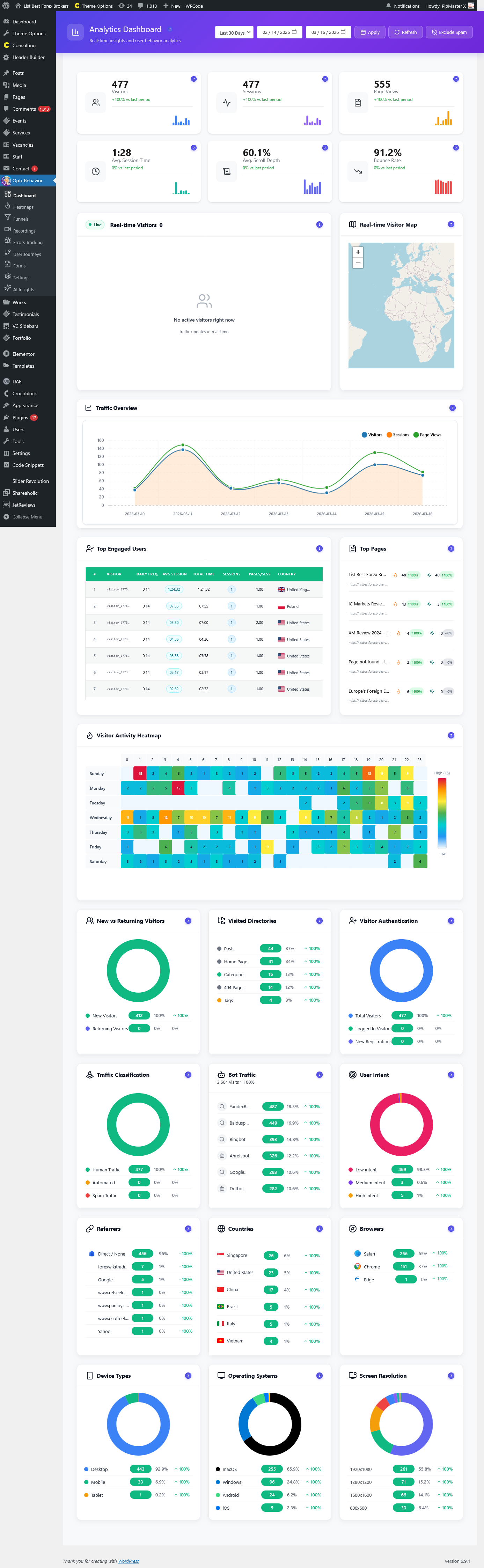
Six key performance indicator cards are displayed at the top of the dashboard. Each card includes the current value, a percentage change vs. the previous period, and a mini sparkline chart showing the trend:
- Visitors – Total unique visitors during the selected period.
- Sessions – Total browsing sessions recorded. A single visitor can have multiple sessions.
- Page Views – Total number of individual page views tracked across all visitors.
- Avg. Session Time – The average duration a visitor spends on your site per session.
- Avg. Scroll Depth – The average percentage of the page visitors scroll through, helping measure content engagement.
- Bounce Rate – The percentage of visitors who leave after viewing only one page.
Each card shows a color-coded change indicator: green for improvements, red for declines, and neutral when unchanged.
Dashboard Widgets
Traffic Overview Chart
A detailed line/area chart displaying visitor traffic trends over the selected time period. Powered by Chart.js for smooth, interactive rendering. Hover over data points to see exact values for any given day.
Browsers Widget
A doughnut chart showing the browser distribution of your visitors (Chrome, Firefox, Safari, Edge, Opera, etc.). Helps you understand which browsers to prioritize for testing.
Device Types Widget
A visual breakdown of traffic by device type: Desktop, Mobile, and Tablet. Essential for understanding your audience’s access patterns and ensuring responsive design covers your primary user base.
Operating Systems Widget
Displays the OS distribution of your visitors (Windows, macOS, iOS, Android, Linux). Combined with device and browser data, this gives a complete picture of your audience’s technology stack.
User Intent Widget
A unique Opti-Behavior feature that classifies visitor sessions by intent. The plugin analyzes page views, scroll depth, time on site, and click patterns to determine whether a visitor was browsing, researching, comparing, or ready to act.
Top Engaged Users
A detailed table showing your most engaged visitors with columns for:
- Daily visit frequency
- Average session duration
- Total time spent on your site
- Number of sessions
- Pages per session
- Country of origin
- Last seen timestamp
Top Countries
A chart showing the geographic distribution of your visitors. Understand which countries drive the most traffic to prioritize localization and content strategies.
Real-time Visitors (LIVE)
A live-updating widget with a pulsing LIVE badge showing visitors currently on your site. For each active visitor, you can see:
- Visit timestamp and time ago
- Country with flag emoji
- Current page title and URL
- IP address (partially masked for IPv6 privacy)
Real-time Visitor Map
An interactive world map that plots the geographic location of your current visitors. Each visitor appears as a dot on the map, giving you an instant visual of your global audience reach.
Top Pages
A ranked list of your most-visited pages showing:
- Page title and URL
- Total views count
- Total clicks and click percentage
- Click trend (up/down/neutral) with percentage change
- Quick action buttons to view PC and Mobile heatmaps directly
Top Referrers
A chart displaying the sources that drive the most traffic to your site, including search engines, social media platforms, and other referring websites.
How to Access
Navigate to Opti-Behavior → Dashboard in your WordPress admin sidebar. The dashboard loads with Last 7 Days data by default.
Frequently Asked Questions
How often does the dashboard data refresh?
The dashboard data loads asynchronously when you open the page. The Real-time Visitors widget auto-updates periodically. For all other widgets, click the Refresh button to pull the latest data.
Why does the dashboard show “Loading” spinners?
Dashboard widgets load their data via AJAX independently for better performance. If a spinner persists, check your internet connection or try refreshing the page.
What counts as a “session”?
A session starts when a visitor first interacts with your site and ends after a period of inactivity (typically 30 minutes). One visitor can have multiple sessions.
How is bounce rate calculated?
Bounce rate = (single-page sessions / total sessions) x 100. A visitor who views only one page without further interaction counts as a bounce.
What does “vs last period” mean on the stat cards?
Each metric shows a percentage comparison against the equivalent previous period. For example, if you’re viewing “Last 7 Days,” the comparison is against the 7 days before that.
Can I customize which widgets appear on the dashboard?
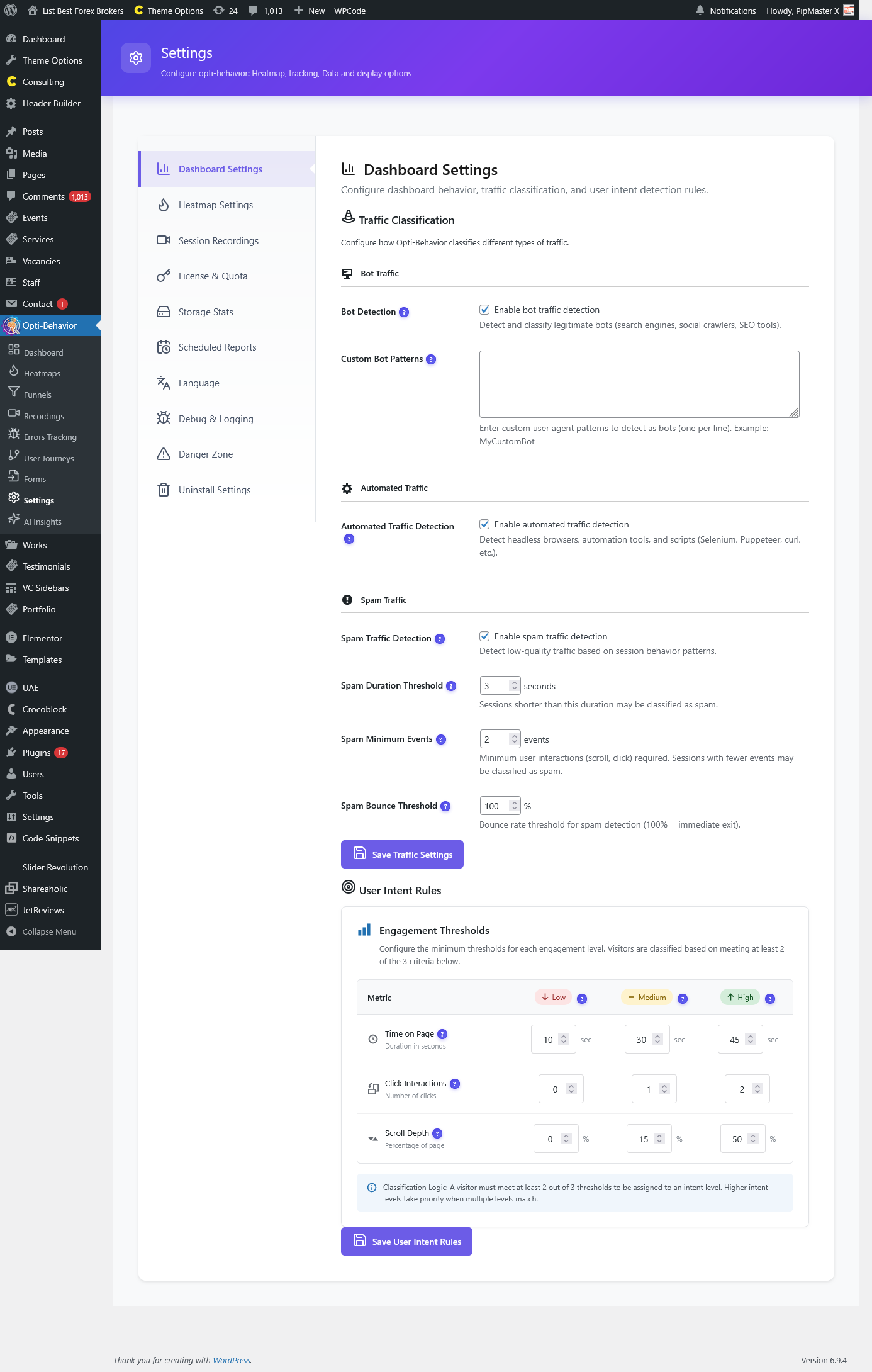
Yes. Dashboard display preferences can be configured in Opti-Behavior → Settings → Dashboard Settings.
What is the “User Intent” widget?
User Intent is a unique Opti-Behavior feature that uses behavioral signals (page views, scroll depth, time on page, click patterns) to classify what each visitor’s goal was during their session. This helps you understand whether visitors are casually browsing, actively researching, comparing options, or ready to convert.
Why are some visitor IPs shown as masked?
For privacy compliance, IPv6 addresses are shortened to show only the first and last 7 characters. IPv4 addresses are shown in full.