Pre-Form Analytics for WordPress: Find Hesitation Before Submit and Fix Field Friction

TL;DR
Most form analytics starts too late. It counts submissions and sometimes errors, but the real story begins before submit: which field made the visitor pause, which label caused a refill, which validation rule created confusion, and which question was active when the visitor left. Pre-form analytics focuses on hesitation, field friction, blank rates, refills, errors, and abandonment paths. Opti-Behavior brings that workflow to WordPress with self-hosted, field-level form analytics, drop-off funnels, and session replay for major form plugins.
The issue: form reporting usually measures the ending, not the struggle
A WordPress form can fail long before a visitor clicks submit. The visitor may focus a field, hesitate, erase a value, move to another field, return, trigger validation, scroll to find help text, or abandon the page. Standard form metrics usually collapse that story into submitted or not submitted. That is not enough if the form is responsible for leads, quotes, demo requests, checkout, registrations, surveys, applications, or support requests.
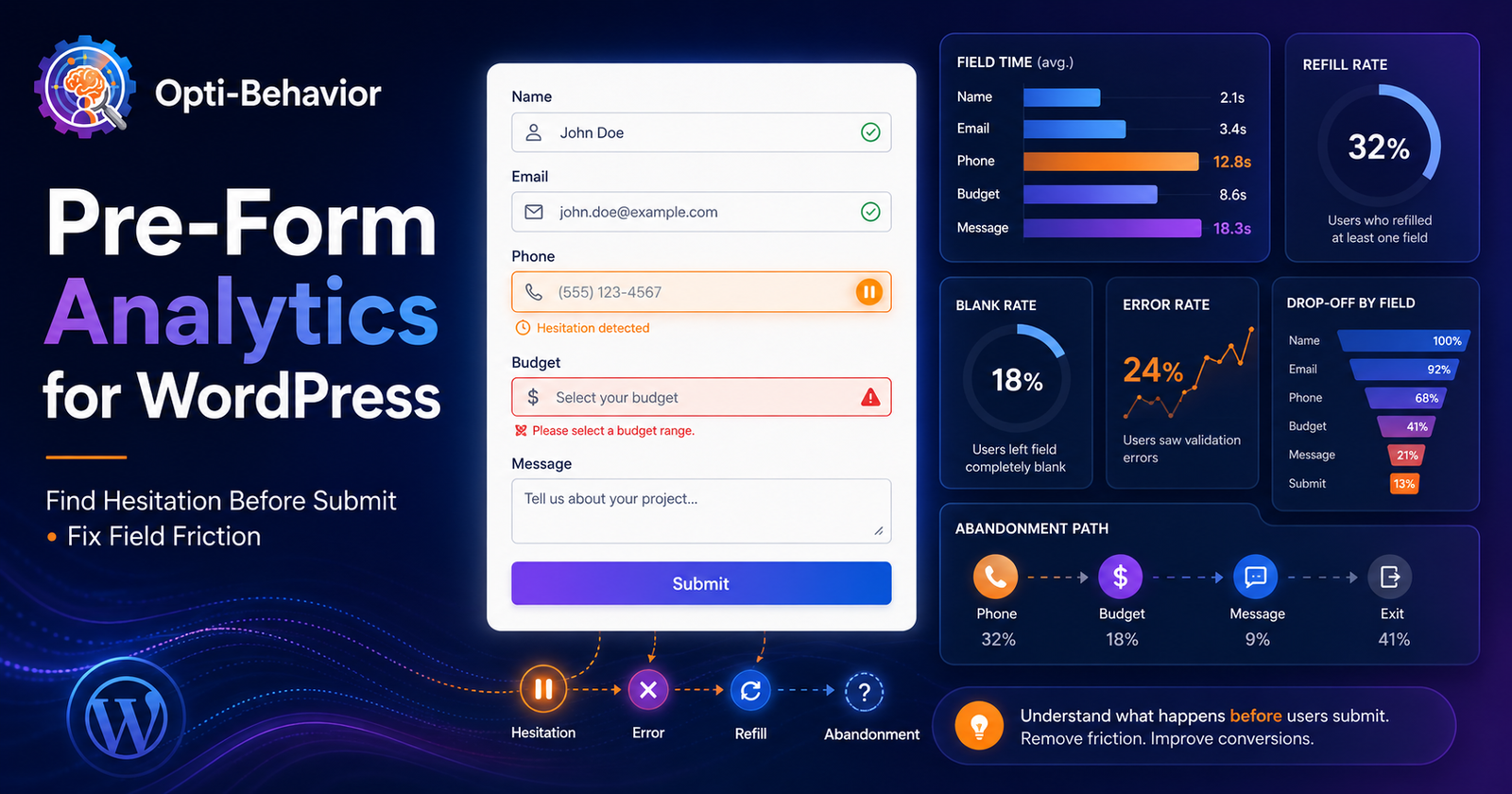
Pre-form analytics asks better questions. How many visitors started the form? Which field did they reach? How long did they spend in each field? Which fields were left blank? Which fields caused refills? Which validation errors appeared? What was the last field before abandonment? These questions reveal friction before the final failure.
The difference matters because a form is both a user interface and a negotiation. Every field asks for effort, information, and trust. A visitor may be willing to give an email but not a phone number. They may be willing to describe a project but not reveal a budget. They may be willing to create an account after checkout but not before seeing shipping cost. Field-level analytics helps you see where the negotiation breaks.
Why form hesitation happens
Form hesitation happens when the effort, risk, or ambiguity of a field exceeds the visitor’s motivation at that moment. A phone number field may feel too intrusive. A budget field may appear too early. A dropdown may not include the right option. A long textarea may feel like work. A required company field may not apply to individuals. A coupon field may distract checkout users. A privacy-sensitive field may need clearer explanation.
Technical issues also create hesitation. Validation may trigger only after submit, forcing users to hunt for the problem. Mobile keyboards may not match the field type. Autofill may populate the wrong value. A plugin conflict may duplicate error messages. A caching optimization may delay form scripts. A slow page may make users click twice. These problems are not visible in submission counts alone.
WordPress form ecosystems add another layer. A site may use Contact Form 7 for contact, Gravity Forms for quotes, WooCommerce for checkout, and a newsletter plugin for signups. Each tool has its own markup, validation timing, labels, and error messages. A generic pageview tool will not understand these differences. A useful form analytics workflow needs to recognize form structure and track fields in order.
Consequences of ignoring pre-submit behavior
The first consequence is lost leads. A form can receive qualified visitors and still convert poorly because one field creates disproportionate friction. The second consequence is bad redesign decisions. Teams shorten the wrong part of the form or remove useful questions while leaving the true blocker untouched. The third consequence is hidden checkout leakage. WooCommerce checkout forms often include address, shipping, coupon, account, and payment-related fields; small friction can become measurable revenue loss.
The fourth consequence is poor privacy posture. Teams sometimes record too much because they lack purpose-built field analytics. A better approach is to track interaction metadata rather than sensitive values. Opti-Behavior’s form analytics page states that password fields and credit card inputs are never captured, that sensitive field values are not recorded, and that only interaction metadata such as time, focus, and blur events is tracked. That is exactly the direction form analytics should move: enough evidence to optimize, without collecting unnecessary content.
The fifth consequence is sales team confusion. If lead volume drops, the team may blame traffic quality or pricing. In reality, a new required field, unclear privacy text, or mobile validation bug may be the cause. Pre-form analytics gives sales, marketing, and development a shared artifact: the field where people stopped.
Old and common solutions
The simplest solution is to count submissions in a form plugin. This tells you volume but not friction. Another solution is goal tracking in a general analytics platform. This can show conversion rate but not which field blocked users. Some teams use session recordings and manually watch form sessions. Recordings are useful, but reviewing them without field-level aggregation is slow. Other teams run A/B tests on shorter forms. Testing can help, but without diagnosis it often becomes guesswork: did the shorter form win because it removed a field, moved a field, changed intent, or altered traffic quality?
Cloud behavior tools may provide recordings and heatmaps, but not every tool gives field-level WordPress form analytics. Microsoft Clarity’s FAQ describes behavior capture such as mouse movements, clicks, and scrolls, and its recordings documentation explains that recordings reconstruct sessions from HTML and user actions. That helps understand behavior, but WordPress teams often need a form-specific layer tied to Contact Form 7, WPForms, Gravity Forms, Forminator, Ninja Forms, WooCommerce checkout, and custom forms.
Limitations of old solutions
| Metric | What it says | What it misses |
|---|---|---|
| Submission count | How many people completed the form. | Where non-submitters struggled. |
| Conversion rate | The percentage who submitted. | Which field caused hesitation or abandonment. |
| Validation error count | How often errors occurred. | The focus, refill, and pause behavior before the error. |
| Session recordings only | Individual stories. | Aggregated field-level patterns across sessions. |
Opti-Behavior as a pre-form analytics solution
Opti-Behavior’s form analytics feature page describes field-level tracking, drop-off funnels, time per field, error detection, and session replay for form submissions. It says the feature works with Contact Form 7, WPForms, Forminator, Gravity Forms, Ninja Forms, Everest Forms, SureForms, WooCommerce Checkout, native HTML forms, and custom AJAX forms. For WordPress teams, that plugin awareness matters because forms are not generic pages; they are structured conversion interfaces.
The form dashboard includes form views, submissions, conversion rate, average completion time, and abandonment count. Field-level metrics include total interactions, unique visitors, average time spent, refill count, error count, left-blank count, and blank rate percentage. A field drop-off funnel shows progression through each form field, including sessions reached, drop-off count, drop-off rate, and fill rate. The dashboard can identify the last field before abandonment. These metrics turn vague form anxiety into actionable evidence.
Opti-Behavior is also self-hosted. The OptiUser product page positions the plugin as privacy-first and designed so visitor behavior data stays on your own WordPress server. That is especially important for form analytics because forms can be close to personal data. Even when field values are not captured, interaction patterns deserve careful handling, masking, and retention.
How to analyze hesitation before submit
Start with the form’s job. A newsletter form should be short and low-risk. A quote request may need qualifying details. A checkout form must balance required logistics with speed. Compare the friction signal to the form’s purpose. A long time on a field may be acceptable if the field asks for a detailed project brief. It is suspicious if the field is a simple phone number or country dropdown.
Next, review refills. Refill behavior often indicates ambiguity. Users may rewrite because they are unsure about format, length, or expected answer. Then review blank rates. A high blank rate on an optional field may mean the field is unnecessary. A high blank rate on a required field may mean the field appears irrelevant or invasive. Then review errors. If many users trigger validation on the same field, improve labels, examples, input masks, or validation timing.
Finally, connect field analytics to recordings. Microsoft Clarity’s recordings documentation notes that recordings help answer what visitors are trying to do and where pain points appear. With Opti-Behavior, session replay can show form focus events, typing patterns, hesitation pauses, and validation errors while field metrics show whether the pattern is widespread. Use both: aggregate to prioritize, replay to understand.
Privacy and consent considerations
Form analytics should be conservative. Do not collect field values unless absolutely necessary, and for most optimization work, values are unnecessary. You need to know that a field took too long, was refilled, was left blank, or caused validation errors. You usually do not need the typed content. CNIL explains that certain trackers require information and prior consent, while some are exempt, depending on their purpose and conditions. Microsoft Clarity’s consent documentation also illustrates how behavior features can be affected by consent requirements in EEA, UK, and Switzerland traffic. This article is not legal advice; it is a reminder to design form analytics with minimization, transparency, and retention in mind.
Practical checklist
- List your most valuable WordPress forms: contact, quote, checkout, lead magnet, signup, application, and support.
- Measure form starts, submissions, abandonment, and average completion time.
- Review field-level time, refills, errors, blank rates, and last field before abandonment.
- Separate mobile and desktop behavior because field friction often changes by device.
- Watch recordings for the highest-friction fields, especially abandoned sessions.
- Rewrite labels and help text before deleting useful qualifying fields.
- Move sensitive or high-effort questions later when possible.
- Use inline validation and examples for fields that trigger repeated errors.
- Mask sensitive fields and avoid capturing actual values unless a qualified privacy review says it is appropriate.
- Repeat the analysis after every form redesign, checkout change, or plugin update.
FAQ
What is pre-form analytics?
Pre-form analytics studies the behavior before submission: field focus, hesitation, refills, blank fields, errors, drop-off, and abandonment. It explains why people do or do not submit.
Do I need to record typed field values?
Usually no. For optimization, interaction metadata is often enough. Track time, focus, blur, errors, and field progression while masking sensitive inputs.
Which WordPress forms benefit most?
Lead generation forms, WooCommerce checkout, quote requests, demo requests, application forms, surveys, and support forms all benefit because each field can influence completion.
How is Opti-Behavior different from basic form conversion tracking?
Basic tracking counts submissions. Opti-Behavior adds field-level metrics, drop-off funnels, abandonment detection, session replay, plugin auto-detection, and self-hosted data ownership.