
For a WordPress database cleanup, list the biggest tables first. On many sites the largest ones belong to an analytics or tracking plugin. Delete what is useless (revisions, expired transients, spam, tables of removed plugins), and for tracking data you still need, move it out of the WordPress database instead of deleting it.
This guide works with any tool for the first steps. A slow admin, a restore that takes ages, a hosting plan close to its disk limit or a backup that keeps growing are the usual signs that the database needs attention. You do not need to be a database expert: you need a backup, ten minutes and a list of what each large table belongs to.
This guide is written for site owners, freelancers and agencies who maintain WordPress sites without a dedicated database administrator. Every command shown is read-only unless it says otherwise, and every deletion comes with a way back. If you manage a shop, a membership site or a site with many editors, read Step 2 slowly: those sites collect the most revisions, transients and scheduled-action rows, and a careless cleanup costs the most there.
The method has five steps. Measure which tables are big, remove what is safe to remove, understand why analytics tables grow, move the tracking data you want to keep instead of deleting it, and check the result. Each step can be done on its own, so stop wherever the problem is solved. The last section shows how Opti-Behavior (Free) moves its own tables and files elsewhere.
A word on expectations. A cleanup is not a one-time fix. If a plugin keeps writing rows at the same speed, the database will grow back to the same size, so the goal is to understand what grows and why, then decide for each large table whether to delete it, shorten its retention or move it somewhere else. That is why the steps are in this order: measure first, act second, check third.
Contents
Step 1: find the biggest tables in your WordPress database
Take a backup first. Then look at table sizes, not at the total only. A database of a few hundred megabytes can be perfectly healthy if it is spread across many normal tables, and a much smaller one can hide a single table that grows every day. The total tells you nothing about what to do next; the ranking of tables does.
Do the backup properly: export the database with your host tool, WP-CLI (wp db export) or your backup plugin, download the file, and check that it is not empty. A backup you never opened is a hope, not a backup. If you can, test the restore on a staging copy before you delete anything on the live site.
Read the sizes the right way
Most tools show two numbers per table: the data size and the index size. Add them together, because both are on your disk and both end up in your backup. Also look at the row count. A table with millions of small rows behaves differently from a table with a few thousand rows that contain large text blobs: the first slows down queries, the second makes exports and restores heavy. Note both, because the fix is not the same.
- WP-CLI: run
wp db size --tables. It lists every table with its size. - phpMyAdmin: open your database, tick all tables and sort the Size column from largest to smallest.
- SQL query: if you prefer a query, run
SELECT table_name, ROUND((data_length + index_length) / 1024 / 1024, 1) AS size_mb FROM information_schema.tables WHERE table_schema = DATABASE() ORDER BY (data_length + index_length) DESC LIMIT 10;in phpMyAdmin or your host tool. It lists the ten largest tables of the current database, sizes in megabytes. It only reads data, so it is safe to run on a live site.
Write down the five largest tables, with their size in a notebook or a spreadsheet, and the plugin each one belongs to (the table name usually starts with the plugin name after the wp_ prefix). Do not stop at the name. If a table prefix is unknown, search the plugin folder or the plugin documentation, or deactivate nothing until you know who owns it. Unknown tables are the ones people drop by mistake. The usual suspects: wp_postmeta, wp_options, wp_actionscheduler_* on WooCommerce sites, and event tables of analytics, security or logging plugins.
Keep this ranking. You will compare it with a second ranking at the end of the guide, and the difference between the two is the real result of your cleanup. Many owners skip this and then cannot say whether the work helped. A simple spreadsheet with four columns (table, plugin, size before, size after) is enough.
Step 2: WordPress database cleanup: what is safe to delete
These items can be removed without breaking the site, once you have a backup. Start with the safest and check the site between each action: open the home page, an article, the admin and, on a shop, the cart and the checkout.
Work in small batches. Delete one category, reload a few pages, look at the PHP error log if you have access to it, and only then move to the next category. If something breaks, you know exactly which action caused it, and you can restore that single table or row set instead of the whole site. Doing everything in one go saves five minutes and can cost an afternoon.
A short order that works on most sites:
- Post revisions you no longer need (keep the latest few of recent posts).
- Expired transients:
wp transient delete --expired. - Spam and trashed comments, trashed posts.
- Orphaned tables left by plugins you removed. Check that the plugin is really gone and that no active plugin uses the table before dropping it.
Do not delete the tables of a plugin that is active: you would lose its data and it may stop working. Two more cases need care. Do not empty wp_options by hand: it holds the settings of your theme and plugins, and only expired transients and orphaned autoloaded options of removed plugins are fair game. Do not remove rows from wp_postmeta unless you know which plugin wrote them: a cleanup plugin that deletes orphaned meta is fine, a manual DELETE query written in a hurry is not.
Tools that help, and their limits
WP-CLI covers most of Step 2 with short commands. wp transient delete --expired removes expired transients, and wp db optimize rebuilds tables after large deletions so the disk space is actually released. Several cleanup plugins offer the same actions with buttons. Whichever you choose, use it for the categories listed above, check what it is about to delete when it shows a preview, and do not let it run on a schedule before you have seen one manual run behave correctly. A tool that cleans automatically every night is useful only once you trust its rules.
When in doubt, export the table first (a single-table SQL file is small) and drop it only after the site has run normally for a week. That week costs nothing and gives you a way back. For the tables of an active plugin, the question is not “how do I delete it” but “does it need to live in the WordPress database at all”.
Step 3: why analytics tables grow so fast
Most tracking plugins write one database row per event: every page view, click, scroll sample or form interaction. Add a plugin that records every mouse move, or a security plugin that logs every request, and a single visit can create dozens of rows. Rows scale with engagement, not only with traffic, so an analytics table can pass your posts and options in a few months. Two sites with the same number of visitors can end up with very different table sizes, depending on how long visits last and how much the plugin records.
Think about a simple illustration, not a measurement. A visitor reads one article for three minutes and scrolls to the end. A plugin that stores one row per page view creates one row. A plugin that stores one row per scroll sample or per click creates many more for the same visit. Multiply by every visitor, every day, and the second plugin quickly owns the largest table of your database even though both plugins report the same traffic.
Three questions tell you whether a tracking plugin is a risk for your database: does it keep raw events forever or does it aggregate and expire them, does it store large payloads (session recordings, screenshots, heatmap points) in MySQL or in files, and can you choose where the data lives? If the answers are "forever", "in MySQL" and "no", plan for regular cleaning or for another storage location. A large analytics database also makes every backup bigger.
Retention is the other lever. Some tools delete raw events after a set number of days and keep only totals. Others keep everything until you act. Read the settings page and the documentation of each tracking plugin for words such as retention, expiry, purge or archive. If there is no such setting, you will have to manage the size yourself, which is exactly what Step 4 is for.
The size depends on how the plugin stores data. In our own proof article, Opti-Behavior measured 565 MB of database across 34 tables (852,404 rows) over 90 days (1 June to 29 August 2026) on a live site, with recordings and raw heatmap data kept in files instead of MySQL. Read the method and every figure in 155,000 sessions in 90 days on 6 MB of database growth a day. Measure your own site the same way with Step 1. Compare your figures with ours only as an order of magnitude: traffic, recording settings and retention are different on every site, and a result on one site is not a promise for yours.
Use the proof article as a method, not as a target. What transfers to your site is the way of measuring: list every table, count the rows, compare the growth over the same period and separate the plugin that writes the data from the data itself. What does not transfer is the number.
Step 4: move analytics tables out of wp_ instead of deleting them
If you need the tracking history, deleting it is not an option: it is the record of what your visitors did, and you cannot rebuild it. Typical cases are a shop that compares seasons, an agency that reports to clients, or a team that wants to review a redesign months later. Moving the data keeps the history and takes it out of the database that WordPress and your backup plugin handle every day.
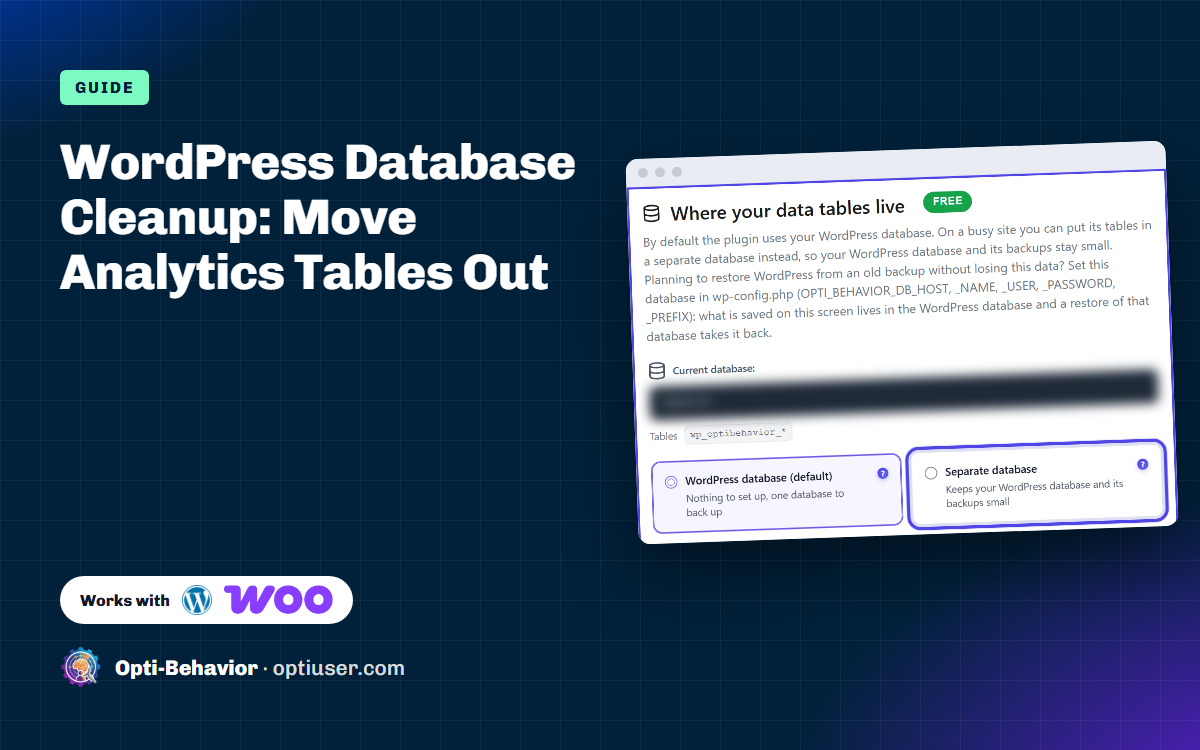
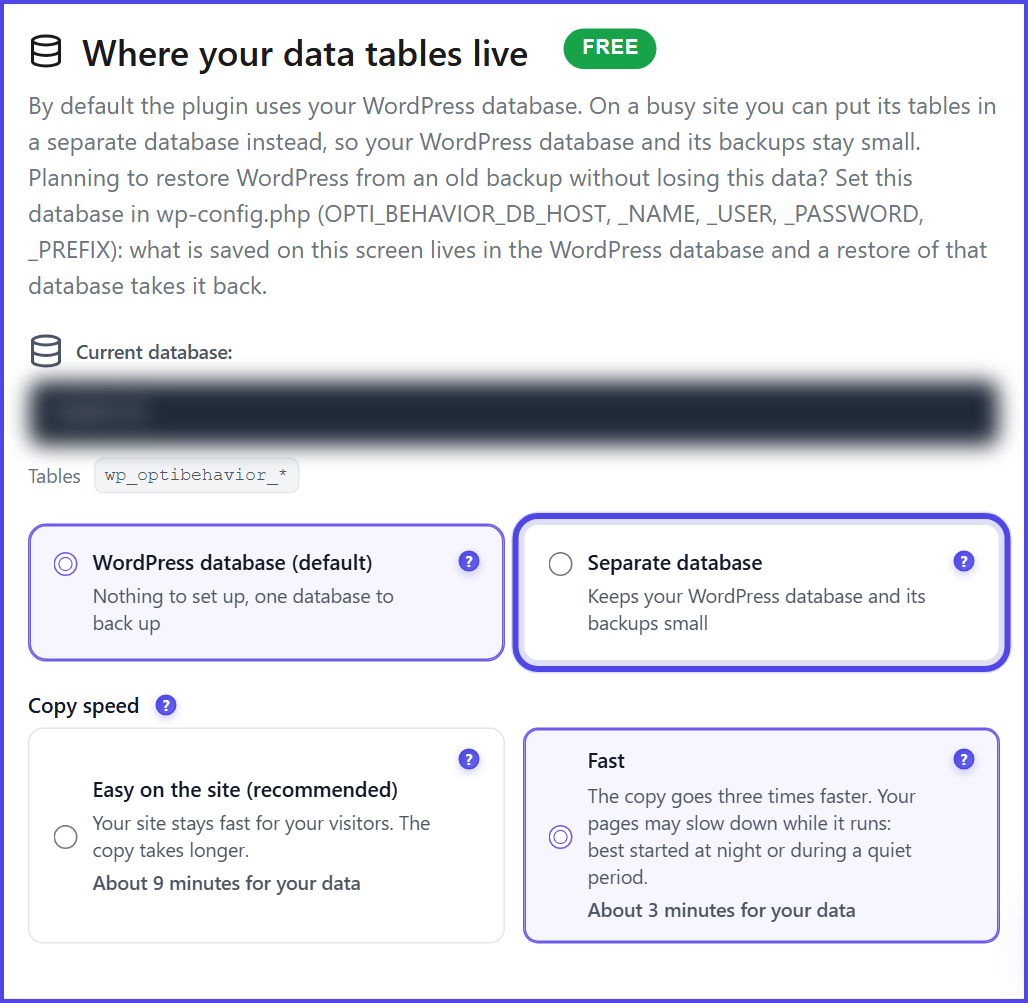
Before you start, check three things: your host allows a second database (or you already have one with free quota), the database user can create tables, and you have enough disk space for a copy during the move. Then follow the steps below. On a busy site you can put the tracking tables in a separate database instead, so your WordPress database and its backups stay small. In Opti-Behavior this is a setting, available in the Free plugin: Settings > Storage.
Where your data tables live
Choose WordPress database (default) or Separate database.
Where your files are stored
Heatmap data, sessions, recordings and screenshots are files. By default they sit in the WordPress uploads folder. You can choose a custom folder, which can be outside WordPress.
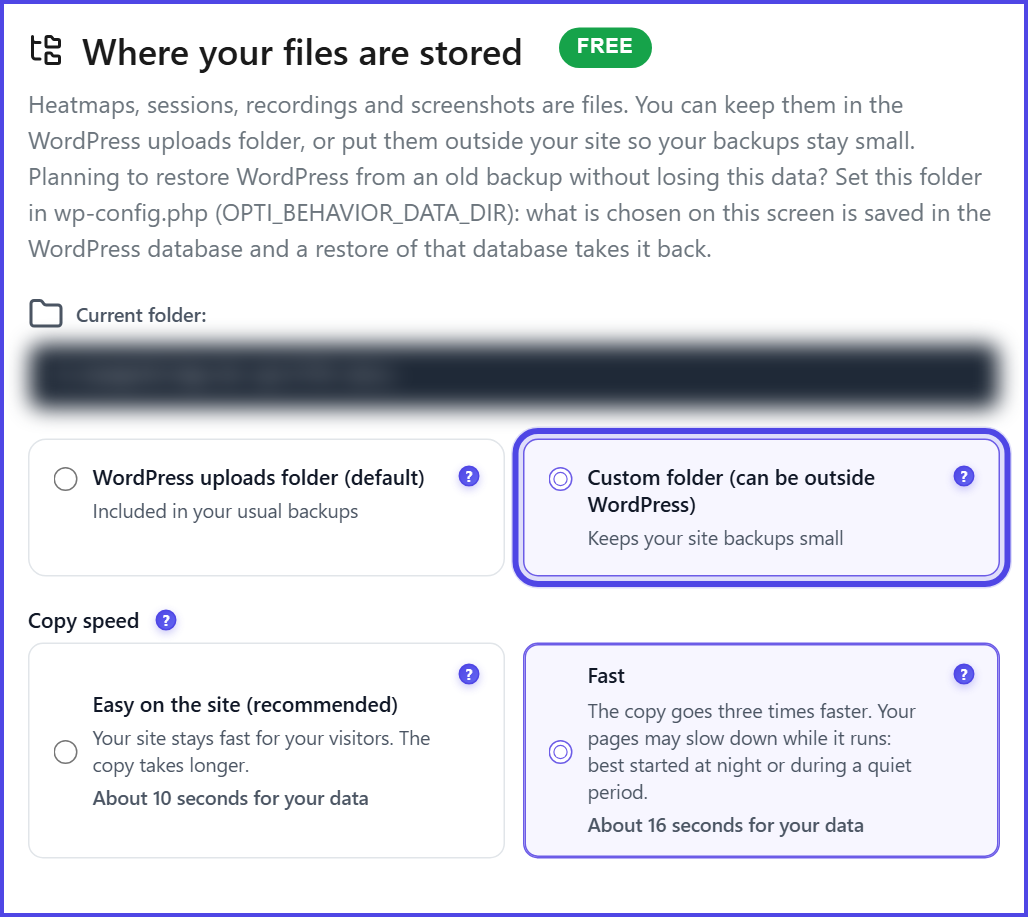
How the move works
- The copy runs in the background, so the site is not blocked. Two copy speeds: Easy on the site (recommended) or Fast.
- The switch happens only when the copy is verified.
- You can bring the data back to the WordPress database afterwards.
Prefer configuration in code? Define these constants in wp-config.php: OPTI_BEHAVIOR_DB_HOST, OPTI_BEHAVIOR_DB_NAME, OPTI_BEHAVIOR_DB_USER, OPTI_BEHAVIOR_DB_PASSWORD, OPTI_BEHAVIOR_DB_PREFIX for the separate database, and OPTI_BEHAVIOR_DATA_DIR for the data folder.
Limit: if you also use Opti-Behavior Pro, update Pro to 1.11.1 before moving the data folder.
Other ways to keep tracking data small
Moving is not the only option. If you do not need the old history, shorten the retention of the plugin or export what you need to a file and delete the rest from the plugin settings, not from the database by hand. If you need long-term reports, export the figures you report on (monthly totals, key pages) to a spreadsheet and keep the raw detail only for recent months. Choose moving when you want to keep everything and still keep the WordPress database light.

Storage Stats shows the size of each data table, so you can see what you are moving. Note the sizes before and after the move: it is the simplest proof that the change worked on your site. How to read it: Storage Overview: Database and Files. Every Storage option is described on the Opti-Behavior settings page.
If something looks wrong during the copy, do not interrupt it by deactivating the plugin. Let the background job finish or read its status in Settings > Storage first. Because the switch happens only after verification, the previous location stays in use until the new one is ready.
Plan the move for a quiet period of the week, and try it on a staging copy first if you have one. Check with your host that the second database counts correctly against your plan and that it is included in your backups, otherwise you have moved the problem instead of solving it. Write down the new location in your site documentation so that the next person who maintains the site knows where the tracking data lives.
Step 5: what to check afterwards
- Run
wp db size --tablesagain: the analytics tables should no longer be in the WordPress database. - Check the size and the duration of your next backup against the previous one.
- Open Settings > Storage: it must say the copy is verified.
- Open a heatmap and a recording to confirm the data is still readable.
- Wait a few days and run
wp db size --tablesa third time. If a table you cleaned grows back fast, a plugin is recreating the data: change its retention or logging setting instead of cleaning it again every month. - Put a reminder in your calendar to repeat Step 1 every quarter. A five-minute check prevents the next emergency cleanup.
- Compare your two rankings of tables, before and after, in the spreadsheet from Step 1. If the largest table did not change, the cleanup did not address the real cause: go back to Step 3 and ask who writes into it.
- Check that scheduled backups still complete and that their duration did not grow. A backup that takes longer after your cleanup points to something you missed.
Try it: keep your WordPress database small
Install the free Opti-Behavior plugin and open Settings > Storage.
FAQ
Is it safe to delete analytics tables to clean up my WordPress database?
Not while the plugin is active: you lose its data and it may break. Clean revisions, transients, spam and orphaned tables, and move the tracking data instead.
How do I see which tables are biggest?
Use wp db size --tables or sort by size in phpMyAdmin.
Does the move stop my tracking?
The copy runs in the background and the switch happens only when the copy is verified. You can bring the data back.
How often should I clean up my WordPress database?
Revisions, transients and spam: every few months, or automatically with a cleanup plugin you trust. Table sizes: check them every quarter and after installing a plugin that stores data.
Can a database cleanup plugin replace these steps?
It can automate Step 2, but it cannot tell you whether an active plugin should keep its data in the WordPress database. Steps 1, 3 and 4 stay manual decisions.
Which Opti-Behavior plan do I need?
The Storage settings are in the Free plugin (1.11.1).
What should I do if my database grows back after a cleanup?
Check which table is growing with wp db size --tables, then find the plugin that owns it. Lower its retention or logging setting, or move its tables to a separate database, instead of repeating the cleanup every month. A table that fills again within days is a configuration problem, not a one-off cleanup.
Do I lose my history if I move the data?
No. The copy keeps the data and the switch happens only when the copy is verified. You can also bring the data back to the WordPress database afterwards.
Should I run OPTIMIZE TABLE after a cleanup?
After large deletions it can release disk space, for example with wp db optimize. Run it on a quiet moment, after a backup, and not on a schedule.
What if I do not know what a large table belongs to?
Do not delete it. Search the table name with the plugin folder names, read the documentation of the plugins you use, and export the table before any action. If you still cannot tell, ask the plugin author or your host.
The Opti-Behavior Team