
Short answer: an analytics report template is useful when every row ends with an action: where visitors are lost, how many, the likely cause, the fix, and how you will check it. Most templates stop at traffic charts. Below is a template you can copy, how to fill it by hand in about an hour, and how Opti-Behavior fills most of it inside WordPress from your own data.
Why most reports give numbers, not fixes
You open the monthly report: sessions are down, bounce rate is up, the top pages are the usual ones. Then nobody knows what to do on Monday morning. The report is correct, but nobody can act on it.
Three things are usually missing:
- Where: the page, the form or the funnel step where visitors leave.
- How much: how many visitors, leads or orders the problem touches, compared with the rest of the site.
- What next: one action per problem, and a way to know if it worked.
Traffic charts answer “what happened”. A report you can use also answers “where it breaks” and “what to change first”.
The analytics report template
Keep one short table per report, whatever tool you use. One row per problem, the one that touches the most visitors first. Five rows are enough: more than that and nobody reads to the end.
| Problem | Where | Visitors touched | Likely cause | Fix | How to check | Owner / date |
|---|---|---|---|---|---|---|
| What goes wrong, in one sentence | Page, form field or funnel step | Number over the period | What you saw: click map, recording, error | One change, not three | The figure to compare after the change | Who does it, by when |
Above the table, keep only four figures with their change against the previous period of the same length: visits, page views, time per visit, bounce. Below it, one line: “what we fixed since the last report, and what it changed”.
How to fill it by hand
You can do this with any analytics tool and a spreadsheet. Count 30 to 60 minutes the first time.
- Pick one goal per site. An order for a shop, a sent form for a lead site, a signup for a membership site.
- Write the path to that goal. For a shop: product page, cart, checkout, order received. Count the visitors who reach each step over the period.
- Find the biggest loss in visitors, not in percent. A 70 % drop on a step that 20 people reach matters less than a 30 % drop on a step that 2,000 people reach.
- Open the page at that step yourself, on a phone and on a computer. Is the main button visible without scrolling? Does an error appear? Is a form field confusing?
- Compare with the previous period of the same length. A drop that was already there is not a new problem.
- Write one row per problem in the template: where, how many visitors, likely cause, fix, how to check.
The limit: step 4 is guesswork without behavior data (where people click, what they do before leaving), and the whole exercise has to be repeated every period.
One filled row, step by step
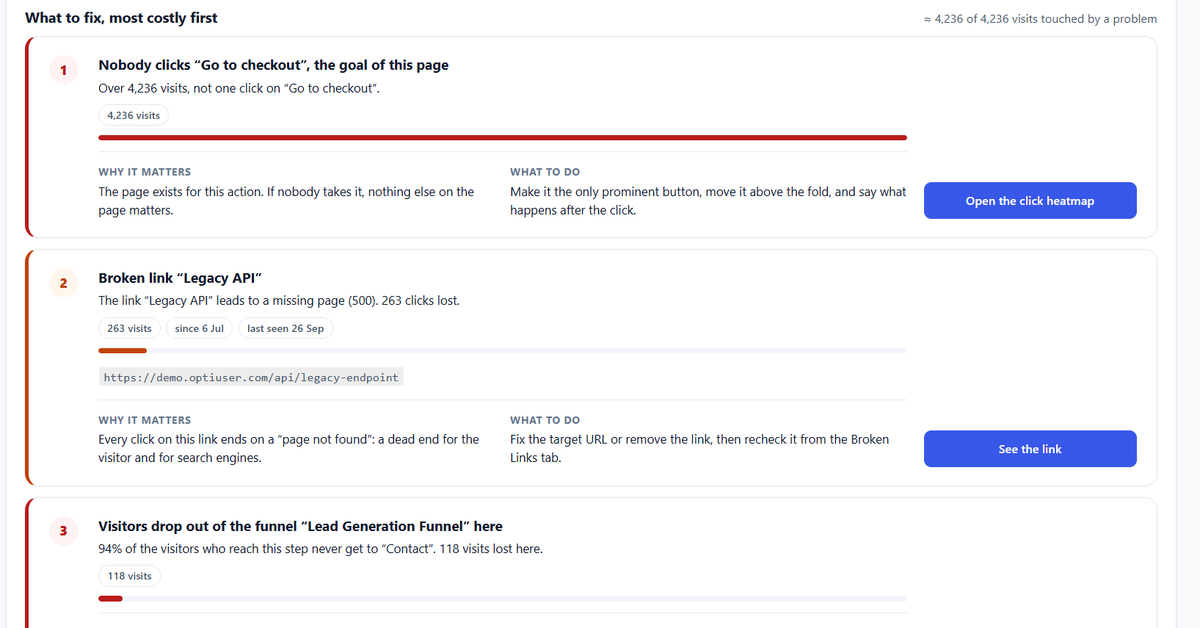
Here is one row filled from a demo store in Opti-Behavior (demo data, not a customer site). The cart page was seen in 4,236 visits, and not one visitor clicked “Go to checkout”, the goal of that page.
- Problem: nobody clicks “Go to checkout”.
- Where: the cart page.
- Visitors touched: 4,236 visits over the period.
- Likely cause: the button is not the most visible element, or sits below the fold on a phone.
- Fix: make it the only prominent button, move it above the fold, say what happens after the click.
- How to check: clicks on the button and visits reaching checkout, same length of period, before and after.
The click heatmap of the page confirms or rejects the “likely cause” before anyone changes the design.
How Opti-Behavior fills the template in WordPress
Opti-Behavior reads the data your own site collects (traffic, clicks, funnels, forms, errors and, on WooCommerce, the Shop counters). Smart Insights turns it into problems, and the website analytics report lists them with what to do. You find it in Opti-Behavior > Reports.
In the free plugin:
- Short site report for any period, printed or saved as PDF from your browser: a Summary with the traffic figures and the 3 costliest findings, then one section for each part of your site that has data (traffic, shop, clicks, funnels, busiest hours, A/B tests). Sections without data are left out.
- Scheduled e-mail report, daily, weekly or monthly: visits, page views, time per visit and bounce with their change, the main issues, top sources, devices and most viewed pages.
In Opti-Behavior Pro:
- Full site report: a card for each of your most visited pages and up to 10 page reports in annex, with your client’s name on the report (Business and Agency plans).
- Page X-Ray report for one page: health score, what the page is for and how many visitors reach its goal, “What to fix, most costly first” with why it matters and what to do, and an action plan in order.
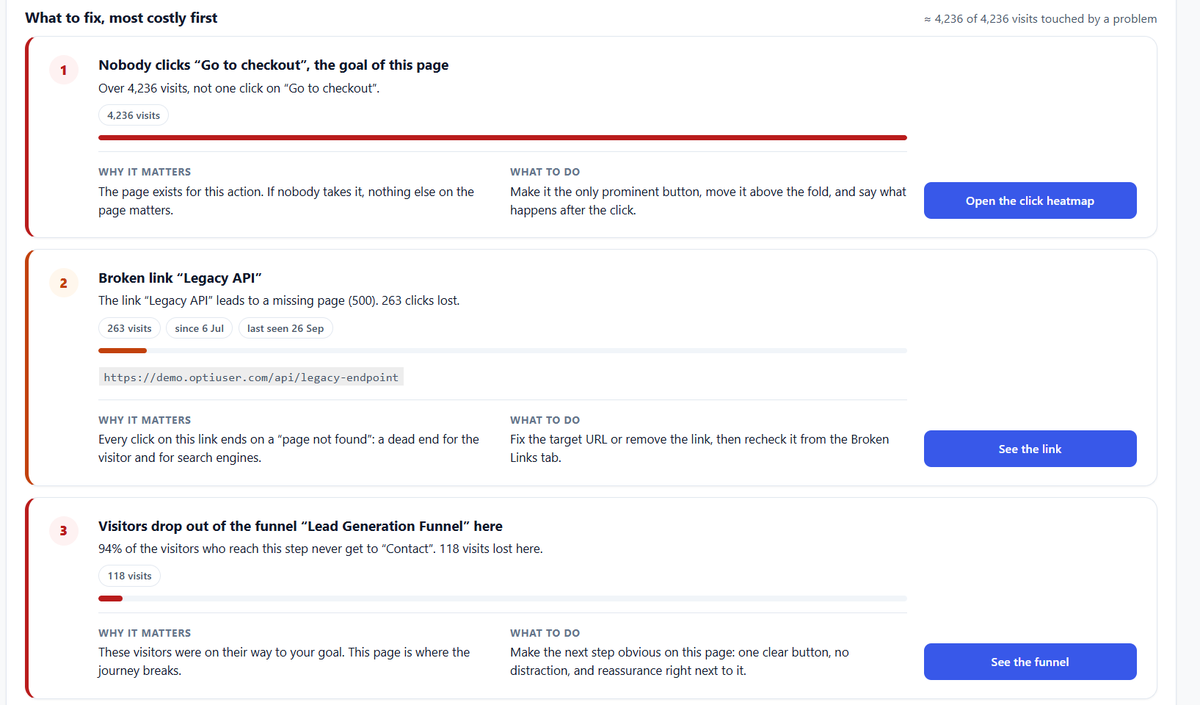
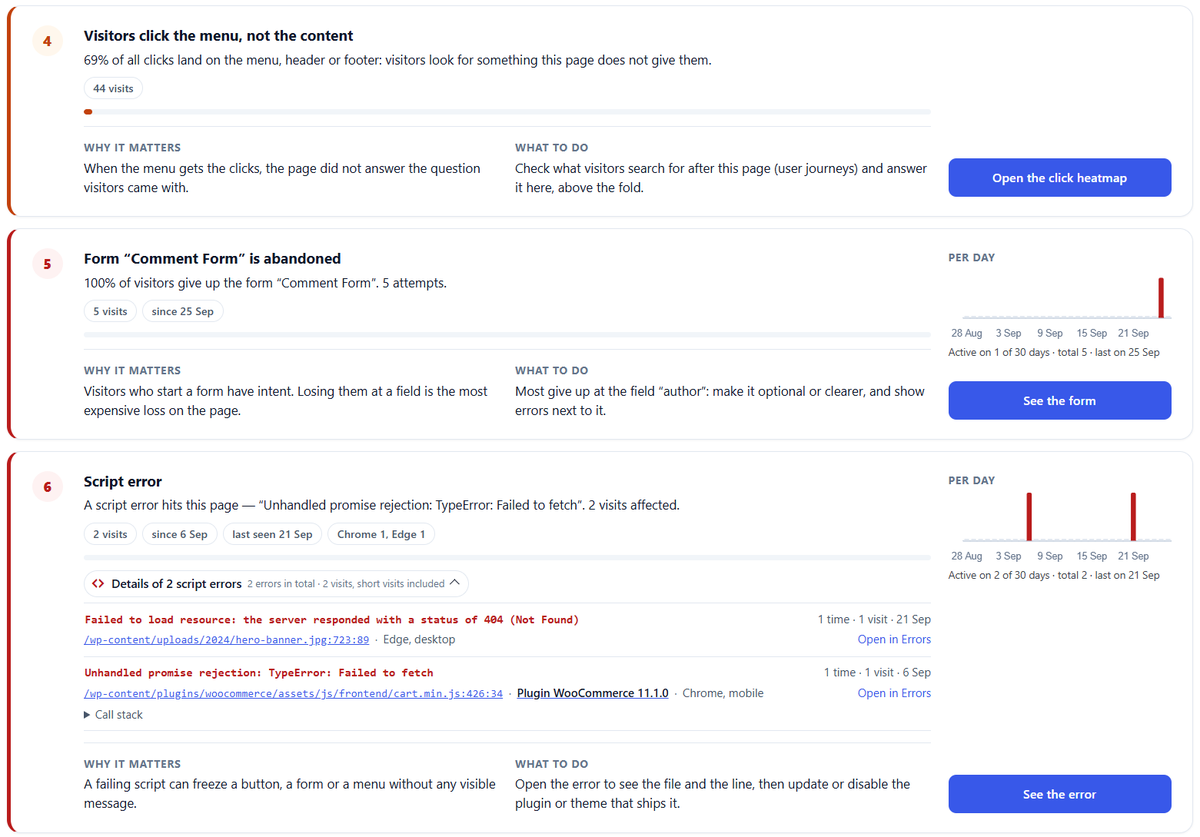
Each card is one row of the template: the problem, where, the visits touched, why it matters, what to do, and a button that opens the heatmap, the funnel or the link behind it.
Daily, weekly or monthly?
Pick the rhythm by how fast you can act, not by habit.
- Daily: a shop during a campaign or right after a site change, when a broken checkout costs orders every hour.
- Weekly: most sites. Enough visits to see a trend, short enough to fix before the month ends.
- Monthly: low-traffic sites and client reporting. With few visits, a week of data says little.
Whatever the rhythm, compare with the previous period of the same length, and do not judge a fix on a few days of low traffic.
The same template for a client report
A client does not need ten charts. Send the four headline figures, the problem table, and one line on what was fixed since the last report. In Opti-Behavior, the short site report is free; the full site report is in Pro, and your client’s name under the title comes with the Business and Agency plans.
Before you send it, read only the Summary as if you were the client: can they say what will be fixed this month? If not, cut rows.
What to check after a fix
- Write the date of the change in the report.
- Wait for a period of the same length as the one before the change, with similar traffic.
- Compare the figure named in “How to check”: clicks on the button, visits reaching the next step, sent forms or orders.
- Look at a few recordings or the click heatmap of the page: the old behavior should be gone.
- If nothing changed, keep the row and try the next likely cause. If it improved, move the row to “fixed since the last report”.
FAQ
What should an analytics report template include?
Four headline figures with their change (visits, page views, time per visit, bounce), then one row per problem: where, visitors touched, likely cause, fix, how to check, owner and date. End with what was fixed since the last report.
How many problems should one report list?
Three to five, the one touching the most visitors first. The free Opti-Behavior short site report starts with the 3 costliest findings for the same reason.
Can I get the report as a PDF?
Yes. Reports open in your browser; use your browser’s print and choose “save as PDF”.
Is the site report free?
The short site report and the scheduled e-mail report are in the free plugin on WordPress.org. The full site report with a card for each of your most visited pages and the Page X-Ray report are in Opti-Behavior Pro. The full list of each version is on the pricing page.
Start with the free plugin, print your first site report, and copy its findings into the template above.
Turn your data into a list of fixes
See which pages lose your visitors and what to fix first: connect the modules, let Smart Insights analyse your data, and get a clear report.
Each problem comes with the page it happens on, the visits it touches and what to change to fix it, so you know what to do first on Monday morning.
The Opti-Behavior Team