
Overview
The Session Recordings page is a powerful Opti-Behavior Pro feature that lets you watch real visitor sessions replayed as videos. See exactly how users navigate your website, where they click, scroll, and interact. Session recordings are essential for identifying UX issues, understanding user behavior, and improving conversions.
Date Range Controls
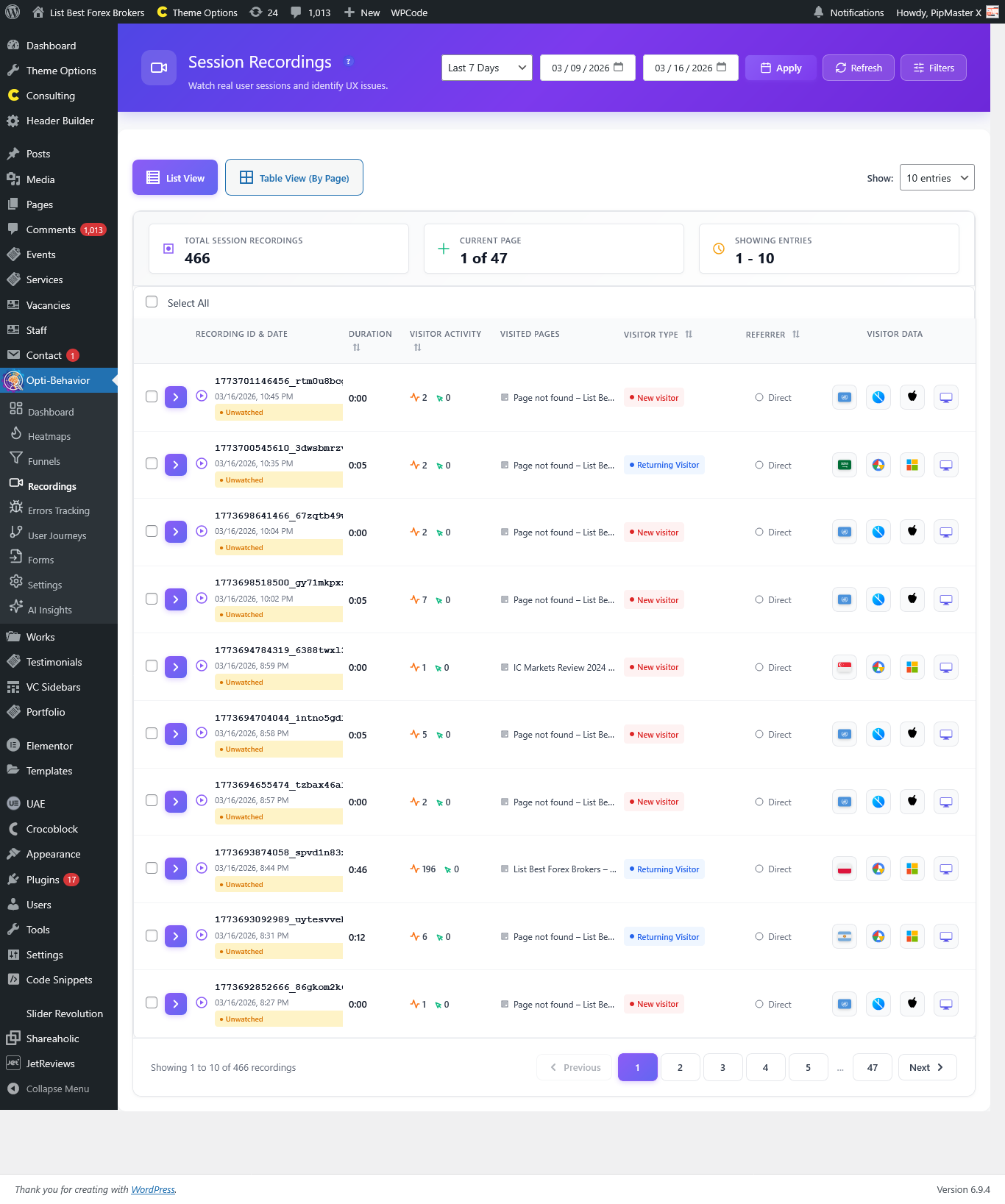
Located at the top of the page, the date range selector lets you filter recordings by time period:
- Today – View recordings from today.
- Yesterday – View yesterday’s recordings.
- Last 7 Days – The default view showing the past week.
- Last 30 Days – A broader monthly view.
- Custom Range – Select specific start and end dates using date pickers, then click Apply.
Additional header controls include a Refresh button to reload data and a Filters button to toggle the advanced filters panel.
Advanced Filters Panel
The advanced filters panel is organized into four columns for comprehensive session filtering:
Column 1: Visitor Attributes
- Browser Name – Filter by specific browsers (Chrome, Firefox, Safari, Edge, etc.).
- Country – Filter by the visitor’s country of origin.
- Device Type – Filter by Desktop, Tablet, or Mobile.
- Operating System – Filter by OS (Windows, macOS, Linux, iOS, Android).
- Visitor Type – Filter by New Visitor or Returning Visitor.
Column 2: Session Attributes
- Recording ID – Search for a specific recording by its unique ID.
- Min/Max Duration (seconds) – Filter by session length to find short bounces or long engaged sessions.
- Min/Max Page Count – Filter by the number of pages viewed in the session.
- Watched Status – Filter between already Watched and Not Watched recordings.
Column 3: Pages & Traffic
- Contains Page – Show only sessions that include a specific page (e.g., “/product”).
- Does Not Contain Page – Exclude sessions that visited specific pages.
- Entry Page – Filter by the first page the visitor landed on.
- Exit Page – Filter by the last page the visitor viewed.
- Referrer URL – Filter by traffic source (e.g., “google.com”).
- Traffic Channel – Filter by channel type: Direct Visit, Organic Search, Paid Ads, Social Media, Email, or Referrals.
Column 4: UTM Parameters
- UTM Campaign – Filter by marketing campaign name.
- UTM Source – Filter by traffic source tag.
- UTM Medium – Filter by marketing medium.
After setting your filters, click Apply Filters to apply them or Reset to clear all filters. A Clear All button appears in the header when filters are active.
View Modes
Session Recordings offers two distinct view modes:
List View
The default view displays recordings as individual cards, each showing the session details at a glance. You can browse through sessions and click any recording to open the player.
Table View (By Page)
An alternative view that groups recordings by page. The table includes columns for:
- Page – The page title and URL.
- Recordings – Total number of recordings for this page.
- Total Duration – Combined duration of all recordings on this page.
- Avg Duration – Average session duration for this page.
- Last Recorded – When the most recent recording was captured.
- Actions – Quick access to view recordings for this specific page.
Per-Page Display
Both views support configurable entries per page: 10, 25, 50, or 100 entries, with pagination controls.
Recording Player Modal
Clicking on any recording opens a full-screen player modal with a comprehensive set of features:
Visitor Data Header
At the top of the player, a data header displays detailed visitor information:
- Creation Date – When the session was recorded.
- Country – Visitor country with flag emoji.
- Referrer – Where the visitor came from (with tooltip for full URL).
- Device – Desktop, Mobile, or Tablet.
- Browser – The browser name and version.
- Operating System – The OS used.
- Screen Resolution – The screen dimensions (e.g., 3840 x 1600).
Video Player
The main player area replays the session as a video, showing mouse movements, clicks, scrolling, and page navigation exactly as they happened.
Tab Visibility Notification
When the visitor switched to another browser tab during the session, a special overlay notification appears: “Visitor Switched Tab – Not viewing this page”. This helps you understand periods of inactivity.
Progress Bar
A detailed progress bar below the player shows:
- Current playback position with a draggable handle.
- Progress Markers – Visual markers on the timeline indicating significant events (clicks, page navigations, etc.).
- A tooltip showing the exact timestamp when hovering over the progress bar.
Playback Controls
- Play/Pause – Start or pause the recording playback.
- Restart – Jump back to the beginning of the recording.
- Time Display – Shows current time / total time (e.g., 01:23 / 05:45).
- Speed Control – Adjust playback speed: 0.5x (slow motion), 1x (normal), 2x (fast), or 4x (very fast).
- Skip Inactive – When enabled (default), automatically skips periods of inactivity, making review faster.
Session Timeline Panel
On the right side of the player, a Session Timeline panel shows a chronological list of all events in the session, including page navigations, clicks, and other interactions. Click on any event to jump to that point in the recording.
How to Access
Navigate to Opti-Behavior → Session Recordings in your WordPress admin sidebar. This feature requires Opti-Behavior Pro.
Frequently Asked Questions
How are session recordings captured?
Opti-Behavior Pro uses the rrweb library to record DOM mutations, mouse movements, clicks, scrolls, and page navigations. The data is compressed and stored securely. No actual video is recorded – sessions are reconstructed from recorded events.
Do session recordings affect website performance?
The recording script is optimized for minimal performance impact. DOM changes are captured asynchronously, and data is sent in batches to reduce network overhead.
How much storage do recordings use?
Storage depends on session complexity and length. Typical sessions use 50-500KB of compressed data. You can manage storage in Settings → Storage Stats.
What does the “Skip Inactive” toggle do?
When enabled, the player automatically fast-forwards through periods where the visitor was not interacting with the page (no mouse movement, clicks, or scrolling). This saves time during review.
Can I filter recordings by specific pages?
Yes. Use the “Contains Page” filter to show only sessions that visited a specific URL. You can also use “Entry Page” and “Exit Page” filters for more precise targeting.
What are UTM filters used for?
UTM filters let you find recordings from specific marketing campaigns. If visitors arrive via URLs with UTM parameters (e.g., utm_source=google&utm_campaign=summer_sale), you can filter recordings by those parameters.
What does the Tab Visibility notification mean?
This notification appears in the player when the visitor switched to a different browser tab during the session. The page was still open but no longer visible, explaining any pause in activity.
Can I search for a specific recording?
Yes. Use the Recording ID filter to find a specific recording by its unique identifier.
What is the difference between List View and Table View?
List View shows individual session recordings as cards for easy browsing. Table View groups recordings by page URL, showing aggregate statistics like total and average duration per page.
How long are recordings stored?
Recording retention depends on your storage settings. Configure data retention in Opti-Behavior → Settings → Storage Stats.
Is visitor privacy protected?
Yes. Opti-Behavior Pro does not record sensitive form inputs like passwords or credit card numbers. The rrweb library automatically masks sensitive input fields for privacy compliance.