
Your add to cart rate is the share of product page views that end with a click on Add to cart. On a WooCommerce store, it is the first number to check when you have visitors but few orders: if shoppers never put a product in the cart, no checkout fix will help. This guide shows how to calculate it, how to find the products that lose the most buyers, and what to change on those product pages.
Short answer: add to cart rate = adds to cart ÷ product page views × 100. Measure it per product, not only for the whole store. Sort your products by visits lost (viewed, not added to cart), then work on the product page at the top of the list: price and delivery cost visible, clear photos, simple variation choice, and a button that is easy to reach on a phone.
Contents
- What is the add to cart rate, and how do you calculate it?
- What is a good add to cart rate?
- How to measure your add to cart rate in WooCommerce
- Why shoppers view a product but do not add it to cart
- Product page optimization: 7 changes worth testing
- How Opti-Behavior finds the product that loses buyers, and what to fix
- Add to cart rate FAQ
What is the add to cart rate, and how do you calculate it?
There are two common ways to count it. Both are useful, for different questions.
- Per product: adds to cart of one product ÷ views of that product’s page × 100. Example: a product page viewed 400 times with 24 adds to cart has an add to cart rate of 6%. This tells you which page to fix.
- Per session: sessions with at least one add to cart ÷ all sessions × 100. Many analytics tools report this one. It tells you whether the store as a whole is getting better or worse.
The two numbers are not comparable with each other, and two tools rarely count the same way. Pick one method, write it down, and compare the store with itself over time.
What is a good add to cart rate?
There is no single good number. Published benchmarks vary with the industry, the price of the products, the device and the way each vendor counts. A €15 accessory and a €900 sofa will never have the same rate.
Three comparisons are more useful than any benchmark:
- Each product against your store average. A product far below the others, with similar traffic, has a page problem.
- Phones against desktop. A rate that collapses only on phones usually points to layout, photos or the button, not to the price.
- This month against last month. A sudden drop after a theme, plugin or price change is a strong clue.
How to measure your add to cart rate in WooCommerce
In WooCommerce itself
The WooCommerce Analytics reports show orders, items sold and net sales per product. They do not show product page views or adds to cart, so you cannot calculate the rate there. You need an analytics tool that records both.
With Google Analytics 4
If your store sends the ecommerce events view_item and add_to_cart (for example with Google’s WooCommerce integration), the Ecommerce purchases report lists items viewed and items added to cart for each product. Divide the second by the first. It works once the event setup is in place.
With Opti-Behavior (free plugin)
Opti-Behavior adds a Shop screen to WordPress on WooCommerce sites (Opti-Behavior > Shop). It counts product views, adds to cart, checkouts and paid orders, and lists the visits each product loses (viewed, not added to cart), worst product first. No event setup is needed.
Why shoppers view a product but do not add it to cart
Before changing anything, check the product at the top of your list against these common causes:
- The full cost is unclear. Price visible, but shipping cost and delivery time only appear at checkout.
- The photos do not answer the question. No close-up, no scale, no photo of the product in use.
- The variation choice blocks the button. On a variable product, the button stays inactive until size and colour are chosen, and shoppers do not see why.
- Stock is unclear. “Out of stock” or “available on backorder” with no date.
- The button is hard to reach on a phone. Below a long description, under a sticky banner or a cookie notice.
- Nothing reassures. No reviews, no returns policy, no way to ask a question.
- Something is broken. A JavaScript error or a failed request stops the button from working for some browsers. Repeated clicks on the button are a typical sign: see rage and dead clicks.
- The wrong visitors arrive. A campaign or a search result sends people who were looking for something else.
Product page optimization: 7 changes worth testing
Work on one product page at a time, the one that loses the most visits. To see the other steps where your store loses buyers, from cart to paid order, read our guide to WooCommerce conversion tracking. Change one thing, then compare the same number of days before and after.
- Show the delivery cost and delivery time next to the price. If you offer free shipping above an amount, say it here.
- Put the Add to cart button where a phone user sees it without scrolling past the whole description.
- Make variation choices obvious: swatches or clear labels, and a short message when a choice is missing.
- Add the photos shoppers ask for: close-up, scale, in use. Check what they click on the page first.
- Answer the top three questions in the first lines of the description (size, material, compatibility, what is in the box).
- Bring reassurance near the button: returns policy, delivery promise, a contact link, reviews if you have them.
- Test the page yourself on a phone with each variation, after every theme or plugin update.
When shoppers do add to cart but still do not buy, the problem has moved to the next step: see our guides to the WooCommerce abandoned cart and to WooCommerce checkout abandonment.
How Opti-Behavior finds the product that loses buyers, and what to fix
Opti-Behavior is our WordPress plugin, so we are not neutral here. The data stays in your WordPress site, and the work follows three steps: the modules collect, Smart Insights ranks the problems, and a report tells you what to fix.
1. The modules collect the signals
- Shop for WooCommerce (Free): views, adds to cart, checkouts and paid orders, and the visits lost per product, worst product first.
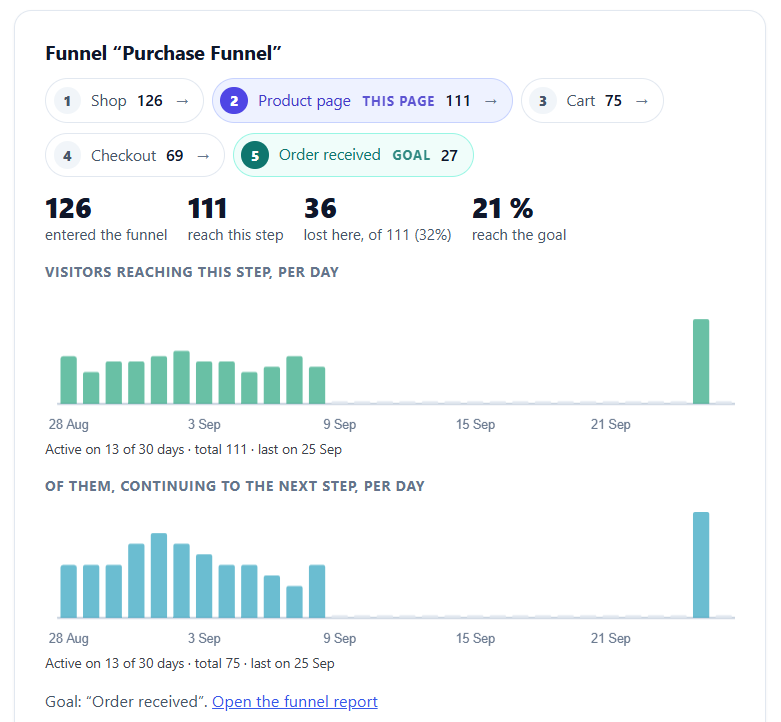
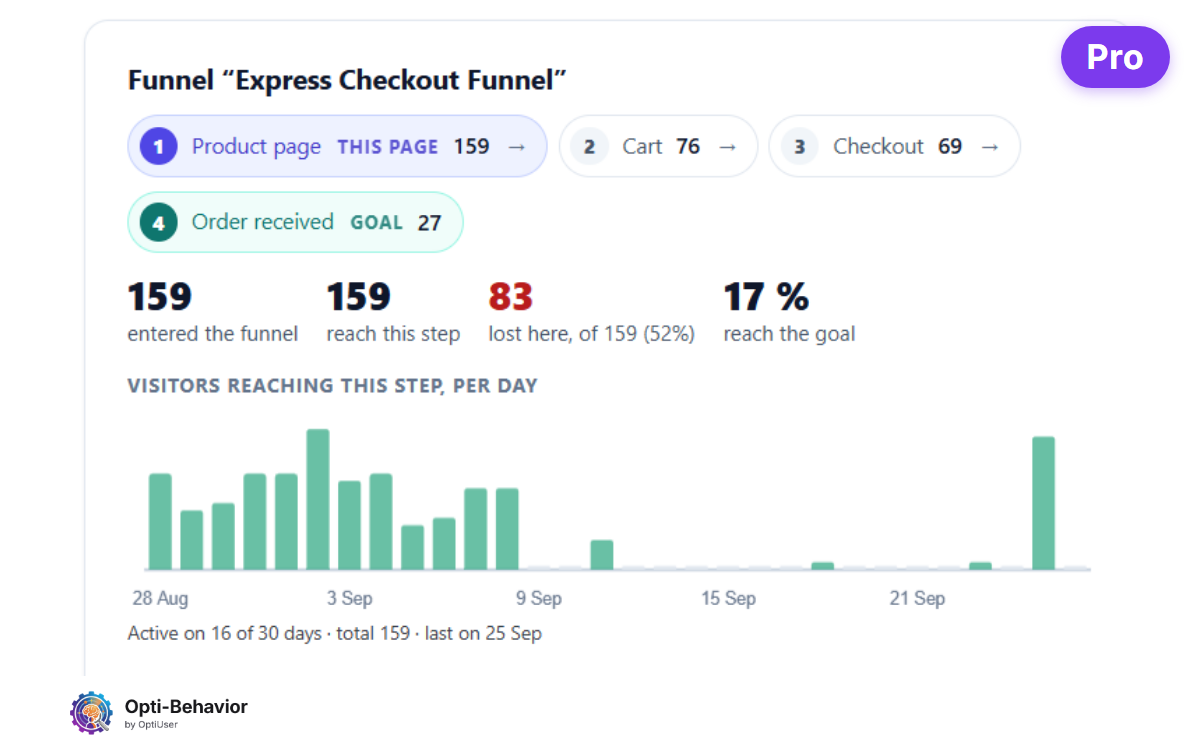
- Funnels (Free): on a WooCommerce site, Opti-Behavior suggests ready-made funnels built from your own addresses, such as Product page → Cart → Checkout → Order received.
- Click heatmaps (Free): see what shoppers click on the product page instead of Add to cart: photos, tabs, the size guide, a link away.
2. Smart Insights ranks what costs the most
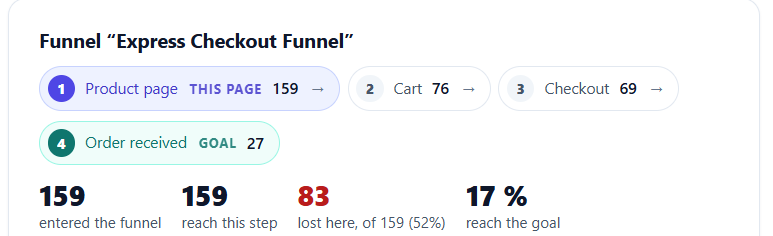
Smart Insights turns the data into one card per problem, ranked by visitors lost, with a confidence level based on the visits measured. In Pro, a WooCommerce card flags a product page whose visitors rarely reach the cart, and funnel cards name the step where visitors leave.
3. The report says what to fix, in order
- Page X-Ray (Pro) opens one product page: a health score, what the page is for and how often visitors reach its main button, a page audit (buttons, trust, content) and an action plan. The free plugin shows a preview of your three most visited pages, each with its health score and first problem. More on what Page X-Ray checks.
- Site report and scheduled e-mail (Free): the three most costly issues of the period and, on WooCommerce sites, the product that loses the most visits.
- Shop in Pro: an estimated range of lost sales per product, from your conversion rate and average order, and shop events (add to cart, checkout, payment failure) inside session recordings, recorded only in Full Tracking mode after the visitor’s consent.
4. Check that the fix worked
When your change is live, mark the Smart Insights card as resolved. Opti-Behavior measures the period after your change and shows the result, so you know whether the product page really improved.
Find the product that loses your buyers
Install the free plugin, open Opti-Behavior > Shop after a few days of visits, and start with the first product of the list. See what is in each version on the pricing page.
Download free on WordPress.org · Open the live demo
Add to cart rate FAQ
How do I calculate the add to cart rate?
Divide the number of adds to cart by the number of product page views, then multiply by 100. Per product, this shows which page to fix. Per session (sessions with an add to cart ÷ all sessions), it shows the trend of the whole store.
Does WooCommerce show the add to cart rate?
Not in its built-in Analytics reports, which show orders and items sold but not product views or adds to cart. Use an analytics tool that records both, such as GA4 with ecommerce events or the Shop screen of Opti-Behavior.
What is the difference between add to cart rate and conversion rate?
The add to cart rate measures the first step: product page to cart. The conversion rate measures the whole journey to a paid order. A store can have a good add to cart rate and a poor conversion rate when the problem is in the cart or the checkout.
Why is my add to cart rate low only on mobile?
Usually because of the page, not the product: the button sits far below the photos and description, a banner covers it, or the variation choice is hard to use on a small screen. Test the page on a real phone.
Is the Shop screen free in Opti-Behavior?
Yes. Product views, adds to cart, checkouts, paid orders and visits lost per product are in the free plugin. The estimated lost sales per product, Page X-Ray reports and session recordings are in Pro.
The Opti-Behavior Team