WooCommerce conversion tracking means counting how many visitors reach each step of a purchase, from the product page to the paid order, so you can see where sales are lost. WooCommerce reports tell you what sold. They do not tell you who almost bought. This guide shows how to set up WooCommerce conversion tracking with the tools you already have, then the four problems it usually reveals and how to fix each one.
Short answer: track five steps (product page, add to cart, cart, checkout, order received), compare each step with the one before, and work on the biggest drop first. Google Analytics 4 can do it once your store sends ecommerce events; a WordPress funnel can do it from page visits. Then check the four usual leaks: products viewed but not added, checkouts started but not paid, payments that fail, and the product pages that lose the most sales.
What WooCommerce reports show, and what they miss
The WooCommerce Analytics menu lists revenue, orders, products, categories, coupons and stock. It answers “what did we sell?”. It does not count the visits that did not become an order, so it cannot give you a conversion rate per step.
A store owner usually feels the problem as “traffic is fine, orders are not”. Conversion tracking turns that feeling into four precise questions:
- Which product pages are seen but rarely added to cart?
- At which step between cart and order do buyers leave?
- Do payments fail, with which payment method and which error?
- Which of these problems costs the most?
How to set up WooCommerce conversion tracking
1. Write down the steps
Use the same five steps whatever the tool: product page, add to cart, cart page, checkout page, order received page. For the last step, use a rule like “URL contains order-received”, because the real confirmation address contains the order number.
2. With Google Analytics 4
GA4 needs the ecommerce events view_item, add_to_cart, begin_checkout and purchase. Google’s official WooCommerce integration sends them. Then build a Funnel exploration in the Explore section with those events as steps. If you also run ads, Google Ads and Meta each need their own purchase conversion, usually sent by their official WooCommerce extensions. Check how each one fits your consent setup before you turn it on.
3. Inside WordPress, from page visits
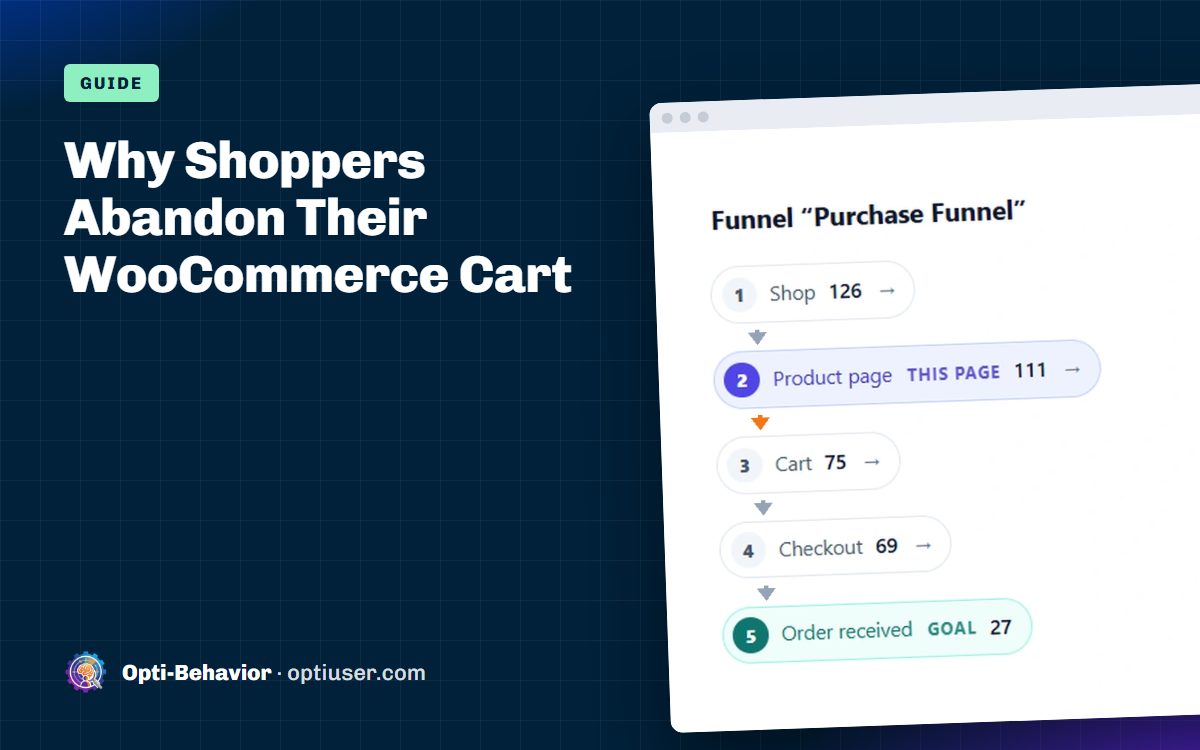
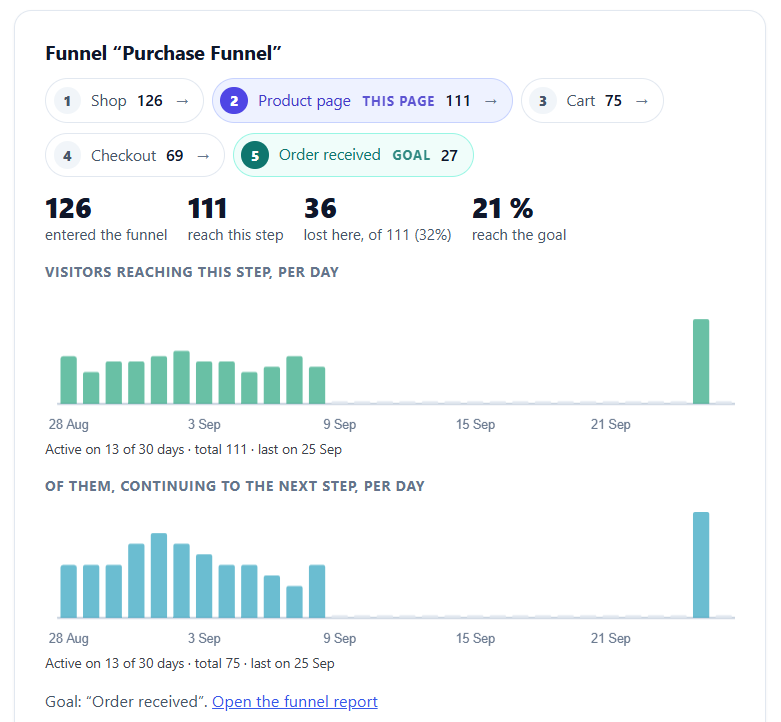
A funnel built from page visits needs no event setup: it counts the visitors who reach each page in order. In our guide to WordPress conversion funnels we show how it works. Opti-Behavior, our plugin, detects WooCommerce and suggests a Purchase Funnel (Shop, Product page, Cart, Checkout, Order received) with your real cart and checkout addresses filled in. This is in the free plugin.
4. Test the tracking
- Place a test order on a phone and on a computer, and check that each step counts it once.
- Exclude your own visits and your team’s, or they will hide the real drop.
- Compare the order count of the tracking with WooCommerce > Orders for the same days. A large gap means a step is not measured.
Problem 1: products viewed but not added to cart
The sign: a product gets visits from search or ads, but sells little.
Check by hand: for each product, divide adds to cart by product page views over the same period, then sort from the lowest. Open the worst pages on a phone: the price, the delivery cost, the stock and the add to cart button should be visible without scrolling.
What Opti-Behavior shows (Free): the Shop screen of our WooCommerce analytics lists, for each product, product views, adds to cart, paid orders and lost visits (product page views that did not lead to an add to cart), worst product first. A product with adds to cart but no measured product view shows “Not measured” instead of 0. The click heatmap of the product page, also free, shows whether visitors click the gallery, the tabs or the button.
Problem 2: checkouts started but not paid
The sign: carts are filled, the checkout page gets visits, few orders arrive.
Check by hand: over the same days, compare visits to the checkout page with visits to the order received page. Then filter WooCommerce > Orders on Pending payment and Failed. A sudden drop after a plugin or theme update points to a broken checkout, not to buyers changing their mind. Our WooCommerce abandoned cart guide lists the settings to check first.
What Opti-Behavior shows: the funnel shows where visitors drop off between steps, with a device filter (Free). Smart Insights turns that funnel into a card that names the step where visitors leave, ranked by visitors lost (Free). Opti-Behavior Pro adds dedicated WooCommerce cards (product page to cart, cart to checkout, checkout to purchase), and session recordings show the shop events (add to cart, checkout, paid order, payment failure) in the list and the player, with a “Shop action” filter. Session-linked shop events are recorded only in Full tracking mode, after the visitor’s consent.
Problem 3: payments that fail
The sign: orders in Failed status, buyers who write “your payment does not work”, a payment method that suddenly sells nothing.
Check by hand: open WooCommerce > Status > Logs and read the log of each payment gateway for the days of the problem. Place a test order with each payment method, on a phone too.
What Opti-Behavior shows (Pro): on the Shop screen, payment errors grouped by error type and payment method, with the failed attempts, the orders concerned and their estimated cost (orders not paid later). In Full tracking mode, a recording of a failed payment can be watched.
Problem 4: which product loses the most sales
A product with many lost visits is not always the most costly one: a cheap product with high traffic can cost less than an expensive one with fewer visits. Rank by money, not by visits.
Check by hand: lost visits × your conversion rate × your average order value. Example with round numbers: 400 lost visits × 2 % × 50 = about 400 in sales at stake for the period. It is an estimate, not a promise: use it to choose what to fix first.
What Opti-Behavior shows (Pro): the Shop screen gives the estimated lost sales, as an indicative range, per product and for the period, from the lost visits, your conversion rate and your average order, or "Not enough data" when there are too few orders.
WooCommerce reports by e-mail
Conversion tracking only helps if someone reads it. Instead of opening the admin every day, get the figures sent to you. In Opti-Behavior, the scheduled e-mail report (daily, weekly or monthly) is free and includes a Shop block with the store’s figures. In Pro, the same block adds “Money at stake”, the estimated lost sales of the period, marked as an estimate.
Free or Pro: summary
| Problem | What you get | Version |
|---|---|---|
| Products viewed but not added | Shop screen: views, adds to cart, paid orders, lost visits per product | Free |
| Where buyers leave | Suggested purchase funnel, drop-off per step, click heatmaps | Free |
| A purchase step with a large drop | Smart Insights card naming the step (Free); dedicated WooCommerce cards per purchase step (Pro) | Free / Pro |
| Why buyers leave | Recordings with shop events (Full mode, after consent) and the “Shop action” filter | Pro |
| Payments that fail | Payment errors by type and payment method, with estimated cost | Pro |
| What each product costs | Estimated lost sales per product (indicative range) | Pro |
| Reports by e-mail | Shop block with figures / “Money at stake” | Free / Pro |
The full list of each version is on the pricing page.
What to check after a fix
- Change one thing at a time: the product page, the cart, the checkout or a payment method.
- Compare the same number of days before and after, on the same step of the funnel.
- Split by device: a fix on desktop can leave the problem on phones.
- Check WooCommerce > Orders too: more checkouts without more paid orders means the leak moved to the payment step.
FAQ
Does WooCommerce track conversions on its own?
It records orders, revenue and products sold. It does not count the visitors who saw a product or started a checkout without buying, so it cannot show a conversion rate per step without another tool.
Do I need Google Analytics for WooCommerce conversion tracking?
No. GA4 works once your store sends ecommerce events. A funnel built from page visits inside WordPress gives the step-by-step drop without that setup.
What is the difference between conversion tracking and WooCommerce reports?
WooCommerce reports count what was sold. Conversion tracking counts what happened before: visits, adds to cart, checkouts and payments, step by step.
Which WooCommerce analytics are free in Opti-Behavior?
The Shop screen, the purchase funnel, click heatmaps, the Smart Insights card that names the funnel step where visitors leave, and the Shop block of the e-mail report. Dedicated WooCommerce Smart Insights cards, estimated lost sales, payment errors and recordings with shop events are in Pro.
Find the step where your store loses sales
Install the free plugin, open Shop to see the products viewed but not added, then confirm the suggested purchase funnel.
The Opti-Behavior Team