
Microsoft Clarity is a good tool, and its limitations are easy to miss. It is free, it has no traffic cap for most sites, and it shows heatmaps and recordings in a few minutes. We say that first because this article is about its weak spots, and we want to be fair.
Every tool has limits. With a free tool, the limits are easy to miss until you need something it cannot do. Here are 8 Microsoft Clarity limitations we see people run into, and a simple workaround for each.
Summary: Clarity is great for spotting problems. It is weaker at privacy control, keeping data long term, testing fixes, and understanding forms.
Contents
- 1. Your data is shared with Microsoft
- 2. It usually needs a consent banner in the EU
- 3. Recordings do not stay forever
- 4. No A/B testing
- 5. Funnels are basic
- 6. No form analytics
- 7. Very busy sites can be sampled
- 8. You depend on one company’s free product
- Microsoft Clarity limitations at a glance
- How to check each limitation in 10 minutes
- Do these Microsoft Clarity limitations mean you should stop using it?
- Microsoft Clarity limitations: the bottom line
- Microsoft Clarity limitations FAQ
1. Your data is shared with Microsoft
Under Clarity’s terms, Microsoft also acts as a controller of data it collects, and it uses that data as described in those terms. Read the current Clarity terms before you add it to a client site.
For a hobby blog, that may not matter. For a health, legal or finance site, or a client with strict EU rules, it often does.
Concretely, ask three questions before you install it on a client site. Who signs the data terms with Microsoft, you or the client? Which pages are recorded? An account area or a checkout can show names and addresses on screen. And what will you answer if a visitor asks where their session data went? Clarity has masking options for sensitive text and form inputs: check that they are on, and test them on your own forms before going live. If the answers are not clear, the tool is not the right fit for that site.
Workaround: use a self-hosted tool where you are the only controller. We explain the details in Microsoft Clarity GDPR compliance.
2. It usually needs a consent banner in the EU
Clarity can set cookies and sends data to Microsoft. For visitors in the EU and UK, consent is often needed before it runs, and Microsoft documents how to pass a consent signal to Clarity. Check Clarity’s consent documentation for what it records when a visitor says no: your heatmaps may show only part of your audience.
In practice, this changes what you see. If many EU visitors refuse or ignore the banner, the heatmap of your pricing page is built only from the visitors who accepted, and they may not behave like the ones who did not. A page can look fine while the visitors who left fastest are missing from the data. Before you trust a heatmap, compare the number of sessions in Clarity with the visits in your other analytics for the same page and the same week. A big gap means you are looking at a sample, not at your whole audience.
Workaround: a self-hosted tool that works without cookies, like Opti-Behavior in Anonymous Mode. Whether you need a consent banner depends on your setup and your local law.
3. Recordings do not stay forever
Clarity keeps recordings for a limited time (about 30 days according to the Clarity documentation, unless you mark them as favorites, which keeps them longer). If you want to compare this month with the same month last year, the recordings are gone.
This matters most for seasonal sites. A shop that sells mostly in November cannot open last year’s Black Friday recordings in October to see where buyers got stuck. It also matters after a redesign: once the old recordings expire, you cannot show a client how visitors used the old page. A simple habit helps: each time you ship a change, favorite a handful of typical recordings of the page before the change, and note in your changelog what you wanted to check.
Workaround: favorite the important recordings, or use a tool where you set the retention yourself.
4. No A/B testing
Clarity shows you the problem. It cannot test a fix. You change the button, then you guess if it helped. Traffic changes every week, so "before vs after" is often misleading.
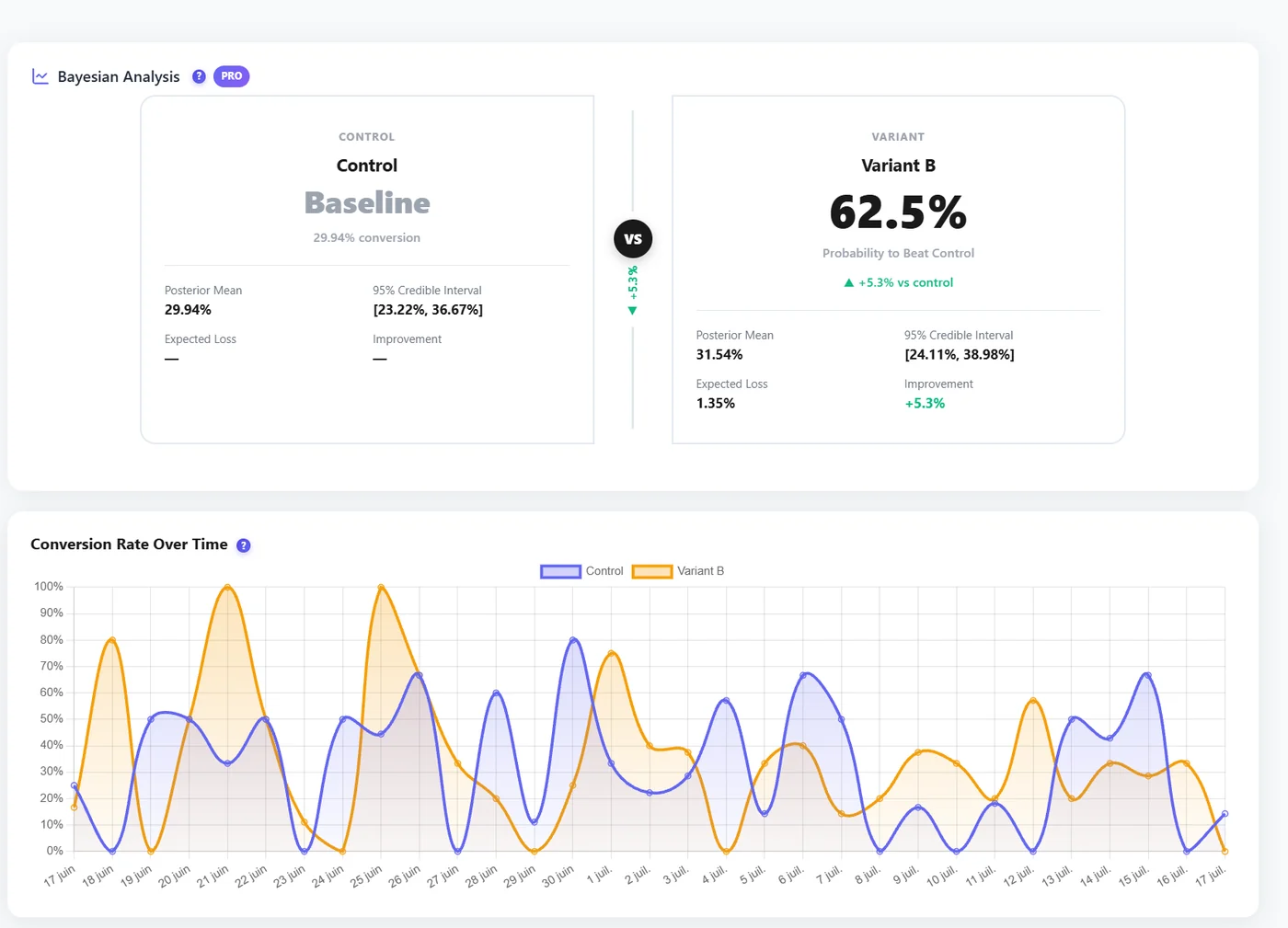
Workaround: use an A/B testing tool. Opti-Behavior has A/B testing built in, even in the free version (the Bayesian results view is Pro), so you can test on the same site where you saw the problem.
An example: Clarity shows many dead clicks on a product image. You make the image open a zoom, and the next week sales go up. Was it the zoom, a newsletter sent the same week, or payday? In a split test, half of the visitors see the old page and half see the new one over the same days, so outside effects hit both versions equally. Let the test run until both versions have enough visitors; on a small site, that can take several weeks.
5. Funnels are basic
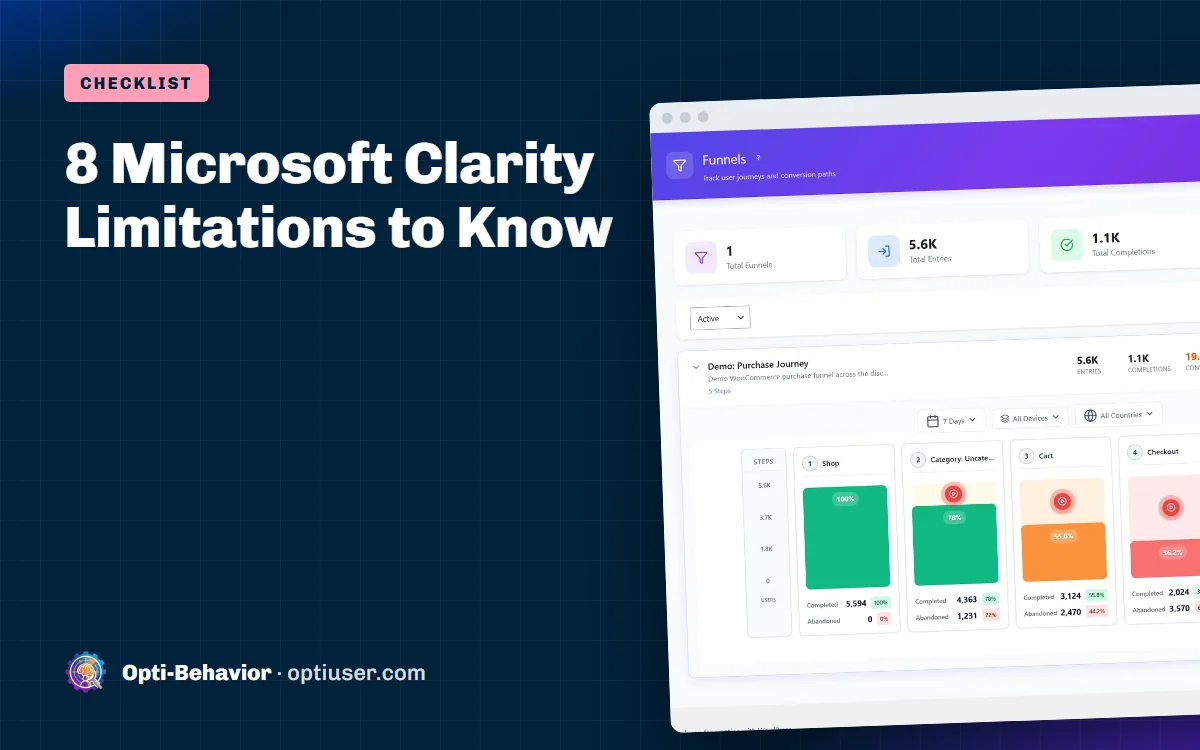
You can follow some steps, but Clarity is not a funnel builder with drop-off per step, suggested funnels or WooCommerce checkout funnels.
A typical case is a shop where the checkout loses buyers. In Clarity you can filter recordings of visitors who reached the checkout page, but you still have to count by hand how many went from cart to checkout to order, and at which step most of them stopped. A funnel gives you that number per step at once: if 100 visitors add to cart, 40 reach the checkout and 5 place an order, you know the checkout page is where to look first. Clarity also does not read your WooCommerce data. It can mark some steps with its events and custom tags, but the order total, the products bought or the reason a payment failed only reach Clarity if your own code sends them. So you can watch a visitor leave the checkout, but you cannot simply list the visits where a payment failed, or compare buyers with visitors who did not buy, without extra work.
Workaround: a dedicated funnels tool. In Opti-Behavior, funnels are free, and you can open the recordings of people who dropped at each step (Pro).
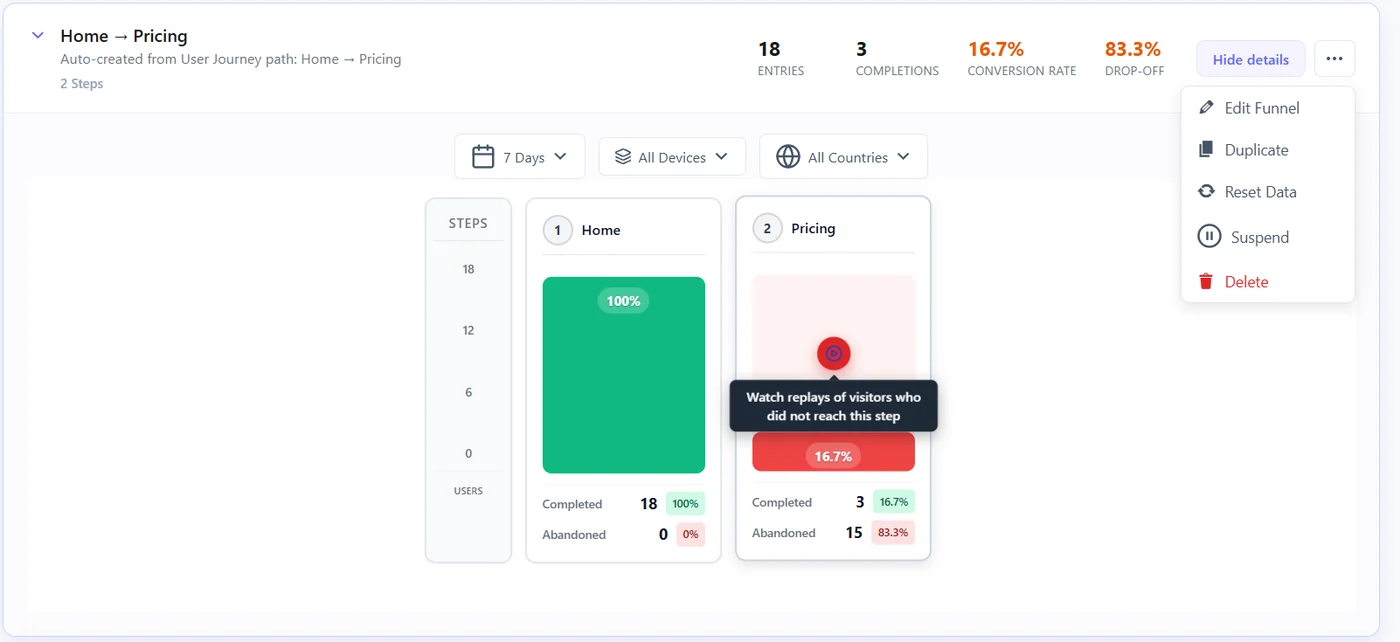
Example from our live demo shop: in a 5-step purchase funnel over 7 days, 5,594 visitors entered, 2,470 of them had left by the Cart step and 3,570 by the Checkout step. The funnel gives these numbers for every step, so you see where buyers are lost without counting recordings by hand.
6. No form analytics
Clarity cannot tell you which field makes people quit your form. You can watch recordings one by one, but on a busy form that takes hours.
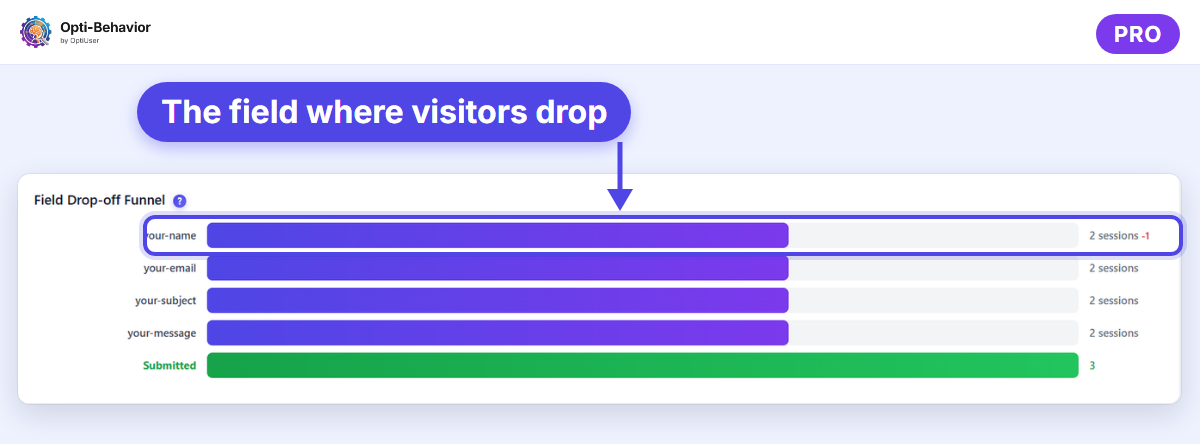
Take a quote form with eight fields. If many visitors start it and leave, the cause can be a phone field that refuses spaces, a required company field, or an error message shown below the fold. In recordings you see the visitor stop, but you need dozens of them before a pattern appears. Field-level data turns this into one line per field, so the field that loses people stands out at once.
Workaround: form analytics shows drop-off per field automatically. It is part of Opti-Behavior Pro and works with Contact Form 7, WPForms, Gravity Forms and other WordPress forms.
7. Very busy sites can be sampled
Clarity is free for everyone, so it protects its servers. On very large sites, Clarity’s documentation mentions a daily session cap per project, above which sessions are sampled. Check Clarity’s current FAQ for the exact number. Most small sites never hit it. Sampling is not a problem in itself: a large sample still shows the common paths. It becomes one when you look for something rare, such as visitors using one payment method, one browser version or one landing page from a small campaign. Those segments may have only a handful of sessions in the sample, or none at all.
If your site is close to that cap, the effect is the same as with consent: rare paths, like a visitor who uses an unusual filter on your shop, may not be recorded on the day you need them. Watch your daily session count, and be careful before you draw conclusions from a small segment of visitors.
Workaround: for very high traffic, use a paid tool or a self-hosted tool that records everything you choose.
8. You depend on one company’s free product
Free products can change. Features, terms and limits can change without asking you. If your team makes decisions with Clarity data, that is a risk to keep in mind.
A simple rule for teams: write down which decisions depend on Clarity data (a redesign, a budget, a client report), and keep a copy of the numbers behind each one, as a screenshot or an export, in your own project folder. If a feature or a limit changes later, you still know why each decision was made.
Workaround: keep your key data somewhere you control, or at least export the reports you care about.
Microsoft Clarity limitations at a glance
| Limitation | Who it affects most | Simple workaround |
|---|---|---|
| Microsoft is a controller of the data | Sensitive or regulated sites | Self-hosted analytics |
| Consent banner needed in EU | EU sites | Self-hosted tool (check your local law) |
| Short recording retention | Year-over-year analysis | Favorites, or your own retention |
| No A/B testing | Anyone who wants to prove a fix | Built-in A/B testing |
| Basic funnels | Shops and lead forms | Funnel builder |
| No form analytics | Lead gen and checkout | Field-level form analytics |
| Sampling on huge sites | Very high traffic | Paid or self-hosted tool |
| Depends on a free product | Teams that rely on it | Keep your own copy of key data |
How to check each Microsoft Clarity limitation on your own site in 10 minutes
You do not need to take our word for any of this. Open your Clarity project and your website side by side and run these 8 checks, one per limitation. Each takes about a minute and tells you whether that limitation matters for your site.
- Read who controls the data. Open the Clarity terms and search for "controller". Then ask one question: would your client or your legal contact accept that Microsoft also uses this data? If you are not sure, ask them before the next site launch, not after.
- Test your consent setup and the share of visitors you see. Open your site in a private window, refuse the cookie banner, open the browser developer tools (Network tab) and filter on "clarity". Note whether Clarity loads and what it sends, and compare it with Microsoft’s Consent Mode documentation and its guide for consent platforms. Then compare the sessions in Clarity with the visits in your main analytics for the same 7 days: the ratio is the share of your audience your heatmaps really show.
- Find your oldest recording. In Recordings, choose the widest date range the filter offers and look for the first day that still has sessions. If you need anything older for a yearly comparison, mark the recordings you must keep as favorites today.
- List the changes you could not prove. Write down the last 3 changes you made after watching recordings: a button, a headline, a form. For each one, note how you decided it worked. If the answer is "the numbers went up the next week", that is the A/B testing gap: traffic, season and campaigns changed at the same time as your page.
- Rebuild your most important funnel. Write the 3 to 5 pages of your key path (for a shop: product, cart, checkout, order received). Try to read the drop-off between each step in Clarity in under 5 minutes. If you cannot, that path needs a funnel tool.
- Time a form review. Pick your contact or checkout form and watch 5 recordings of visitors who started it and did not send it. Time yourself, then multiply by the number of abandoned forms in a month. If the result is counted in hours, field-level form analytics will save that time.
- Compare your busiest day with the session cap. Find your busiest day of the last 3 months in your analytics and compare it with the daily session limit given in the Clarity documentation. If you are close to it, expect sampling on the days that matter most, such as sales or launches.
- Test your exit plan. Export one report you use every month and store it outside Clarity. If a report you rely on cannot be exported, write it down: that is the data you would lose if the product or its terms changed.
What to do with your results
Count the checks where your answer was "yes, this matters for us".
- 0 to 2: keep Clarity. Favorite the recordings you need and run the checks again once a year.
- 3 to 5: keep Clarity for quick looks and add only the missing piece: a testing tool, a funnel tool or form analytics.
- 6 or more: your needs have outgrown a free hosted tool. Compare the options in our list of Microsoft Clarity alternatives.
A typical case: an online shop selling to EU customers, with two big sales a year, often answers yes to checks 2, 3, 5 and 7: consent, last year’s sale recordings, the checkout funnel and peak-day traffic. That shop sits in the middle group: Clarity can stay for daily use, while the checkout funnel and year-over-year data move to a tool the shop controls.
Do these Microsoft Clarity limitations mean you should stop using it?
Not necessarily. If your site is small, your audience is not in the EU, and you just want to spot problems, Clarity is fine.
But if you need privacy you can explain to a client, data you own, or a way to test and prove fixes, look at our list of Microsoft Clarity alternatives. For WordPress sites, Opti-Behavior covers heatmaps, recordings (Pro), funnels, forms (Pro) and A/B tests, and Smart Insights ranks the problems they find with what to fix first. Behavior data is stored on your own server.
Microsoft Clarity limitations: the bottom line
None of these Microsoft Clarity limitations make it a bad tool. They make it a free tool with clear edges. Know where those edges are, and add the missing pieces (privacy control, testing, forms) when your site needs them.
Fix what Clarity cannot
Opti-Behavior stores behavior data on your own WordPress server, tells you which problem to fix first and lets you test your fix. Free to start, Pro has a 6-month free trial.
Microsoft Clarity limitations FAQ
What are the main limitations of Microsoft Clarity?
The data is shared with Microsoft as an independent controller, it usually needs consent in the EU, recordings are kept for a limited time, and it has no A/B testing or form analytics.
How long does Microsoft Clarity keep recordings?
About 30 days by default. Recordings you mark as favorites are kept longer. Check Clarity’s current documentation for exact numbers.
Is Microsoft Clarity really free?
Clarity has no paid plan. Microsoft uses the collected data as described in its own terms.
Can Microsoft Clarity do A/B testing?
No. You need a separate A/B testing tool. On WordPress, Opti-Behavior includes A/B testing in its free version.
The Opti-Behavior Team
{“@context”:”https://schema.org”,”@type”:”FAQPage”,”mainEntity”:[{“@type”:”Question”,”name”:”What are the main limitations of Microsoft Clarity?”,”acceptedAnswer”:{“@type”:”Answer”,”text”:”The data is shared with Microsoft as an independent controller, it usually needs consent in the EU, recordings are kept for a limited time, and it has no A/B testing or form analytics.”}},{“@type”:”Question”,”name”:”How long does Microsoft Clarity keep recordings?”,”acceptedAnswer”:{“@type”:”Answer”,”text”:”About 30 days by default. Recordings you mark as favorites are kept longer. Check Clarity’s current documentation for exact numbers.”}},{“@type”:”Question”,”name”:”Is Microsoft Clarity really free?”,”acceptedAnswer”:{“@type”:”Answer”,”text”:”Clarity has no paid plan. Microsoft uses the collected data as described in its own terms.”}},{“@type”:”Question”,”name”:”Can Microsoft Clarity do A/B testing?”,”acceptedAnswer”:{“@type”:”Answer”,”text”:”No. You need a separate A/B testing tool. On WordPress, Opti-Behavior includes A/B testing in its free version.”}}]}