
If your WooCommerce checkout is not working, the cause is almost always one of five things: a JavaScript error on the checkout page, a plugin or theme conflict, a cached checkout page, a payment gateway problem, or a broken HTTPS or session setup. This guide shows the signs, then 9 checks to run in order, most of them without any extra plugin, and how to confirm the fix on your live store.
In this article
Signs your WooCommerce checkout is not working
A broken checkout rarely shows a clear error. Look for these signs:
- The Place order button does nothing. The shopper clicks, nothing moves, no message appears.
- The spinner never stops. The checkout form greys out after the click and stays that way.
- An error appears after the click, often a vague one such as “There was an error processing your order” or a session expired message.
- Orders pile up in Pending payment or Failed in WooCommerce > Orders, while paid orders drop.
- The cart empties after a product is added, or the checkout page shows “Your cart is currently empty”.
- The checkout page is blank or shows only part of the form.
Note when it started: after a plugin, theme or WooCommerce update, after a new cache or CDN rule, or after a change of payment gateway. That date narrows the search more than anything else.
Why the WooCommerce checkout page is not working: 9 checks in order
Run these checks in this order. The first ones take two minutes and catch most cases.
1. Place an order yourself, on desktop and on a phone
Use a private browser window, add a product, and go to the end of the checkout with each payment method you offer. Then do it again on a phone. A failure that only happens on mobile, or only with one payment method, already tells you where to look.
2. Place order button not working? Open the browser console
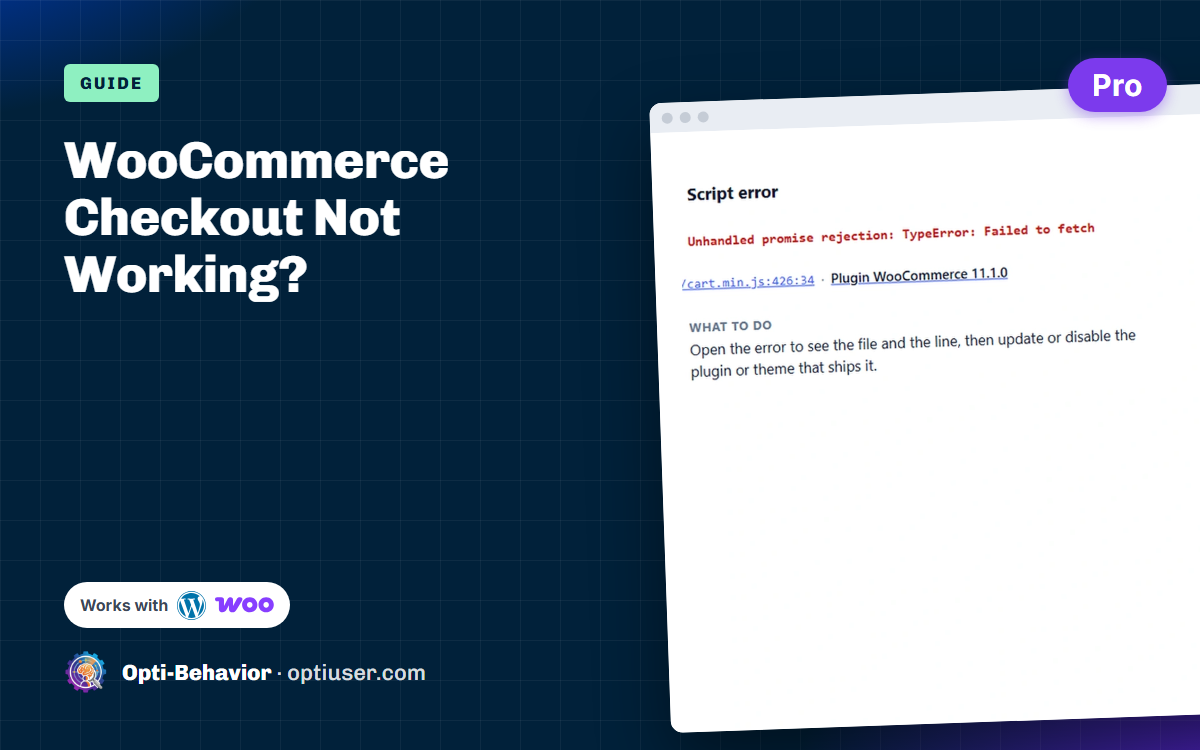
On the checkout page, open the developer tools (F12, or right-click > Inspect), then the Console tab, and click Place order. A red error that mentions a plugin or theme file is the most common reason the button does nothing: one broken script can stop the checkout script that sends the order.
Then open the Network tab and click again. With the classic checkout, look for the request that contains wc-ajax=checkout; with the Checkout block, look for the request to /wp-json/wc/store/. A 500 status points to a PHP error on the server, a 403 often to a security plugin or firewall rule.
3. Exclude cart, checkout and my-account from the cache
A cached checkout page can serve an expired security token or someone else’s empty cart, and the order then fails or the cart looks empty. Most cache plugins exclude these pages by default; check again if you added a CDN, a server cache or custom rules. If you also use a JavaScript optimisation feature (combine, defer or delay JavaScript), exclude the checkout scripts from it or turn it off for the checkout page, then test again. We wrote more about cache side effects in our guide to cache plugins and tracking.
4. Checkout page not working after an update: test for a conflict
Install the free Health Check & Troubleshooting plugin and turn on its troubleshooting mode: it disables plugins and switches the theme for your own session only, so shoppers are not affected. Keep only WooCommerce and your payment gateway, switch to the Storefront theme, and place a test order. If it works, turn the other plugins back on one by one until the checkout breaks again. Checkout field editors, cache and optimisation plugins, security plugins and custom theme templates are the usual suspects. If you prefer, do the same test on a staging copy of the site.
5. Read the WooCommerce logs
Go to WooCommerce > Status > Logs. Open the log of your payment gateway and the fatal-errors log for the day of the problem. A PHP fatal error during checkout, a declined API call or an invalid API key shows up here even when the shopper only sees a spinner. For more detail, turn on WP_DEBUG_LOG on a staging site and repeat the order.
6. Check the payment gateway settings
Many “checkout not working” cases are a gateway still in test or sandbox mode, live keys pasted in the test fields, an expired API key, or a webhook that no longer reaches your site. Open the gateway settings, check which mode is active, and use the gateway’s own dashboard to see whether the payment attempts reached it at all.
7. Read your Pending payment and Failed orders
In WooCommerce > Orders, filter on Pending payment and on Failed. Pending payment means the order was created but the payment was never confirmed; Failed means the payment was refused or returned an error. A sudden rise after an update points to a technical problem, not to shoppers changing their mind. Open a few of these orders and read the order notes: the gateway often writes the reason there.
8. Check HTTPS, the site address and sessions
In Settings > General, the WordPress Address and Site Address must both use https and the same domain (with or without www). A mix of http and https, or of two domains, can lose the WooCommerce session between the cart and the checkout, which empties the cart. A browser warning about mixed content on the checkout page is a sign of the same problem.
9. Check the checkout page itself
Go to WooCommerce > Settings > Advanced and check that the Checkout page setting points to the right page. Open that page in the editor: it must contain the Checkout block or the
How to see where the checkout breaks on your live store
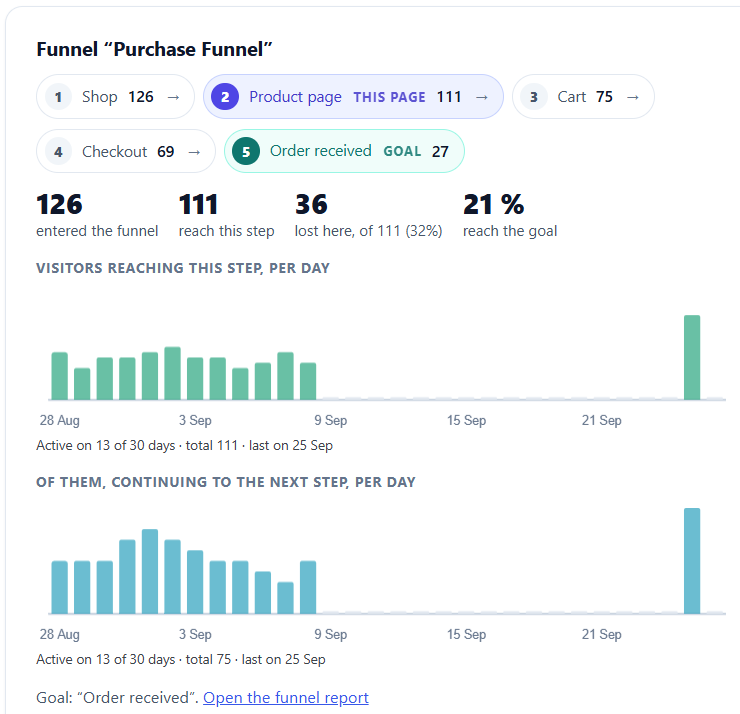
Here is what this looks like on real data. On our WooCommerce test store, the suggested Purchase Funnel recorded, from 28 August to 25 September 2026, 126 visitors entering at the shop, 75 reaching the cart, 69 reaching the checkout and 27 reaching Order received. The biggest loss is the last step: 42 of the 69 visitors who reached the checkout never saw the confirmation page. That Checkout to Order received step is the one to read first. On a store where the checkout works, a gap there means shoppers stopping at the form; if it suddenly widens after an update, test the checkout before anything else.
The checks above find the cause when you can reproduce the problem. The hard cases are the ones you cannot reproduce: the checkout fails only for some shoppers, on some devices, some days. For those, you need numbers from real visits.
The simplest measure works in any analytics tool: over the same days, compare visits to the checkout page with visits to the order-received page. If checkout visits stay normal and confirmations fall close to zero, the checkout is broken, not your shoppers. Our guide to WooCommerce conversion tracking shows how to measure every step from product page to paid order.
Opti-Behavior is our WordPress plugin, so we are not neutral here. This is how we use it for this problem:
- Suggested WooCommerce funnels (Free). On the Funnels page, Opti-Behavior detects WooCommerce and suggests a Purchase Funnel (Shop, Product page, Cart, Checkout, Order received) and a Cart Recovery Funnel (Cart, Checkout, Order received), filled with your real shop addresses. Confirm one, wait a few days of visits, and read the Checkout to Order received step: a step that falls after an update is your broken checkout. Split it by device to see if only phones are hit.
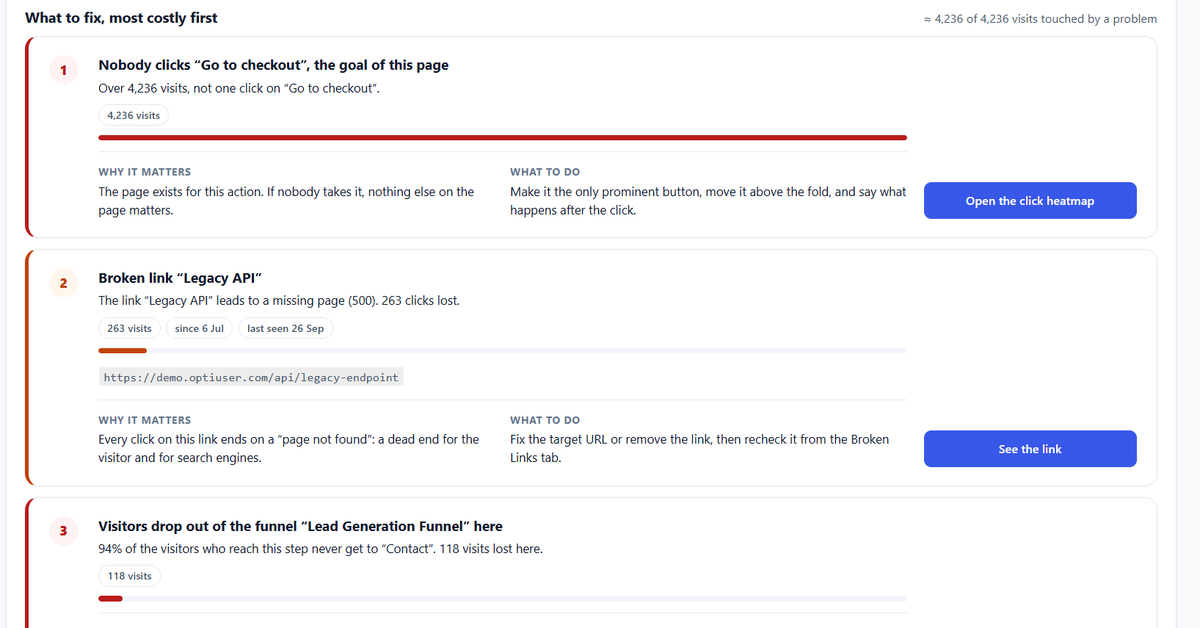
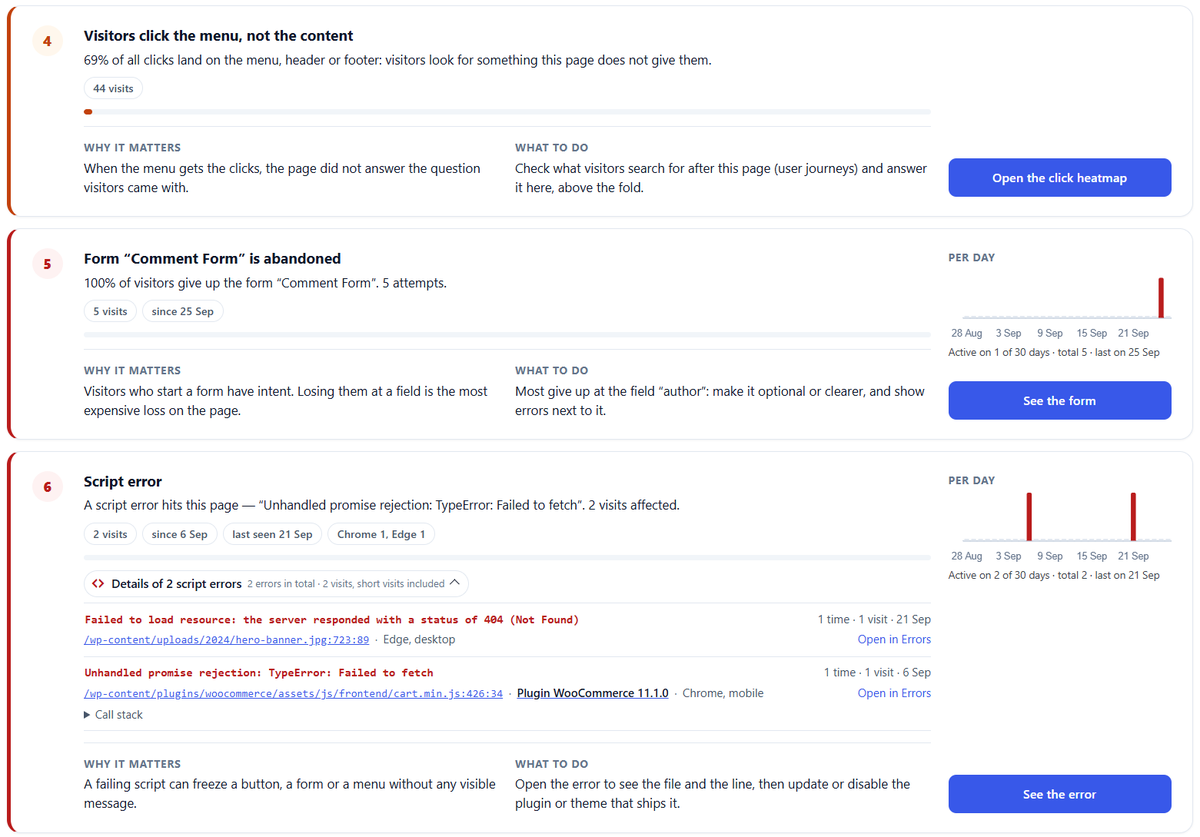
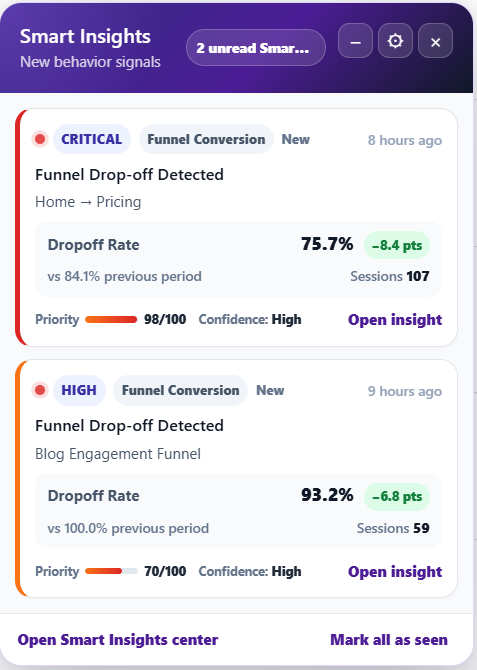
- Error tracking (Pro). Opti-Behavior Pro logs JavaScript errors and failed network requests on your pages, with the page where they happened. Look at the errors seen on your checkout page around the date the funnel dropped: that is often the script that stops the Place order button. See WordPress error tracking.
- Checkout form analytics and session recordings (Pro). When the checkout works but shoppers still stop, see the field where they quit, and watch a few replays of visits that left at the checkout. Our guide to WooCommerce checkout abandonment explains that side.
The reports are stored in your own WordPress database. See what is in each version on the pricing page, or install the free plugin from WordPress.org.
Find the step where your orders stop
Install the free plugin, open Funnels, confirm the suggested WooCommerce funnel and read the Checkout to Order received step after a few days of visits.
What to check after the fix
- Place a test order again on desktop and on a phone, with every payment method, and refund it.
- Check that the order arrives as Processing (or Completed for virtual products), not Pending payment.
- Check that the customer and admin e-mails for the order were sent.
- Clear every cache layer (plugin, server, CDN) and test once more from a private window.
- For the next 7 days, compare checkout visits with order-received visits, or read the Checkout to Order received step of your funnel, against the 7 days before the problem.
- Write down which plugin or setting caused it, so you test that one first after the next update.
If the checkout works but shoppers still leave, the problem is no longer technical: read why WooCommerce shoppers abandon their cart and how to find the step where they leave.
WooCommerce checkout not working: FAQ
Why does my Place order button not work?
Most often a JavaScript error on the checkout page stops the script that sends the order. Open the browser console, click Place order and read the red errors; then test for a plugin or theme conflict with troubleshooting mode.
Why is my WooCommerce checkout spinning forever?
The order request was sent but the answer never came back correctly: a PHP error on the server, a security rule that blocks the request, or a payment gateway that does not respond. Check the Network tab for the status of the checkout request, then the WooCommerce logs.
Why are my WooCommerce orders stuck in Pending payment?
The order was created but the payment was never confirmed. Either the shopper left the payment page, or the gateway could not tell your site that the payment succeeded, often because of a webhook problem. Read the order notes and the gateway dashboard.
Can a cache plugin break the WooCommerce checkout?
Yes. A cached cart or checkout page, or a JavaScript optimisation applied to the checkout, can break orders. Exclude cart, checkout and my-account from every cache layer.
Why does my WooCommerce cart empty itself?
The WooCommerce session is lost between pages: a cached cart page, a mix of http and https or of www and non-www addresses, or a plugin that blocks the session cookie. Fix the site address and the cache exclusions first.
Find where your checkout breaks
Install the free plugin, then confirm the suggested Purchase Funnel and read the Checkout to Order received step.
The Opti-Behavior Team