Requires Opti-Behavior Pro. Session Recordings are a Pro module. View pricing or start the 6-month free trial.
The session player replays a recording and marks meaningful moments on the timeline so you can jump straight to friction. This article explains the player layout and the event markers.
Requirements #
- Plan: Opti-Behavior Pro
- A recorded session to open
Opening the player #
In Opti-Behavior → Recordings, click Play on any row.
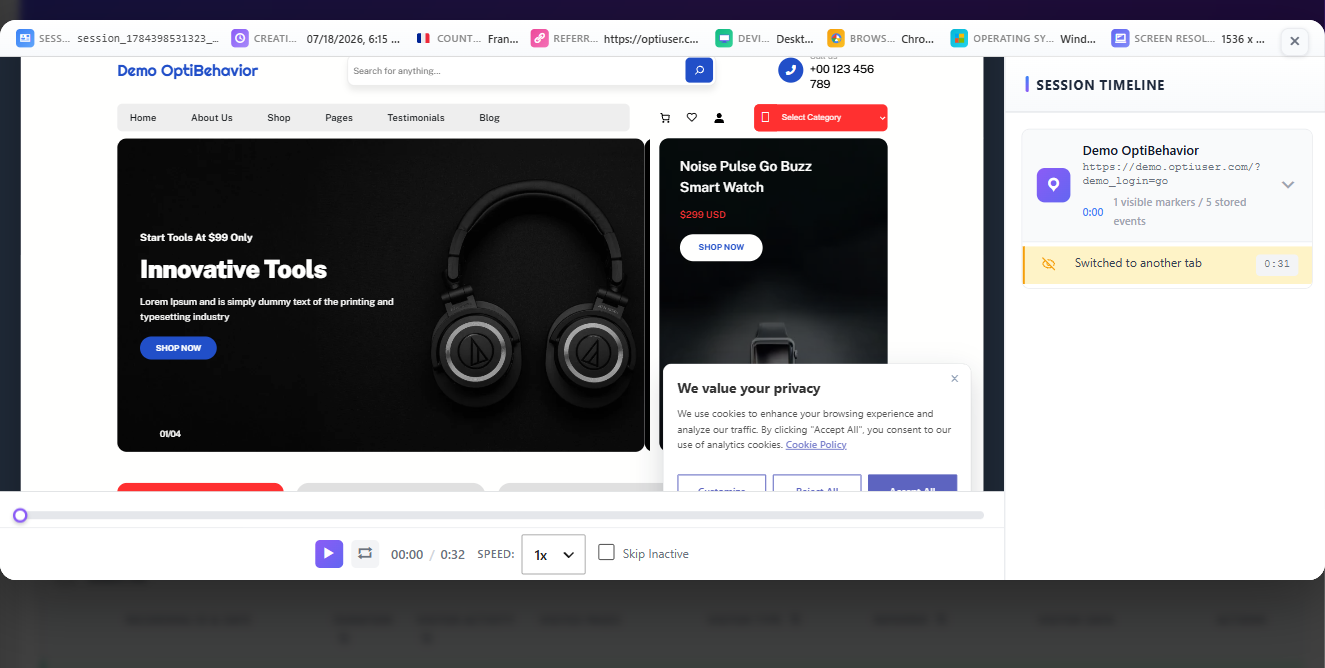
The metadata bar #
Above the replay you see session context: device, browser, OS, country, entry and exit page, duration, page count, and a copy-link control to share the session.
Playback controls #
- Play / Pause / Restart
- Progress bar — click any point to seek
- Skip inactivity — fast-forwards idle gaps
Event markers on the timeline #
The timeline is dotted with markers so you can jump to the moments that matter. The player recognises these interaction types:
- Click and Double Click
- Scroll
- Input / focus (field interaction, values masked)
- Form submit
- Mouse movement
- Page navigation
- JavaScript error and Console warning
- Dead click and Rage click (friction)
- Tab visibility change
Click a marker to jump to that instant. Error and friction markers are the fastest route to a UX problem — they also link into Errors & Performance.
Expected result #
You can replay a session, skip idle time, and jump directly to clicks, errors, or rage clicks.
FAQ #
Why is a form field blank in the replay? #
Field values are masked for privacy; the player shows that a field was used, not what was typed.