
Pro feature. User Journeys is part of Opti-Behavior Pro. Start the 6-month free trial to unlock it.
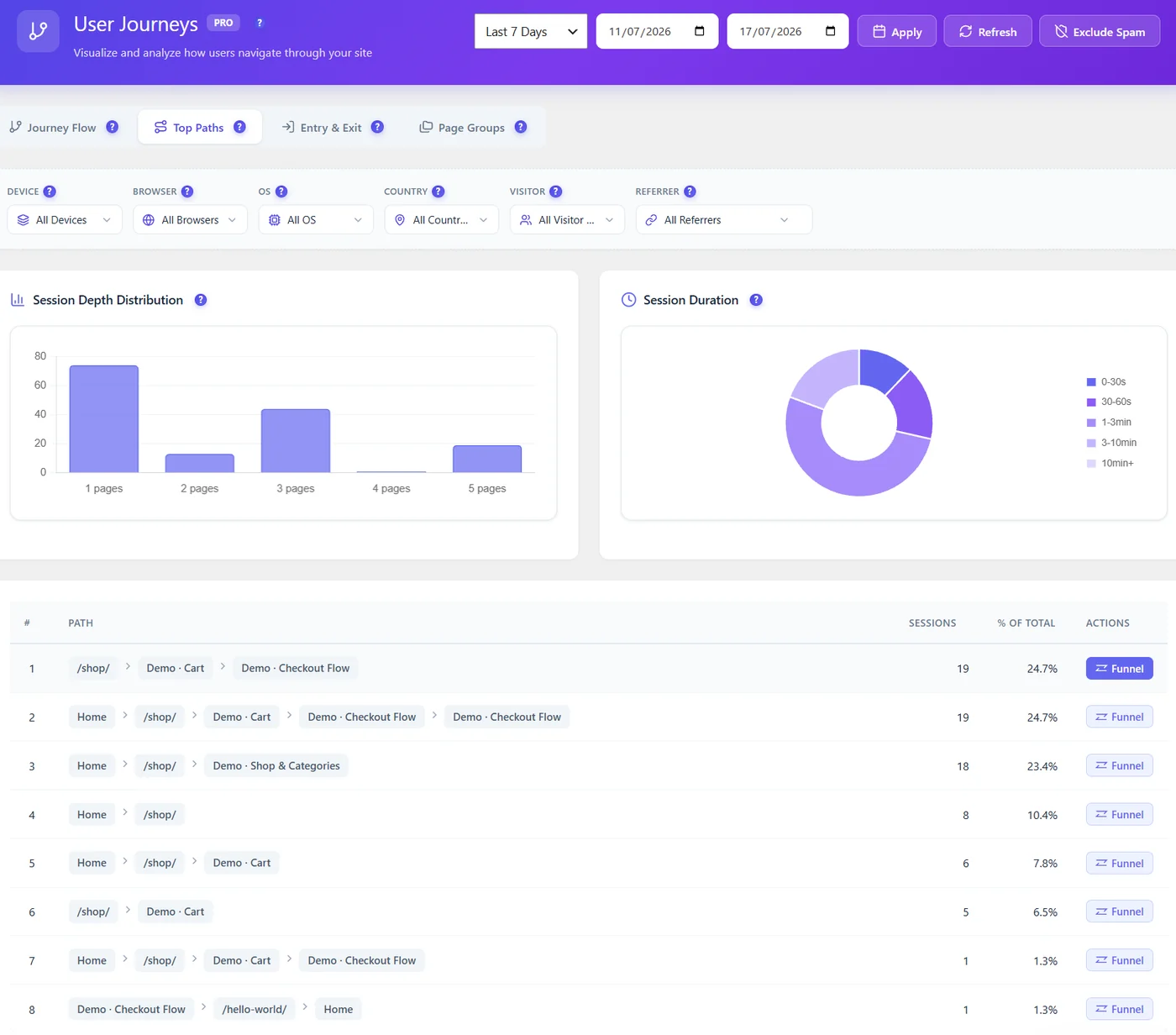
| Chart | Shows | Good sign |
|---|---|---|
| Session depth | Number of visits that saw 1, 2, 3, 4, 5+ pages | Fewer 1-page visits over time |
| Session duration | Share of visits 0–30 s, 30–60 s, 1–3 min, 3–10 min, 10 min+ | More visits over 1 minute |
Many 1-page visits with short duration point to landing pages that do not match the visitors’ intent; compare by source with the filters.
How to use depth and duration #
| You see | Likely meaning | What to do |
|---|---|---|
| Most visits at 1 page, under 30 s | Visitors do not find what they came for | Check the top entry pages and their traffic sources |
| Many 1-page visits of 1–3 min | Visitors read and leave satisfied (blog) | Add a next step: related post, newsletter |
| A peak at 3 pages | A common route exists | Open Top Paths to see it; make it shorter |
| Long visits with many pages but no conversion | Visitors search or compare | Improve navigation and search; watch recordings |
Compare segments #
- Filter by source: ads often bring 1-page visits; organic search deeper visits.
- Filter by device: mobile visits are usually shorter.
- Filter by visitor type: returning visitors should go deeper.
Expected result #
You know whether visitors explore your site or leave after one page.


