
Right after installing, take ten minutes to make sure visits are recorded. It saves days of waiting for data that never comes.
Step 1 – Read the Setup check #
Open Opti-Behavior → How it works. The Setup check card shows three lines: visits received, trackers not blocked by a cache or optimisation plugin, and whether your own visits are counted. Each problem has a button to fix it. When everything is fine the card shrinks to one green line.
Step 2 – Make a real visit #
- Open your site in a private / incognito window (so you are seen as a normal visitor).
- Visit two or three pages, click a few links, scroll to the bottom of one page.
- If a consent banner appears (Full Tracking mode), click Accept for this test.
Step 3 – See it arrive #
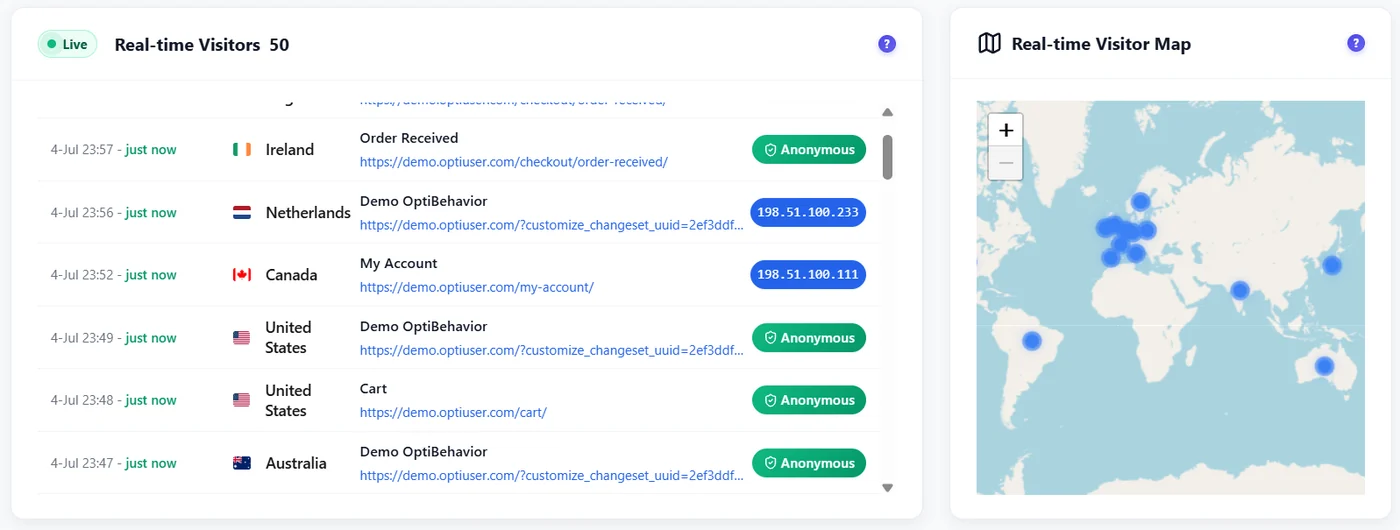
Back in WP Admin, open Opti-Behavior → Traffic and look at Real-time Visitors. Your visit appears with its page and time (“Anonymous” in Anonymous Mode).
Step 4 – Check the Frontend Stats Bar #
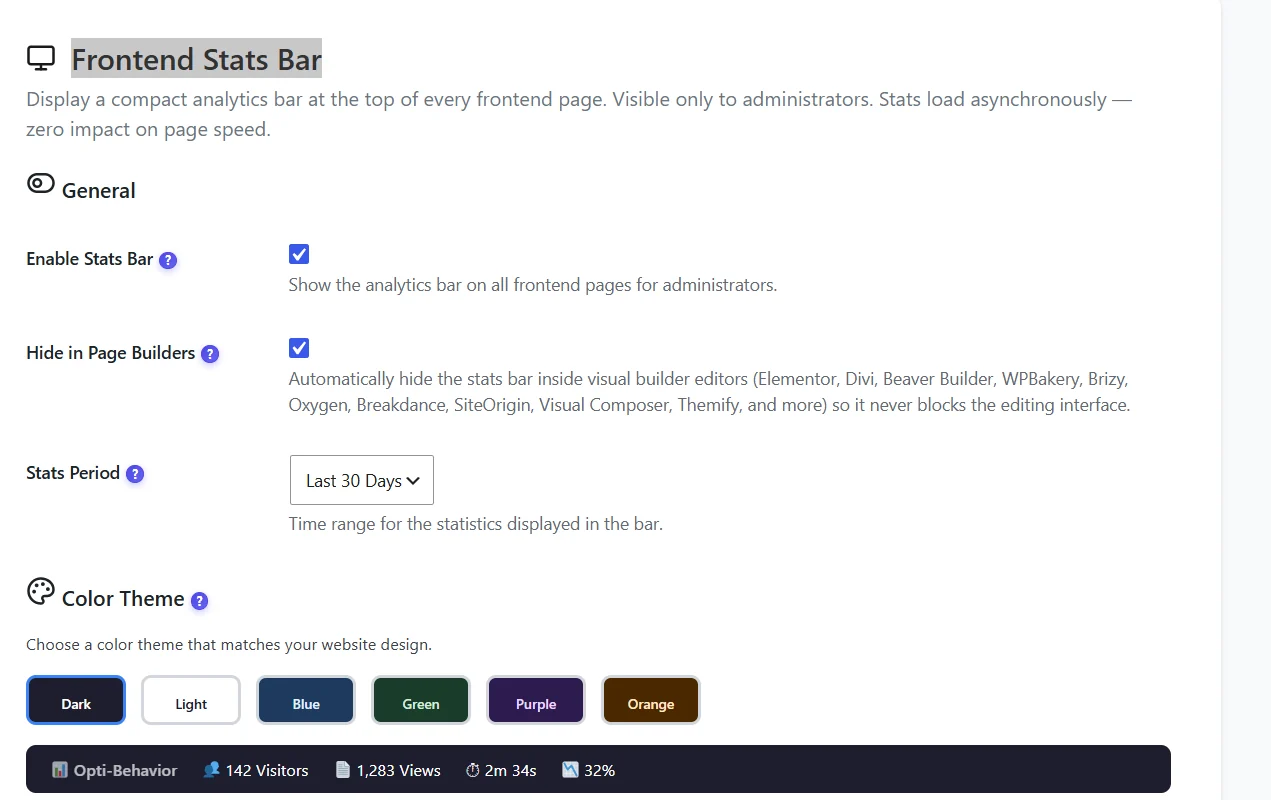
Logged in as an administrator, open any page of your site: a thin bar at the top shows that page’s visitors, sessions, views, average time, scroll and bounce. Visitors never see it. Enable or style it in Settings → Frontend Stats Bar – see Frontend Stats Bar.
Expected result #
Your test visit is in Real-time Visitors, the page appears in the Heatmaps list after a click, and the Setup check is green.
Troubleshooting #
| Symptom | Likely cause | Fix |
|---|---|---|
| No visit at all | Page cache serves pages without the tracker | Clear the cache; exclude Opti-Behavior scripts from JS delay / combine. |
| Setup check: “a tracker is blocked” | An optimisation plugin delays or merges scripts | Follow the button; see Cache plugin compatibility. |
| Your admin visits are missing | Admin tracking is off | Settings → Traffic & Behavior → Admin Tracking, or test in a private window. |
| Visit shown as bot or spam | Very short test visit | Stay 20+ seconds, scroll and click: short visits can be classed as spam. |
FAQ #
How long before heatmaps appear? #
A page shows up in Heatmaps after its first tracked visit; a useful pattern needs a few dozen visits.
Why is my IP shown as Anonymous? #
That is Anonymous Mode: no IP address is stored.


