
A heatmap of all visitors mixes very different people. Filters show you the heatmap of one group only – for example mobile visitors from Google who stayed more than 30 seconds – and often reveal a pattern the global view hides.
Period and device #
At the top of the heatmap page, choose a preset period (All time, Today, last 7 or 30 days…) or custom dates, then click Apply. The device buttons below switch between all devices, desktop, tablet and mobile.
Advanced filters #
Click Filters to open the panel. The badge on the button shows how many filters are active. Pro feature: the country, browser and visitor-type filters need Opti-Behavior Pro (or its 6-month free trial).
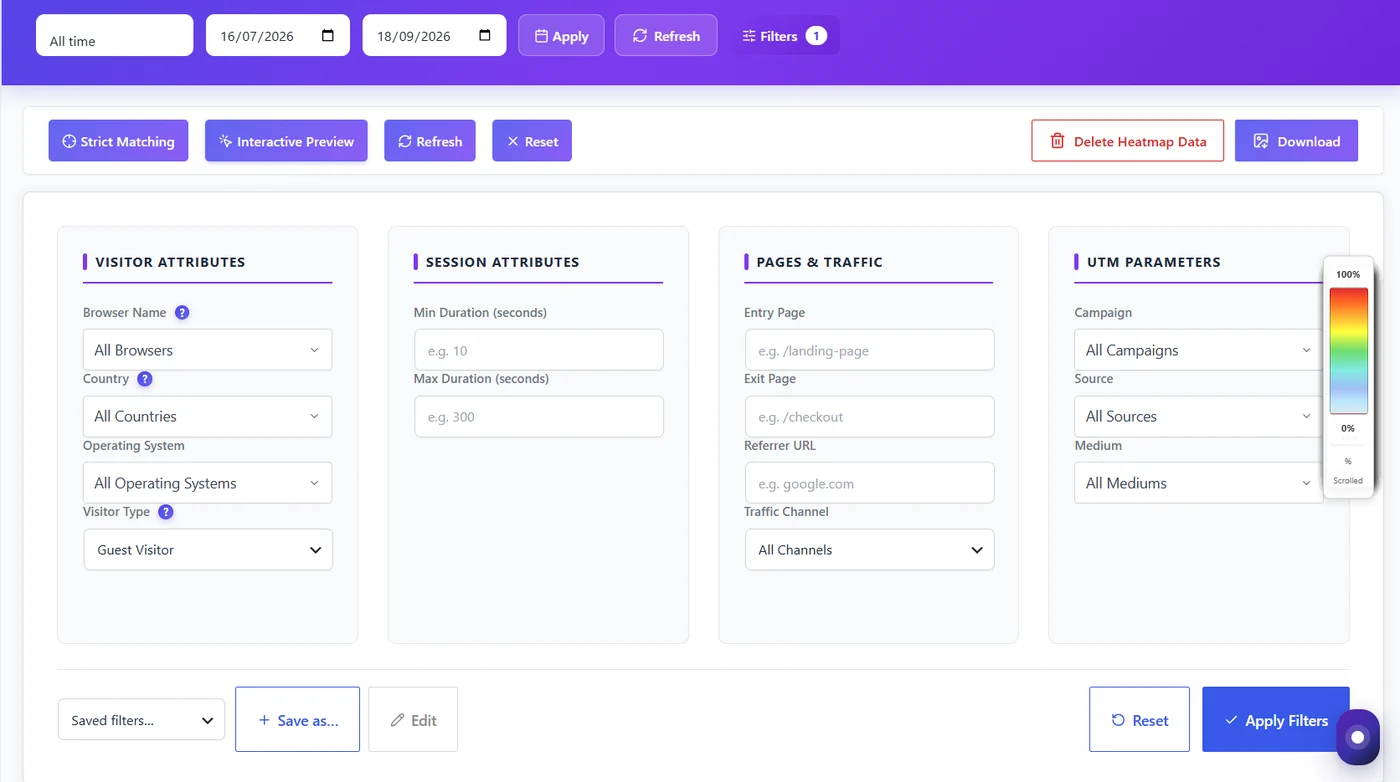
| Group | Filters | Example use |
|---|---|---|
| Visitor attributes | Browser, country, operating system, visitor type (new / returning / guest) | Do returning visitors click the pricing link more? |
| Session attributes | Minimum and maximum duration (seconds) | Keep visits over 10 s to remove accidental bounces. |
| Pages & traffic | Entry page, exit page, referrer URL, traffic channel | How do visitors from Google behave compared with direct visits? |
| UTM parameters | Campaign, source, medium | Is the newsletter traffic reading the page to the end? |
Click Apply Filters. The heatmap, the session counts and Top Clicked Elements all follow the filters. Reset clears them.
Saved filters #
Use Save as… to keep a set of filters under a name (for example “Google – mobile – engaged”) and reuse it from the Saved filters list. Saved filters are shared across the Analytics Dashboard, Funnels and the Pro reports. The period is never saved, so a saved filter always applies to the dates you pick.
Expected result #
The heatmap and its numbers show only the sessions matching your filters, and the Filters button shows how many are active.
FAQ #
Why does the heatmap disappear when I filter? #
No session matches all the filters in that period. Remove one filter or widen the dates.
Do filters change the data? #
No. They only change what you see; the recorded data is untouched.
Why is a country or browser missing from the list? #
Lists only show values seen on your site. In Anonymous Mode the country is not recorded.


