
Table of Contents
Pro feature. Session recording is part of Opti-Behavior Pro. Start the 6-month free trial to unlock it.
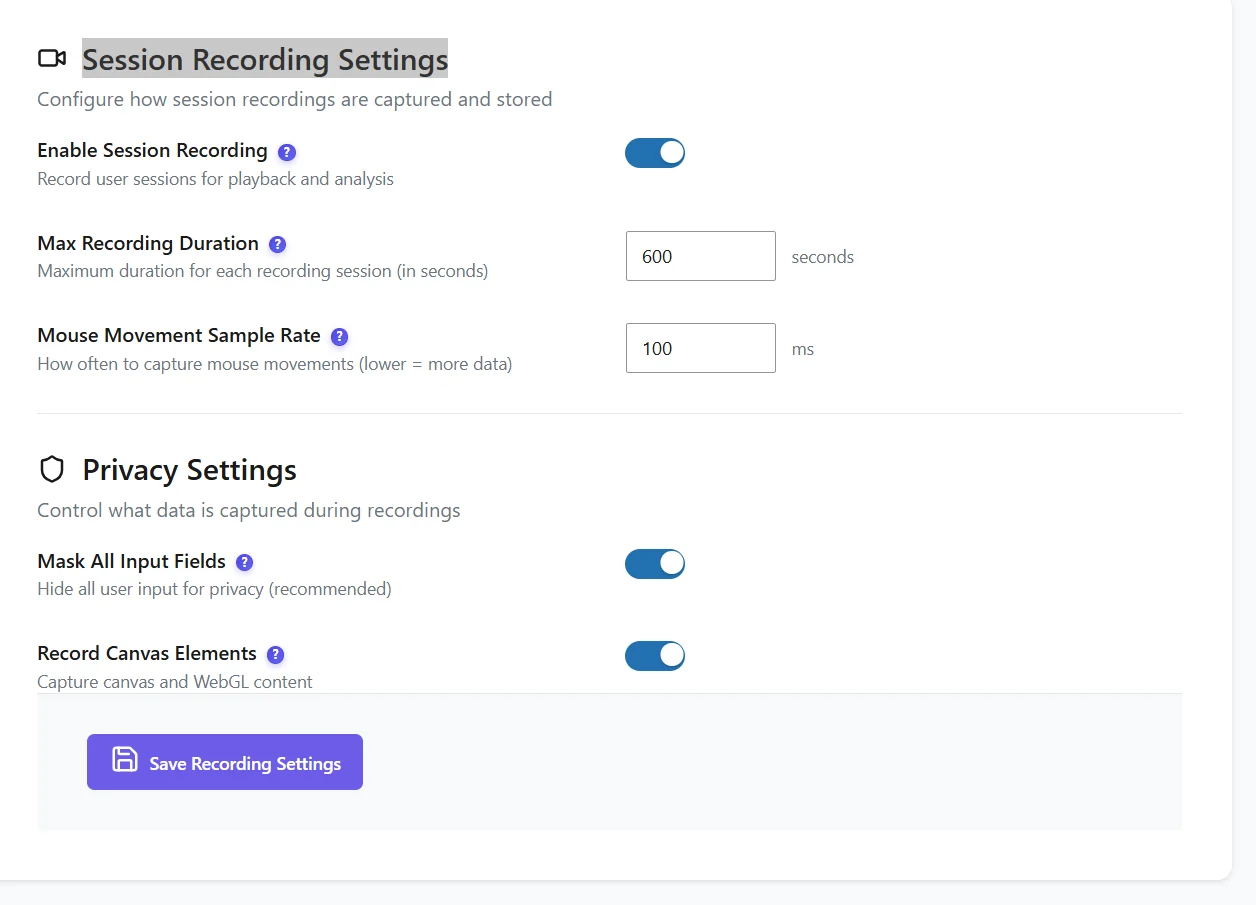
| Setting | Default | Advice |
|---|---|---|
| Enable session recordings | On | Turn off to pause recording without losing existing replays. |
| Maximum duration | 600 seconds | Longer visits are cut. 10 minutes covers most journeys. |
| Sample rate (mouse) | 10 ms | Higher values (50–100 ms) make lighter recordings with slightly less smooth mouse paths. |
| Mask all inputs | On | Keep it on: typed text is replaced by stars. |
| Record canvas | On | Needed for charts or games drawn on a canvas; turn off to save space. |
Before it records #
- Full Tracking: recording starts only after the visitor accepts the consent banner.
- Clear your page cache after enabling, so pages load the recorder.
- Recording files are stored on your server and expire with the heavy-files retention (90 days by default).
Recommended settings by site #
| Site | Duration | Sample rate | Canvas |
|---|---|---|---|
| Shop | 600 s | 10 ms | Off unless product configurators use canvas |
| Blog | 300 s | 50 ms | Off |
| Web app / SaaS | 900 s | 10 ms | On |
Storage impact #
A recording weighs a few hundred kilobytes on average, more for long visits or canvas-heavy pages. Watch Settings → Storage Stats the first weeks; heavy files expire after 90 days by default.
Expected result #
New visits appear in Recordings within minutes.
FAQ #
No recordings after enabling. #
Check consent, the page cache and that your admin visits are tracked if you test yourself.
Can I record only some pages? #
Recording follows the tracker; use filters to watch only the pages you care about.


