
Table of Contents
Debug logs help support understand a problem. Turn them on only while investigating: they switch off automatically after 3 hours.
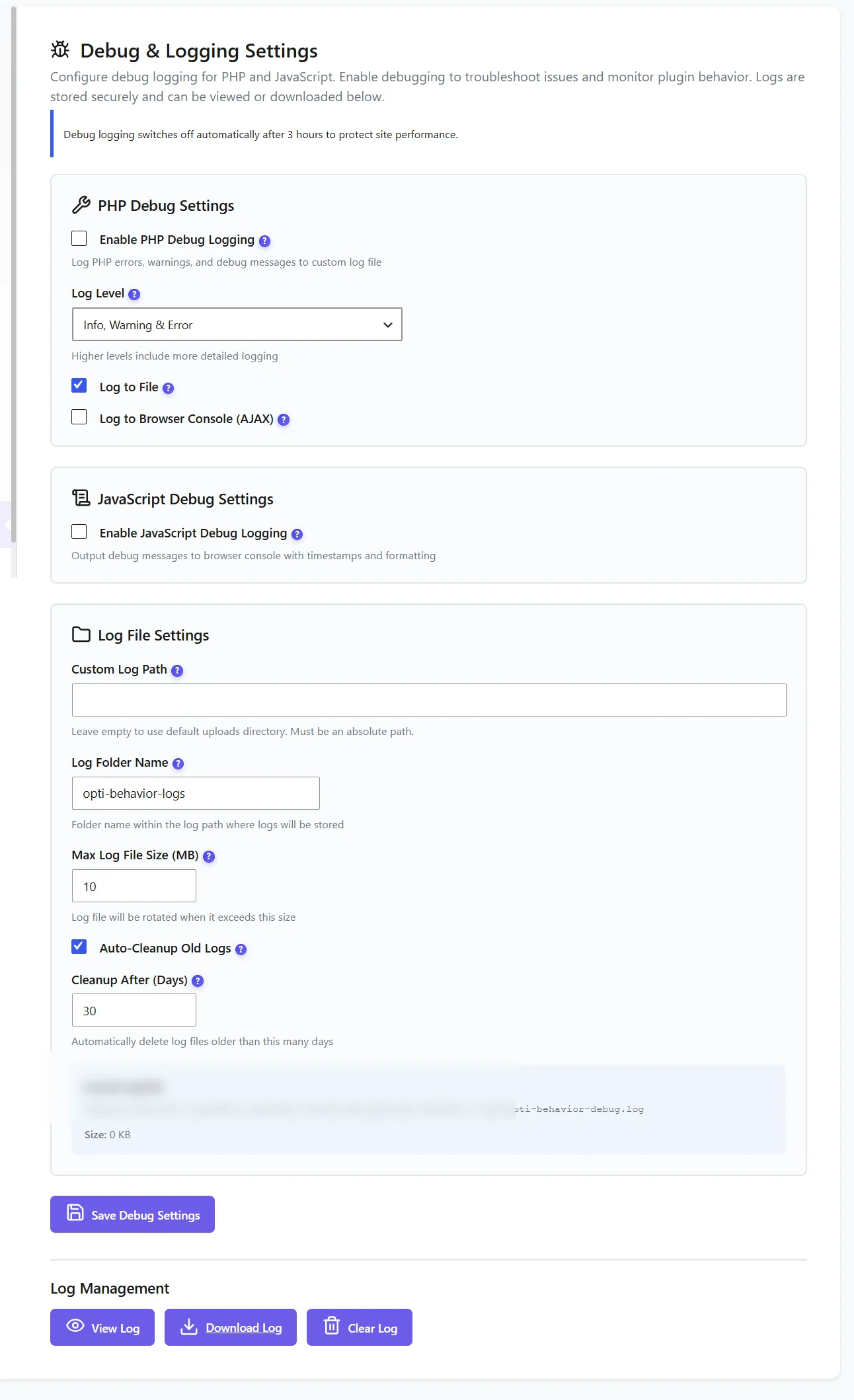
Options #
| Option | Use |
|---|---|
| Enable PHP Debug Logging + Log Level | Server-side messages; Info, Warning & Error is enough for most cases |
| Log to File / Log to Browser Console (AJAX) | Where PHP messages go |
| Enable JavaScript Debug Logging | Messages in the browser console with timestamps |
| Custom Log Path, Log Folder Name | Where the file is written (default: a folder in your uploads) |
| Max Log File Size | Rotation size (10 MB by default) |
| Auto-Cleanup Old Logs, Cleanup After | Delete old logs (30 days by default) |
For a support request #
- Enable PHP and JavaScript debug logging, save.
- Reproduce the problem.
- Click Download Log and attach it to your message.
- Turn debug off (or let it switch off after 3 hours).
Privacy. Logs can contain URLs and technical data. Share them only with support, and clear them when done.
Expected result #
View Log shows recent messages, and the file can be downloaded or cleared.
FAQ #
Does debug mode slow the site? #
Slightly, while on. Debug JavaScript is not even loaded when debug is off.
The log is empty. #
Check the level and that Log to File is ticked; reproduce the problem again.


