
In Full Tracking mode, Opti-Behavior uses cookies and the visitor’s IP address, so the law requires the visitor’s consent first. Opti-Behavior ships its own lightweight consent banner, or it follows the consent plugin you already use. This article explains every setting of the banner, step by step.
No banner needed in Anonymous Mode. In Anonymous Mode Opti-Behavior sets no cookie, stores no IP address and makes no geolocation call, so there is nothing to consent to and no banner is shown. See Anonymous Mode vs Full Tracking to choose.
Where to find the settings #
Go to WP Admin → Opti-Behavior → Settings → Privacy & GDPR, choose Full Tracking as privacy mode, then scroll to Consent Banner Configuration. Click Save Settings at the bottom when you are done.
Step 1 – Choose the banner source #
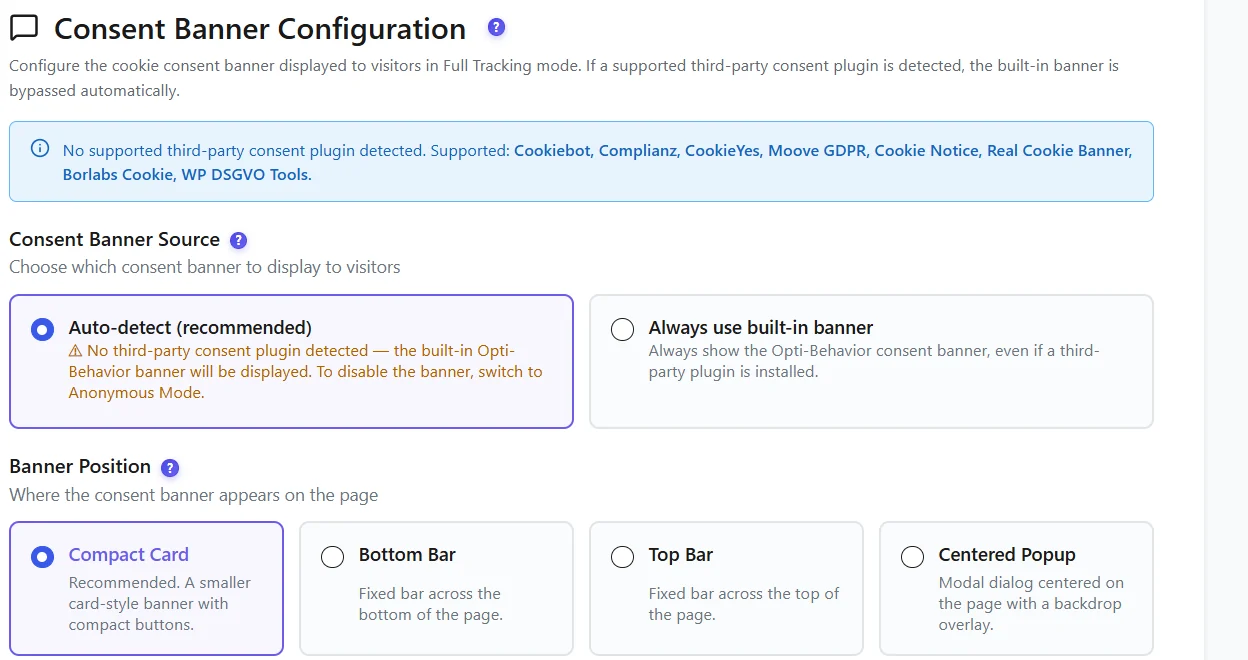
Opti-Behavior recognises these consent plugins: Cookiebot, Complianz, CookieYes, Moove GDPR, Cookie Notice, Real Cookie Banner, Borlabs Cookie and WP DSGVO Tools. The notice at the top of the section tells you whether one is active on your site.
| Option | When to use it |
|---|---|
| Auto-detect (recommended) | Uses your consent plugin when one of the plugins above is active, and the built-in banner otherwise. Visitors never see two banners. |
| Always use built-in banner | Shows the Opti-Behavior banner even if a consent plugin is installed – for example when that plugin does not cover analytics. |
| Always use <your plugin> | Only shown when a plugin is detected. Opti-Behavior never shows its own banner and follows the answer given in your plugin. |
Step 2 – Pick a position #
- Compact Card (recommended) – a small card with compact buttons. It does not hide your content.
- Bottom Bar – a fixed bar across the bottom of the page.
- Top Bar – a fixed bar across the top of the page.
- Centered Popup – a dialog in the middle of the screen with a dark backdrop. The most visible, and the most intrusive.
Step 3 – Match your brand and write the texts #
| Setting | Default | Tip |
|---|---|---|
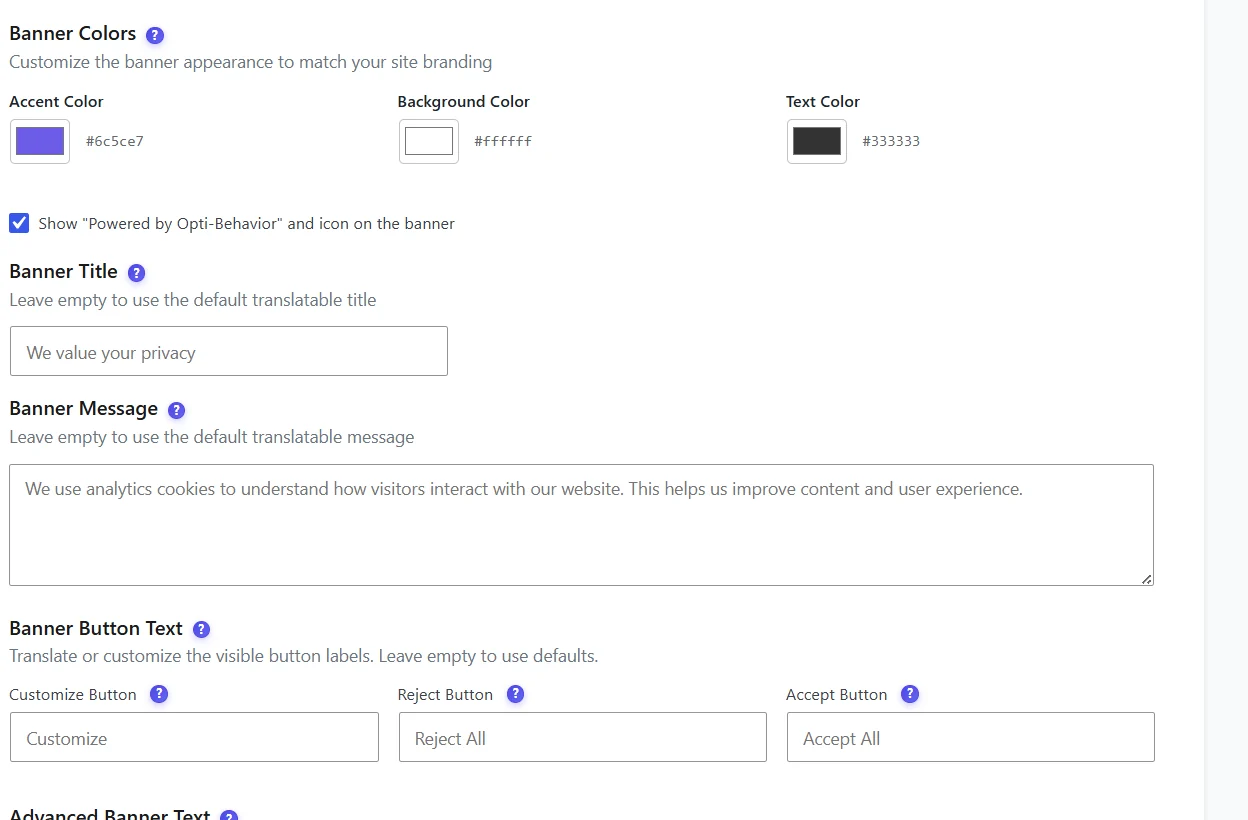
| Accent colour | #6c5ce7 | Use your brand colour: it colours the Accept button. |
| Background / text colour | #ffffff / #333333 | Keep a strong contrast so the text stays readable. |
| Banner title | We value your privacy | Short and friendly. |
| Banner message | We use analytics cookies to understand how visitors interact with our website… | Say what you measure and why, in one or two sentences. |
| Buttons | Customize / Reject All / Accept All | Keep Reject as easy to find as Accept – regulators check this. |
Leave a text field empty to use the default text: it is translated automatically in French, German, Spanish, Italian and Portuguese. With Opti-Behavior Pro you can also hide the small Powered by Opti-Behavior line and icon.
Step 4 – Policy link and Customize panel #
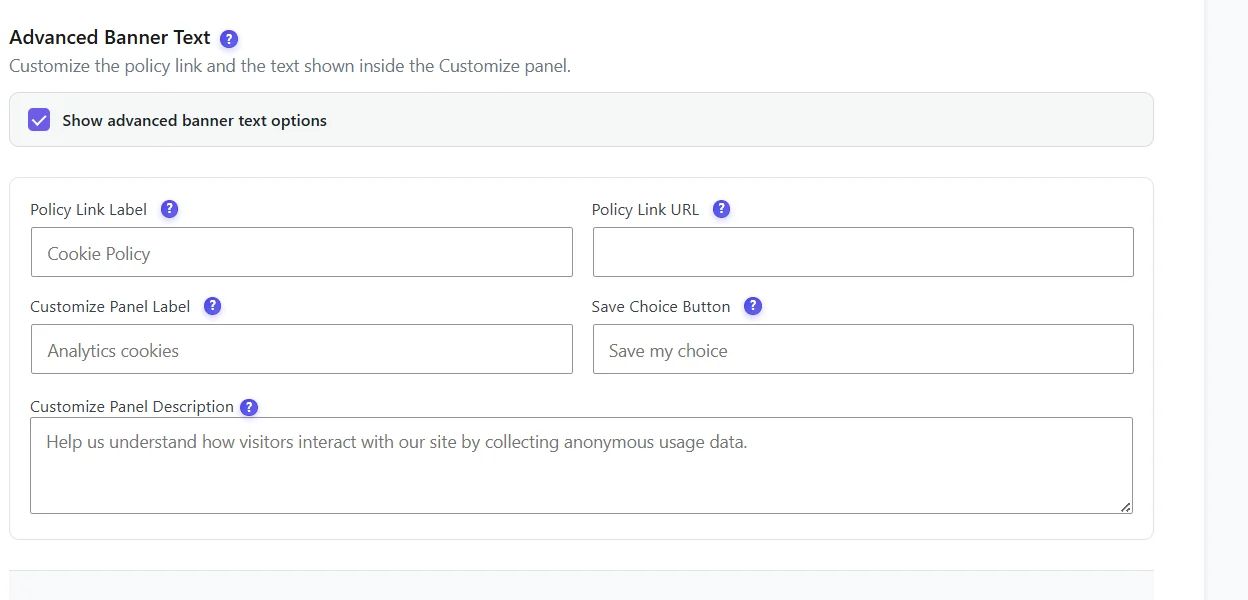
Tick Show advanced banner text options to set:
- Policy Link Label and URL – the link to your cookie or privacy policy. By default it points to the privacy policy page set in Settings → Privacy of WordPress.
- Customize Panel Label and Description – the switch the visitor sees after clicking Customize (default: “Analytics cookies”).
- Save Choice Button – the button that saves the choice made in the Customize panel (default: “Save my choice”).
Step 5 – Let visitors change their mind #
GDPR requires that visitors can withdraw consent as easily as they gave it. Paste this shortcode into your Privacy Policy or Cookie Policy page:
It shows the visitor’s current choice with a switch to change it at any time. Withdrawing deletes the Opti-Behavior tracking cookies and identifiers at once, and tracking continues cookie-free, exactly like Anonymous Mode.
- Prefer a simple link in your footer? Use
, or add the CSS classob-consent-opento any link or menu item: it reopens the banner. - Preferences Title / Description set the text of the preferences card.
- Remember the visitor’s choice for: 6 months (default, recommended by the French CNIL) or 12 months. After this period the banner asks again.
What happens before and after the answer #
| Visitor state | What Opti-Behavior does |
|---|---|
| Has not answered yet | Counts the visit cookie-free (like Anonymous Mode). No tracking cookie, no IP sent to geolocation. A/B tests run cookie-free. |
| Accepts | Full Tracking: persistent visitor ID, precise sessions, country and city. Pro recordings, error and form tracking start sending data. |
| Rejects or withdraws | Cookie-free tracking only; identifiers stored under an earlier consent are removed from the browser. |
Check that it works #
- Open your site in a private window: the banner appears in the chosen position.
- Click Reject All, reload: the banner stays closed and no
optibehaviortracking cookie is set (browser DevTools → Application → Cookies). - Open your policy page: the preferences card shows “rejected”. Switch it on: the choice changes immediately.
FAQ #
My consent plugin is not in the list. What now? #
Choose Always use built-in banner, or use Anonymous Mode, which needs no consent at all.
Can I show the banner only in some countries? #
Not with the built-in banner. If you need geo-targeted consent, use a consent plugin from the list and choose Auto-detect.
Does the banner slow down my pages? #
No. It is a small script and stylesheet loaded with the tracker, with no external request.
I changed the texts but still see the old ones. #
Clear your page cache (LiteSpeed, WP Rocket, Cloudflare…) after saving: cached pages keep the old banner until they expire.


