
Settings → Smart Insights controls when insights are generated, how losses are valued, and how you are notified.
Automatic generation #
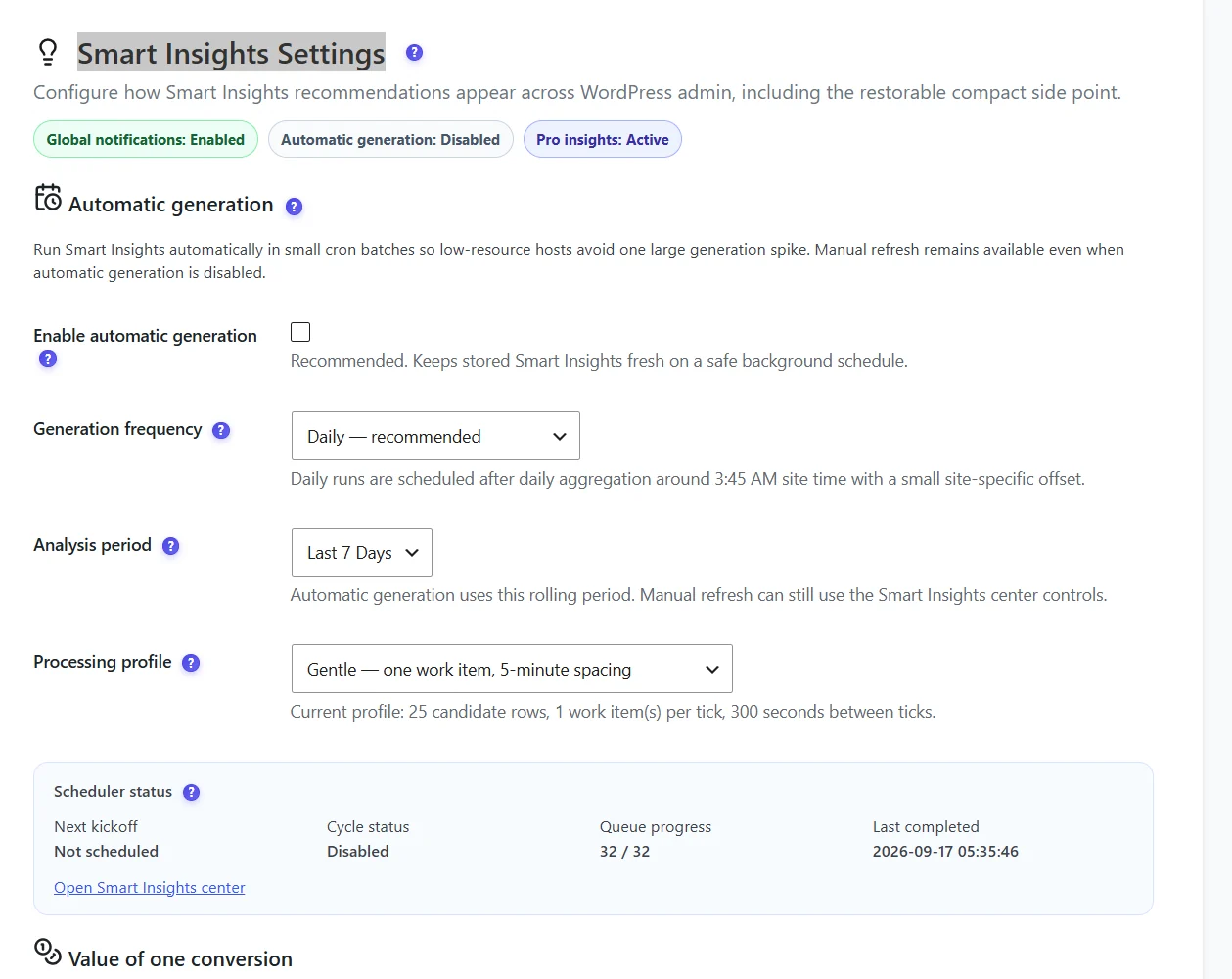
| Setting | Recommended | Notes |
|---|---|---|
| Enable automatic generation | On | Keeps insights fresh in the background. Otherwise they refresh when you open Smart Insights. |
| Generation frequency | Daily | Runs after the daily aggregation (early morning, site time). |
| Analysis period | Last 7 days | The window the scheduled run analyses. Manual refresh uses the period you pick on screen. |
| Processing profile | Gentle | Small work items spaced out, for shared hosting. Faster profiles suit dedicated servers. |
The Scheduler status box shows the next kickoff, the cycle status, the queue progress and the last completion.
Value of one conversion #

Enter what one conversion (a lead, a sign-up) is worth and the currency. Smart Insights shows an amount “at risk” only for a funnel that ends at the checkout with at least 20 orders over the period (using your real WooCommerce order value, which takes precedence), or for a form priced with this value. Other problems show the visitors they lose.
Notification launcher #

- Enable Smart Insights notifications – a small launcher appears on admin pages when new signals arrive.
- Default launcher behavior – full launcher with unread badge, compact side point, or only on Opti-Behavior pages.
- Notification priority threshold – for example High and Critical only, to avoid noise on busy sites.
- Notification period and locked Pro previews (free version).
- My launcher state / Recovery controls – restore the full launcher, move it to the side, or clear your unread badge.
Expected result #
Insights refresh on schedule, losses are valued the way you want, and notifications appear only at the level you chose.
FAQ #
Smart Insights is empty. #
Generation needs data: first insights come after about 100 visits. Click Refresh insights on the Smart Insights page.
The launcher covers my screen. #
Switch it to compact side mode, or show it only on Opti-Behavior pages.


