
Opti-Behavior cleans up after itself. This page explains the retention rules, the scheduled tasks that apply them, and the tools to act by hand. Everything is under Settings → Danger Zone, tabs Smart Cleanup and Auto Schedule.
Retention periods #
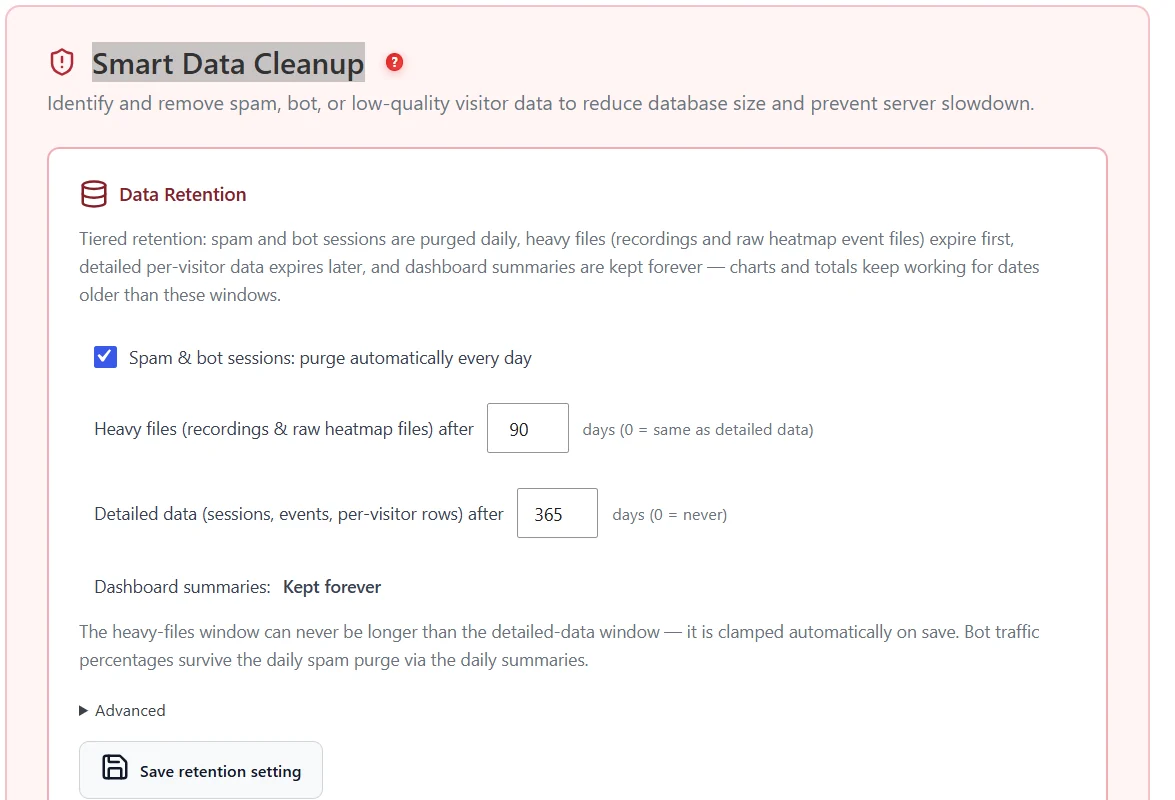
| Data | Default | Notes |
|---|---|---|
| Spam, bot and automated sessions | Purged every day | Automatic |
| Heavy files (recordings, raw heatmap files) | 90 days | Never longer than the detailed-data period |
| Detailed data (sessions, events, per-visitor rows) | 365 days | Up to 10 years |
| Dashboard summaries | Kept forever | Charts and totals keep working after the details expire |
Database size caps #
Under Advanced, set an optional global cap and a per-table cap (off by default). When a cap is reached, the oldest raw rows go first; the last 7 days and dashboard summaries are always kept, and at most 25% of a table is removed per run.
Manual cleanup #
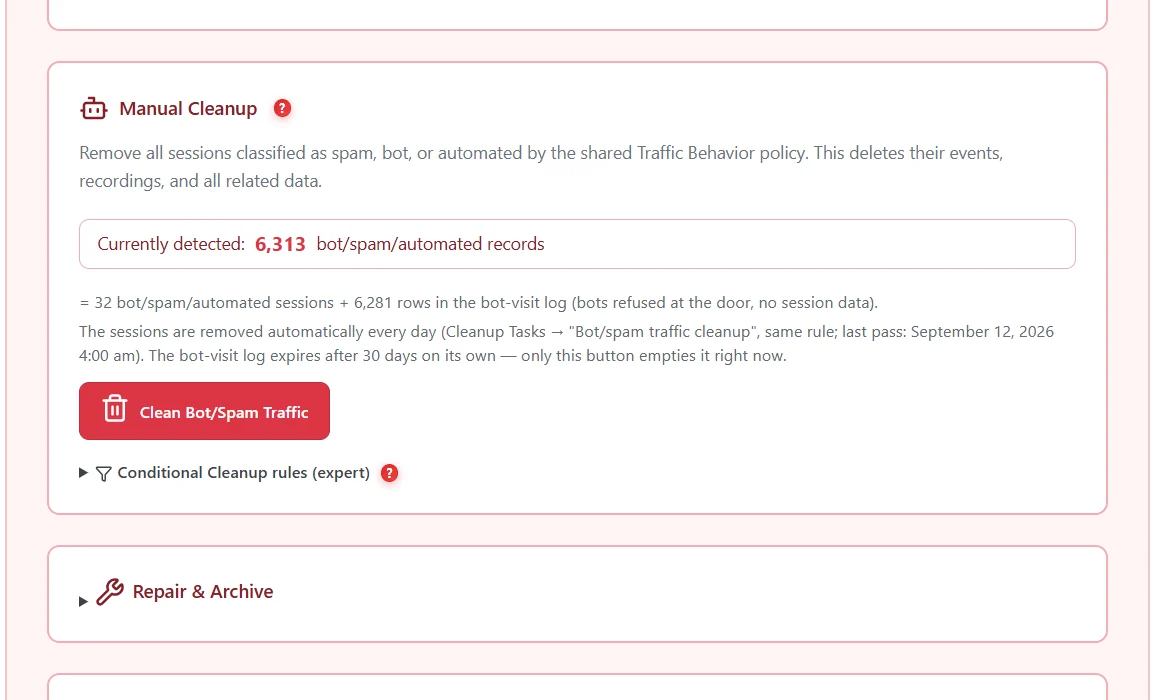
- Clean Bot/Spam Traffic – deletes now the sessions classified as spam, bot or automated (normally done daily).
- Conditional Cleanup rules (expert) – delete sessions matching your own rules; preview before running.
- Repair & Archive – repair tools for heatmap files.
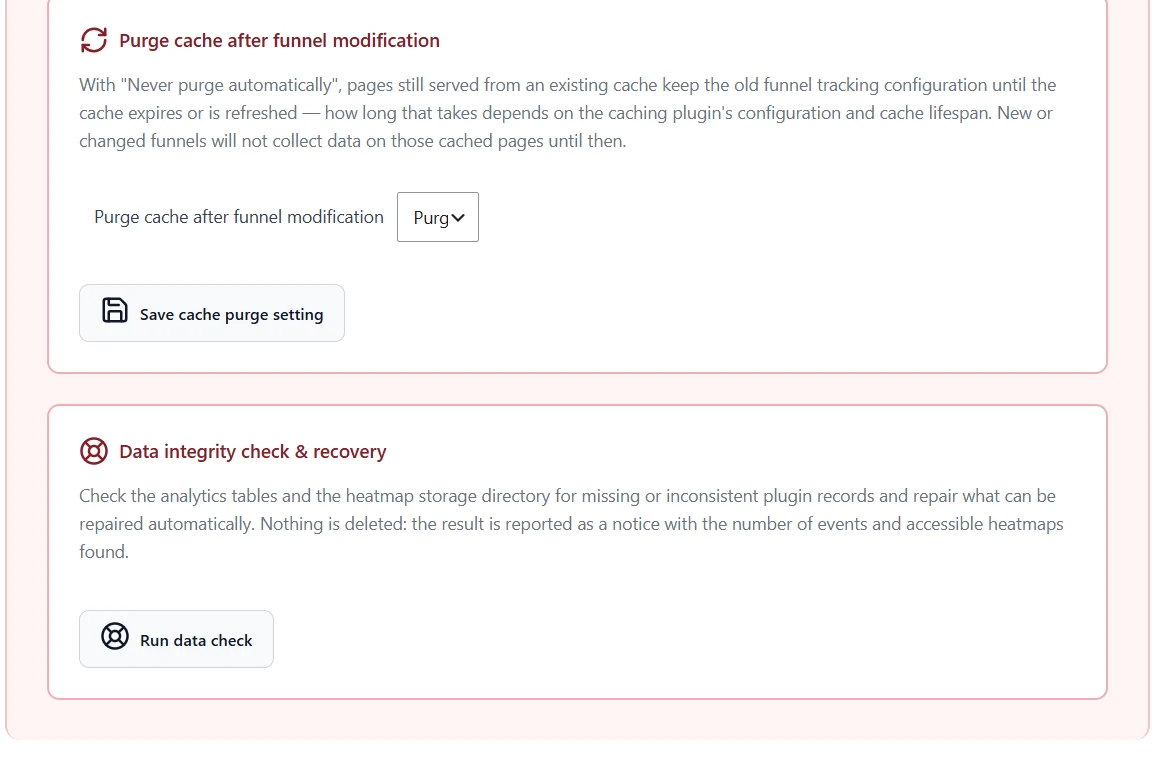
- Purge cache after funnel modification – clears page caches when a funnel changes, so cached pages use the new funnel steps.
- Data integrity check & recovery – finds missing or inconsistent records and repairs what it can.
Cleanup tasks #
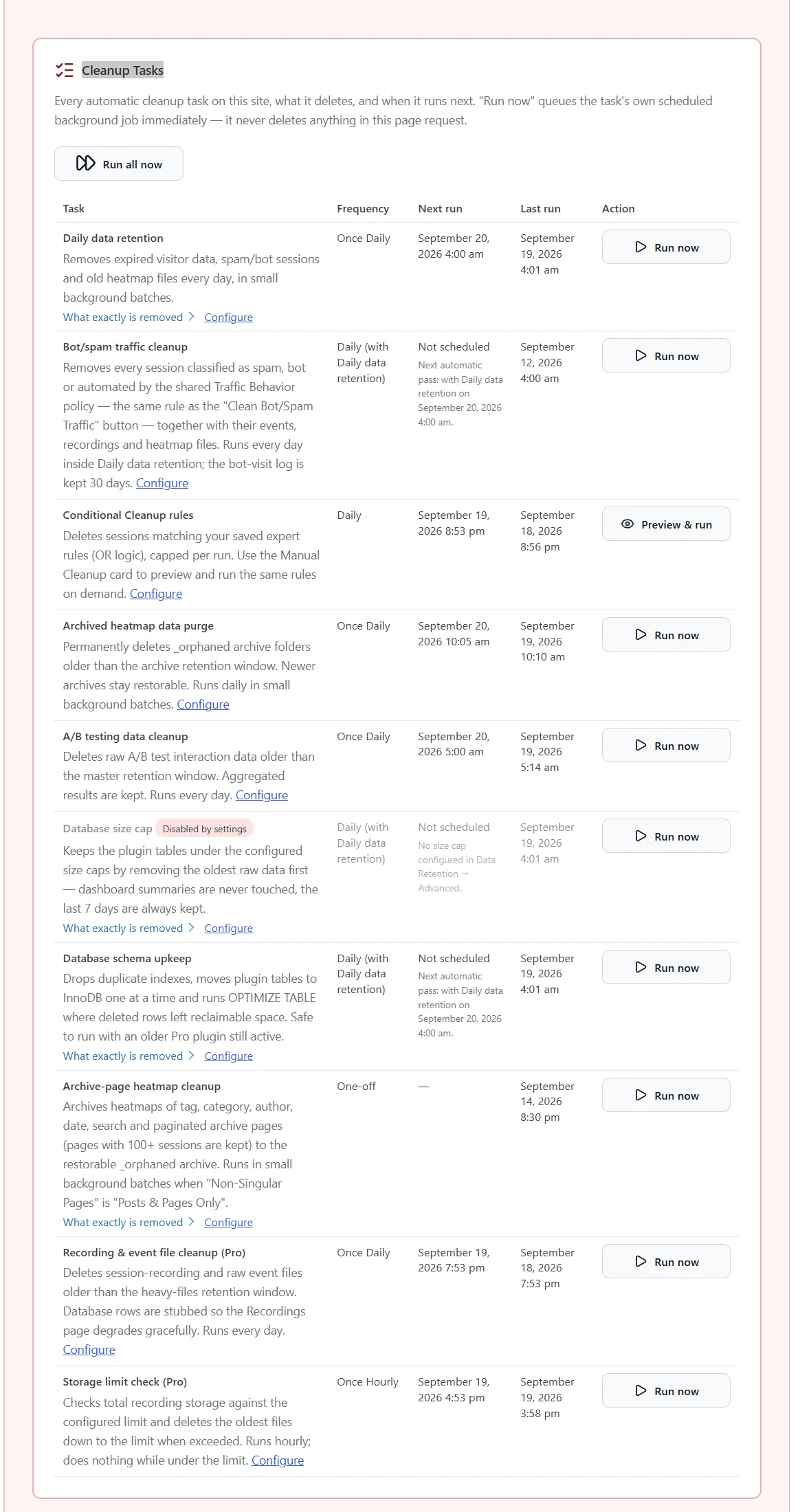
| Task | What it does |
|---|---|
| Daily data retention | Removes expired visitor data |
| Bot/spam traffic cleanup | Removes spam, bot and automated sessions |
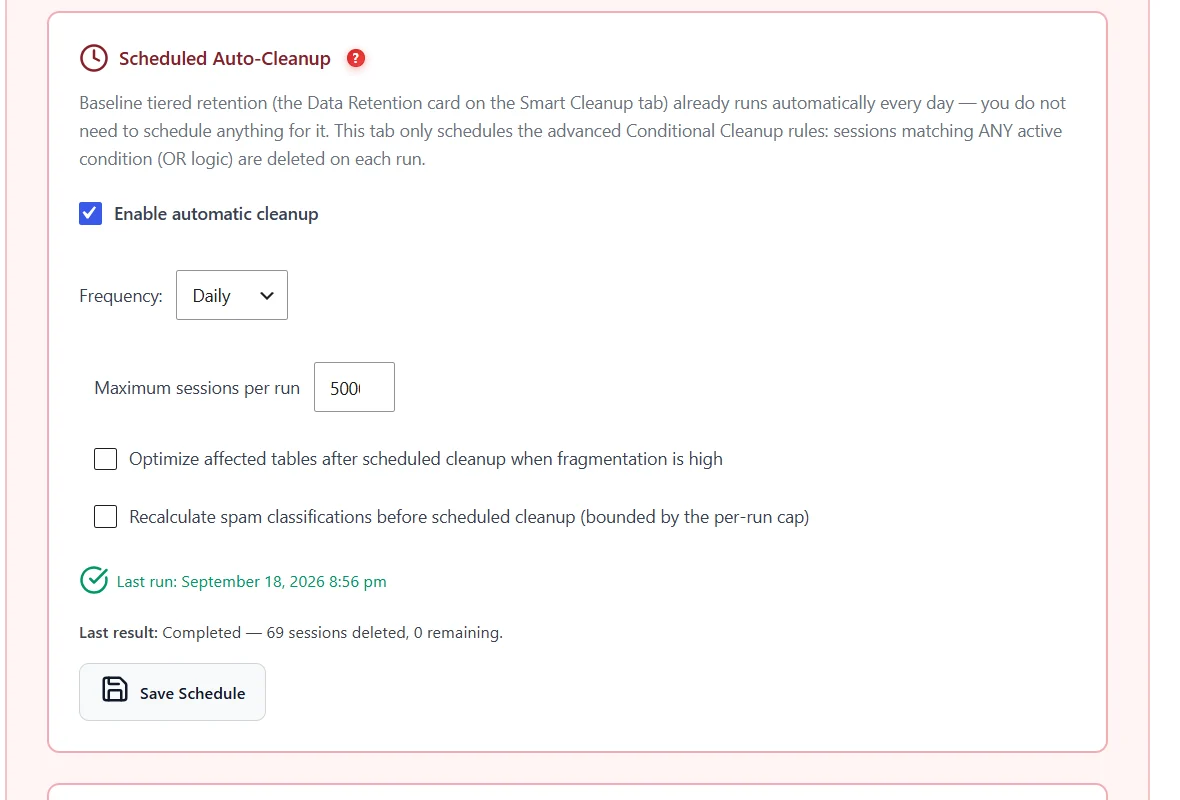
| Conditional cleanup rules | Applies your expert rules |
| Archived heatmap data purge | Deletes archived heatmaps after 30 days |
| A/B testing data cleanup | Removes old raw A/B data; results are kept |
| Database size cap | Applies your caps |
| Database schema upkeep | Drops duplicate indexes, converts tables to InnoDB, optimises fragmented tables |
| Archive-page heatmap cleanup | Archives category/tag/search heatmaps |
| Recording & event file cleanup (Pro) | Deletes expired recording files |
| Storage limit check (Pro) | Enforces the recording storage limit |
Run now queues one task; Run all now queues them all, spaced out. Tasks run in small background batches, so they never block your site.
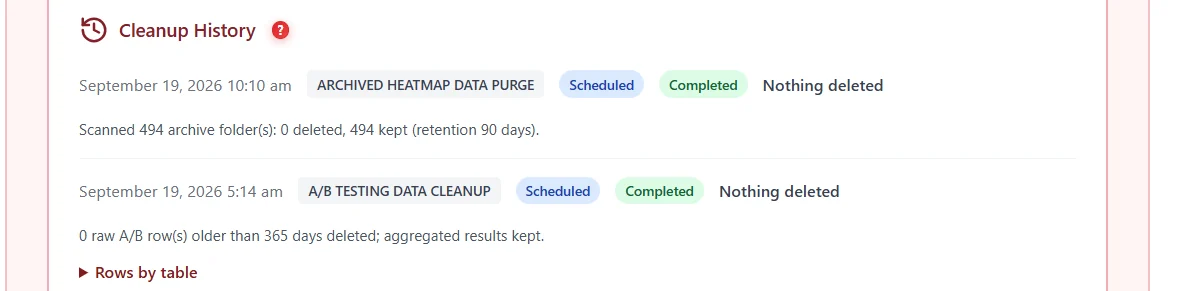
Cleanup History folds repeated runs that deleted nothing into one line, and only says “deleted” when something was deleted.
Expected result #
Storage stays stable over time, and Cleanup History shows each task running on schedule.
FAQ #
Tasks show “Not scheduled”. #
WP-Cron is not running. Visit the site or set a server cron, then click Run all now.
Will retention delete my charts? #
No. Dashboard summaries are kept forever.


