
Table of Contents
All options live in WP Admin → Opti-Behavior → Settings. The left column lists the tabs; Pro tabs show a PRO badge in the free version.
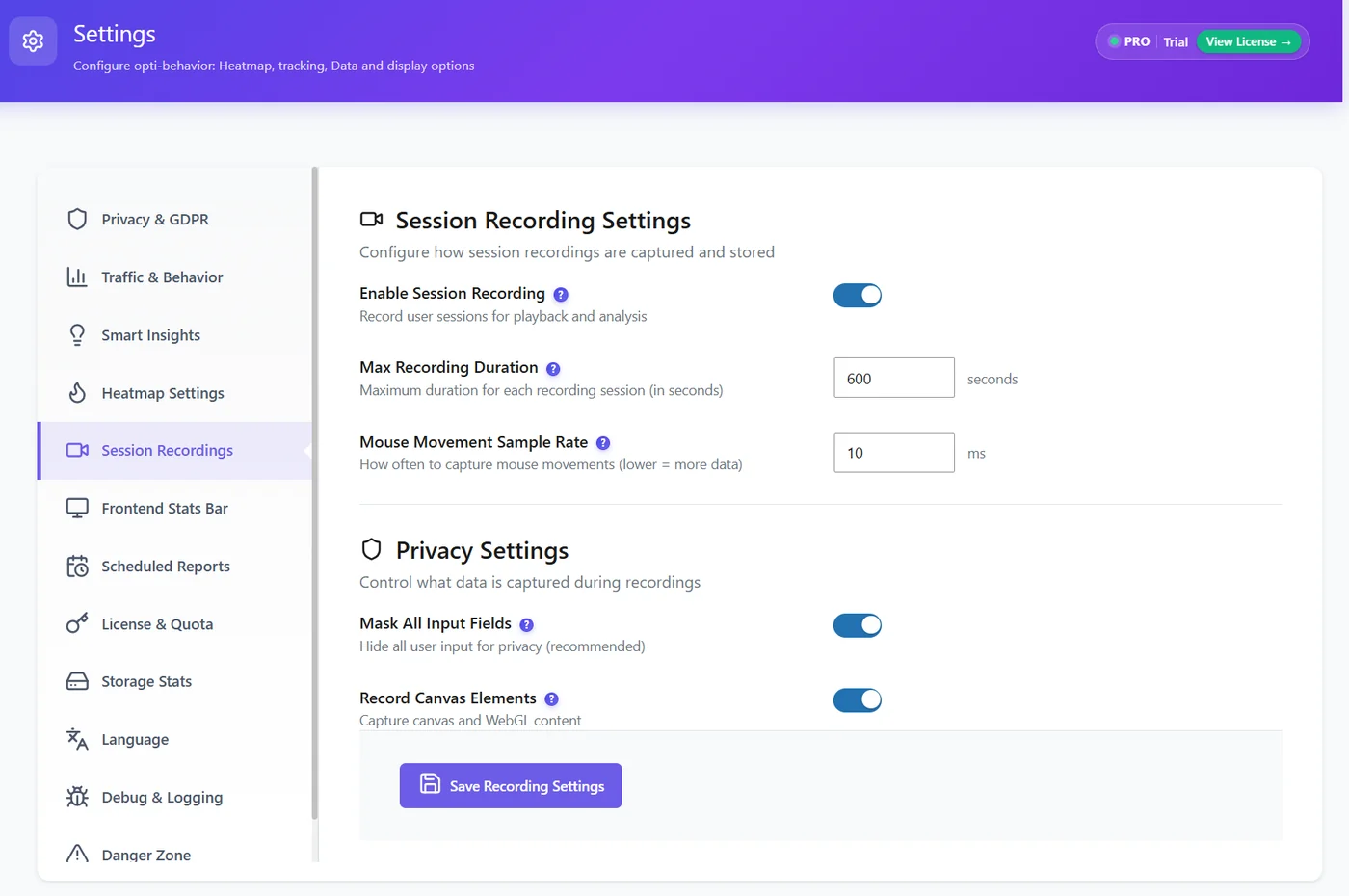
| Tab | What it controls | Read more |
|---|---|---|
| Privacy & GDPR | Anonymous Mode or Full Tracking, consent banner, cookie preferences shortcode | Privacy modes |
| Traffic & Behavior | Bots, automated traffic, spam thresholds, excluded IPs, admin tracking, user intent rules | Traffic classification settings |
| Smart Insights | Automatic generation, value of one conversion, notification launcher | Smart Insights settings |
| Heatmap | Tracking accuracy, archive pages, Ajax delay, drawing points, URL hashes | Heatmap settings reference |
| Session Recordings (Pro) | Recording on/off, duration, sampling, masking, canvas | Enabling recordings |
| Frontend Stats Bar | The admin-only stats bar on your pages | Frontend Stats Bar |
| Scheduled Reports | Email reports, SMTP, report worker | Scheduled email reports |
| License & Quota (Pro) | Licence key, trial, quotas | Managing your licence |
| Storage Stats | Database and file usage | Storage overview |
| Language | Language of the Opti-Behavior admin | Changing the admin language |
| Debug & Logging | Debug logs for support | Debug logging |
| Danger Zone | Full reset, delete by date, Smart Cleanup (retention), Auto Schedule (cleanup tasks), Uninstall | Danger Zone |
Where to start #
- Privacy & GDPR – choose your mode before collecting much data.
- Traffic & Behavior – exclude your office IP and decide whether admin visits count.
- Scheduled Reports – get a weekly summary by email.
- Leave the other tabs on their defaults until you have a reason to change them.
Expected result #
You know which tab holds which option. Each tab has its own Save button; unsaved changes are lost when you switch tabs.
FAQ #
Where are data retention and cleanup? #
In Danger Zone → Smart Cleanup and Auto Schedule – see Data retention and cleanup.
Who can change settings? #
Administrators (the manage_options capability).


