
Table of Contents
How to use it #
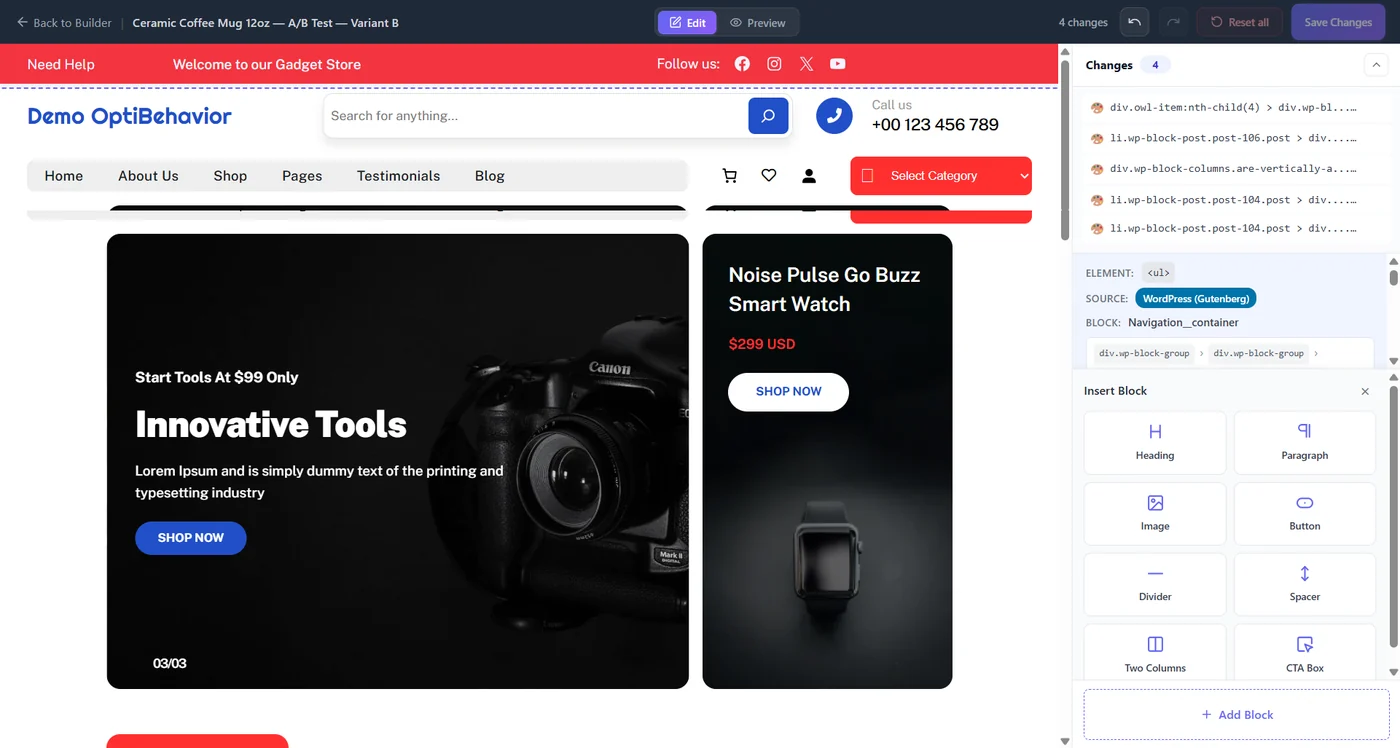
- In the wizard, step Variants, click Open Visual Editor on a variant.
- Click any element to select it: the panel shows its tag, its source (for example WordPress Gutenberg) and its block.
- Edit the text, style or visibility, or use Insert Block: heading, paragraph, image, button, divider, spacer, two columns, CTA box.
- Switch to Preview to see the variant as visitors will.
- Use undo, redo or Reset all; the counter shows your changes.
- Click Save Changes and go back to the builder.
Good test ideas #
- A clearer headline that states the benefit.
- A button that says what happens (“Get my free quote”).
- Social proof (reviews) next to the button.
- Removing a distraction above the fold.
More questions #
Can I add custom CSS? #
Use the style options of an element; complex redesigns are better as a Page Split test.
Do changes work on mobile? #
Yes, check them in Preview with a narrow window.
Expected result #
The variant thumbnail shows your changes, and visitors in that variant see them.
FAQ #
Does it work with Elementor or Divi pages? #
Yes, it edits the rendered page, whatever builder made it.
Is the original page changed? #
No, until you apply the winner permanently.


