
Table of Contents
The Download button saves exactly what you see: the page preview with the heatmap drawn on top, for the selected type, device, period and filters. It is the easiest way to share a finding without giving access to your WordPress admin.
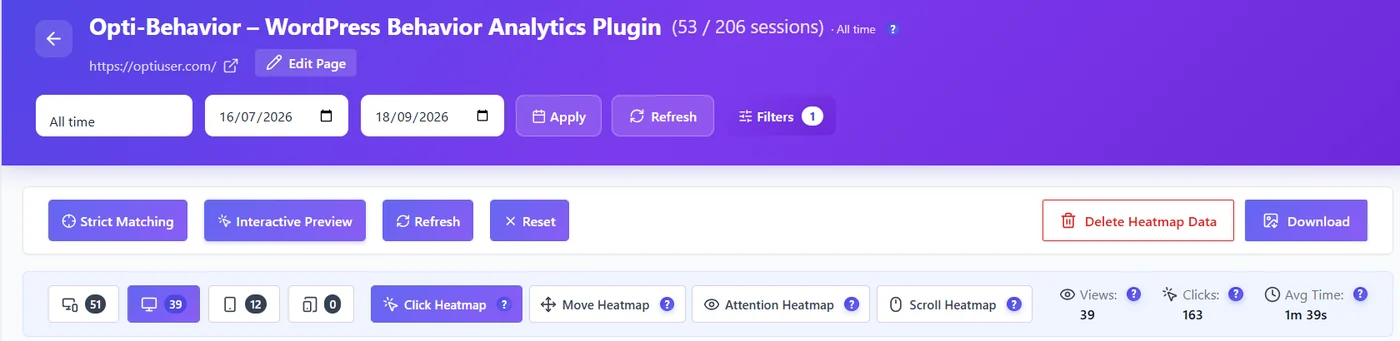
Steps #
- Open the heatmap in Opti-Behavior → Heatmaps.
- Set the type (Click, Move, Attention, Scroll), the device, the period and any filters.
- Wait until the heatmap has finished drawing (the Download button is disabled while it loads).
- Click Download. The image is generated in your browser and saved to your computer.
What the file contains #
| Item | Detail |
|---|---|
| Format | PNG |
| File name | page-slug-type-device-date.png, for example pricing-click-mobile-2026-09-26.png |
| Content | The page preview and the heatmap overlay as currently displayed |
| Privacy | No visitor data, only the aggregated overlay |
Tips for a useful image #
- Download desktop and mobile separately and put them side by side.
- Add the period and the number of views in your report – the image does not show them.
- For long pages, the Scroll heatmap (Pro) often tells the story in one picture.
Expected result #
A PNG named after the page, type, device and date appears in your downloads folder.
Troubleshooting #
- Blank or partial image – wait for the overlay to finish rendering, then download again.
- “Failed to generate image” – some external images or fonts on the page cannot be copied by the browser. Try again after scrolling to the top, or take a screenshot instead.
FAQ #
Can I download all heatmaps at once? #
No. Each download is one page, one type and one device.
Is the image generated on my server? #
No. It is generated by your browser, so it does not load your server.


