
Table of Contents
The Download button of the Traffic page exports what you see, for the selected period and filters.
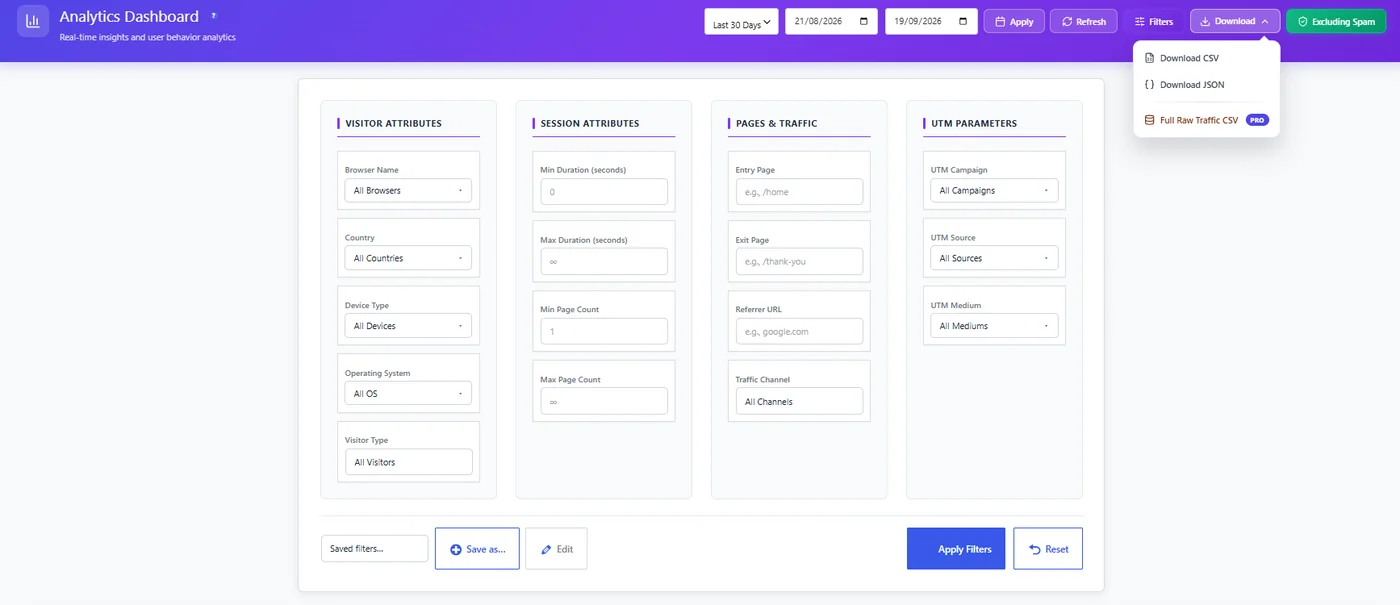
Export formats #
| Format | Contains | Best for |
|---|---|---|
| CSV | The dashboard figures and tables for the period | Excel, Google Sheets, monthly reports |
| JSON | The same data, structured | Developers, dashboards, automation |
| Full Raw Traffic CSV (Pro) | One row per session with its details | Your own analysis, a BI tool |
Steps #
- Open Opti-Behavior → Traffic.
- Pick the period and, if needed, filters; keep Excluding Spam as you want it.
- Click Download and choose the format.
- The file downloads to your computer.
Tips #
- Opening a CSV in Excel with accents? Use Data → From Text/CSV and choose UTF-8.
- For a recurring report, use Scheduled email reports instead of exporting by hand.
- Since 1.9.1 the export no longer leaves a temporary file on your server.
Expected result #
A CSV or JSON file with the numbers of the period appears in your downloads.
FAQ #
Does the export include personal data? #
In Anonymous Mode, no. In Full Tracking, the raw export (Pro) contains anonymous visitor IDs and locations; treat it as personal data under GDPR.
Can I export heatmaps? #
Heatmaps are exported as images – see Downloading a heatmap.


