
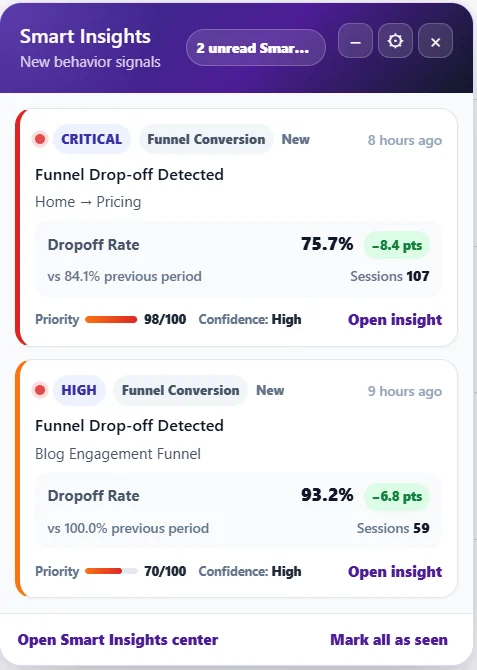
When new signals arrive, a small Insights launcher appears at the bottom right of WordPress admin pages, with a badge counting unread cards.
What it shows #
- Each unread card: severity, category, title, the key metric against the previous period, sessions, priority and confidence.
- Open insight – the card’s detail. Open Smart Insights center – the full page.
- Mark all as seen – clears the badge.
- The – button folds it into a compact side point; the gear opens its settings.
Settings #
In Settings → Smart Insights: enable it, choose the default behaviour (full, compact side point, only on Opti-Behavior pages), the priority threshold and the period. Each admin can also recover or reset their own launcher. See Smart Insights settings.
The menu colour #
The Smart Insights menu item pulses red when a Critical problem is open, yellow for High or Medium, green when nothing needs fixing.
Expected result #
You notice new problems without opening Smart Insights, and only at the level you chose.
FAQ #
It covers buttons on my screen. #
Fold it to the side, or show it only on Opti-Behavior pages. Since 1.9.2 it no longer covers the A/B test wizard buttons.
Do other users see it? #
Users who can manage Opti-Behavior; each has their own read state.


